Whether Google Drive or OneDrive is the better fit for your team depends on how your team works, stores files, and collaborates day to day.
We’re 37 minutes into a meeting when it becomes painfully clear: the spreadsheet we need is gone.
A former colleague presented the data just a few weeks ago. And we’re piecing it together: the file was probably stored on their computer. We check Slack, email, and every folder we can think of, hoping it turns up somewhere. Nothing.
It’s a frustrating moment, and it’s completely avoidable.
This is exactly the kind of problem that cloud storage solves.
Cloud storage provides teams with a single place to store, sync, and share files. Instead of documents being scattered across laptops, desktops, and old email attachments, everything lives in one place. When someone needs a file, anyone on the team can get to it right away.
Two of the most popular secure cloud storage platforms for businesses are Google Drive and OneDrive. Both help users store files, share documents, and stay connected, but they’re built around different ways of working.
A quick note on Microsoft’s setup: Microsoft 365 has two cloud storage tools: OneDrive and SharePoint. They work seamlessly together, but do serve different purposes. For the purpose of this article, we’ll refer to both as OneDrive.
Both solve the same core problem, but once a team settles into one ecosystem, the differences become much easier to notice.
Let’s look at where their business capabilities overlap and where they differ.
Before You Compare: Understanding How Each Setup Works
Cloud storage varies from platform to platform, and that’s especially true here.
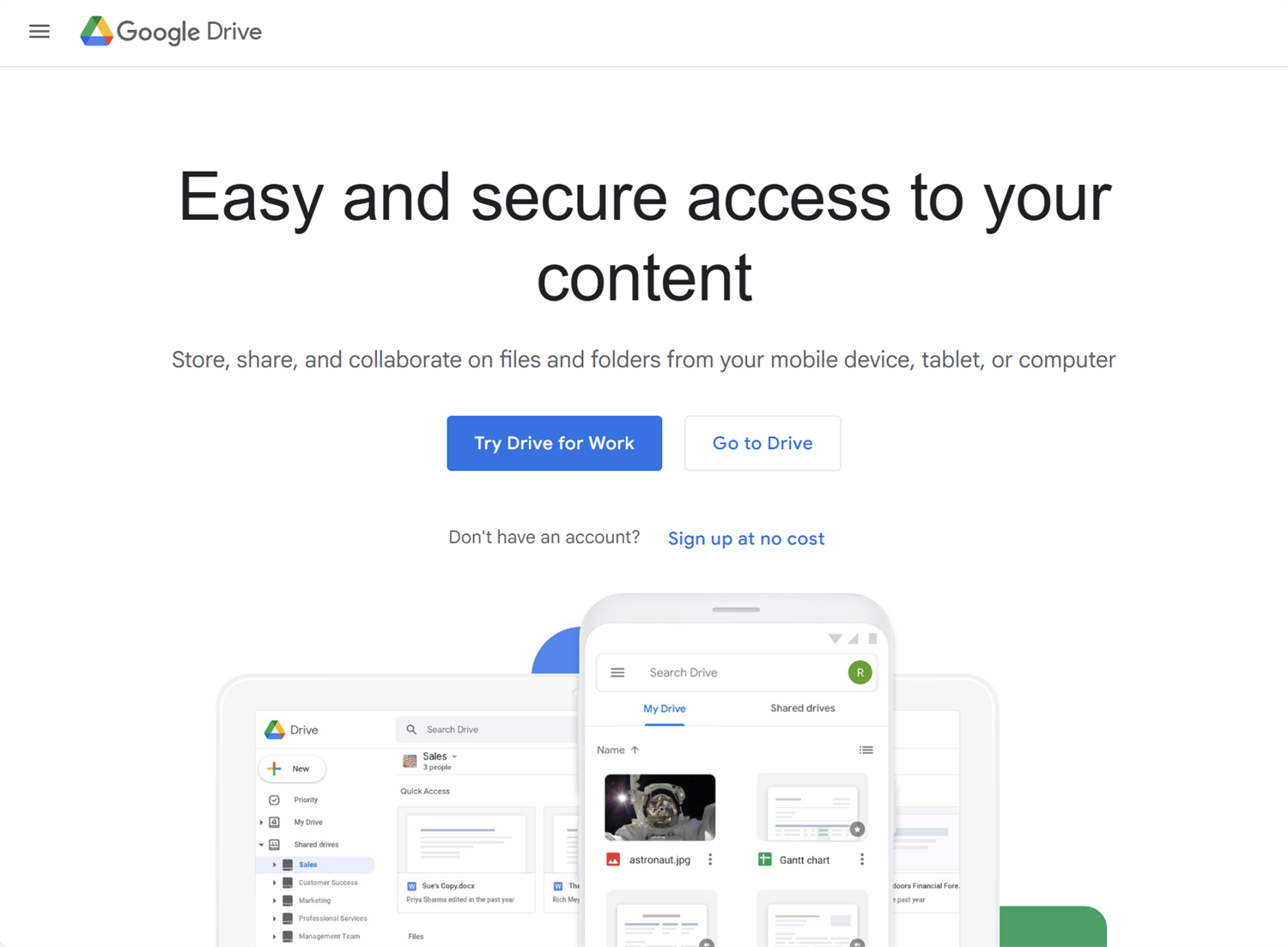
Google Drive is a single tool for both personal and team storage. One person can store their own files and create shared spaces for a whole team. Files stored in a shared drive belong to the team, so they stay accessible even when someone leaves. It works within the Google Workspace ecosystem for business use, alongside Google Docs, Sheets, Slides, and Gmail.
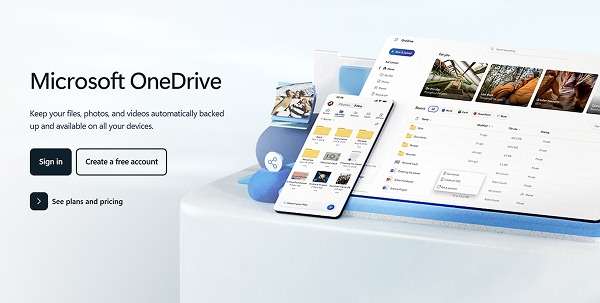
OneDrive and SharePoint are both part of Microsoft 365. OneDrive handles personal file storage with the option to share files, and SharePoint is shared team storage by default. With OneDrive, you can share files and folders with team members and securely store documents in the cloud. It works with Microsoft 365 tools, including Teams, Word, Excel, and PowerPoint.
This distinction matters. It shapes how files are organized, who owns them, and collaboration styles.
At-a-glance
| Google Drive | OneDrive | |
|---|---|---|
| Entry business plan | Business Starter | Business Basic |
| Pricing | $7 per user/month | $6 per user/month, paid yearly |
| Storage | 30 GB pooled storage per user (5 users = 150 GB storage) | 1 TB of storage per user |
| Free Plan | 15 GB per account | 5 GB per account |
| Security | ISO 270001, SOC 1 and 2 reports | ISO 27001, SOC 2 Type 2, Microsoft Purview |
| Offers HIPAA-Compliance | Yes | Yes |
| Document tools | Google Docs, Sheets, Slides | Words, Excel, PowerPoint |
| Offline access | Yes, with setup | Yes, with setup |
| Password-protected links | No | Yes |
| Link expiration | No | Yes |
| Mobile app | Yes | Yes |
| Best for | Browser-first, mixed tool teams | Microsoft-heavy, desktop-focused teams |
What Google Drive and OneDrive Have in Common
It helps to start with what both platforms do well—because there’s a lot of common ground.
Cloud-based storage
Google Drive and OneDrive give teams a central place to store files online. Instead of keeping files on a local computer, they are stored on web servers. When someone needs a file, anyone on the team can access it right away on the web. No more hunting through personal laptops or old email threads.
File sharing and collaboration
Both platforms let users share files with coworkers, clients, and external partners. Multiple people can view, edit, and comment on the same document at the same time. That keeps teams aligned and cuts down on version confusion.
Sync across devices
Many people use different devices throughout their workday. Google Drive and OneDrive keep files up to date across laptops, desktops, tablets, and phones. If you open a file on your computer in the morning and pick it up on your phone in the afternoon, you’re getting the same, up-to-date version.
Security and compliance
Like a locked filing cabinet, these platforms securely store your files and data. Both platforms meet widely recognized security standards, including ISO 27001 and SOC reports. Both also support HIPAA compliance for teams that need it.
Where Google Drive and OneDrive Differ
The biggest differences aren’t always obvious on paper. They show up in how each setup fits into everyday work.
Team file ownership
Google Drive makes team storage straightforward. Anyone can create a shared drive or folder and invite the whole team. Files live there and not in anyone’s personal storage. When someone leaves, the files in the shared drive stay.
OneDrive is individual by default. For team storage, it works alongside SharePoint in the background. Files can be moved into a shared team space or shared with people who need access.
Document editing
Opening a file looks different depending on which platform you’re on.
Google Drive opens files in Google Docs, Sheets, or Slides. Editing happens inside Google’s tools, right in the browser.
OneDrive opens files in Word, Excel, or PowerPoint. For teams already working in Microsoft tools, this feels familiar right away.
Browser vs. desktop experience
Google Drive is browser-first. Most people log in, upload, edit, and work from there. There is a Google Drive desktop app that automatically syncs and backs up files, but for the most part, it is widely recognized as a web-based cloud storage and collaboration platform.
OneDrive feels more like a natural part of the desktop experience for Windows and Microsoft users. Files sync directly to File Explorer, so working with OneDrive and SharePoint feels built in, rather than a platform to access.
Sharing permissions
Both platforms offer sharing controls, as mentioned earlier, but there are differences.
Google Drive offers basic access controls, such as changing the permissions and roles a person has.
OneDrive is more granular in permissions and access controls. Teams can set expiration dates and password protection for shared links.
Pricing and storage
Google Drive’s entry plan starts at $7 per user per month with 30 GB of pooled storage.
OneDrive’s entry plan starts at $6 per user per month and includes 1 TB of storage per user.
For smaller teams, pooled storage can stretch further than it sounds. If you have 5 teammates, you all share 150 GB of storage on the basic plan. For a larger team, per-user storage may give you a better deal.
How to Know Which One Fits Your Team
Both platforms are solid. The right choice usually comes down to how your team works and which tools you already use.
Google Drive might be the better fit if your team:
- Works primarily in a browser
- Uses a mix of non-Microsoft tools
- Collaborates heavily and needs quick, flexible file sharing
- Is starting new and wants a simple setup that scales
OneDrive might be the better fit if your team:
- Is already invested in Microsoft 365
- Works heavily in Word, Excel, or PowerPoint
- Uses Windows as the primary operating system
- Needs granular sharing permissions and advanced security controls
So Which One Should You Choose?
Google Drive and OneDrive are both strong, secure cloud storage solutions.
Each one gives businesses a solid way to store files, share documents, and support teamwork. The main differences usually come down to how people work and which tools they already use every day.
Choose Google Drive if your team works primarily in a browser, uses a mix of non-Microsoft tools, values fast and flexible collaboration, or is just getting started and wants a simple setup.
Choose OneDrive if your team is already invested in Microsoft 365, works heavily in Word and Excel, needs deep compliance and security integration, or wants storage that feels like a built-in part of a larger Windows environment.
Neither platform is the wrong choice for most businesses. The difference is really about fit for your team and use cases.

Miranda Peterson
Miranda is a Marketing Specialist at Cognito Forms who loves turning complex ideas into content that’s clear, helpful, and human. Outside of work, you can find Miranda enjoying local coffee shops, spending time in nature with her husband and two children, reading on her Kindle, or cooking for a group of friends.