Add a contact form, lead capture form, or service inquiry form to your Canva website in minutes. Simply copy your form’s Public Link and paste it directly into your Canva design.
Build Time & Skill
5-10 min
Beginner
What you'll learn
How to embed a custom online form into your Canva website or digital design. With Cognito Forms, you'll simply copy and paste your form's Public Link, with no embed code or coding required.
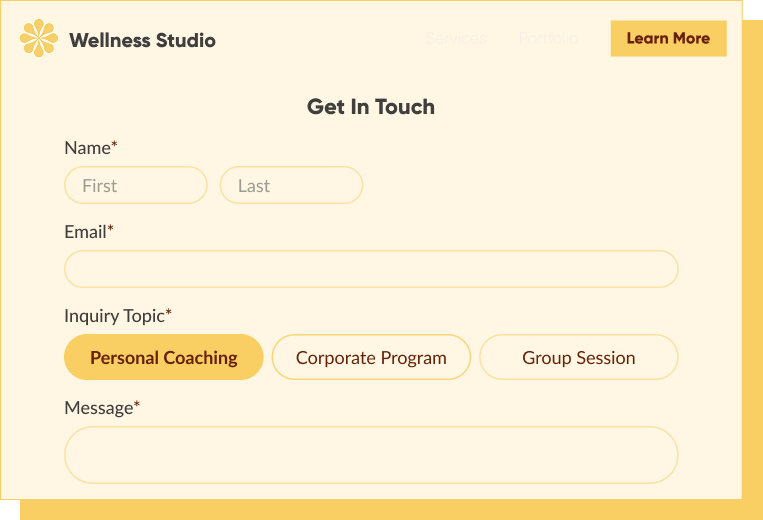
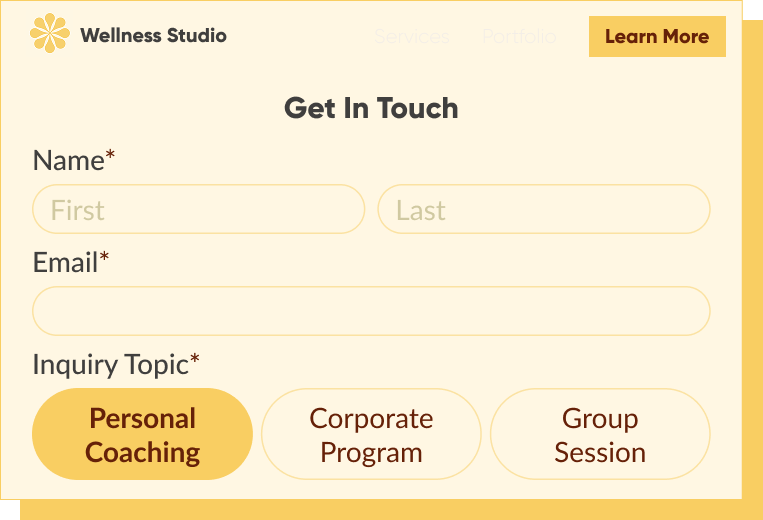
Canva makes it easy to design and publish professional websites and digital designs without writing a single line of code. With Cognito Forms, adding a fully functional form to any Canva website is just as simple. Instead of a code-based embed, Canva uses your form’s Public Link to pull the form directly into your design.
With Cognito Forms on your Canva site or design, you can:
- Collect the information your business actually needs. Go beyond basic fields and build forms that accept file uploads, collect payments, gather e-signatures, and route responses to the right person automatically.
- Turn submissions into action automatically. New responses can trigger confirmation emails, generate branded documents, and kick off follow-up workflows without any manual work on your end.
How to Add a Form on Your Canva Website or Design: Step-by-Step
Follow these three steps to get your form live on your Canva website or digital design. You’ll customize your form first, grab the Public Link, and then paste it directly into Canva.
Step 1: Configure how your form appears
Before finding your form’s embed code, take a second to configure how your embedded form looks. To access these settings, hover over the form name in the Cognito Forms sidebar and select Publish Form.

From the Form Styles tab on the Publish page, you adjust a few settings before your form goes live:
- Customize your form’s style: Change button colors, choose a new font style, add your logo, and more.
- Field styles: Controls the visual style of your form’s fields. Choose from several preset styles to find the one that best matches your Canva design’s look.
- Hide form header when embedded: Check this box to hide the logo, title, and description when your form is embedded. These elements will still appear when someone visits the form via a direct URL.
- Adjust embedded form margins: Set the margin around your embedded form anywhere between 0 and 80 pixels to control spacing within your design.
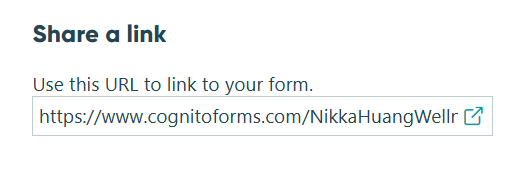
Step 2: Get your form’s public link
Once your form looks the way you want it, grab your Public Link from the Publish page:
- From the form’s Publish page, locate the Public Link.
- Click to copy the link to your clipboard.
Your Public Link is the direct URL to your form. This is what you’ll paste into Canva in the next step. It will look something like this: https://www.cognitoforms.com/YourOrg/YourFormName
Step 3: Add your form to Canva
Now that you’ve copied the form’s Public Link, you’re ready to add the form to your design.

Here’s how:
- Open your design in Canva.
- Paste your form’s link onto the page you want it displayed on.
- Most of the time, the form link defaults to the Embed display mode.
- If it doesn’t default, right-click on the URL, click the pencil icon, and change the Display mode to Embed.
Your form will now appear as an embedded element in your Canva design. Resize and position it on the page as needed, and Preview what the page will look like on your live site before publishing.
Your form updates automatically whenever you make changes in Cognito Forms. The Public Link always points to the current version of your form, so you don’t need to re-paste the link or update your design.
After Embedding: Get More Out of Your Form
Once your form is live on your Canva design, use Cognito Forms’ built-in tools to turn submissions into a complete, automated business process.
- Automate your follow-up with Workflow. Set up multi-step Workflows with task assignments for the right team member, automated approvals, and defined steps for submissions to flow through. This works well for requests or inquiries that require internal review before responding.
- Send confirmation and notification emails immediately after submission. You can automate confirmation emails for the customer or internal alerts to your team, personalized with information from the customer’s submission.
- Automatically generate documents from form submissions. Cognito Forms’ Document Generation creates PDFs or Word documents from submission data, no manual document preparation. This is useful for sending order summaries, quotes, service agreements, or invoices.
- Collect e-signatures directly in your form. Add a Signature field to collect legally binding electronic signatures for contracts, service agreements, or client onboarding documents, without sending files back and forth.
Add a Form to Your Canva Website Today
Getting a custom online form live on your Canva website takes just minutes with Cognito Forms. Copy your Public Link, paste it into Canva’s Embed widget, and your form is ready for your audience. From there, layer on automated emails, workflow automation, and payment collection to build a process that keeps running long after someone hits submit.
Get started in minutes with our fully customizable form templates.
-
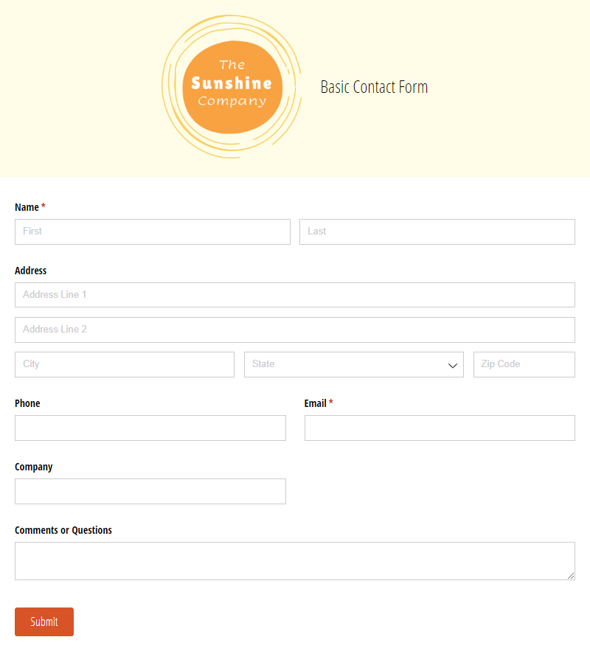
Basic Contact Form
Use our free contact form template to get notified whenever customers, sales leads, media representatives and others reach out online.
Preview -
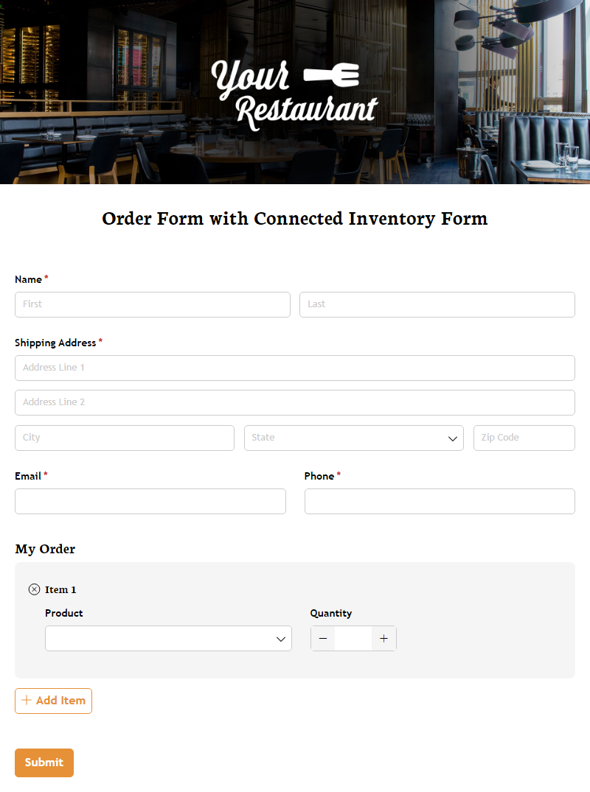
Order Form with Connected Inventory Form
Use our free product inventory form template to limit the number of times a specific product may be selected based on available quantity.
Preview -
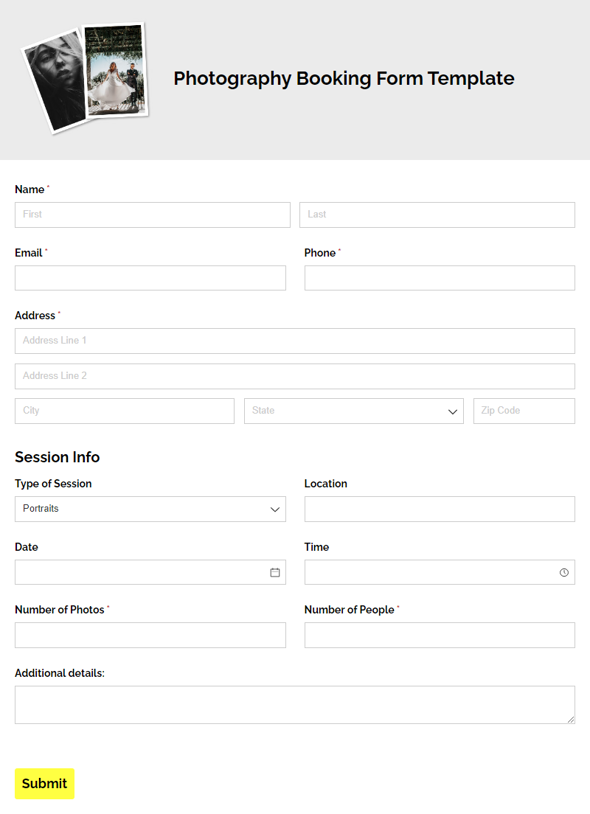
Photography Booking Form Template
Make booking clients easier with our free photography booking form. Collect important session details, including session type, date, location, and more.
Preview