Get instant Slack alerts the moment someone submits a form, right in the channel where your team already works.
Build Time & Skill
15 min
Intermediate
What you'll learn
How to build a Power Automate flow that posts a Slack notification to your team whenever a form entry is submitted.
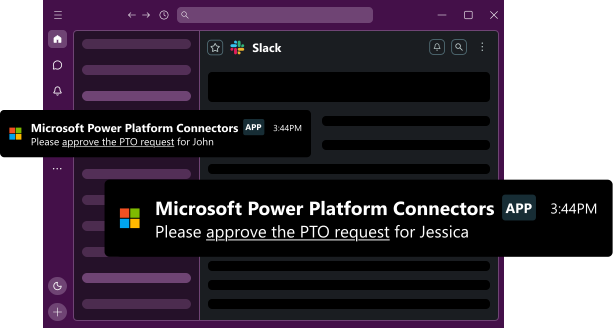
Email notifications work well for keeping a record of new submissions, but they compete with everything else sitting in an inbox. A new PTO request or service ticket can easily sit unread for hours, buried among other messages.
With Cognito Forms and Microsoft Power Automate, you can send that same information straight to Slack instead. Every time a form is submitted, your flow automatically posts a message to the channel where your team already works – putting the alert in front of people right away, without adding another email to sort through.
This setup is a strong fit for teams that:
- Need instant awareness of new requests. Approvals, sales leads, and support tickets get seen right away instead of sitting unnoticed in an inbox.
- Already run day-to-day communication through Slack. Notifications land where your team is already paying attention, instead of competing with email.
- Rely on fast handoffs between people. A manager, rep, or technician can act on a new submission within seconds of it coming in.
- Want visibility without giving everyone access to Cognito Forms. Team members see what they need in Slack without needing a login or Entries page access.
Step-by-Step Setup: How to Send Slack Notifications for New Submissions
These four steps walk you through building a Power Automate flow that posts a Slack message to your team every time someone submits a form.
Step 1: Create a new flow in Power Automate
Start by creating a new automated flow in Power Automate. This container holds all the steps your automation will run.
- Log in to Microsoft Power Automate.
- Click Create in the left-hand navigation and select Automated cloud flow.
- Give your flow a descriptive name, like “Notify Slack of New [Form Name] Submissions.”
- Search for Cognito Forms and choose a trigger event. In this example, we’ll select When an entry is created.
- If you’d rather send a notification only after an entry is updated (like after an approval or status change), select When an entry is updated as your trigger instead.

Step 2: Set up the Cognito Forms trigger
The trigger tells Power Automate which form to watch and what event should start the flow.
- In the trigger step, connect your Cognito Forms account if prompted.
- Select the form you want to receive notifications from. For example, you might choose a PTO request form so a manager gets notified whenever an employee submits one.

Step 3: Add the Slack Post message action
This step connects your flow to Slack and prepares it to post a message.
- Click + New step, search for Slack and select the Post message (V2) action.
- Sign in to your Slack account if prompted. If you haven’t already, connect the Microsoft Power Platform Connectors app to your Slack workspace.
- In the Channel Name field, enter the channel where you want to receive notifications. This can be a name (like #approvals) or an encoded channel ID.
- In the Message Text field, write the content of your notification using dynamic content from your form.
- For example, include a role-based workflow link inside angle brackets (
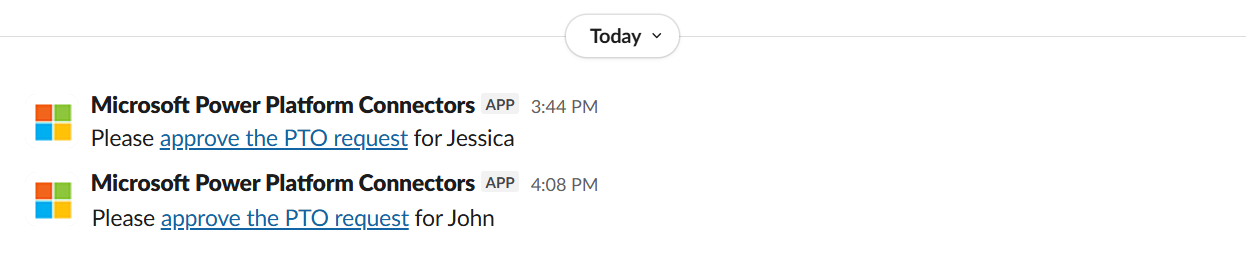
<>) to create a hyperlink so the manager can open the submitted PTO request directly from Slack. You can also include other relevant details, like the employee’s first name: "Please <WORKFLOW LINK| approve the PTO request> forEMPLOYEE NAME"
- For example, include a role-based workflow link inside angle brackets (

Step 4: Save and test your flow
Always test before relying on the flow for real submissions!
- Click Test in the top right corner of the flow editor and select Manually.
- Submit a test entry to your form in Cognito Forms.
- Check your Slack channel to confirm the message arrived with the correct content and link.
- If the message doesn’t appear, return to Power Automate and check the flow’s Run history to see which step didn’t complete as expected.

Now, your team receives a Slack notification the moment someone submits your form.
Real-World Examples
PTO and leave approvals
An HR team uses a PTO Request form to collect time-off requests from employees. Every submission triggers a Slack message to the employee’s manager, including a workflow link that opens the request for approval. Managers act on requests within minutes instead of finding them in an email inbox later.
Sales lead alerts
A marketing agency captures new leads through a contact form on their website. Each submission posts a message to the sales team’s Slack channel, so reps can follow up while interest is still fresh instead of waiting for a daily lead report.
Service request notifications
A facilities management company collects maintenance requests through a Service Request form. Every new submission alerts the support team’s Slack channel with the issue type and location, so a technician can be assigned right away instead of the request sitting unseen in the queue.
Additional Features to Explore
Once your Slack notifications are up and running, these features can make the integration even more useful:
- Route different form data to different channels. Add multiple actions to your flow so requests of a certain type, region, or priority level post to the channel that handles them, instead of sending every notification to one general channel.
- Notify on status changes instead of new submissions. Use the When an entry is updated trigger to alert the right people at the right stage of your process.
- Combine with email notifications. Keep Cognito Forms’ built-in email notifications for detailed records while using Slack for immediate, at-a-glance alerts – you don’t have to choose one or the other.
Start Getting Instant Notifications
Waiting on someone to check the Entries page slows everything down. With Cognito Forms and Power Automate connected to Slack, your team knows about new submissions the moment they happen, right where they’re already working.
Set up your flow once and let every future submission announce itself.
FAQ
Yes. Add multiple Slack Post message actions to your flow to route different form data to different channels. For example, send urgent requests to one channel and routine ones to another.
Power Automate logs every flow run, including failures, in the Run history. If a flow fails, open the failed run to see which step errored and why. Common causes include an expired Slack connection or an incorrect channel name. Once you fix the issue, you can resubmit the failed run without submitting a new form.
Yes. Power Automate integrations, including Slack notifications, require a paid plan. If you’re on the free Individual plan, you’ll need to upgrade before you can build this flow.