
Most accessibility problems on a form come from the same ten places. Here’s the pre-publish checklist your team can run through together in about an hour.
Your form is almost ready.
The fields are in.
Someone, probably legal or your manager, has dropped the phrase “we need to make sure this is ADA compliant” into a thread, and now it sits on the checklist next to “publish.” Accessible online forms are a team responsibility, and the good news is that most of the work happens during form build time, not during code review.
of the top one million home pages still ship with missing form input labels. After seven years of measurement, the form-label gap has barely moved.
Source: WebAIM Million 2025
This article is the pre-publish checklist your team can run through together, with each item tagged to the role that usually owns it. It also pulls apart the two things most coverage conflates: the ADA (the law) and WCAG (the standard).
What “ADA Compliance for Forms” Actually Means
The ADA and WCAG are not the same thing, and articles that treat them as synonyms make the whole topic harder to act on. Here is the working distinction:
- The Americans with Disabilities Act (1990) is a federal civil rights law. It says, in effect, that public accommodations must be accessible to people with disabilities. It does not contain a technical specification for websites. (ADA.gov web guidance)
- The Web Content Accessibility Guidelines (WCAG) are the W3C’s technical specification. Courts, the Department of Justice, and most engineering teams point at WCAG when they need a working definition of “accessible website.” (WCAG 2.2 Recommendation)
The version matters. WCAG 2.1 Level AA is the floor that the Department of Justice’s 2024 Title II rule formally adopts for state and local governments. WCAG 2.2 Level AA, published as a W3C Recommendation in October 2023, is the current best-practice bar for everyone else and is what most accessibility auditors will measure against in 2026.
Plain-English version: if your form meets WCAG 2.1 or 2.2 Level AA, you are inside the line that regulators, courts, and reasonable plaintiffs’ attorneys have been pointing at for years.
Why Accessible Forms Work Better for Everyone
The patterns that help a screen-reader user also help everyone else. A visible label sitting next to the field helps the person using assistive tech, and the person whose placeholder text vanished as soon as they started typing. Errors that announce themselves help the screen-reader user and the person filling the form out one-handed at a bus stop. A reliable focus indicator helps the keyboard-only user and the person whose mouse battery died.
Accessible forms also benefit:
- Voice-input users navigating fields by spoken label name.
- Anyone zooming to 200% on a small laptop screen.
- People with motor disabilities who need larger click targets.
- People on slow or flaky mobile connections, who benefit from save-and-resume and from short, well-organized forms.
Leading with usability is the right framing. Lawsuit exposure is real, but it is a side effect of forms that genuinely do not work. Fix the form, and the legal posture takes care of itself.
Title II: If You Run Forms for a Public Entity, There’s a Deadline
Hard deadline check. If your team runs forms for a state or local government, public school, library, or special district government, the April 2024 Title II rule sets a compliance deadline. The Department of Justice’s April 2026 Interim Final Rule extended the original dates. Current state:
- Public entities with population 50,000 or more: comply by April 26, 2027.
- Public entities with population under 50,000, or any special district government: comply by April 26, 2028.
The technical standard the rule adopts is WCAG 2.1 Level AA. Background, in plain English: ADA.gov Fact Sheet on the new web rule.
You may have seen older coverage pointing to an April 2026 deadline. That date was the original schedule and has been extended; check the Federal Register link above for the current version. If your work is federal-adjacent rather than state and local, our Section 508 compliant forms guide covers the federal cousin of the same conversation.
Ten Accessibility Surfaces Your Team Needs to Check
Most accessibility problems on forms come from the same ten places. The patterns below are what separate accessible online forms from forms that look fine on a designer’s monitor and break for the first screen-reader user who lands on them. Walk them in this order. Each section names the WCAG criterion in parentheses so anyone who needs to defend a decision has the anchor.
1. Visible labels on every field
Every input has a visible text label next to the field that stays visible while the user types. Placeholders are not labels: they disappear on type, they are not consistently read by assistive tech, and they fail people with cognitive disabilities who need the label to be there when they look back. (WCAG 3.3.2 Labels or Instructions; 1.3.1 Info and Relationships; 4.1.2 Name, Role, Value. Reference: W3C WAI Labeling Controls.)
2. Field instructions and helper text
Helper text – format hints, example values, character limits – is associated with the field programmatically, not just placed visually nearby. The right pattern is aria-describedby pointing at the helper text element so screen readers announce it with the field. (WCAG 3.3.2.)
3. Error identification and recovery
When something is wrong, the form does three things: announces the error so assistive tech can pick it up, points to the specific field, and explains how to fix it. “Phone must be 10 digits” beats “Invalid.” Filled-in values stay filled when the form returns with errors. (WCAG 3.3.1 Error Identification; 3.3.3 Error Suggestion; 3.3.4 Error Prevention.)
4. Keyboard navigation
Every interactive control is reachable with Tab and Shift+Tab, in the order the form is laid out visually, and there is no keyboard trap your user has to mouse out of. Custom widgets – date pickers, multi-selects, file pickers, signature pads – are the usual offenders. Test the form with the mouse unplugged. (WCAG 2.1.1 Keyboard.)
5. Focus order and visible focus
The element that has focus is visible. You can always see where you are. Setting outline: none without supplying a replacement focus style is one of the most common accessibility bugs in branded forms; the visual designer wants a clean look, the keyboard user gets lost. Pair :focus (or :focus-visible) with a clear ring. (WCAG 2.4.3 Focus Order; 2.4.7 Focus Visible.)
6. Color contrast
Text needs a contrast ratio of at least 4.5:1 against its background. Large text and meaningful UI components – field borders, focus rings, error indicators, the submit button – need at least 3:1. Designers, this is your gate. Run labels, helper text, error text, and button states through the WebAIM contrast checker. (WCAG 1.4.3 Contrast (Minimum); 1.4.11 Non-Text Contrast.)
7. Required-field cues that aren’t just color
A red asterisk alone is two failures stacked: it relies on color, and it relies on a symbol most assistive tech does not announce as “required.” Combine the asterisk with explicit “(required)” text, or set aria-required="true" on the input. Either works; one of them is required. (WCAG 1.4.1 Use of Color; 3.3.2.)
8. Timing and session timeouts
If your form session can time out, warn the user with at least 20 seconds to act and offer them a way to extend. Better: preserve their input through the timeout. For longer forms, save-and-resume is the gold standard. The W3C WAI Forms Tutorial covers this directly in its time limits note. (WCAG 2.2.1 Timing Adjustable.)
9. Accessible file upload patterns
The upload button announces as something meaningful – “Upload tax document,” not just a paperclip icon. Supported file types and size limits live in visible helper text before the upload, not only in an error after a failed attempt. After upload, the chosen file name is visible and announced. (WCAG 3.3.2; 4.1.2.)
10. Confirmation and error states after submission
When the form posts, the result is announced. A success screen that “appears” without a status announcement is invisible to a screen-reader user. Use role="status" (or aria-live="polite") for confirmations; role="alert" (or aria-live="assertive") for errors. Same rule for inline error summaries above the form. (WCAG 4.1.3 Status Messages; 3.3.1.)
The 10-Point Pre-Publish Checklist
Copy this into your project doc and check off each item before you publish. The Owner column names the role that usually owns the check on a small-to-mid team: content, design, dev, or ops.
| ☐ | Check | What to look for | WCAG | Owner |
|---|---|---|---|---|
| ☐ | Visible labels | Every field has a visible text label that stays visible while the user types. | 3.3.2, 1.3.1, 4.1.2 | Content + dev |
| ☐ | Helper text association | Helper text is programmatically associated with its field, not just placed nearby. | 3.3.2 | Content + dev |
| ☐ | Error identification and recovery | Errors are announced, point to the specific field, and explain how to fix the issue. | 3.3.1, 3.3.3, 3.3.4 | Content + design + dev |
| ☐ | Keyboard navigation | Every interactive control is reachable and operable with the keyboard. No traps. | 2.1.1 | Dev + ops |
| ☐ | Focus order and visible focus | The focused element is visible at every step, and tab order matches the visual layout. | 2.4.3, 2.4.7 | Design + dev |
| ☐ | Color contrast | Labels, helper text, field borders, focus rings, and buttons all meet contrast requirements. | 1.4.3, 1.4.11 | Design |
| ☐ | Required-field cues | Required fields are marked with more than color – paired with text or aria-required. |
1.4.1, 3.3.2 | Design + dev |
| ☐ | Timing and session timeouts | Session timeouts warn the user, allow extension, and try to preserve input. | 2.2.1 | Dev + content |
| ☐ | Accessible file uploads | File upload buttons announce meaningfully, and surface file-type and size limits up front. | 3.3.2, 4.1.2 | Design + dev + content |
| ☐ | Confirmation and error states | Confirmation and error states are announced to assistive tech, not only styled visually. | 4.1.3, 3.3.1 | Content + dev |
The 10-Minute Pre-Publish Test Ritual
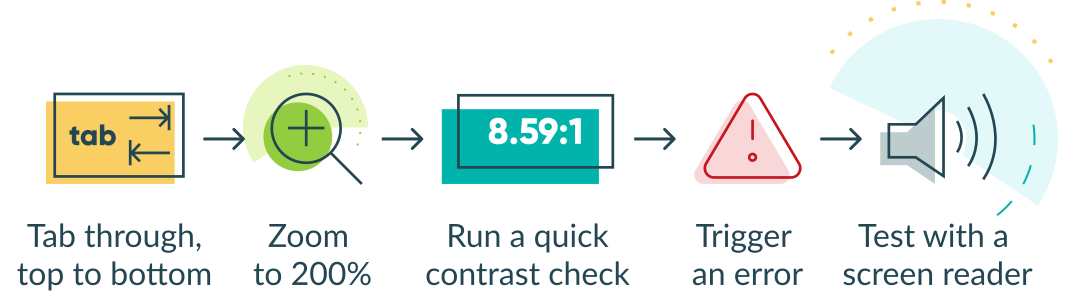
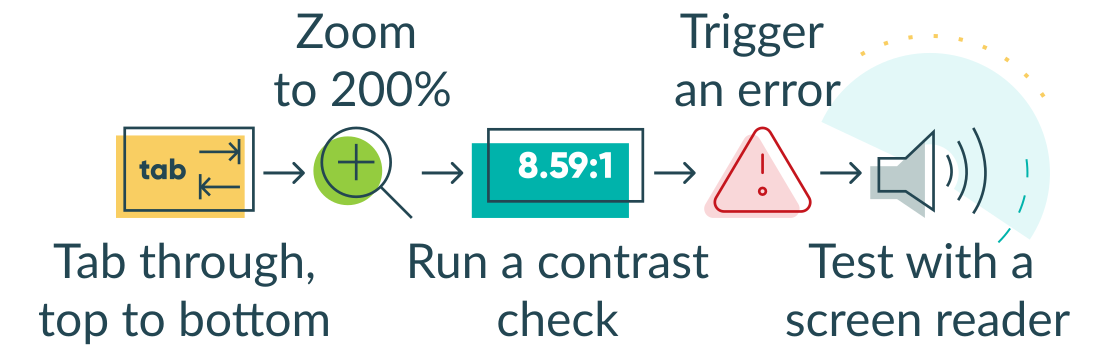
Once you have worked through the checklist, run this five-step checklist before you flip the form to public. Two team members, ten minutes.
- Tab through, top to bottom. Confirm every field is reachable. Confirm the focus indicator is visible at every step. Confirm you can submit using only Enter. If you get stuck inside a custom widget, that’s your keyboard trap.
- Zoom to 200%. In your browser, hit Cmd+ or Ctrl+ until you’re at 200%. Nothing should overlap, no labels should be cut off, and the layout should stay usable on a phone-width viewport.
- Run a quick contrast spot-check. Use the WebAIM contrast checker on labels, helper text, field borders, error text, and the submit button. Catch anything that drifted under 4.5:1 (or 3:1 for large text and UI components).
- Trigger a deliberate error. Submit with required fields blank. Confirm the error is announced, points at the specific field, and tells the user how to fix it. Confirm valid values stayed in place.
- Smoke test with a screen reader. Two minutes with VoiceOver (Mac: Cmd+F5) or NVDA (Windows: free download). Tab through the form. If you can’t fill it out by listening, your users can’t either.
Automated tools – axe DevTools, WAVE, Lighthouse – are useful as a second pass. None of them is sufficient on its own; about half of WCAG failures need a human to catch.
What Cognito Forms Handles vs. What Your Team Handles
A form builder gives you defaults. It does not make your content and design decisions. Here is the honest split.
What Cognito Forms gives you by default:
- Semantic
<label>elements bound to inputs. - Programmatic association between helper text, errors, and fields.
- Keyboard-accessible interactive controls and a logical tab order.
- A visible focus indicator on every field and button.
- Accessible required-field markers.
- ARIA attributes where they are the right tool, not where they aren’t.
- A responsive layout that works at 200% zoom and on small screens.
- Session-timeout policy on long forms: 30 days by default, 8 hours if an authenticated login is required, or 1 hour for HIPAA-enabled forms.
- An audit-ready accessibility documentation you can hand to a buyer or a procurement officer. See our Accessibility guide for the details.
What stays with your team:
- The actual label text. “First name” beats “Field 1.”
- Helper-text wording – clear, brief, written for the field’s purpose.
- Color choices in any embedded theme and in custom CSS.
- Save & Resume for long forms, so a session timeout doesn’t lose the respondent’s work.
- File-upload help text – supported types, size limits, what happens after upload.
- The 10-minute test ritual above. We can build accessible defaults; we can’t take the form for a test drive on your team’s behalf.
For a deeper tactical list, our 12 Tips for Making Your Website Forms More Accessible is a good next read.
Ship Accessible Forms With Your Team, Not in Spite of It
The work is real, but it’s not mysterious. The ADA-versus-WCAG distinction, the 10-item checklist, and the 10-minute test ritual cover the common ground. Your team’s job is to use them as a shared reference: each role owns a few items, the team owns the test pass together, and the form is genuinely better when it ships.
Cognito Forms provides your team with a strong accessibility default, so the time you spend on this goes toward content and testing rather than re-implementing labels.
Frequently Asked Questions
No. The ADA is the federal civil rights law that says public accommodations must be accessible to people with disabilities. WCAG is the W3C’s technical specification that courts, the DOJ, and most engineering teams use as the working definition of an accessible website. Different things; closely related in practice.
A form that any visitor can complete and submit, regardless of how they navigate the page – keyboard, screen reader, voice, zoom – without losing context, hitting unannounced errors, or being locked out by a required-field cue they can’t see.
Walk through the 10 surfaces above before you publish: labels, instructions, errors, keyboard, focus, contrast, required-field cues, timing, file upload, and confirmation states. Run the 10-minute pre-publish test ritual. Treat automated checkers as a second pass, not the only pass.
Google Forms ships with reasonable accessibility primitives – labeled fields, keyboard support, screen-reader compatibility – but the content decisions stay with you. Clear labels, helper text wording, contrast in any chosen theme, and post-submit confirmations are still your responsibility. The same answer applies to Microsoft Forms and most other survey tools.
PDF forms can be made accessible, but the work is significantly higher: tagged PDF structure, accessible form field properties, descriptive label text, a logical reading order, and ongoing remediation when the document is edited. If you have the choice, an accessible HTML form beats an accessible PDF in almost every case, including for screen-reader users, mobile users, and search visibility.

Amy Jussel
Amy, the Cognito Forms content marketing manager, is a strategic digital marketer that thrives in crafting innovative solutions to complex problems. Off-duty, you will find her nose in a book, woodworking on her endless DIY projects, or playing zookeeper to her family and faux farm.