Create personalized experiences for your customers after they submit your form. Set up personalized thank you messages, customize confirmation pages, and learn how to redirect customers to different pages based on their answers.
Build Time & Skill
10-15 min
Beginner
What you'll learn
How to show customers to different thank you pages or redirect them to different URLs based on their form response using conditional logic and easy-to-use Calculation fields (no code required).
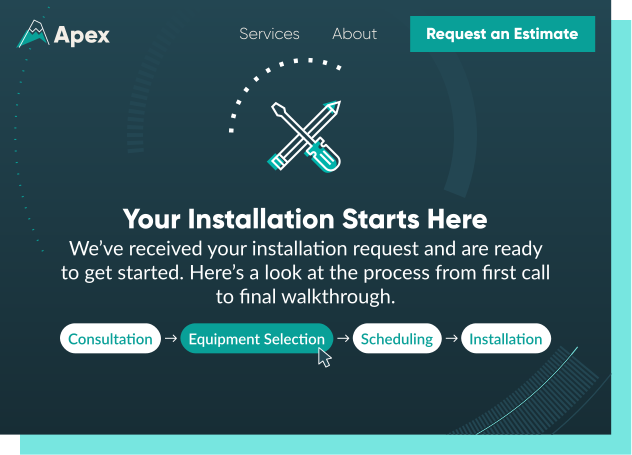
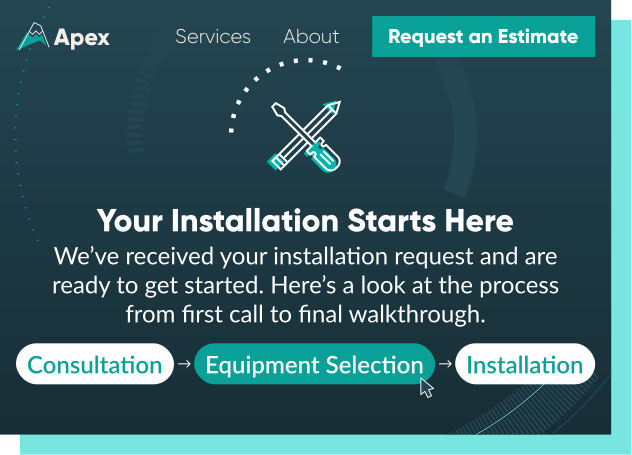
Most forms send every customer to the exact same thank you page. But when your form covers multiple services, locations, or customer types, a one-size-fits-all response is a missed opportunity. You can route each person to exactly the right place or show them the right message the moment they hit Submit.
In Cognito Forms, the message or page a customer sees after submitting is called a Confirmation Page. With a hidden Calculation field and simple conditional logic, you can customize what happens after submission for every customer (without writing a single line of code). Set it up once, and it works automatically for every submission from that point on.
Here’s why personalized confirmation pages are worth setting up:
- Send people to the right place based on what they selected. For example, qualified leads are sent to a self-service page, others to a “schedule a call” page, or different service paths to their own landing pages.
- Reduce follow-up questions. Give customers the specific next steps they need upfront, based on their answers.
- Create a professional experience that reflects well on your business from the very first interaction.
- Works across any form type, like service selections, lead qualifications, intake forms, registrations, satisfaction surveys, and more.
Understanding Your Two Confirmation Options
In Cognito Forms, you have two ways to control what customers see after submitting a form: a confirmation message displayed on-screen, or a redirect to a different web page. Both can be personalized based on form responses using conditional logic.
Both options live in your form’s Action Settings on the Build page. Here’s a quick breakdown of when to use each:
| Option | What It Does | Best For |
|---|---|---|
| Confirmation Message | Displays personalized text on screen after submission | Custom thank you text, next steps, and instructions based on their answers |
| Redirect URL | Sends the customer to a different web page entirely | Routing to landing pages, external sites, or other forms based on their selection |
| Option | What It Does | Best For |
|---|---|---|
| Confirmation Message | Displays personalized text on screen after submission | Custom thank you text, next steps, and instructions based on their answers |
| Redirect URL | Sends the customer to a different web page entirely | Routing to landing pages, external sites, or other forms based on their selection |
| Option | What It Does | Best For |
|---|---|---|
| Confirmation Message | Displays personalized text on screen after submission | Custom thank you text, next steps, and instructions based on their answers |
| Redirect URL | Sends the customer to a different web page entirely | Routing to landing pages, external sites, or other forms based on their selection |
Two Ways to Personalize Your Thank You Pages
You can personalize your confirmation page by showing different messages or redirecting to different URLs based on what someone selected on the form. Customize either option using the same core technique: a hidden Calculation field that evaluates what the customer selected and outputs the right message or URL automatically.
Method 1: Show a different confirmation message
Display a different on-screen thank you message based on what a customer selected in the form. A hidden Calculation field evaluates their answer and outputs the right message automatically, without any extra forms or pages.
This method works best when you want to keep customers on the same page after they submit the form and tailor the message to their situation. It’s ideal for service selection forms, intake forms, or any form where different customers need different next-step instructions.

First, set up the calculation.
- Open your form on the Build page.
- Add a Calculation field and give it an internal name like “Confirmation Message.”
- Set the Type to Text.
- Set Show This Field to Never to hide the Calculation field from customers.
- In the Calculation box, write an if/then expression that outputs a different message based on the customer’s answer. Reference the exact name of the field you’re basing the condition on.

Here’s an example of what your calculation could look like:
= if (ServiceType = "Consultation" then "Thanks for booking a consultation! We'll be in touch within 24 hours to confirm your appointment.")
else if (ServiceType = "Support Request" then "Your support request has been received. Expect a response within one business day.")
else if (ServiceType = "General Inquiry" then "Thanks for reaching out! Someone from our team will get back to you shortly.")
else null
Then, set up the confirmation page.
- Navigate to Workflow > Actions and open your Submit action.
- Click into the Message field. A formatting toolbar will appear.
- Click Insert Field and select your Calculation field from the list.
- Insert other fields and also use static text to set up fully personalized messages. For example:
Hi [Name.First], [Confirmation Message Calculation]
- Insert other fields and also use static text to set up fully personalized messages. For example:
- A blue token appears in the message box. This token displays the correct message for each customer based on their answer.
- Always Save your changes before leaving the page.

Common uses
- Patient intake forms: Patients scheduling appointments at different locations receive a message with general directions and parking information relevant to their clinic’s location.
- Service-based businesses: A customer selects “HVAC Repair” vs. “New Installation” and automatically receives a message with preparation steps specific to their service type.
- Event registrations: Attendees select an add-on breakout session and instantly see a confirmation with the timing, location, and resources specific to their track.
Method 2: Redirect customers to a specific URL
Send customers to different web pages based on what they select on your form. A hidden Calculation field evaluates their answer and outputs the correct URL automatically, redirecting them to the right destination as soon as they submit.
This method works best when different customer paths require entirely different pages. Think separate landing pages for different services, routing qualified leads to a self-service page while others go to a scheduling page, or sending high-satisfaction customers straight to your Google review page.

First, set up the calculation.
- Open your form on the Build page.
- Add a Calculation field and give it an internal name like “Redirect URL.”
- Set the Type to Text.
- Set Show This Field to For Roles > Internal to hide the field from customers.
- In the Calculation textbox, write an if/then expression where each condition outputs a full URL, based on the service selected on the form.

Here’s an example of what your calculation could look like:
= if (ServiceType = "Repair" then "https://www.yourwebsite.com/repairs")
else if (ServiceType = "Installation" then "https://www.yourwebsite.com/installations")
else if (ServiceType = "Emergency" then "https://www.yourwebsite.com/emergencies")
else null
Then, set up your redirects.
- Navigate to Workflow > Actions and open your Submit Action.
- Toggle Redirect on under the Confirmation section.
- Click into the URL field, then click Insert Field and select your Redirect URL Calculation field.
- Always Save your changes before leaving the page.

Common uses
- Lead qualification routing: A contact form asks visitors about their business size and needs, then uses hidden calculations to automatically score and qualify the lead. Qualified leads are redirected to a self-service product page, while others are sent to a “schedule a call” page.
- Multi-service businesses: A cleaning company routes residential customers to a booking confirmation page and commercial customers to an account setup page, each with the right next steps for their situation.
- Satisfaction survey routing: A post-service survey asks customers to rate their experience. Anyone who selects a 9 or 10 is redirected to your Google review page, while others are sent to your support page so they can get help from a representative.
More Ways to Personalize the Post-Submission Experience
Once you have conditional confirmations in place, these additional features help you build an even richer thank you page that runs automatically for every submission:
- Turn your confirmation into a personalized message. Use the Insert Field option to pull in details a customer submitted on the form (such as their name, appointment time, order details, or any other field value).
- Let customers return to edit their submission. Set up automatic confirmation emails and include a Workflow Link so customers can access and update exactly what they need.
- Instantly generate polished documents with form details. Use Custom Document Generation to turn form responses into professional PDF or Word documents that are branded and accurate. Then, display a download link for the document directly on the form’s confirmation page.
Start Personalizing Your Thank You Pages Today
A generic “thanks for submitting” message is a missed opportunity to guide customers and build trust from the start. With a single hidden Calculation field, you can direct each person to the right message or page based on their responses. Set it up once, and every customer gets the tailored experience they deserve.
FAQ
Yes. The same technique works with Yes/No fields, text fields, or any other field type. In your Calculation field, reference the Yes/No field name directly. For example: = if AgreeToTerms = true then "Thanks for confirming..." else "Please review our terms to continue." Any field with a defined value can drive conditional confirmation logic.
Yes. Confirmation settings are available on any Action you’ve configured, such as Submit, Update, or any custom Action you’ve created. Open the Action in Workflow > Actions and you’ll find the same Message and Redirect options available to personalize for that specific Action.
Yes, with custom email notifications so you can send each person the information relevant to their situation straight to their inbox. Using Conditional Logic, you can send different emails based on form selections, Workflow Status, or any criteria you define. Learn more about how to send conditional email notifications.