Easily integrate with third-party applications and put your forms to work.
Managing integrations
Manage your integration settings and billing from your organization’s settings page. Here, you can configure third-party integrations by adjusting access permissions, editing integration details, and viewing connected forms. Learn more about managing integrations.
Automation integrations
Cognito Forms API
The Cognito Forms REST API allows you to integrate your existing systems with Cognito Forms without third-party tools. The API allows you to programmatically interact with your organization’s forms and entries. To get started, check out our help guide.
Address Autocomplete
Integrate your forms with Google Maps to automatically suggest addresses as users start typing. To use this feature, you must provide your own Google Maps API key. To get started, check out our help guide.
Make
Make is a visual platform that lets you design, build, and automate anything – from simple tasks to complex workflows – in minutes. It’s fast and easy to use, visually intuitive, and requires zero coding expertise. If you want to use Make to integrate your Cognito Forms with your most used apps, get started now.
Microsoft Power Automate
Microsoft Power Automate is a product to help you set up automated workflows between your favorite apps and services to synchronize files, get notifications, collect data, and more. Using Power Automate, you can connect your Cognito Forms to services like SharePoint, Office 365 Outlook, and OneDrive. If you’re interested in using Power Automate to automate your business processes and create advanced workflows, learn how to get started.
Zapier
Zapier connects the web apps you use to easily move your data and automate tedious tasks. Zapier supports over 2,000 apps including Salesforce, Google Drive, MailChimp, OneDrive, SugarCRM, Trello, QuickBooks, and DropBox. If you are ready to use Zapier to automate and integrate your Cognito Forms, get started now.
Webhooks
If you know what JSON is, you’re in the right place! Use our Post JSON data feature to programmatically incorporate your form entry data into another website or application. This feature will send your entry data in JSON format to the URL that you specify. Want to know more about how to get this started? Check out our help guide.
FAQ
Each plan level includes the following number of API requests per month:
- Pro plan - 2,000/month
- Team plan - 10,000/month
- Enterprise plan - 100,000/month
These charges (if applicable) will appear on your organization’s monthly invoice. If you exceed the number of included monthly requests, you’ll be charged $20 per bucket of 100,000 requests. You can monitor your integration usage on your organization’s settings page.
Please note that large requests (over 100KB) are counted as multiple requests. For example, a 150KB request will count as two requests and a 400KB request will count as four requests. For Microsoft Power Automate connections created before April 8, 2024, you can stop sending file data and/or signature data to decrease request sizes.
In Cognito Forms, you can prefill form fields from other forms or from other pre-defined content. Prefilling form fields makes it easy to track UTM parameters alongside user entries.
This example script will fill forms on your site with fields named “UTM Source”, “UTM Medium”, etc. with the appropriate UTM parameters from your site’s URL.
<script>
var urlParams = new URLSearchParams(window.location.search);

var utm_params = {
  "UTMSource": urlParams.get('utm_source'),
  "UTMMedium": urlParams.get('utm_medium'),
  "UTMCampaign": urlParams.get('utm_campaign'),
  "UTMTerm": urlParams.get('utm_term'),
  "UTMContent": urlParams.get('utm_content'),
};

Cognito.prefill(utm_params);
</script>
Learn more about prefilling forms.
If you need further assistance setting up your prefill code, please contact our support team.
Yes! The Cognito Forms REST API allows you to integrate your existing systems with Cognito Forms without third-party tools.
Learn more about the Cognito Forms API.
If you’ve embedded the same form on multiple pages or websites, you can use the prefill option to determine where each entry was submitted from.
To find out the submission page/site of origin for a specific entry:
-
Open your form in the builder.
-
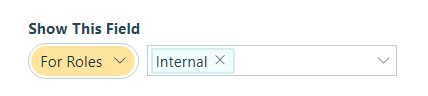
Add a Textbox field to your form. Set Show This Field – For Roles to Internal, and label the field something like ‘Website Url’ or ‘Page Url’.
-
Make sure to save your changes.
-
Copy your form’s Seamless embed code (located in the Publish Code section on the Publish page). Paste the code into your webpage’s HTML.
-
Underneath the Seamless embed code, add a script to include your prefill information. Include the name of your Textbox field and the specific URL of the site or page where your form is embedded:
<script>Cognito.prefill({"WebsiteUrl":"https://www.cognitoforms.com/"});</script>
Now, this prefill code will automatically prefill the hidden Textbox field on your form. You can then view the page or site of origin for each entry on the Entries page.
You can also prefill fields with data entered into another form by using the Lookup field.
In Cognito Forms, you can prefill form fields from other forms or from other pre-defined content.
To prefill form fields with data from a different form:
- Open the form with the data you want to use for prefilling (“Form A”).
- Go to the Workflow menu in the builder and select the Submit action (or whichever action completes the workflow).
- Under Confirmation, select Redirect.
- Copy the public link of the form you want to prefill (“Form B”) and paste it into Form A’s Redirect section.
- At the end of the URL, insert
?entry=followed by curly brackets, for example:https://cognitoforms.com/YourOrg/Form2?entry={} - In between the curly brackets, specify the form fields you want to prefill and use the Insert Field option to directly insert the field value tokens into the URL.
- Save your changes.
Learn more about prefilling forms.
You can also prefill the choices in dropdowns with data entered into another form using our Lookup field.