The Lookup field is like a Choice field – but with superpowers. It can be displayed as a dropdown, radio buttons, or checkboxes, but its choices come from entries in another form. You can also use the data from the selected entry in calculations, conditional logic, form content, and emails. The possibilities are endless!
How does it work?
Using a Lookup field involves at least two forms: 1) the form that contains the Lookup field, and 2) the form whose entry data you want to reference.
For example, say you’re building an adoption application for a dog shelter, and you want to include a dropdown that lists every dog currently available. Rather than updating that list manually each time a dog arrives or is adopted, you can add a Lookup field and connect it to a pet profile form. As you add or remove entries from the pet profile form, the dropdown updates automatically.
You can add Lookup fields to as many forms as you need, such as a foster application or a vet visit log, and connect them all to the same pet profile form, so every form stays up to date from a single source.
Here’s what that looks like.
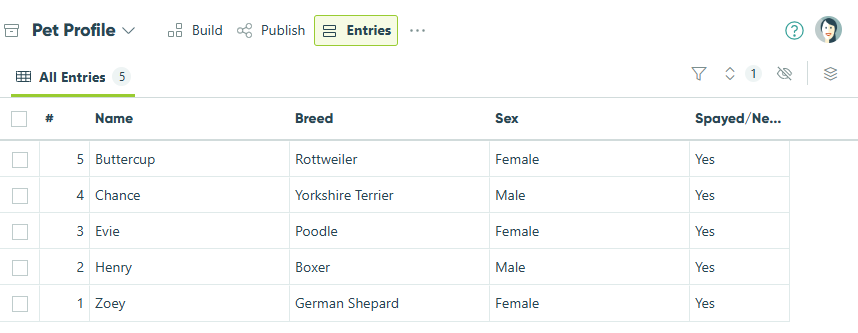
These are entries in the pet profile form, completed when each dog arrives at the shelter:
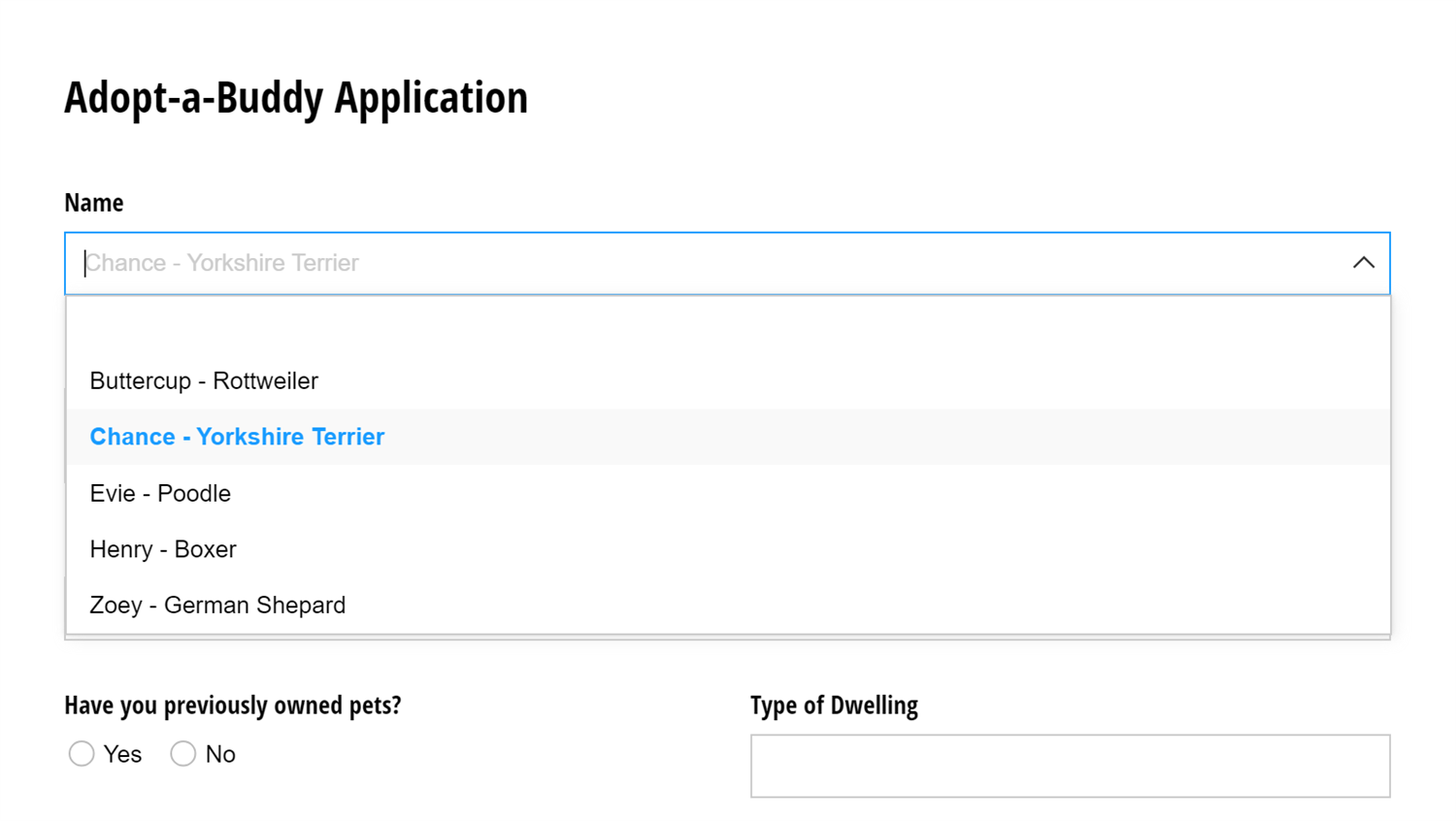
The Lookup field in the adoption application populates its dropdown with data from the pet profile form, such as each dog’s name and breed:
Getting started
Click the form title to access forms connected via the Lookup field or Person field.
First, you need to make your source form. To begin:
- Make a new form from scratch.
- Add a few fields to your new form. In this example, we’ll use a Name field.
- Save your form.
- Go to the form entry view and fill out a couple of test entries.
Now, it’s time to build the form that references the source form:
- Again, make a new form from scratch.
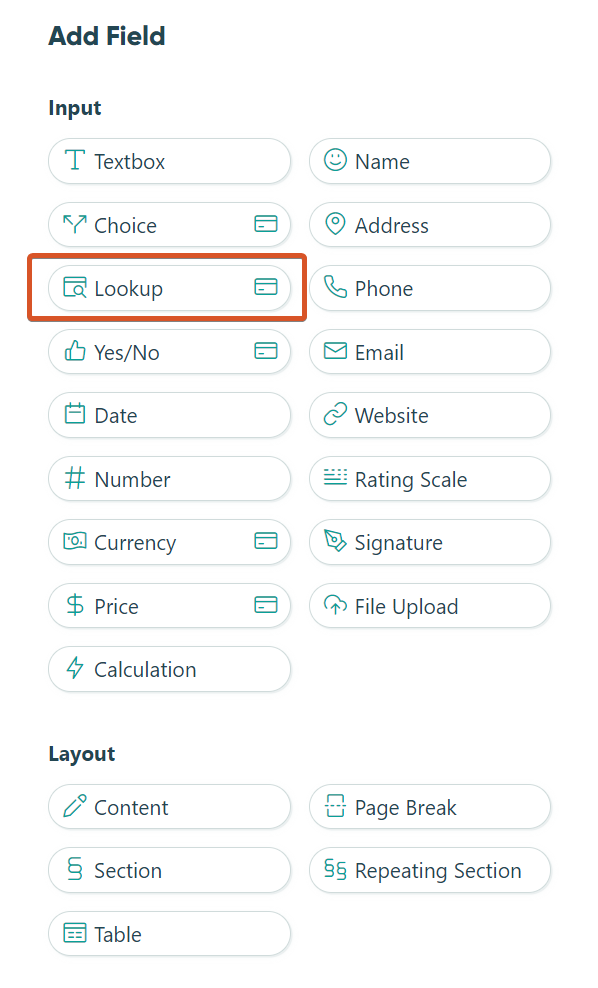
- In the form builder, click on an empty placeholder to add a new field. Select Lookup from the Add Field menu. Label the Lookup field ‘Name’, and set it to either the dropdown, radio buttons, or checkboxes type.
- In the Lookup field settings, find the Lookup Choices From option and select the source form.
- By default, the Choice Label option should populate with the first text field from the source form – in this case, the Name field. If the Name field is not already populated, simply insert it from the dropdown list of fields.
- Save and then open up your form. The Lookup field (‘Name’) should contain a list of names from the entries of your source form.
Refer to our help topic for more information about the Lookup field settings.
How do I use it?
The Lookup field comes in handy in lots of different scenarios. You can use Lookup fields to:
- Create a list of choices to reuse across multiple forms
- Look up email addresses to route confirmation messages
- Write calculations that use data from lookup entries
- Capture lookup values on your form
- Set smart defaults for your fields
- Create a product catalog with limited inventory
- Hide inactive options by filtering your choices
- Filter lookup choices by date
- Filter choices on your form using cascading lookups
- Calculate sales tax based on the Address field
To reference a value from a Lookup field in a calculation, enter the Lookup field name, followed by a period (.), and then the field name from the source form (for example: LookupField.Name.First).
Because a Lookup field gives you access to all fields from the source form, you typically don’t need to connect more than one Lookup field to the same form.
Linked Lookups
Linked Lookups allow you to connect related entries across forms. They’re useful when you need to establish relationships between records and display or reference data from one form inside another.
People Lookups
People Lookups let you manage a centralized list of people (such as employees, clients, or volunteers) and use it across multiple forms. This makes it easy to assign tasks, route notifications, and automatically pull in relevant details like email, department, or role.
Frequently Asked Questions
- Can I hide choice options in a Choice field?
- How do I use templates with Lookup fields?
- Can I share connected Lookup forms as templates?
- Can I create a product inventory with limited quantities?
- Can I lookup data from repeating sections or tables?