The Cognito Forms MCP Connector lets you create forms and manage entries using AI apps like Claude, ChatGPT, and more. Just describe what you need in plain language, and your AI assistant handles the rest.
Use the MCP Connector to:
- Create forms from a description
- View and search form entries
- Create and update submissions
- Retrieve files and documents
- Manage form availability
All actions run through the Cognito Forms API, so your existing validation rules and permissions still apply.
What is MCP?
MCP (Model Context Protocol) is an open standard for connecting AI apps to external tools and services. With the Cognito Forms MCP Connector, AI apps can securely interact with your Cognito Forms organization on your behalf.
Setting up the connector
To set up the connector, you must be an Administrator in your Cognito Forms organization. You’ll also need a paid account in your AI app of choice (requirements vary by app).
The easiest way to connect is to find Cognito Forms in your AI app’s connector or app store listing and follow the prompts from there. You can also set up the connector manually using the steps below.
The setup steps vary by AI app. Check the links below for app-specific instructions, as these services update frequently.
In general, you’ll need to:
-
Add a custom connector in your AI app.
-
Use the Cognito Forms server URL:
https://mcp.cognitoforms.com/mcp -
Set the OAuth Client ID:
366c9904-def2-451a-af2f-8e08d751088c -
Log in to your Cognito Forms account.
-
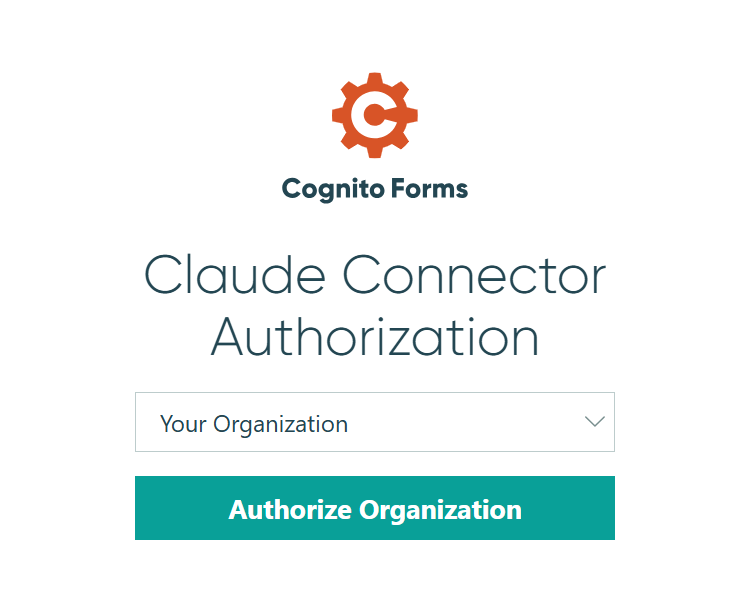
Select the organization you want to connect and click Authorize Organization.
-
Select the AI model you’re using.
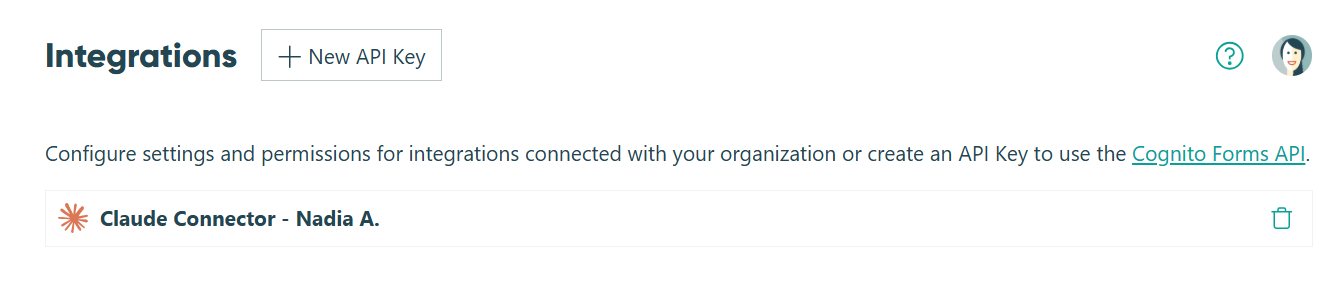
Each connection is tied to your individual user account and will appear in the Integrations section of your Organization Settings. Learn more about managing integrations.
Changes made through the connector, such as updating an entry or changing form availability, are recorded in the organization audit log. Changes to individual entries are recorded in the entry audit log and will include the user who triggered the change. Read-only actions, such as viewing forms or retrieving entries, are not logged.
What the connector can do
Once connected, you can ask your AI app to perform actions on your forms and entries.
Supported actions
- Generate Form – Generates a new form based on a natural language description.
- Create Entry – Creates a new form entry.
- Update Entry – Updates an existing form entry (excluding entries with a status of Incomplete or a payment status of Paid).
- Delete Entry – Deletes a specified entry.
- Get Entry – Retrieves a specified entry.
- Get Form Entries – Retrieves entries from a form using a specific entry view.
- Get Document – Retrieves documents generated by Cognito Forms, such as custom documents and free standard documents.
- Get File – Retrieves files that have been uploaded to your forms via the File Upload field as well as electronic signatures.
- Set Form Availability – Sets the availability of a form.
The connector cannot:
- Import entry data or upload files.
- Create or manage entry views.
- Perform any action not available through the Cognito Forms API.
Analyzing your entry data
For large datasets, data is retrieved in batches, so queries across many entries may take a moment to complete.
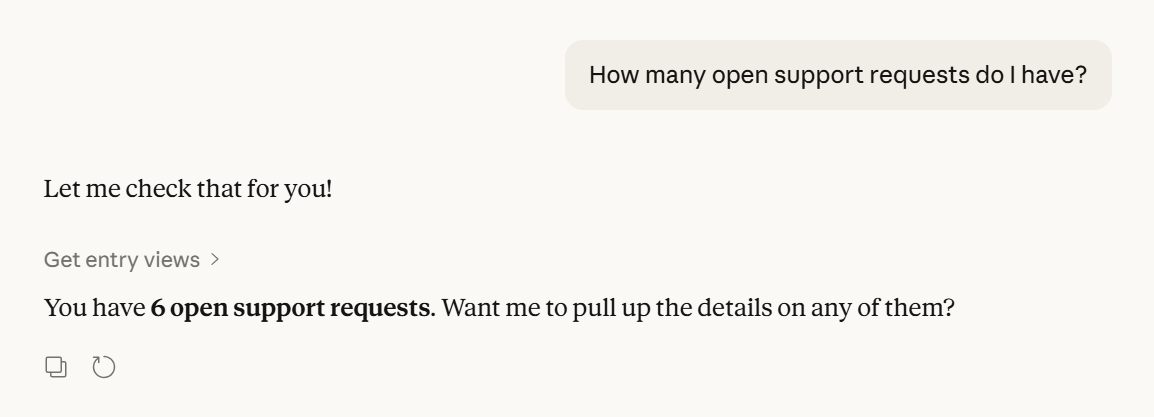
The connector can do more than look up individual records – it can analyze data across an entire form to answer questions about your entries as a whole. This is the easiest way to get quick answers from your entry data without exporting or building a report.
Results are based on the entry view you specify, so make sure your view is configured in Cognito Forms with the right filters, fields, and date ranges before running your query. Learn more about creating entry views.
Example prompts
When looking up a specific entry, including the entry number will make the search faster and more accurate. The connector works best when it has specific details to go on.
Build Forms
- “Create a new client intake form with fields for contact information, case type, and a file upload for supporting documents.”
Read
- “Show me the last 5 entries on my New Client Intake form.”
Write
- “Create a new entry in the Employee Onboarding form for Sarah Chen. She starts Monday in the Austin office.”
- “Find entry 47 on the Contractor Agreement form and update the Status field to ‘Signed.’ Add a note that the executed copy was returned via email.”
Files & Documents
- “Download the file attached to entry 11 on the Proof of Insurance form.”
- “Download the invoice document for the latest submission on the Fall Enrollment form.”
Form Management
- “Close my Spring Workshop Registration form on March 10 at 5:00 PM Eastern Time and set the message to ‘Registration is now closed.’”
Analysis
- “How many PTO requests are currently pending?”
- “What percentage of leads came from the Northeast this quarter?”
- “How many support requests were submitted last week?”
Troubleshooting tips
My organization is connected, but I can’t see my forms or entries.
- Confirm the form belongs to the organization you connected during setup.
- Confirm you have Administrator permissions on the form you want to access.
I’m not seeing my organization after connecting.
- You may have selected the wrong organization. Disconnect the integration and reconnect to select a different organization.
Writes are failing.
- Check for validation rules on the form that may be preventing the entry from being saved.
- Confirm you have Administrator permissions on the form you want to edit.
The AI made a change I didn’t expect.
- Check the entry’s audit log to see exactly what was changed and when.
- Confirm that your AI app is configured to ask for your confirmation before making changes.
The analysis results seem incomplete.
- Results are limited to what’s visible in the entry view you specified. If entries are missing, check whether the view’s filters or date ranges are excluding relevant data. Learn more about creating entry views.
A file or document download is failing.
- Download links can expire – ask the AI app to retrieve a fresh link and try again.
- Confirm the entry has a file or document attached before requesting a download.
Why did my API requests spike?
- The MCP server determines how many tool calls and API requests are needed to complete your request, which may involve multiple calls. Downloading files also uses more API requests than standard queries. Learn more about API pricing.
I want to disconnect the connector.
- You can remove the integration at any time from the Integrations section of your Organization settings. This immediately revokes the AI app’s access to your organization.
Pricing
Actions performed through the connector use API requests, which count toward your organization’s usage. Downloading files or documents will use more API requests than standard queries. See Integration billing for details.