Form submissions that include uploaded documents can route directly into your SharePoint document libraries (organized by service type, department, or client), without anyone touching them between submission and storage.
Build Time & Skill
10-15 min
Beginner
What you'll learn
How to use Cognito Forms' File Sync feature with your Microsoft account to automatically deliver uploaded documents into the right SharePoint document library, structured by the data in each submission.
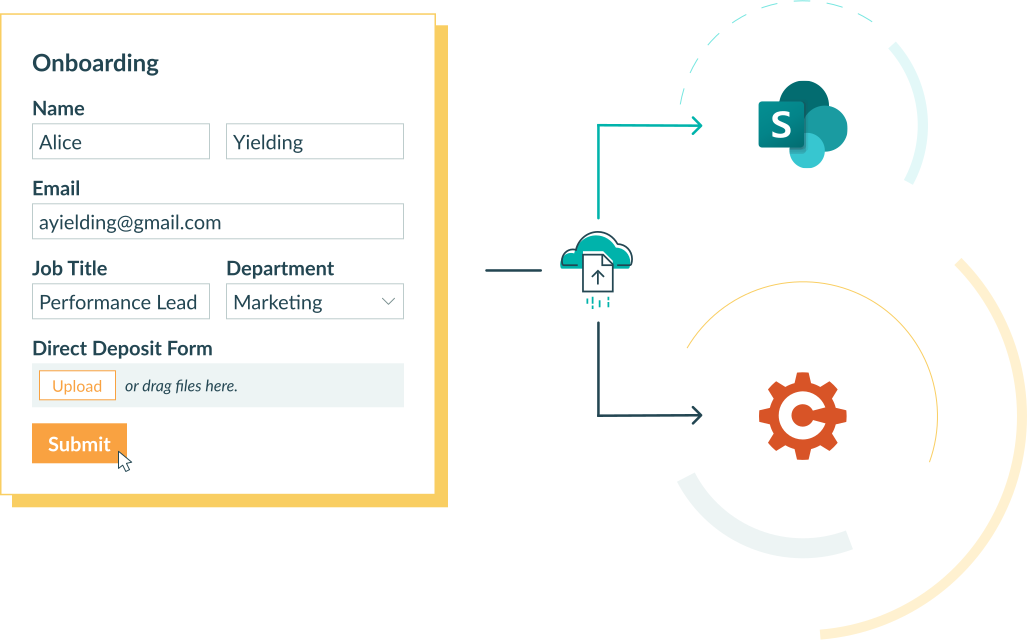
Teams that manage records in SharePoint already know how documents should be organized. However, the gap between where files arrive and where they need to live becomes a tedious task to manage. Every time a file is uploaded to your online form, someone on your team has to pull it out, find the right document library, navigate to the right subfolder, and drop it in.
Cognito Forms’ File Sync closes that gap by delivering submitted files directly into SharePoint the moment a form is submitted, with the folder path and file name already created from the form data.
This approach is well suited for teams that:
- Manage structured document records in SharePoint and need submitted files to land in the right library without a manual intake step.
- Route documents across departments or practice areas where consistent naming conventions and folder hierarchies are required.
- Collect documents from external parties (clients, vendors, or partners) and need them in a governed, accessible location immediately.
- Have compliance or audit requirements that depend on documents being filed predictably and traceable to the original submission.
Understanding File Sync
File Sync uses the OneDrive connector in Cognito Forms to deliver uploaded files to your Microsoft storage. This includes SharePoint document libraries, not just personal OneDrive folders. When your Microsoft account has access to a SharePoint library, you can point File Sync directly at it during setup.
Before you configure the integration, here’s how the sync behaves:
- Files are copied to SharePoint as independent records. The original upload remains in Cognito Forms. SharePoint receives its own copy. Changes or deletions on either side don’t affect the other.
- Resubmissions add files, they don’t replace them. When someone updates an entry and uploads a new version of a document, only the new file is delivered. The previous version stays in SharePoint exactly where it was filed.
- Removing entries in Cognito Forms leaves SharePoint untouched. Documents already delivered to a document library are not affected by anything that happens to the originating entry.
- Folder paths and file names are built from submission data. Every document can arrive in SharePoint already named and sorted. No renaming, no reorganizing required after the fact.
Step-by-Step Setup: How to Send Files to SharePoint
Connect your form to SharePoint by enabling Sync Files to Cloud Storage in your File Upload field’s settings, authorizing your OneDrive account, and configuring how files are named and organized. The integration is shared across your organization once created, and additional forms connect to it without requiring anyone to sign in again.
Step 1: Enable sync on your File Upload field
Turn on the setting that allows you to connect your File Upload field to your SharePoint document library.

To do this:
- Open your form’s Build page and select the File Upload field that will collect documents.
- In the field settings, enable Sync Files to Cloud Storage.
- Select OneDrive as your storage provider. (This is the connector used for both OneDrive and SharePoint destinations.)
- Sign in with the Microsoft account that has access to your target SharePoint library when prompted.
Step 2: Select your SharePoint document library
This step is where you point File Sync at SharePoint rather than a personal OneDrive folder.

To do this:
- Under Connected Folder, browse to the SharePoint document library where submitted files should be delivered. SharePoint libraries your Microsoft account has access to will appear alongside any personal OneDrive folders
- Select the document library (or a folder within it) as your destination.
- Optionally, select Change Account to use a different connected Microsoft account.
Choose a top-level document library or a broad containing folder here. In the next step, you can configure a subfolder structure automatically. You don’t need to pre-create every subfolder for every matter or client.
Step 3: Select which fields to include
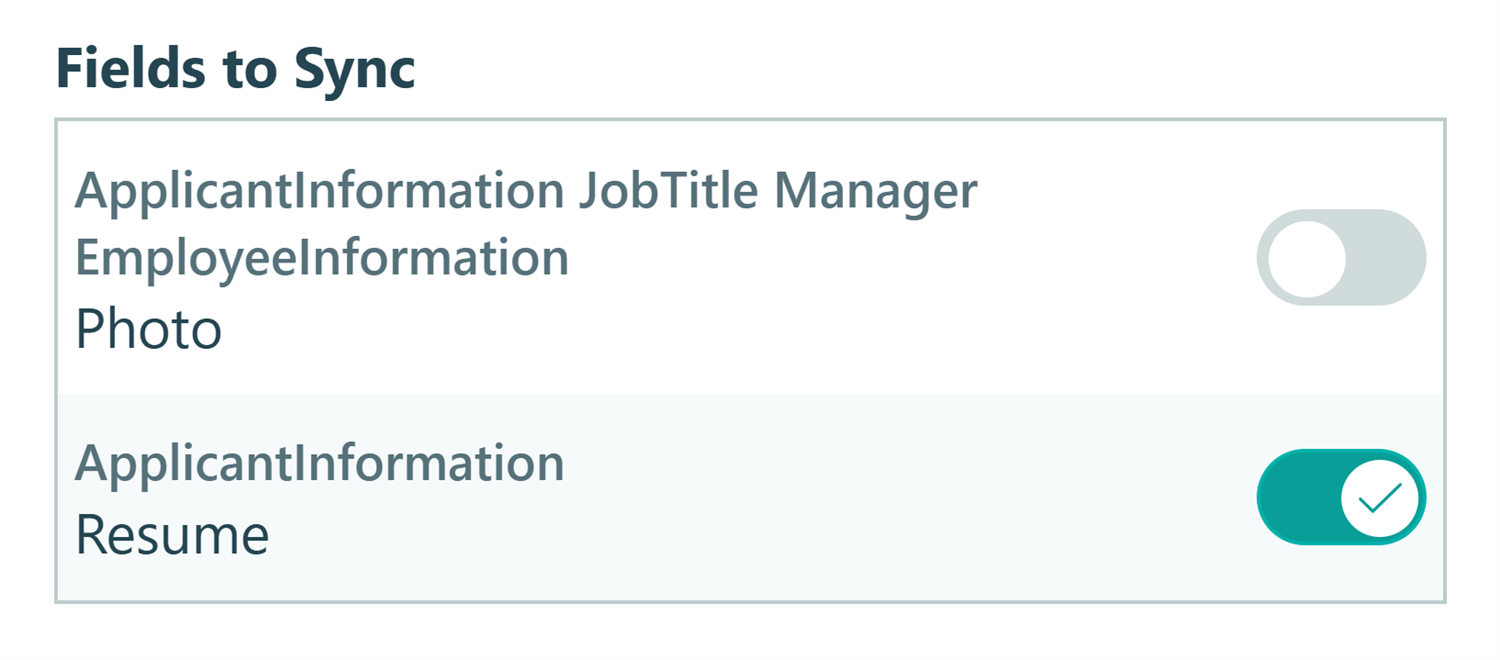
If you have multiple File Upload fields on a form, choose which fields should deliver the files to SharePoint under Fields to Sync.
- Forms with more than one File Upload field can sync all of them or a specific subset.
- Every File Upload field you select to sync on the same form must go to the same folder within the same SharePoint library.
- To exclude a specific field, turn off the toggle for that individual field. Uploads through that field will remain in Cognito Forms only and won’t be routed to SharePoint.
Once an integration exists, any form in your organization can connect to it, without creating a new integration or re-authenticating your Microsoft account. Just remember, form Administrators can connect forms to an existing integration, but only Organization Administrators can create or delete integrations.
Step 4: Set up dynamic folder paths and file names
This is where File Sync earns its value in a structured data environment. Rather than routing every file into one location, you can configure a folder path and file name that organize themselves from the form data in each submission. This gives you the ability to produce a consistent, predictable filing structure without manual intervention.
Folder Path controls the subfolder hierarchy inside your connected library. File Name defines what each document is called when it arrives. Both are built using tokens, which are placeholders that pull real values from the submission.

A real example
Say your legal team collects NDAs through a secure document upload portal. Submitters enter the client name, the type of document, and the relevant matter before uploading the executed file.
You could configure File Sync like this:
- Folder Path:
Client Uploads/[Matter Type]/[Document Type] - File Name:
[Client Name] - [Document Type] - [Date Submitted]
When Andrew O’Brien submits an executed NDA on May 21, 2026, the file lands at:
📁 Client Uploads > Business Law > Non-Disclosure Agreements > Andrew O'Brien - Non-Disclosure Agreement - 2026-05-21.pdf
That subfolder structure didn’t need to be created in advance. The dynamic folder path and file naming structure you set up did everything for you.
You’ll notice we used Field Name as the token in the GIF example. The File Upload field in this GIF is inside a Repeating Section, which changes how dynamic file naming works. See the FAQ for a full explanation on how this works.
How can I organize my files and folders?
The structure you choose should match how your team searches for and retrieves records, not just how submissions arrive. Here are several configurations worth considering:
- Folder Path:
[Form Name]/[Client Name] - Entry [Entry Number] - File Name:
[Field Name] - [File Name]
You could give each form its own top-level folder in your document library. Each submission gets its own subfolder that includes the client or party name for quick identification and the entry number to guarantee uniqueness. Two parties with the name name will always have separate folders.
Adding the Field Name to the file name means if your form collects multiple documents in a single submission (like an executed agreement, a certificate of insurance, and an ID all on one form), each file will land in the same folder with a name that identifies the document category without opening it.
- Folder Path:
Clients/[Email Address] - File Name:
[Form Name] - [Field Name] - [Entry.DateSubmitted]
When the same client or stakeholder submits documents across multiple forms (like an intake form, a due diligence questionnaire, and a contract upload), this structure consolidates everything into a single folder identified by their email address. File names carry the form and field context, so the provenance of each document is clear even in a shared location.
- Folder Path:
[Service Area]/[Form Name]/[Client Name] - File Name:
[Client Name] - [Document Type] - [Entry.DateSubmitted]
Useful for teams that retrieve documents by type of service or the responsible team rather than by submitter. All business service forms are grouped under one top-level folder, each form connected to business services gets its own subfolder, with client subfolders nested within each.
- Folder Path:
[Form Name]/Entry [Entry Number] - File Name:
Entry [Entry Number] - [Field Name]
For regulated workflows (HIPAA-adjacent, certain financial services, or legal matters under confidentiality restrictions), this structure keeps names, email addresses, and other identifying details out of folder paths and file names entirely. The entry number is the only identifier, and it maps back to the full submission record in Cognito Forms.
Managing and Monitoring Your File Sync
Organization Administrators have full visibility into all active integrations via Organization Settings > Integrations. From here, you can:
- Review which forms are currently connected to each integration.
- Update the global default folder path and file name across all connected forms.
- Remove an integration. This disconnects all connected forms, but documents already delivered to SharePoint are not affected.
How do I confirm a file was successfully delivered?

To confirm a specific file was delivered to your SharePoint folder:
- Open any entry and expand the Activity Log.
- Look for the OneDrive logo and expand the section.
- Click the section that says File Sync to view detailed information, such as whether the file was delivered successfully, when it was sent, and if any errors occurred.
In compliance-sensitive environments, this log serves as a submission-level record of when each document was received and where it was filed.
Additional Features to Explore
File Sync handles document delivery, but these features extend the Workflow you can build around it:
- Build a structured document intake portal on your team site. Use Guest Access to give employees, contractors, or external partners a secure login where they can submit documents directly into your workflow. No email attachments or manual routing, and every uploaded file syncs automatically to the right SharePoint document library the moment it’s received.
- Show or hide specific File Upload fields based on earlier answers, using Conditional Logic. Clients only see and upload what’s relevant to their situation.
- Send an automatic confirmation email when files are received, so everyone knows the submission went through without following up manually.
Stop Filing Documents Manually
SharePoint gives your team the structure to manage records well. File Sync gives your forms the ability to feed that structure automatically. Set up the integration once, configure your folder path and naming conventions, and every future submission delivers its documents exactly where they belong.
When the filing happens at the moment of submission, nothing gets missed and nothing sits in a queue waiting for someone to move it.
FAQ
Fields inside a repeating section can’t be referenced directly as tokens in the File Name setting, so Document Type isn’t available the usual way.
The workaround: set the File Upload field’s label to include [Document Type] as a token, so the label updates dynamically based on what the submitter selects. Then set File Name to use the Field Name token, which pulls from that dynamic label. Every uploaded file will get a unique name that reflects the document type, without needing to reference the Repeating Section field directly.
Files deleted from Cognito Forms are not deleted from your SharePoint library. All files sent from Cognito Forms to SharePoint will stay there indefinitely. If you want to remove a file from SharePoint that has been automatically sent from Cognito Forms, you will need to delete it manually.
All restrictions to the size and type of files and the number of files allowed follow the limits on our File Upload field, which you can read more about on our File Upload Field reference page.
Organization Administrators can create new integrations and delete them. After the integration has been set up, anyone in your Cognito Forms organization who is an administrator on a form, folder, or organization level can connect forms to it.