To assign tasks to multiple users:
-
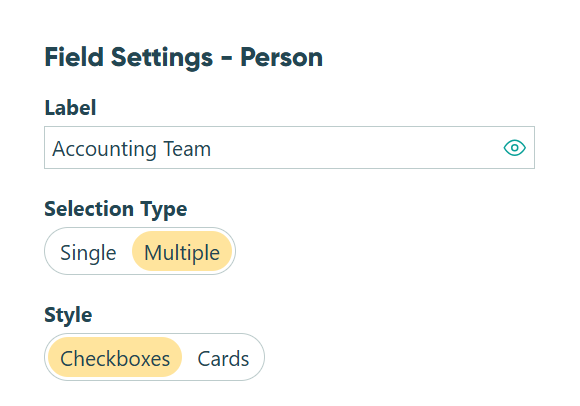
Add a Person field to your form. Set Selection Type to Multiple and Style to Checkboxes.
-
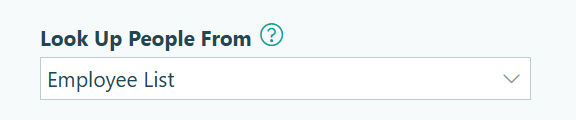
Select the correct source form under Look Up People From.
-
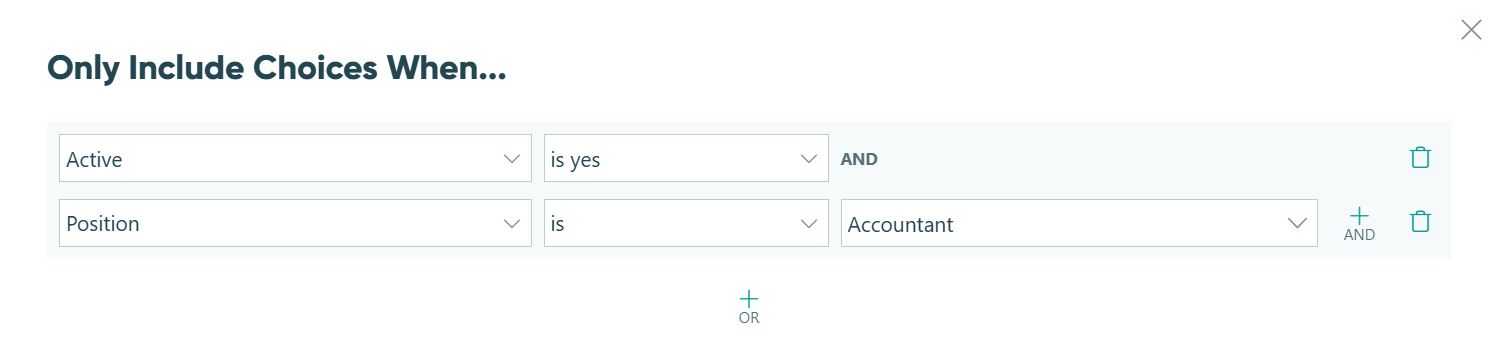
Include the right people by setting appropriate conditions.
-
Save your form.
-
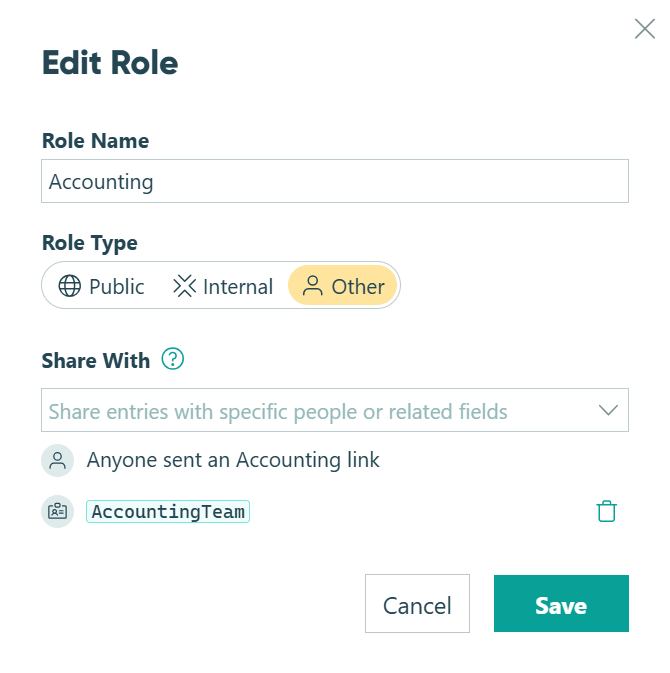
Go into the Workflow section and edit the role that you would like to assign multiple users to. In the drop-down menu under Share With, select the Person field you just created, then click Save.
-
Save your form, then go to your Entries.
-
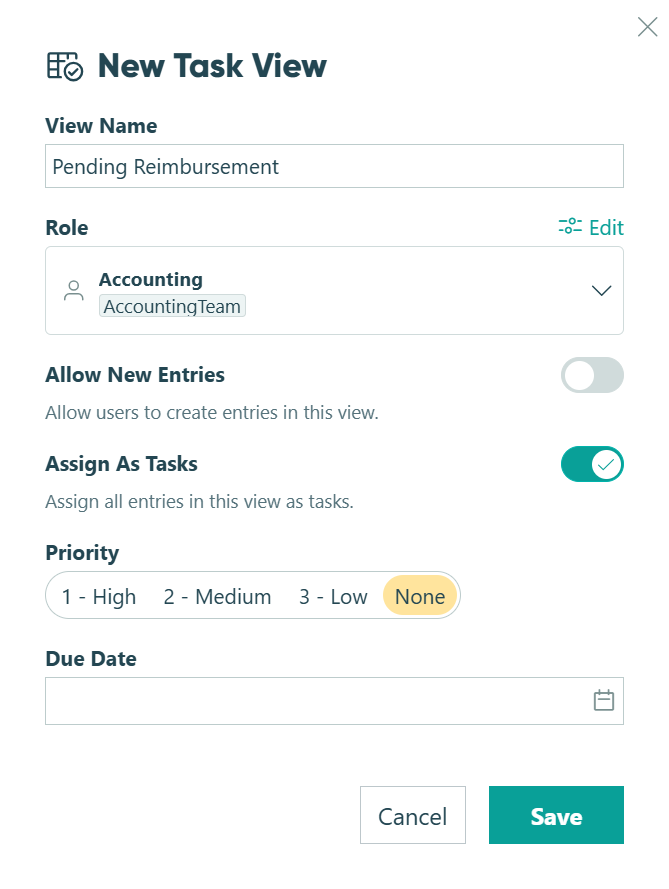
Create a new Task View assigned to the Accounting role.
-
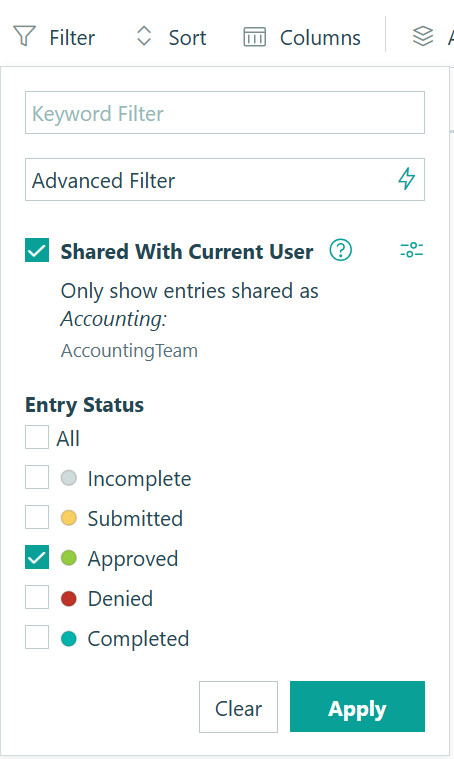
Under the Filter option, select Shared With Current User to only show entries shared with the Accounting role in the appropriate entry status (ex: Approved).
-
Hit Apply and then save your changes to this view.
Learn more about Workflow Tasks.