The Person field lets you look up and select people from a Person Form. Use it to simplify assignments, route notifications, and pre-fill details based on the selected person. If you don’t have a Person Form yet, you’ll be prompted to create one when you add a Person field.
Label
The label will display as the title of the field or the question that is being asked on the form. You can select the icon on the right to hide the label on the form. You also can use the pop-up formatting toolbar to insert values from other fields on the form.
Values from protected fields cannot be inserted into the field label.
Selection Type
If you change the selection type from Multiple to Single on a form with existing entries, only the first selected choice will be retained. All other selected choices will be deleted.
Single
Only one person can be selected. Available styles: Drop Down, Radio Buttons, or Cards.
Multiple
More than one person can be selected. Available styles: Checkboxes or Cards.
Style
The Style option determines how the list of people will appear on your form.
Drop Down
Display the list of people in a menu. The menu must be clicked to view all available options.
Radio Buttons
Display the full list of people, but only allow one selection.
Checkboxes
To reference a Checkbox value in conditional logic or calculations, use the .Contains property (ex: =if ChoiceField.Contains("First Choice") and ChoiceField.Contains("Second Choice") then "Your text here" else null). Learn how to control the number of checkboxes someone can select.
Display the full list of people and allow multiple selections.
Cards
Display the full list of people as clickable cards arranged in a grid layout. When selected, cards show a border in the form theme’s Highlight color.
Layout
This option is only available when the field type is set to Radio Buttons, Checkboxes, or Cards.
This option allows you to select how your options will display.
- One Column – Options will display vertically in a single column.
- Two Column – Options will display in a horizontal two column format.
- Three Column – Options will display in a horizontal three column format. This option only appears when your field spans two columns.
- Four Column – Options will display in a horizontal four column format. This option only appears when your field spans two columns.
- Side by Side – Options will display horizontally and will wrap onto the next line depending on the space available and the number of options. This is the default option.
Placeholder Text
Placeholder Text is a short prompt that describes the expected value of an input field. The prompt is displayed in the field before you enter a value, and disappears when you begin typing.
Look Up People From
You must be an Administrator of a form to look up data from it. We do not recommend making any sensitive data available through the Person field – the data will be loaded behind the scenes and could potentially be exposed.
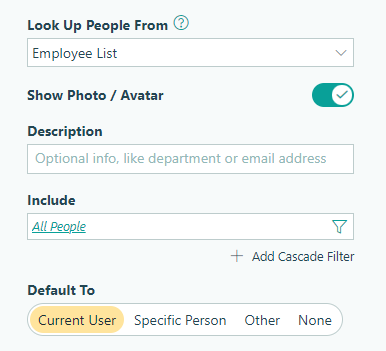
Select the source form from the list of available forms in your organization. Please note that:
- Once you save your form, the source form cannot be changed.
- By default, you cannot look up data from encrypted forms – you must specifically allow the entry data to be available under the form settings. However, if you set up a Person field before enabling encryption, it will continue to work.
- The Person field will still look up data from forms that have been archived (but not deleted).
- When you delete an entry from the source form, the Person field value disappears. Likewise, when you delete a field from the source form that’s referenced by the Person field, that data disappears, and an error message appears in the Person field settings until you update the form.
- Instead of deleting data from the source form, we recommend that you hide the inactive options by filtering your choices.
- After saving your form, hover over its name in the sidebar and click the ellipsis (…) to open the form menu. Select Form Details to view a list of forms that reference or are referenced by the form through the Lookup or Person field.
When you create a Person field, you have access to all of the field data from the source form.
Link Field
This option appears when this Person field and a Lookup or Person field on another form point to each other. Use it to create a Linked Lookup – a two-way connection that keeps related entries in sync automatically on both forms. Learn more about Linked Lookups.
Show Profile Image
Select this option to display a photo using the uploaded file from the source form.
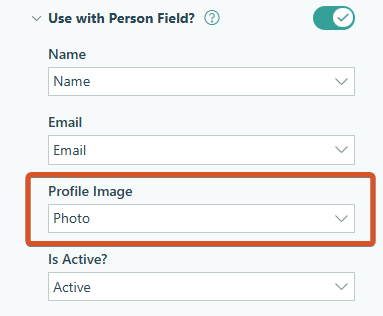
Image Size
Control how large profile images appear relative to the form’s font size.
The Cards style supports sizes 1-7. All other styles support sizes 1-4.
Name Position
For the Cards style, position names at the bottom or right side of the profile image.
Description
The description provides additional information about each person, such as their department or email address. It does not display as part of the value and will not be exported with the form. The description can include text as well as any data from any field on the source form.
Include
Use the Include option to filter the list of people based on specific criteria, such as their “Is Active?” status, which is determined by a Yes/No field.
You can update the filter at any time, and when you change the filtered values, the previously selected choice will remain when you update the entry.

Cascade Filters
When you delete a Person field, any linked filter fields will also be deleted!
You can select Add Cascade Filter to filter a subset of choices from the Person field:
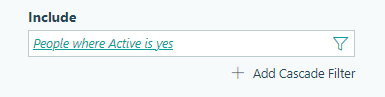
The filtered list will appear in a separate filter field. Text values are displayed in alphabetical order, while numerical values (such as dates and numbers) are displayed in ascending order.
You can set the field type (Drop Down, Radio Buttons, or Checkboxes) and add up to three cascade filters to create a series of cascading lookups.
Restrict guest lookup options
When this option is selected, the Person field will only display dropdown choices for entries that have been shared with the guest. Entries that the guest doesn’t have access to won’t appear in the dropdown. Learn more about Guest Access.
Default To
Automatically populate the Person field for the user. The user can then choose to change the default value before submitting the form.
-
Current User – Default the Person field to the currently signed-in user. This setting requires authentication for organization users when accessing the form via the public link.
-
Specific User – Select from a drop-down list of people to default the Person field to a specific user.
-
Other – Add a calculated default value using the basic editor.
-
None – Do not set a default value for the Person field.
Help Text
Help text can be used to assist the user by providing additional instructions. Help text will display directly under the field. Use the formatting toolbar to format text, insert hyperlinks and images, and populate values from other fields on the form.
Values from protected fields cannot be inserted into the help text.
Show This Field
By default, fields will always display on the form. However, you may want to hide specific fields or sections based on certain conditions, such as a selected value of another field on the form.
- Always – Field is always shown.
- When – Field will only display when specific conditions are met. After selecting this option, the Conditional Logic Builder dialog will display allowing you to select when the field or section should be displayed.
- For Roles – Field will display only when accessed via a role-based workflow link specific to the role(s) selected.
- Never – Field will never display.
Require This Field
Requiring a field will make sure the user provides a response. When a field is required, an error message will display, and the form cannot be submitted until a value has been added to the field. Required fields are indicated by a red asterisk next to the label. By default, fields are never required.
- Always – Field is always required. User must provide a response in order to submit the form.
- When – Field is required only when specific conditions are met. After selecting this option, the Conditional Logic Builder dialog will display allowing you to select when the field is required.
- For Roles - Field is required only when accessed via a role-based workflow link specific to the role(s) selected.
- Never – Field is not required. This is the default behavior.
Read-Only
Set fields and sections as read-only to create simple workflows with your forms. All fields can be made read-only, with the exception of fields that are already read-only by default (Calculation, Price, Content, Page break, etc.).
- Always – Field is always read-only.
- When – Field is read-only when specific conditions are met. After selecting this option, the Conditional Logic Builder dialog will display allowing you to select when the field is read-only.
- For Roles – Field will be read-only when accessed via a role-based workflow link specific to the role(s) selected.
- Never – Field allows user input. This is the default behavior."
Custom Error
You can set a custom error message that will display under your field when specified conditions become true. The conditional logic builder will allow you to add any number of rules for validating your field. Learn more about the custom error option.