Your form data can finally join the conversation in Claude or ChatGPT.
It’s almost the end of the day, and the workday got away from you.
The submissions that came in around lunch are still sitting there. A client request needs to be updated. A registration needs to be added from a phone call. A few entries look incomplete, but nobody has time to open each one.
Your forms did their job. They collected the information.
Now someone has to look it up, organize it, update it, or turn it into the next step.
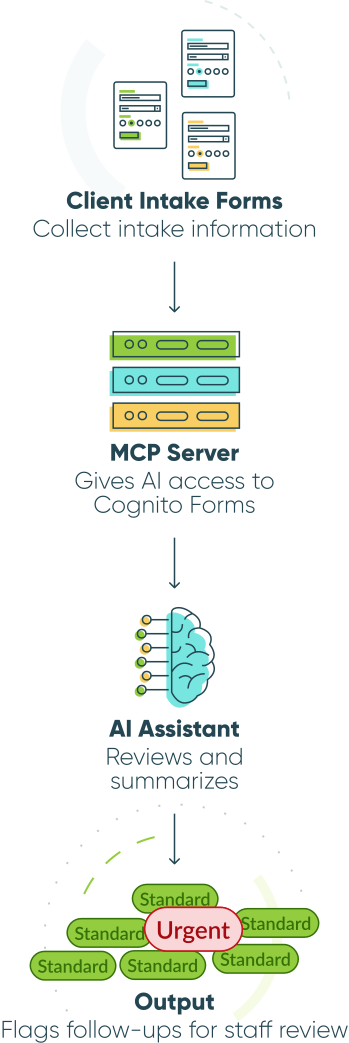
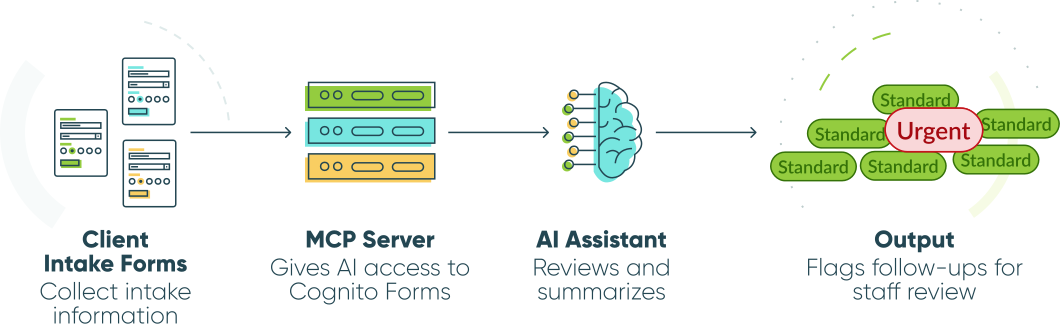
That’s where the Cognito Forms MCP connector can help. It gives AI apps like ChatGPT and Claude a way to work with the Cognito Forms data your team already uses.
Think of it as AI-assisted work with your form data. You can ask ChatGPT or Claude to find entries, create a record, update a field, analyze a view, or turn responses into something your team can use.
After Submission Is Where AI Gets Useful
This is different from using AI to create a form.
AI form generation helps you build the form. The MCP Connector enables AI to work with your form data once someone submits.
Once ChatGPT or Claude can work with your form data, it can help with everyday tasks that would otherwise take extra clicking, exporting, copying, or manual review.
You can ask it to create an entry from details you provide, update an eligible entry, review entries from a view, retrieve files or generated documents, or analyze responses across a form.
The form still collects the data. Your existing workflows still move the process forward. The MCP connector helps your AI app work with the data when you ask it to.
Choose the Right Level of AI Help
Using AI with your workflow does not mean handing over your whole process. Most teams start by giving AI one narrow job inside a process they already run.
AI can help in three ways:
- Assist: Look up entries, analyze a view, identify patterns, or draft text for your team to review.
- Recommend: Suggest a category, follow-up, next step, or improvement based on the data it can access.
- Act: Create a new entry or update an eligible entry when you ask it to, while your normal Cognito Forms rules and controls still apply.
Start with the safest version. A survey analysis might stay read-only. A class registration process may let AI create a new entry from details a staff member provides. A client follow-up process may let AI draft response text, but not send it.
4 Ways to Use AI With Your Form Data
Once AI can work with your form data, it can help with a few common jobs:
- Create new entries from everyday requests.
- Analyze survey or registration data
- Turn outside research into structured entries.
- Check entries for gaps, patterns, or next steps.
Here’s what that can look like in real workflows:
Create new entries from everyday requests
A recreation center manages class registrations through forms. Most people sign up online, but some requests still come in through calls, emails, or front-desk conversations.
Instead of opening the form and entering the details manually, a staff member could ask ChatGPT:
“Sign Bob Miller up for the Tuesday evening yoga class. His email is bob@example.com, and he wants to pay at the front desk.”
With the Cognito Forms MCP connector, ChatGPT can help create a new entry using the details the staff member provides. If something important is missing, the team can fill in the gap before moving forward.
That means one-off requests do not have to become sticky notes, side conversations, or separate spreadsheets. They can become structured entries in the same place as every other signup.
Best fit: Act, with staff review.
Analyze survey or registration data
A continuing education program runs a conference registration form. The form asks about attendee details, session preferences, meal choices, accessibility requests, guest passes, payment status, and optional questions.
Before the event, staff need more than a list of registrants. They need to know how many people are coming, how many meals to order, which sessions are filling up, who requested accommodations, and which registrations may need follow-up.
In ChatGPT, staff could ask questions like:
“What are the total current conference registrations? What is the total number of people registered in a session? Then create a table I can copy into a spreadsheet.”
AI can help turn registration entries into a planning summary. It might total headcount by session, group meal preferences, flag unpaid registrations, list special requests, or prepare a table for the team to use in planning.
The same idea works for surveys. A program manager could ask:
"What percentage of respondents said they were satisfied or very satisfied this quarter?”
That makes form data easier to use while the question is still fresh, instead of waiting for someone to export entries and build a report.
Best fit: Assist or recommend, with staff review.
Turn outside research into structured entries
Sometimes the work starts outside your form.
A nonprofit may need to build a vendor list for an upcoming event. A school may need to track local internship partners. A small business may want to research nearby service providers before choosing who to contact.
In Claude, a staff member could ask:
“Find local florists near me and add them to my Vendor Research form with the business name, website, phone number, location, and notes.”
The web research happens in the AI app. The MCP connector helps turn the results into Cognito Forms entries. Instead of copying names into a spreadsheet or pasting details into the form one at a time, the team can build a structured database they can sort, review, and use later.
Once that information is stored as entries, it can follow the same process as the rest of your form data: assignments, review, reporting, follow-up, or downstream workflows your team already uses.
Best fit: Act, with staff review.
Check entries for gaps, patterns, or next steps
A small consulting firm uses a request form to collect project details. Clients can describe the work, choose a service category, upload files, list a budget, and enter a deadline.
The form works, but people still skip important fields or enter details that do not line up. A client selects “website update” but describes a full rebrand. Another lists a deadline that has already passed. Another leaves the budget blank but uploads a detailed scope.
In Claude, the team could ask:
“Review this week’s service requests and list any entries with missing budgets fields, past deadlines, unclear service categories, or uploaded files that may need follow-up.”
The AI can review entries, find submissions that need clarification, and draft a short follow-up message for each one. Your team still decides what to send, but the issue gets caught earlier.
You could also ask:
“Based on these inconsistent submissions, which fields should our team consider making required or clarifying?”
That turns the same review into feedback for the form itself. Instead of only fixing messy entries one by one, your team can spot where the form needs clearer instructions, required fields, better answer choices, or conditional logic.
Best fit: Assist or recommend, with human review.
Before You Turn It On
Connecting AI to form data should be intentional. Start with one clear task, then expand once you know what works.
-
What data should AI see?
Decide which forms and views are part of the task. The connector works from the Entry View you specify, so make sure that view includes the fields, filters, and date ranges needed for a useful answer. -
Is this a one-entry task or a view-level task?
AI can work across entries in a view, but detailed work on a specific submission may require retrieving that entry directly. Start with focused questions before asking it to review large datasets. -
Should AI only read, or should it update data?
Read-only tasks are the safest place to start. Once your team is comfortable, you can let AI create new entries or update eligible records when a person asks it to. -
What should stay human-reviewed?
Keep important actions with your team, especially in sensitive workflows. AI can analyze, suggest, and draft, but people should review anything that affects clients, payments, approvals, or regulated decisions.
The MCP connector is most useful when you want AI to help with a specific task using real form data, while your team keeps control over what gets created, updated, or used next.
Start Using AI With Your Form Data
Using AI with form data does not have to start with a huge transformation project. It can start with one form and one task your team already does by hand.
Create a new entry from a phone call. Analyze survey responses. Build a vendor list. Check a filtered view for missing details. Ask a question about the data instead of exporting it first.
The biggest benefit is not that AI replaces your workflow. It is that ChatGPT or Claude can work from the same structured data your team already uses. You get more useful answers because the AI has access to real entry data, not a copied spreadsheet or pasted summary. And when AI creates or updates entries, that data stays in Cognito Forms, where your existing auditing, permissions, Workflow, and downstream processes can still apply.
FAQ
No. Using the Cognito Forms MCP connector is different from building an MCP server yourself. Your team will still want to review what the AI app can access and what actions it can take, but setup does not require custom development.
No. The Cognito Forms AI Form Generator helps you create forms. The Cognito Forms MCP connector helps an AI app work with submitted form data after entries come in.
The connector can create new entries or update eligible entries when you ask it to. For sensitive workflows, start with review steps so your team can confirm changes before they affect clients, payments, approvals, or regulated decisions.
It can, but sensitive workflows need careful review. Treat AI access like any other integration: start with narrow access, review permissions, confirm audit needs, and decide what should stay human-approved.

Miranda Peterson
Miranda is a Marketing Specialist at Cognito Forms who loves turning complex ideas into content that’s clear, helpful, and human. Outside of work, you can find Miranda enjoying local coffee shops, spending time in nature with her husband and two children, reading on her Kindle, or cooking for a group of friends.