Assign independent tasks to multiple people at the same time – each completing their own section, in any order, on a single form.
Build Time & Skill
25-35 min
Intermediate
What you'll learn
How to build a 360 degree feedback form that sends two peers their own sections simultaneously, then notifies the manager automatically when both reviews are complete.
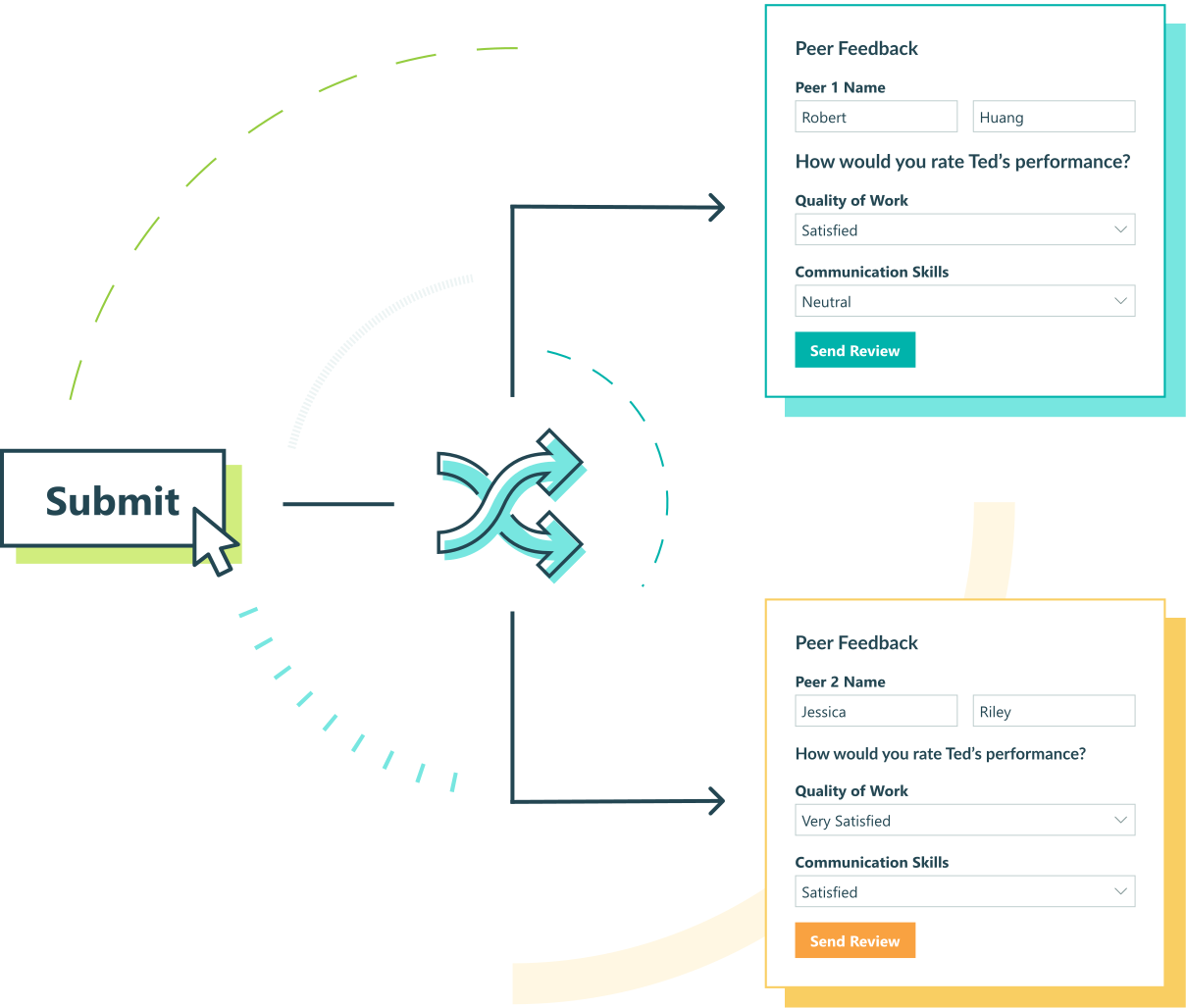
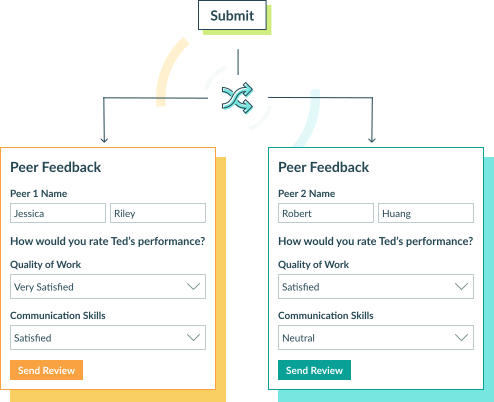
Some processes don’t move in a straight line. Instead of one person finishing before the next begins, multiple people need to complete their own piece of the work at the same time. Coordinating that through email is messy – it’s easy to lose track of who has responded and who hasn’t.
A parallel task workflow in Cognito Forms puts everything in one place. Each participant receives a secure link to their own section of a shared form. They fill out their part independently, and the workflow closes automatically once everyone has finished. You never have to chase anyone down or manually track responses.
This setup works well when you need to:
- Distribute independent tasks simultaneously. Everyone receives their assignment at the same time, so no one is waiting on someone else to start.
- Keep each participant’s response private. Role-based visibility means each person sees only their own section – not anyone else’s responses.
- Know the moment everything is done. Conditional logic detects when all tasks are complete and automatically closes the workflow, sending a notification to the appropriate person.
Step-by-Step: Building a 360 Degree Feedback Workflow
In this guide, you’ll build a 360-degree feedback workflow. A manager submits a review form for a team member, which automatically sends two peers a link to complete their individual feedback sections. Either peer can respond at any time; they don’t need to wait for each other. Once both peers have signed, the manager receives a notification and the workflow completes automatically.
Step 1: Set Up Your Roles
Start by assigning a Role to each person involved in your workflow. You’ll reference Roles throughout the rest of your workflow in form sections, field visibility settings, and Action logic.
- Open your form and navigate to Workflow on the Build page.
- Click Roles.
- Add or rename Roles to match the following:
| Role | Role Type | Who It Represents |
|---|---|---|
| Manager | Public | The person initiating the feedback review. |
| HR | Internal | HR admins who need visibility into all entries. |
| Peer 1 | Other | The first peer completing a feedback section. |
| Peer 2 | Other | The second peer completing a feedback section. |
The Manager Role uses the Public Role type because managers submit the initial form. Peer 1 and Peer 2 are Other Roles; they’ll access the form exclusively through Role-based Workflow Links.

Step 2: Configure Your Statuses
Statuses let HR admins and managers see, at a glance, exactly where each feedback review stands.
- In Workflow, click Statuses.
- Add or rename Statuses to match the following:
| Status | What It Means |
|---|---|
| Incomplete | Default Status – the manager has not yet submitted the feedback request. |
| In Progress | The form has been sent to both peers; one or neither has responded. |
| Complete | Both peers have submitted their feedback sections. |
Next, configure the Complete Status to trigger automatically. Open the Status and set Automatically Assign Status to When, then apply the following condition to check whether both peer signature fields are filled.
| Status | Condition |
|---|---|
| Complete | =(PeerFeedback1.Signature.Svg != null and PeerFeedback2.Signature.Svg != null) |

Step 3: Build Your Form Sections
The form contains three sections: one for the manager and one for each peer. HR can see all three sections for administrative oversight. Each peer sees only their own section – they have no visibility into the manager’s initiation fields or the other peer’s feedback.
Your form should include the following sections:
- Manager Initiation – Where the manager enters their information and the employee under review. For the Employee Name field, a Choice field works well for a fixed team, but a Person field linked to a separate employee list is ideal for larger or changing rosters. The section also includes the name and email address of each peer. Set Show This Field to For Roles > Manager + HR.
- Peer Feedback 1 – Where the first peer completes their review and signature. Include a Textbox field with the name of the employee under review with the Default Value:
=Form.ManagerInitiation.Employeeand set Read-Only to Always. Set Show This Field to For Roles > Peer 1 + HR. - Peer Feedback 2 – Where the second peer completes their review and signature. Include a Textbox field with the name of the employee under review with the Default Value:
=Form.ManagerInitiation.Employeeand set Read-Only to Always. Set Show This Field to For Roles > Peer 2 + HR.

Step 4: Configure Your Actions
Two Actions drive this workflow: the Submit Action for managers to initiate the review, and the Send Review action for peers to submit their completed feedback.
Submit Action
The Submit Action kicks off the workflow and routes the form to both peers simultaneously.
- Open the Submit Action in Workflow > Actions (or create one if it doesn’t exist).
- Configure the following settings:
- Allow Action: Select When and set the condition to
=(Entry.Status = "Incomplete"). This ensures that the Submit Action is only available before the workflow starts. - Change Status To: Select In Progress.
- Allow Action: Select When and set the condition to
- Under Send Emails, add two separate email notifications – one for each peer:
- Email 1 – Peer 1 Notification:
- Set To to the field where the manager entered Peer 1’s email address.
- Click Share Workflow Link next to the To field and select Peer 1 as the Role.
- Write a subject and message letting Peer 1 know their feedback is requested.
- Email 2 – Peer 2 Notification:
- Set To to the field where the manager entered Peer 2’s email address.
- Click Share Workflow Link next to the To field and select Peer 2 as the Role.
- Write a subject and message letting Peer 2 know their feedback is requested.
- Email 1 – Peer 1 Notification:
Each email delivers a unique Workflow link scoped to the recipient’s Role. When Peer 1 clicks their link, they see only the Peer Feedback 1 section. When Peer 2 clicks theirs, they see only Peer Feedback 2.

Send Review Action
The Send Review Action is used by peers to submit their completed feedback section. It also notifies the manager once both peers have finished.
- Create the Send Review Action in Workflow > Actions.
- Configure the following settings:
- Allow Action: Select When and set the condition to
=(Entry.Status = "In Progress").
- Allow Action: Select When and set the condition to
- Under Send Emails, add one email notification to the manager:
- Email 1 – Manager Completion Notification:
- Set To to the manager’s email field.
- Select Send - When and set the condition to:
=(Entry.Status = "Complete") - Click Share Workflow Link next to the To field and select HR as the Role – this gives the manager an admin view of the completed entry.
- Write a subject and message letting the manager know the review is complete.
- Email 1 – Manager Completion Notification:

Step 5: Set Up Form Read-Only
Once both peers have submitted their feedback, their sections should be locked. This prevents any changes to signed entries after the workflow is complete.
- In Workflow, find the Form Read-Only setting.
- Set it to When.
- Apply the following conditions:
- Role is Peer 1 or Peer 2, AND
- Entry Status is Complete

Additional Features
Once your parallel task workflow is running, these Cognito Forms features can extend what it does:
- Task Views: Set up a Task View on the Entries page for HR admins so they can see all in-progress feedback reviews at a glance, filtered by Status and shared with the current user.
- Audit Log: Every Action taken on an entry (including each peer’s submission and signature) is automatically logged. Review the full history of any feedback entry if questions arise later.
Start Building Your Parallel Task Workflow
Parallel task workflows remove the coordination overhead of multi-participant processes. With Cognito Forms, you can assign independent tasks to multiple people at once, keep each person’s work private, and let the workflow detect completion automatically – without a single manual follow-up.