Add a contact form, support request, or custom order form to your Shopify store in just a few steps—no apps or coding required.
Build Time & Skill
15-20 min
Beginner
What you'll learn
How to embed a custom form on your Shopify store using Cognito Forms' Seamless or Iframe method, with no app or coding required. This guide also covers how to style your form to match your shop's design and how to automate your workflow after submission.
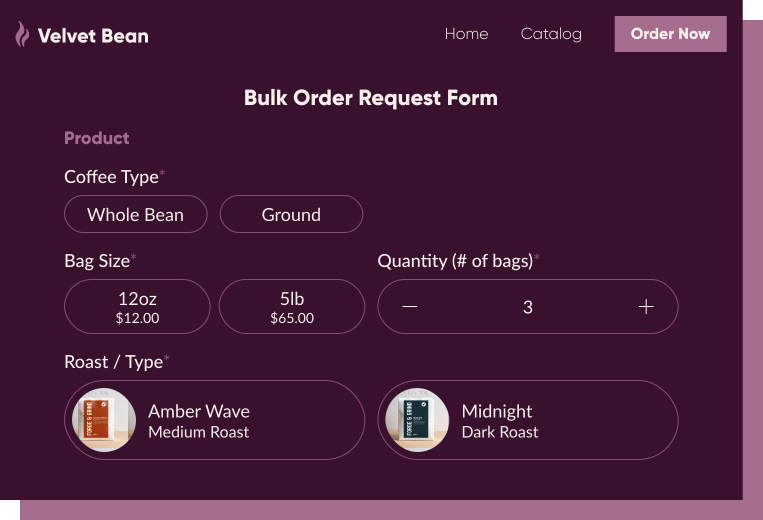
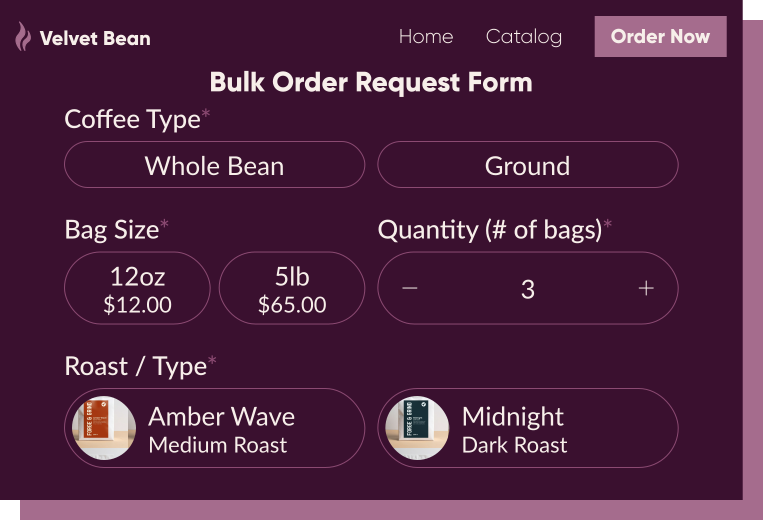
Shopify’s built-in forms are limited to basic contact fields and checkout inputs; they’re not designed for complex data collection, custom workflows, or payment forms outside the standard checkout. Embedding a form you created in Cognito Forms fills that gap, giving you full control over what you collect, how it looks, and what happens after someone submits.
Here’s how Cognito Forms can upgrade your Shopify store:
- Collect payments, signatures, and documents in a single form. Whether you’re taking custom orders, deposits, or service agreements, Cognito Forms handles payment processing, e-signatures, and file uploads all in one place. Customers can complete the whole transaction without leaving your site or bouncing between steps.
- Build forms that ask the right questions based on what customers tell you. With advanced conditional logic, your form adapts in real time. You can get rid of generic forms that treat every customer the same by showing wholesale buyers different fields than retail customers, routing service requests to the right team, or even calculating a quote on the fly.
- Let form submissions feed directly into your business processes. When a customer fills out a complex request (a custom order, a service intake, a B2B application), automatically generate a branded PDF or Word document from their responses and trigger the next step in your process.
How to Embed Your Form on Your Shopify Store: Step-by-Step
Follow these three steps to get your form live on any Shopify page. You’ll start with a few quick style settings, grab your embed code, and finally paste it directly into Shopify’s Custom Liquid block type.
Step 1: Configure how your form appears on your site
Before grabbing your embed code, take a moment to configure how your form looks when embedded. To access these settings, hover over the form name in the Cognito Forms sidebar and select Publish Form.
From the Form Styles tab on the Publish page, you have a few options to get your form looking right before it goes on your site:
- Customize your form’s style: Change button colors, choose a new font style, add your logo, and more.
- Field styles: This option when styling your form controls the visual style of your form’s fields. You have several different options that tend to work well for most people, but you can also select Chameleon to automatically match your site’s fonts and colors. See below for more information on Chameleon mode.
- Hide form header when embedded: Check this box to hide the logo, title, and description when your form is embedded. These elements will still appear when someone visits the form via a direct URL.
- Adjust embedded form margins: Set the margin around your embedded form anywhere between 0 and 80 pixels to control spacing within your page layout.

Chameleon field styles
For the most seamless visual integration, enable Chameleon mode. It automatically adopts the surrounding page’s fonts, colors, and styles, with no CSS knowledge required.
To enable Chameleon mode:
- From the form’s Publish page, select the Form Styles tab.
- Expand the Field Style dropdown and select Chameleon.
- Click Save and your form is now ready to inherit your store’s styling automatically.
Note: Chameleon field styles work only with Seamless embedding. If you plan to use an Iframe embed, see the Custom CSS section below.
Step 2: Copy your form’s embed code
Once your form is styled and ready, it’s time to grab the code you’ll paste into Shopify. Here’s how:
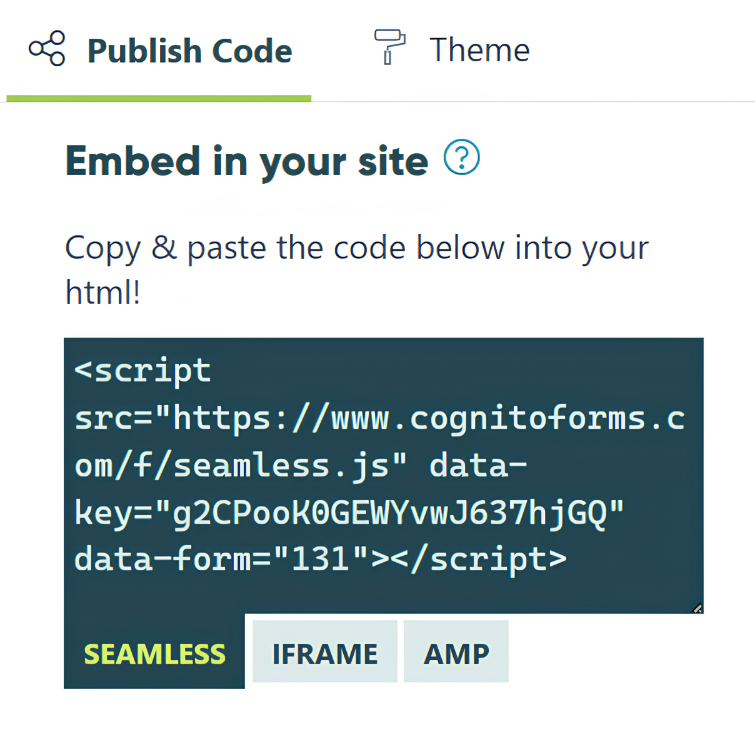
- From the form’s Publish page, click the Publish Code tab.
- Under Embed in your site, select the type of embed code you want to use.
- Click inside the code’s text box to copy the full embed code to your clipboard. This is what you’ll paste into Shopify.
Seamless vs. Iframe embedding: Which should you use?
In short, we recommend starting with the Seamless embed for most Shopify stores. If you run into styling conflicts or slow load times, switch to the Iframe embed. The main difference between the two is how the form interacts with your store’s existing styles.
| Seamless Embedding | Iframe Embedding | |
|---|---|---|
| Setup | Integrates the form directly into the page, making it look and feel like a natural part of your site | Loads your form inside a contained frame, keeping it visually separate from the surrounding page |
| Best Used When | Recommended for most sites | Seamless embed causes styling conflicts or display issues |
| Styling | Inherits your site’s styles naturally (especially with Chameleon Mode). | Isolated from page styles; requires CSS to match your site’s styles |
Step 3: Add the embed code to your Shopify page
No matter which embed code you choose, you’ll paste it directly into a Custom Liquid block on your Shopify page. To do this:
- Log in to Shopify and go to the desired Online Store in the sidebar.
- Click Edit Theme and then go to the desired page you want to embed the form on.
- Click + Add Block where you want the form to appear and select the Custom Liquid option.
- Paste the embed code into the block’s text box.
- Click Save, then click View to see the live form on your site.
- If the page previously had a basic contact form, remove that existing code before saving.

Some Shopify themes apply aggressive global styling that can affect how an embedded form looks. If your Seamless embed appears off, switching to Iframe is usually the quickest fix.
Customizing Your Form’s CSS
If the Chameleon field style doesn’t fully close the gap between your form and your store’s visual design, Custom CSS gives you more precise control.
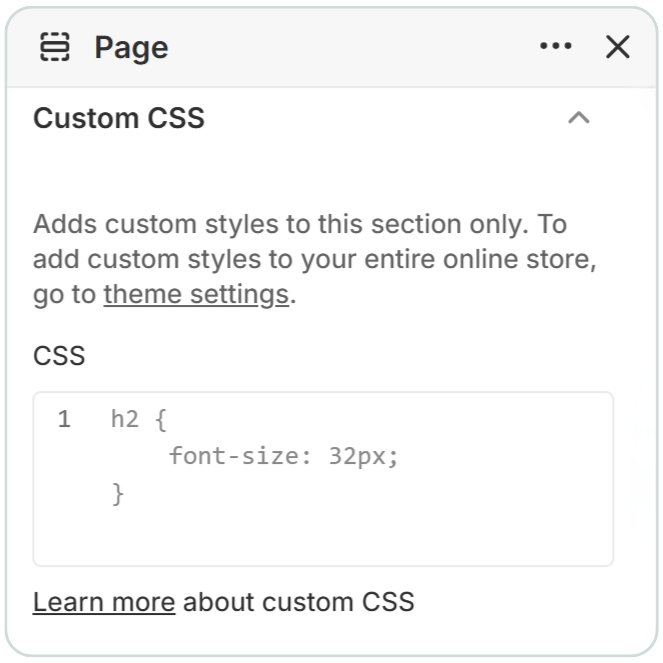
Custom CSS lets you fine-tune specific elements like button colors, input borders, error messages, and fonts using CSS variables or traditional selectors. On Shopify, you add custom CSS through the page’s custom code editor rather than the Cognito Forms embed code directly.
To add custom CSS to your embedded form on a Shopify page:
- Go to your Online Store’s Theme.
- Click Edit Theme.
- Navigate to the page your form is embedded on, and then click into the Custom Section that your form is embedded in.
- At the bottom of the Custom section’s settings sidebar, expand the Custom CSS section.
- Add your CSS variables in the text box and then Save your shop’s theme.
- If you exceed 500 characters, you will need to add your custom CSS in your shop’s Edit Code area.
As you adjust your CSS, you can view real-time style changes by simply saving your changes and refreshing your browser.
After Embedding: Get More Out of Your Embedded Form
Once your form is live on Shopify, Cognito Forms gives you tools to turn submissions into a fully automated business process (not just a data collection point).
- Automate your follow-up with Workflow.
Set up multi-step Workflows to assign tasks to the right team member, trigger approval processes, or move entries through a defined status sequence automatically. This works well for requests or inquiries that require internal review before a response goes out. - Send confirmation and notification emails automatically.
Configure email notifications to go out the moment a form is submitted, such as confirmation emails to the customer and internal alerts to your team. You can personalize the content with information from the submission and set up conditional emails that send different messages based on what someone selected. - Generate documents from form submissions.
Use Cognito Forms’ document generation feature to automatically produce PDFs or Word documents from submitted data. This is useful for sending order summaries, quote confirmations, service agreements, or invoices directly from your form without any manual document preparation. - Collect payments outside Shopify’s checkout.
Use the built-in payment integration with Stripe, PayPal, or Square to process deposits, custom order payments, or wholesale invoices for transactions that fall outside your standard checkout flow.
Go Beyond Basic Data Collection
Embedding your form onto your Shopify site can take only minutes with Cognito Forms. You can build multi-field forms that open up more detailed data collection possibilities Shopify’s built-in forms simply can’t match.
Whether you’re handling custom orders, support requests, or wholesale inquiries, your form is live as soon as you paste the embed code. From there, layer on workflow automation, email notifications, and payment collection to build a process that runs itself.
Get started in minutes with our fully customizable form templates.
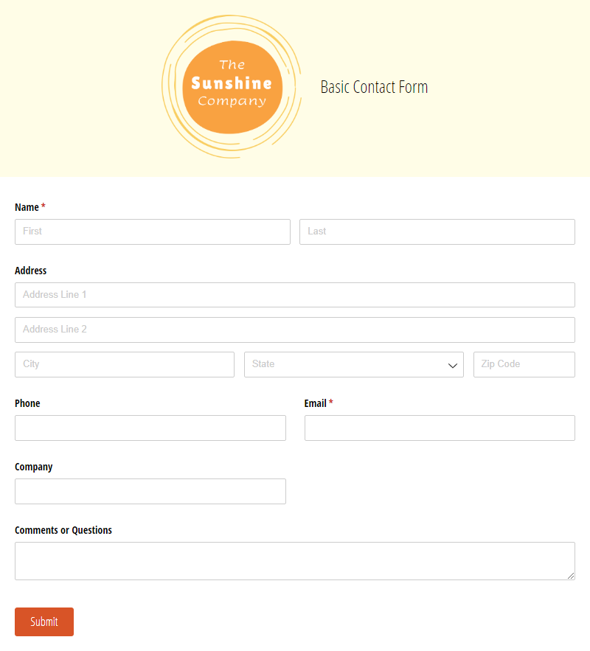
Basic Contact Form
Use our free contact form template to get notified whenever customers, sales leads, media representatives and others reach out online.
Preview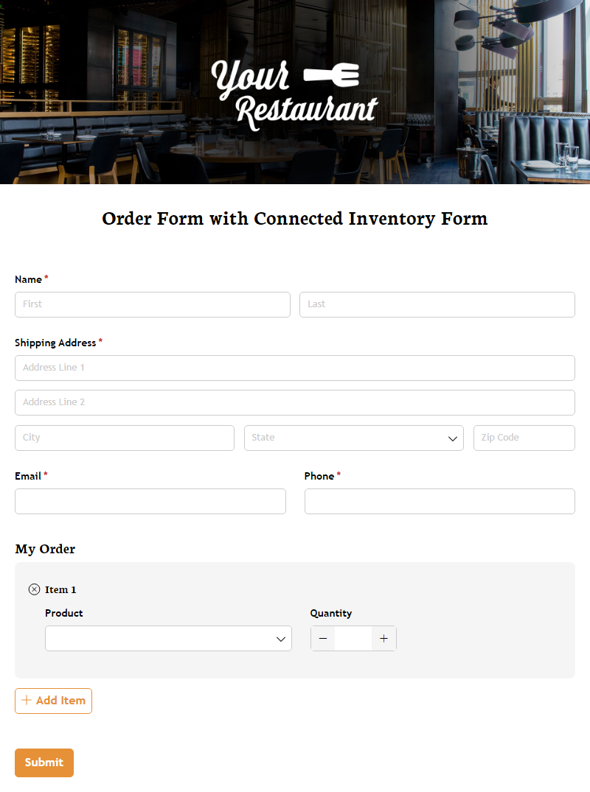
Order Form with Connected Inventory Form
Use our free product inventory form template to limit the number of times a specific product may be selected based on available quantity.
Preview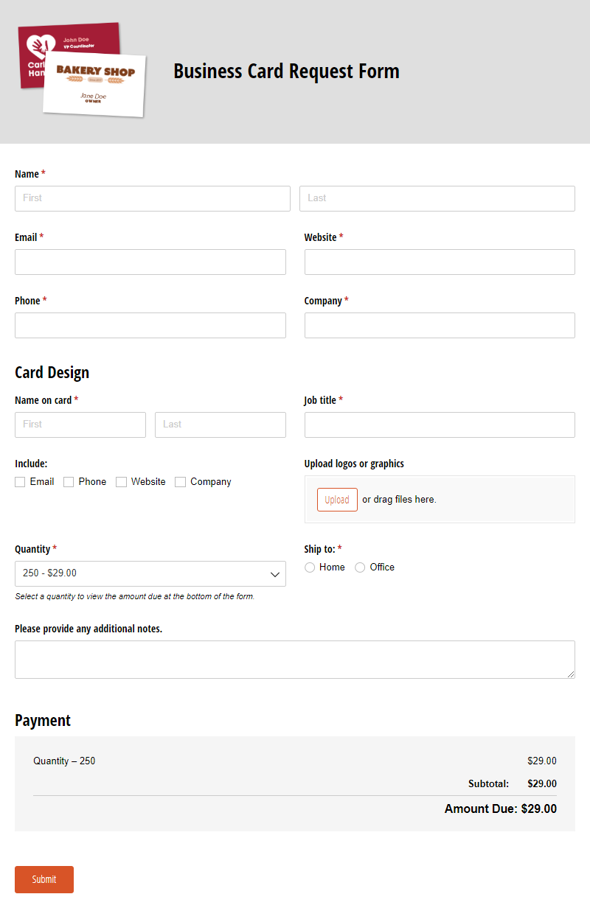
Business Card Request Form
Use our free business card request form template to enable customers to easily order custom business cards online. Simply customize it with your options.
Preview
FAQ
No. Embedding Cognito Forms on Shopify doesn’t require an app. You paste your form’s embed code directly into one of Shopify’s Custom Liquid block. As long as you have access to edit your store’s pages, you can embed a form without installing anything from the Shopify App Store.
Yes. Cognito Forms supports payment collection through Stripe, PayPal, and Square directly inside the form. This is useful for deposits, custom orders, wholesale inquiries, or any transaction that falls outside your standard Shopify checkout flow. Payments are processed securely through your connected payment provider.
Shopify restricts access to the checkout page for most plan types, so embedding third-party code there is generally not possible. You can embed Cognito Forms on any standard Shopify page—including product pages, landing pages, and a dedicated contact or inquiry page—to collect information before or after checkout.