Give customers a discount code at checkout and watch the savings apply automatically.
Build Time & Skill
10-15 min
Beginner
What you'll learn
How to add a coupon code field to your order form that validates the code and automatically calculates the discount at checkout.
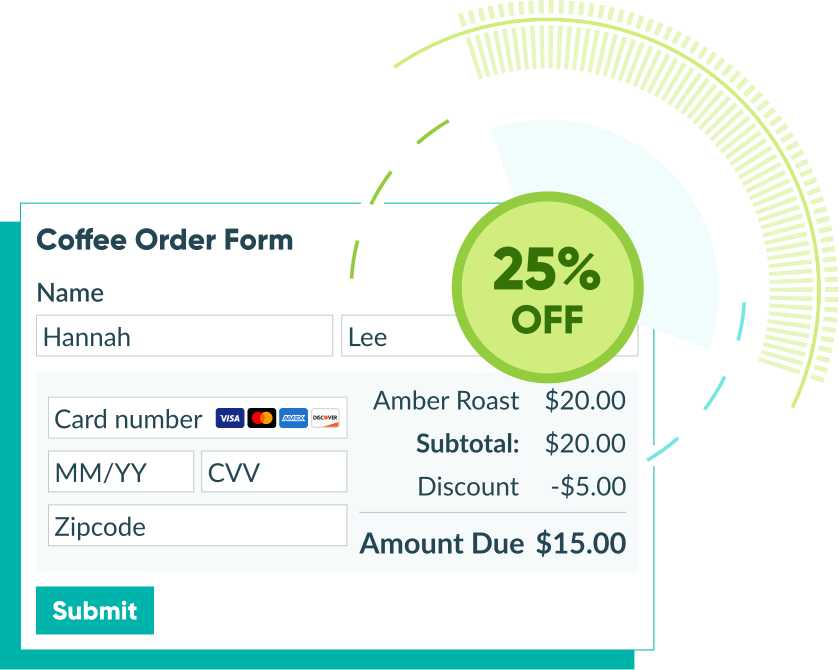
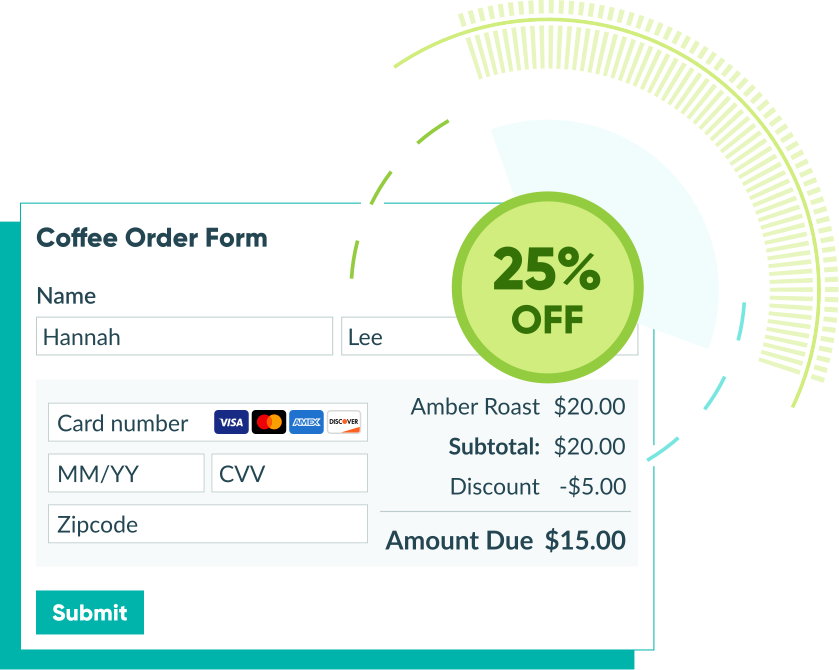
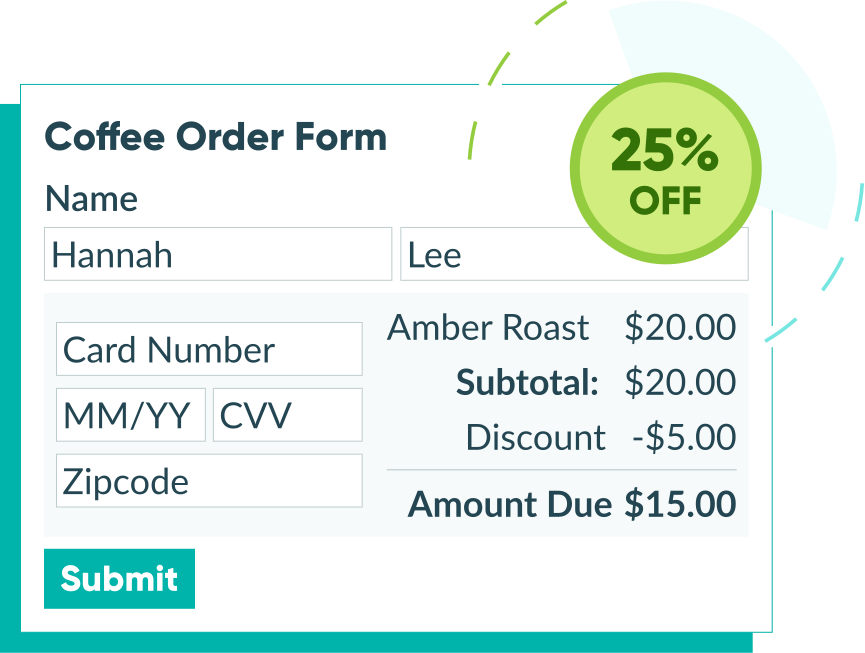
Discount codes are one of the easiest ways to drive sales, reward loyal customers, and run time-limited promotions. Whether you’re offering a seasonal deal, a referral perk, or a first-time buyer discount, setting it up in Cognito Forms takes just a few minutes. All you need is a Textbox field for the code and a Price field to calculate the discount.
Adding coupon codes to your order form helps you:
- Run promotions without friction. Customers enter a code and see the discount applied instantly, right before they pay.
- Reward the right people. Share unique codes with specific customers, email lists, or partners without changing your form.
- Stay in control. You decide which codes are valid and what discount they apply.
- Keep everything in one place. Discounts are calculated and applied directly inside your payment form.
Step-by-Step: Adding a Coupon Code to Your Order Form
Set up a coupon code on your order form in three easy steps: add a Textbox field for code entry, add a Price field for the discount calculation, and then test it before publishing.
Want a working example to build from? Our Order Form with Coupon Code template includes a coupon code field and discount calculation already configured. Open it, swap in your own codes and discount amounts, connect a payment processor, and you’re ready to go.
Step 1: Add a coupon code field
In this step, you’ll add a Textbox field for customers to type in their coupon code. You’ll also determine which codes are valid by setting up a Custom Error expression. This ensures the form automatically flags invalid codes before submission.
- Open your form on the Build page.
- Add a Textbox field and label it something clear, like “Coupon Code.”
- In the field settings, find Show Custom Error and set it to When.
- Enter the following expression, replacing
SAVE10with your actual coupon code:=(CouponCode != null and CouponCode != "SAVE10"). This error expression fires when the field is filled out and the entered value doesn’t match your code. - Add a custom error message below the expression, such as: “Invalid code. Please try again.”

Step 2: Add a discount price field
The Price field does the math. This is where you determine the discount amount each coupon code applies. When the code matches, the field returns a negative value, automatically reducing the order total.
- Add a Price field below your existing payment fields and label it “Discount” or “Coupon Discount.”
- In the Amount section of the field settings, enter your discount expression.
- For a percentage discount (e.g., 10% off):
=if CouponCode = "SAVE10" then -ItemTotal * 0.10 else 0 - For a fixed dollar discount (e.g., $20 off):
=if CouponCode = "SAVE20" then -20 else 0
- For a percentage discount (e.g., 10% off):
- Replace
ItemTotalwith the actual name of the payment field on your form.

If your form has more than one payment field, add them together inside the expression before applying the discount: =if CouponCode = "SAVE10" then -(PaymentField1 + PaymentField2 + PaymentField3) * 0.10 else 0
It’s important to reference the actual payment fields on your form rather than a calculation property like Order.SubTotal. The order subtotal updates as soon as a discount is applied, which causes the calculation to loop and produce an inaccurate result.
Step 3: Test your coupon code
Before publishing, confirm the coupon works correctly in both directions.
- Click Preview in the top right to open the live form preview.
- Enter a valid code and verify:
- No error message appears
- The Discount Price field updates with the correct negative value
- The order total decreases by the expected amount
- Enter an invalid code and verify:
- The custom error message appears
- The Discount field stays at $0.00
- The form cannot be submitted
- Leave the coupon field empty and confirm the form submits normally without triggering the error.

Taking Your Coupon Further
The three steps above cover the most common setup. Here are a few ways to build on that based on your needs:
Multiple coupon codes
To support more than one code, chain them together using if/then statements in your Price field expression:
=if CouponCode = "SAVE10" then -ItemTotal * 0.10 else if CouponCode = "SAVE20" then -ItemTotal * 0.20 else 0
Each code can apply a different discount type or amount. Add as many codes as you need by extending the chain, and make sure to update the custom error expression in your Textbox field to include all valid codes:
=(CouponCode != null and CouponCode != "SAVE10" and CouponCode != "SAVE20")
Repeating section order forms
If your order form uses a Repeating Section for line items, use the .Sum function to total the repeating payment field before applying the discount:
=if CouponCode = "SAVE10" then -MyOrder.Sum(ItemTotal) * 0.10 else 0
Replace MyOrder with the name of your Repeating Section and ItemTotal with the payment field inside it.
For more on referencing repeating data in calculations, see Repeating Sections & Tables.

Limiting how many times a code can be used
To cap the number of times a coupon code can be redeemed, use Cognito Forms’ Quantity Limits feature. Set a limit on the coupon code field tied to the number of allowed uses. Once the limit is reached, the code is automatically rejected. For full setup instructions, see How to Set Up Limited-Use Discount Codes.
Additional Features to Enhance Your Order Form
Once your coupon is working, these features help you build a more complete order experience:
- Conditional logic: Show the coupon code field only when a customer checks a box like “I have a promo code.” This keeps the form clean for customers without a code.
- Email notifications: Send customers an order confirmation that includes their discount amount and final total. You can reference any field value, including the discount Price field, in your email template.
- Document generation: Auto-generate a PDF receipt or invoice that itemizes the original price, the discount applied, and the final amount charged.
Start Accepting Discount Codes Today
Coupon codes don’t have to be complicated. With a Textbox field and a simple Price field expression, your order form can validate codes and apply discounts automatically—without any custom development. Set it up once, and it runs automatically every time a customer checks out.
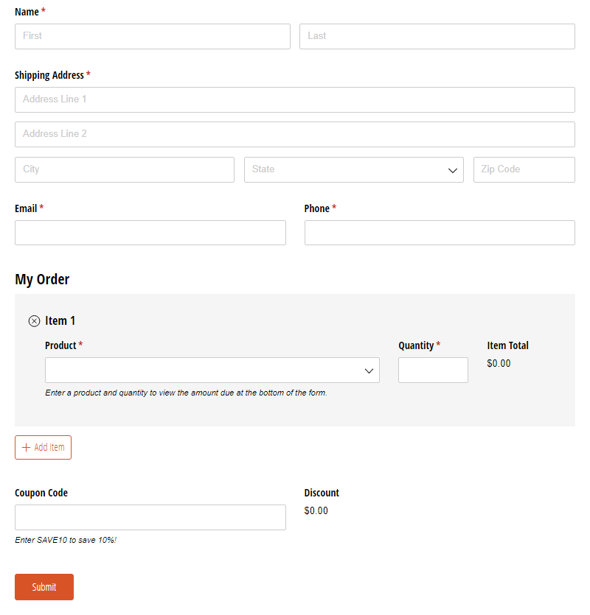
Order Form with Coupon Code
- Process online orders with a free, ready-to-use coupon code template
- Apply percentage or fixed dollar discounts automatically at checkout
- Customize your codes, connect a payment processor, and embed on your website
FAQ
Yes. In your Price field expression, replace the percentage calculation with a fixed negative value. For example, to take $20 off: =if CouponCode = "SAVE20" then -20 else 0.
Yes. Add multiple codes by chaining if/then statements in your Price field expression. Each code can apply a different discount amount or type. Just make sure your Textbox field’s custom error expression is also updated to include all valid codes, so customers with any of them don’t see an error.
Cognito Forms lets you set precise usage limits on coupon codes using the Quantity Limits feature. Once a code reaches its limit, it’s automatically rejected, and customers see an error message. For full setup instructions, see How to Set Up Limited-Use Discount Codes.