Automatically create entries to build powerful multi-form workflows. When someone submits your form, this feature will create a new entry on another form (or the current form) using data from their submitted entry. For example, when HR onboards a new employee, Auto-Create Entries can automatically generate their first timesheet – no manual steps required.
Set up your automation
Auto-Create Entries works with both Lookup and Person fields. In this example, we’ll use a Person field to automatically create a timesheet for each new employee added to an Employee Person Form.
- Create two forms – an Employee Person Form (where the workflow starts) and a Timesheet form (where entries will be created automatically). Connect them using a Person field on the Timesheet form.
- In the Timesheet form, add a Person field and select the Employee Person Form under Look Up People From.
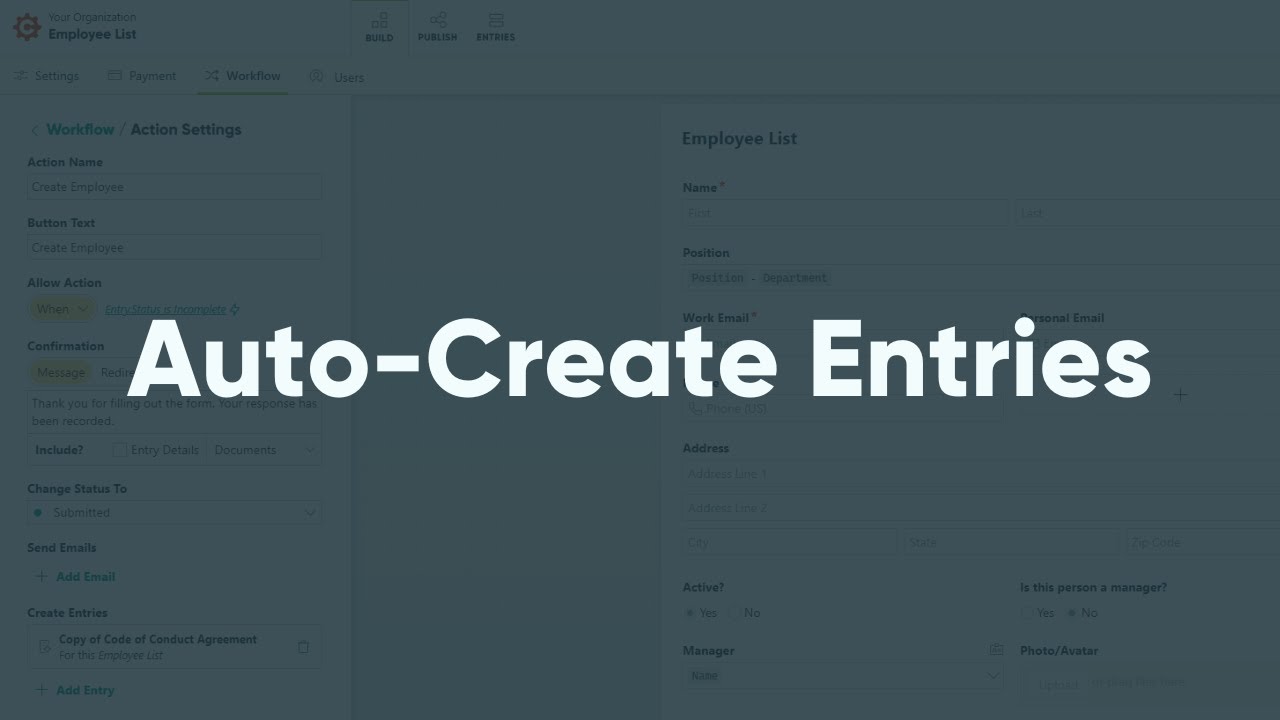
- In the Employee Person Form’s Workflow menu, open the Action Settings for the Submit action, find Create Entries, and select + Add Entry.
- Choose the Timesheet form as the Target Form and select Submit as the Action.
- Prefill the Person field in the Timesheet form with the corresponding data from the Employee Person Form.
Now, whenever a new employee is added to the Employee Person Form, a timesheet is automatically created for them. This automation can be applied within a single form or across multiple forms.
Create Entry settings
You can find the Create Entries option in your form’s Workflow menu, located under Action Settings.
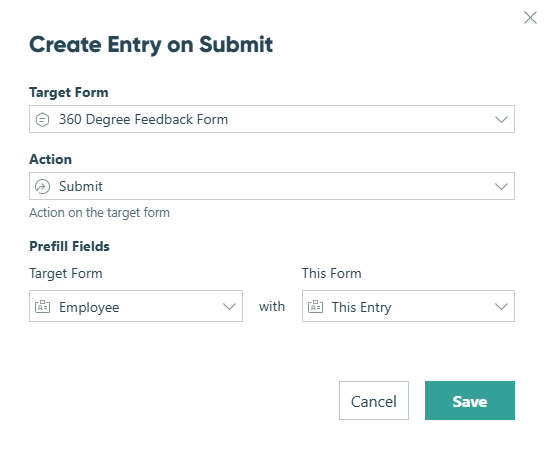
Target Form
Select the form to create new entries on. The current form and the target form must be connected with Lookup or Person fields to auto-create entries.
Additionally, you must have Administrator permissions on both forms.
Action
Select the workflow action on the target form. This triggers every setting configured for that action, including assigning new entries to the corresponding workflow status and sending email notifications.
By default, entries are created automatically whenever the selected action is triggered. To conditionally control when entries are created, set an Allow Action - When condition on the action selected in the Action dropdown. If that action is not allowed, no entry will be created.
Please note:
- Auto-created entries are always submitted using the first available Internal workflow role on the target form. This means the selected action must be allowed for an Internal role.
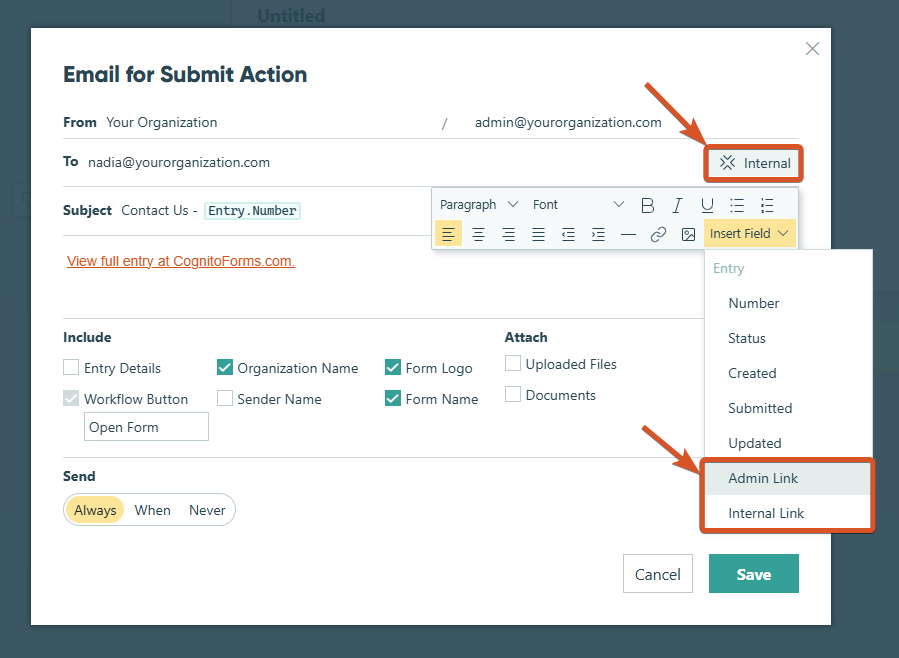
- If the entries you’re automatically creating on the target form are set to trigger email notifications, those emails must include either Workflow links or Admin links.
Prefill Fields
Select one or more Lookup fields or Person fields to prefill with fields from the current form. Please note that Repeating Section or Table field items cannot be used to generate entries.