To share your form, hover over its name in the sidebar and select Publish Form. Alternatively, you can open the Publish page from the top toolbar on either the Build or Entries page.
Embed in your site
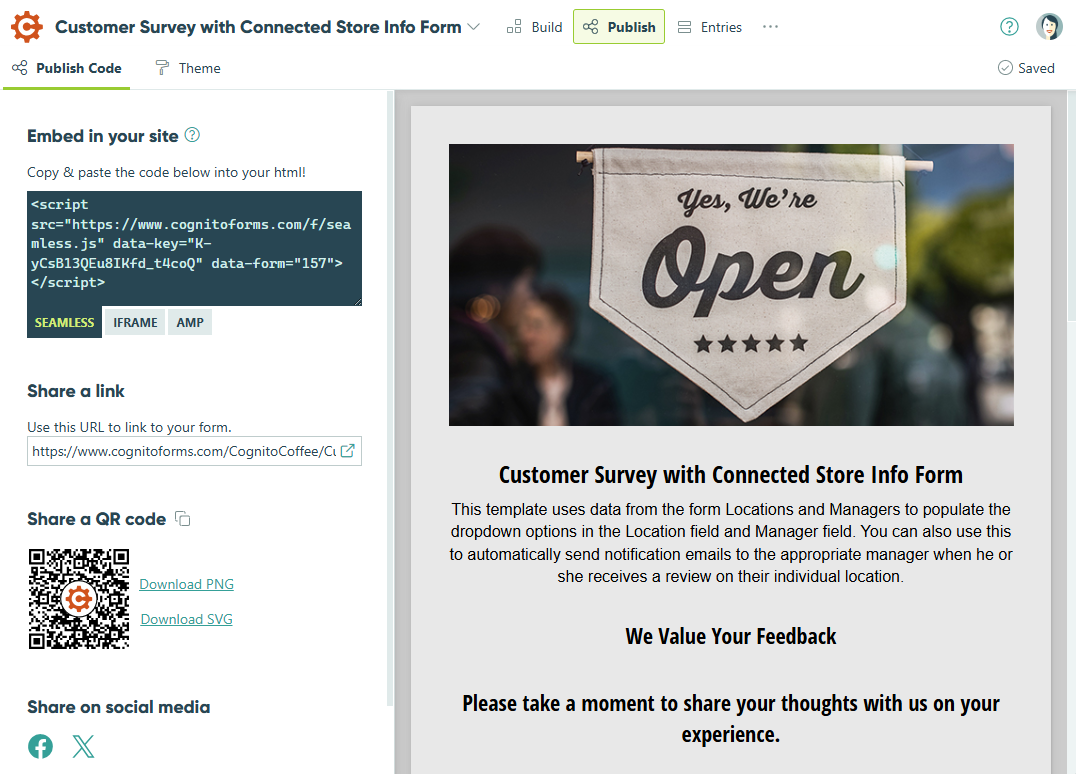
The best way to publish your form is to copy one of the provided embed codes and paste it into your website’s code. This will embed the form into your website so that users will not have to navigate away from your website to fill out the form.
Choose between three options for embedding:
- The Seamless embed code works well for most websites. Plus, you can use the Chameleon field style to allow the styles of your webpage to apply to the form.
- The Iframe embed code provides better compatibility with websites that may have scripting or CSS issues with Cognito Forms.
- The AMP embed code provides completely valid AMP markup for mobile pages. Some features (including redirect urls and form prefilling) will not work when embedding your form via the AMP option.
You can use the Seamless or Iframe embed codes to embed multiple forms on the same webpage. We recommend using the same embed code type for all forms on a single page rather than mixing embed types.
Share a link
From the Workflow menu, you can control who has access to public links based on dates and times or your own custom criteria.
Give users a direct link to the form. This link can be added as a hyperlink to your website or email campaign.
If your organization is on the free Individual plan, the link will display Cognito Forms branding at the bottom of the page. To remove this branding, upgrade your organization to a paid subscription plan.
Share a QR code
Quickly share your form by downloading or copying an auto-generated QR code. Anyone who scans the code will be taken directly to your form’s public link. The QR code is fully screen-reader accessible.
You can:
- Copy the QR code – Click the QR image or the copy icon. Your device will copy a 300×300 PNG version of the code to your clipboard.
- Download the QR code – Use the download links beside the QR image:
- Download PNG saves a 300×300 PNG file named
{form name}_QR.png. - Download SVG saves a scalable, sanitized SVG file named
{form name}_QR.svg.
Both formats preserve the same dot pattern, size, and center logo shown on the page, and the SVG scales cleanly in other programs.
- Download PNG saves a 300×300 PNG file named
Share on social media
Select one of the social media buttons to create a new social media post. The post will contain a link to your form.