Your organization’s audit log provides a complete history of changes made across your organization, including forms, folders, users, and more. The audit log lets you see who made changes and when, monitor user permissions, and maintain compliance with your organization’s security requirements.
This feature is available to organizations on the Pro, Team, and Enterprise plans.
Starting December 3, 2025, Organization Administrators can access audit log data as far back as 1 month (Pro plan), 6 months (Team plan), or 2 years (Enterprise plan).
Viewing the audit log
You can open your organization’s audit log from several locations within Cognito Forms:
-
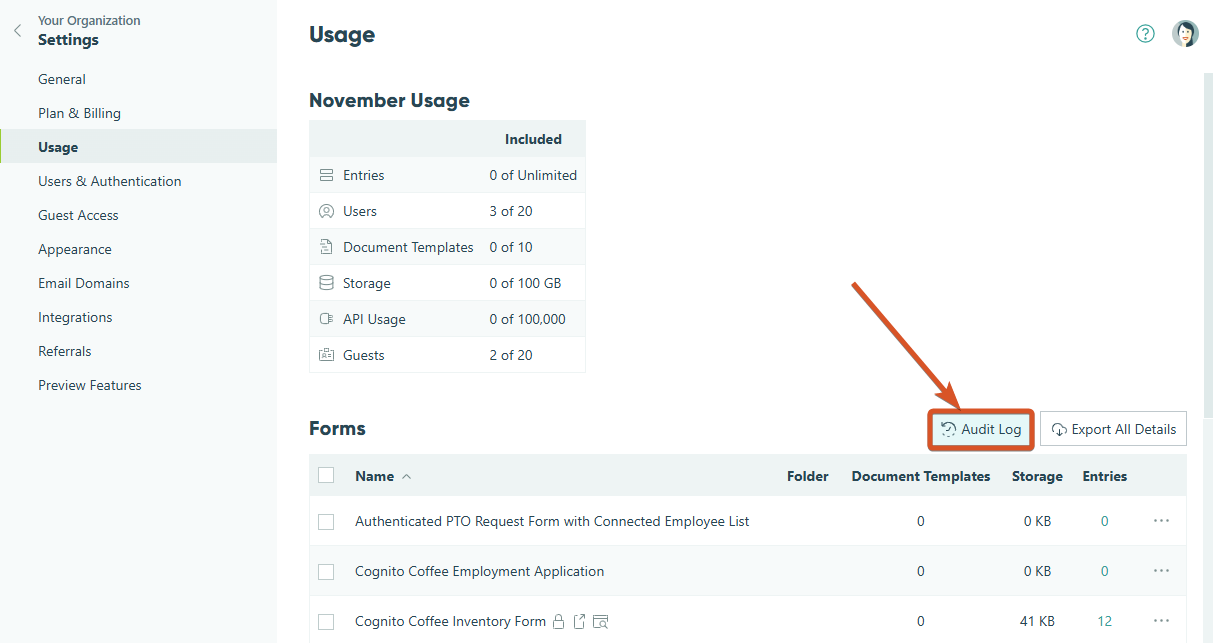
In the sidebar, go to Settings > Usage and click the Audit Log button on the top right above the Forms table.
-
In the sidebar, go to Settings > Users and Authentication and click the Audit Log button on the top right above the Users table. You can also click the ellipsis (…) next to any user’s name and select Audit Log.
-
Right-click a form in the sidebar or click the ellipsis (…), select Form Details, and then click the Audit Log button in the top right.
-
Right-click a folder in the sidebar or click the ellipsis (…) and select Audit Log.
Depending on where you open the audit log, it automatically applies a default filter to show only changes related to that item. You can modify or clear these filters at any time.
Changes in the audit log
Deleted items are retained in the audit log, so you can see historical changes even after a form, folder, or user has been removed. For tracking changes to individual form entries, see Entry Auditing.
The audit log tracks changes across the following action types:
| Action Type | Details |
|---|---|
| Folders | View creation, renaming, deletion, archiving, restoring, and permission changes. |
| Forms | View creation, saves, renaming, deletion, moving, copying, archiving, restoring, permission changes, and entry imports/exports. |
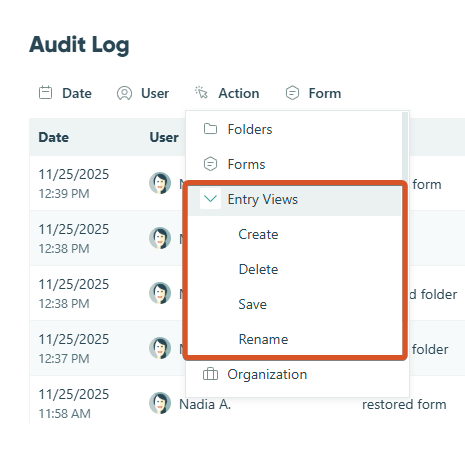
| Entry Views | View creation, deletion, renaming, and saving. |
| Organization | View creation, renaming, changes to preferences/general settings/security settings, and email domain management. |
| Plan | View upgrades/downgrades, prepayments, compliance agreements, and billing information changes. |
| Users | View logins, invitations, invite revocations, joins, departures, removals, permission changes, profile updates, and View As actions. |
| Integrations | View creation, deletion, renaming, scope and access changes, and configuration updates. |
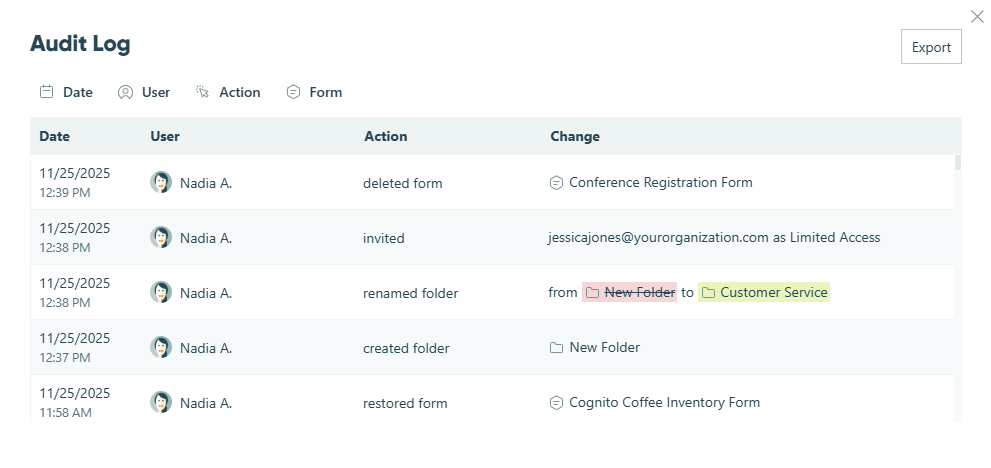
Each change record includes:
- The date and time the change was made (in your organization’s timezone).
- The user who made the change.
- A description of what changed.
- The data as it existed at the time of the change. For example, if a form was renamed, all changes before the rename show the original form name.
Filtering the audit log
The audit log can display up to 1,000 records at a time. Use filters to narrow down the changes you want to see:
Date filter
Filter changes by a specific date range. Select a start and end date to view changes within that period. The available range is limited by your plan’s retention period.
User filter
Filter to see changes made by or to a specific user. The dropdown includes current organization members, invited users, removed users, and deleted users. Select a user to view all changes they made or that were made to their account.
Action filter
Filter by the type of change. Actions are organized into action types: Folders, Forms, Entry Views, Organization, Plan, Users, and Integrations. Click the down arrow (⌄) next to an action type to expand it and view individual actions.
Form/Folder filter
Filter changes related to a specific form or folder. Forms and folders are displayed hierarchically. Click a folder name to see changes to that folder and all forms within it, or select a specific form to see only its changes.
Exporting the audit log
Click the Export button in the top-right corner to download a CSV file of the filtered audit log data. You’ll receive an email with the export file attached when it’s ready.
The export includes only changes that match your currently applied filters and is limited to 10,000 records per export. You can export up to 10 times per minute, and only one export can be in progress at a time.
The export columns include:
- Date/Time (in your organization’s time zone)
- User
- User Email
- Action
- Item ID
- Item
- Item Type
- New Value
- Old Value
- Description
The New Value and Old Value columns will be empty for actions that create new items rather than modify existing ones, such as creating a form or inviting a user.