The Payments page provides a complete view of all payments across all forms in your organization. From here, you can browse, filter, and export payments, inspect payment details, issue refunds, and manage disputes.
Payments table
The Payments table displays all payments across your organization. Each row shows the payment date, status, customer, form, amount, and Cognito Pay account. Clicking a row opens the payment details dialog.
The table is sorted by date descending by default, with the most recent payments first. Additional records load as you scroll.
The Account column is shown only when multiple Cognito Pay accounts are linked to payments in your organization.
Payment statuses
Every payment has a status that reflects its current state. Statuses update automatically as payments are processed, refunded, or disputed.
| Status | Group | Description |
|---|---|---|
| Succeeded | – | Successfully captured. |
| Pending | – | Payment created; outcome not yet known. |
| Partially Paid | Partially Paid | Some funds returned voluntarily or involuntarily. |
| Partially Refunded | Partially Paid | Some funds returned voluntarily. |
| Partially Reversed | Partially Paid | Some funds returned involuntarily via a lost dispute. |
| Disputed | Unsuccessful | Payment has an active dispute or chargeback. |
| Reversed | Unsuccessful | All captured funds returned involuntarily via a lost dispute. |
| Refunded | Unsuccessful | All captured funds returned voluntarily. |
| Declined | Unsuccessful | Terminal failure; will not succeed without a new attempt. |
| Canceled | Unsuccessful | Payment was canceled, expired, or voided. |
Pending substatuses
When a payment is in a Pending state, a substatus provides additional detail about where the payment is in the processing flow. Pending substatuses appear only in the payment details dialog.
| Substatus | Description |
|---|---|
| Processing | Payment accepted for processing but not yet finalized. |
| Authorized | Funds authorized but not yet captured. |
| Buyer Action Required | Payment cannot proceed until the customer completes authentication or approval. |
| Requires Confirmation | Payment created but not yet confirmed. |
Declined substatuses
When a payment is Declined, a substatus provides additional detail about the reason for the decline. Declined substatuses appear only in the payment details dialog.
| Substatus | Description |
|---|---|
| Insufficient Funds | The issuing bank declined due to a lack of available balance or credit. |
| Expired Card | Card expiration date has passed. |
| Incorrect Card Number | Card number is invalid. |
| Incorrect CVC / CVV | Security code mismatch. |
| AVS / Billing Mismatch | Billing address or ZIP does not match issuer records. |
| Generic Issuer Decline | Bank declined without a specific reason. |
| Card Reported Lost / Stolen | Issuer indicates the card is lost or stolen. |
| Transaction Limit Exceeded | Amount exceeds issuer-imposed limits. |
| Unsupported Card / Instrument | Card brand or funding type not supported. |
| Currency Not Supported | Currency is not supported by the merchant or processor. |
| Duplicate Transaction | Processor rejected a duplicate authorization attempt. |
| Suspected Fraud / Risk Block | Declined due to fraud detection. |
| Processor / Network Error | Temporary upstream processor or network issue; may be retried. |
| Cardholder Authentication Failed | Cardholder attempted authentication, but it failed. |
Filters
- Date – Filter by a start and end date.
- Status – Select one or more payment statuses.
- Customer – Select a customer by name or email. Use No Customer to filter payments with no associated customer.
- Form – Select a single form or an entire folder. Archived and deleted forms are included under Archived Items and Deleted Items.
- Account – Shown only when multiple Cognito Pay accounts are linked to payments in your organization. Filter by a single account.
- Amount – Filter by equal to, greater than, less than, or between a specified value.
Export
The Payments table can be exported to CSV. Export includes only records matching your currently applied filters and is limited to the first 10,000 payments. If your filters match more than 10,000 payments, only the first 10,000 will be exported.
To export, click Export from the bottom of the Payments page. When the export is ready, the CSV is downloaded directly in your browser and also sent to your email. Export download links are user-specific – only the user who generated the export can download it.
The export includes the following columns: Payment ID, Date, Status, Customer Entry ID, Customer Name, Customer Email, Form ID, Form Name, Entry ID, Order ID, Account, Currency, Amount, Payout ID, Payout Date, Card Provider, Card Last 4, Card Country, Statement Descriptor, Billing Name, Billing Address or Postal Code, Billing Email, and Billing Phone.
Payment details
Clicking a payment opens the payment details dialog. The dialog can also be opened from the Disputes page, the Payouts page, and the Order tab in entry details.
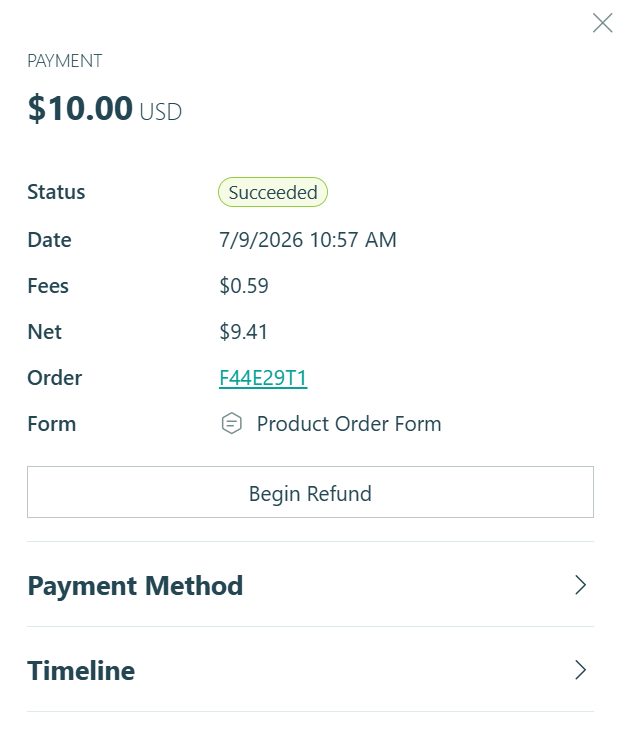
The dialog displays:
- Payment amount, status, and creation date
- Order ID, with a link to the related entry when you have permission to view it
- Form name
- Customer name and avatar when a customer is associated with the payment
- Payment method and billing details, including card brand, last four digits, expiration date, country, CVC check status, statement descriptor, and billing contact information
- A financial summary showing gross amount, fees, net amount, and any refunded or reversed amounts
Financial summary
The financial summary breaks down the payment amount:
- Fees – The sum of all fees on the payment. Click to expand and view individual fee rows.
- Net – Shown when the net amount differs from the gross amount. Calculated as gross amount minus fees, refunds, and reversals. Net amount can be negative.
- Refunded – Shown for Refunded and Partially Refunded payments.
- Reversed – Shown for Reversed and Partially Reversed payments.
Refunds
Refunds can be issued from the payment details dialog when the following conditions are met:
- The payment status is Succeeded, Partially Refunded, or Partially Reversed
- The payment provider permits refunds for that payment
- You have permission to edit the associated entry
- The payment has a positive refundable amount
To issue a refund:
- Open the payment details dialog and click Begin Refund.
- Enter the refund amount in the payment currency.
- Select a reason: Duplicate, Fraudulent, Requested by Customer, or Other. If you select Other, a note is required.
- Optionally add a note.
- Click Submit to complete the refund.
When a refund is issued, Cognito Pay sends a refund email to the customer. If no customer contact email or billing email is available, the refund email cannot be sent. The payment details dialog will notify you when this is the case before you complete the refund.
The refund email can be customized per Cognito Pay account. Learn more about the refund email.
Payment timeline
The payment timeline appears as a collapsible section in the payment details dialog. It shows a chronological history of all changes to the payment, sorted from most recent to oldest.
Events are only added to the timeline when they result in a change to payment data.
Payment events
| Event | Description |
|---|---|
| Payment succeeded | Payment was successfully captured. |
| Payment declined | Payment was declined; the substatus is shown. |
| Payment canceled | Payment was canceled. |
| Payment pending | Payment is pending; the substatus is shown. |
Refund events
| Event | Description |
|---|---|
| Refund pending | A refund was created and is pending, showing amount, reason, and note. |
| Refund succeeded | A refund was successfully processed, showing amount, reason, and note. |
| Refund failed | A refund attempt failed. |
| Refund canceled | A refund was canceled. |
Dispute events
| Event | Description |
|---|---|
| Dispute created | A dispute or inquiry was opened, with the reason shown. |
| Dispute updated | The dispute status changed. |
| Dispute won | The dispute was resolved in your favor. |
| Dispute lost | The dispute was resolved in the customer’s favor. |
| Inquiry closed | An inquiry was closed before becoming a chargeback. |
| Funds reinstated | Disputed funds were returned to your account, showing the amount. |
| Funds reversed | Disputed funds were withdrawn from your account, showing the amount. |
Payout events
| Event | Description |
|---|---|
| Included in payout | The payment was included in a payout, with the payout date shown. |
Access and permissions
You can view a payment when you have permission to view the associated entry. If you do not have permission to view the associated entry, the payment is not shown in the table.