The Payouts page gives you a complete view of all payouts across your Cognito Pay accounts. From here, you can monitor payouts to your bank account, review payout details, manage your payout schedule, and generate reconciliation reports.
If your organization has multiple Cognito Pay accounts, use the account switcher at the top of the page to view balances and payouts for a specific account.
Organization Owners can edit payout settings and manage bank accounts.
Your first payout is held for 7–14 days after your Cognito Pay account is approved. Subsequent payouts follow your selected payout schedule.
Balances
The balances panel appears at the top of the Payouts page and shows a summary of your current Cognito Pay account balance.
From the balances panel, you can:
- View your available and pending balance
- See information about upcoming payouts
- Add funds to your balance when enabled for your account
- Initiate a manual or instant payout when enabled for your account
- Edit your payout schedule
- Manage your connected bank accounts
Available vs. Pending Balance
Your balance is split into two amounts:
- Available – Funds that are ready to be paid out to your bank account.
- Pending – Funds that have been received but are not yet available for payout. Pending funds typically become available within a few business days, depending on your payout schedule and account settings.
Negative Balances
Your balance can become negative when refunds, disputes, or fees exceed your available funds. When this happens, Cognito Pay will notify you by email. Depending on your account settings, Cognito Pay may deduct the negative amount from a future payout or require you to add funds to your balance.
Reserve Holds
Stripe may place a reserve hold on a portion of your balance as a risk management measure. Held funds are unavailable for payout until the reserve is released. Cognito Pay will notify you when a reserve hold is applied to your account.
The payouts table
The Payouts table displays all payouts for the selected Cognito Pay account. Each row shows the payout date, status, destination, and amount. Clicking a row opens the payout details dialog.
The table is sorted by date descending by default, with the most recent payouts first. Additional records load as you scroll.
Payout statuses
| Status | Description |
|---|---|
| Paid | Payout successfully completed; funds transferred to your bank account. |
| Pending | Payout created but not yet sent to your bank account. |
| Sent | Payout sent to your bank account; awaiting final confirmation. |
| Canceled | Payout canceled before completion; funds returned to your balance. |
| Failed | Payout attempt failed; funds not delivered and typically returned to your balance. |
Automatic and manual payouts
Cognito Pay supports automatic and manual payouts across a range of payout schedules. Your payout schedule only controls when payouts are sent, not how long it takes for your pending balance to become available. The time it takes for funds to arrive in your bank account may vary depending on your bank and country.
| Payout schedule | Description |
|---|---|
| Manual payouts | You choose when to send payouts and how much to transfer. |
| Daily payouts | Cognito Pay automatically transfers your available funds every business day. |
| Weekly or monthly payouts | You can specify particular days of the week or days of the month for payouts. For example, payouts on Mondays and Thursdays, or on the 1st and 15th of each month. |
| Monthly adjustments | If your selected payout day doesn’t exist in a given month (for example, the 31st in a 30-day month), Cognito Pay moves the payout to the last day of that month. |
| Non-business days | Payouts scheduled on weekends or holidays arrive on the next business day. |
Automatic payouts
Automatic payouts are initiated by Cognito Pay on a scheduled basis. You can set your payout schedule to daily, weekly, or monthly. You can view and edit your payout schedule from the balances panel or the Account page.
The payout details dialog for automatic payouts includes a full transaction breakdown showing the payments, refunds, disputes, and other transactions that contributed to the payout amount. Supported transaction types are:
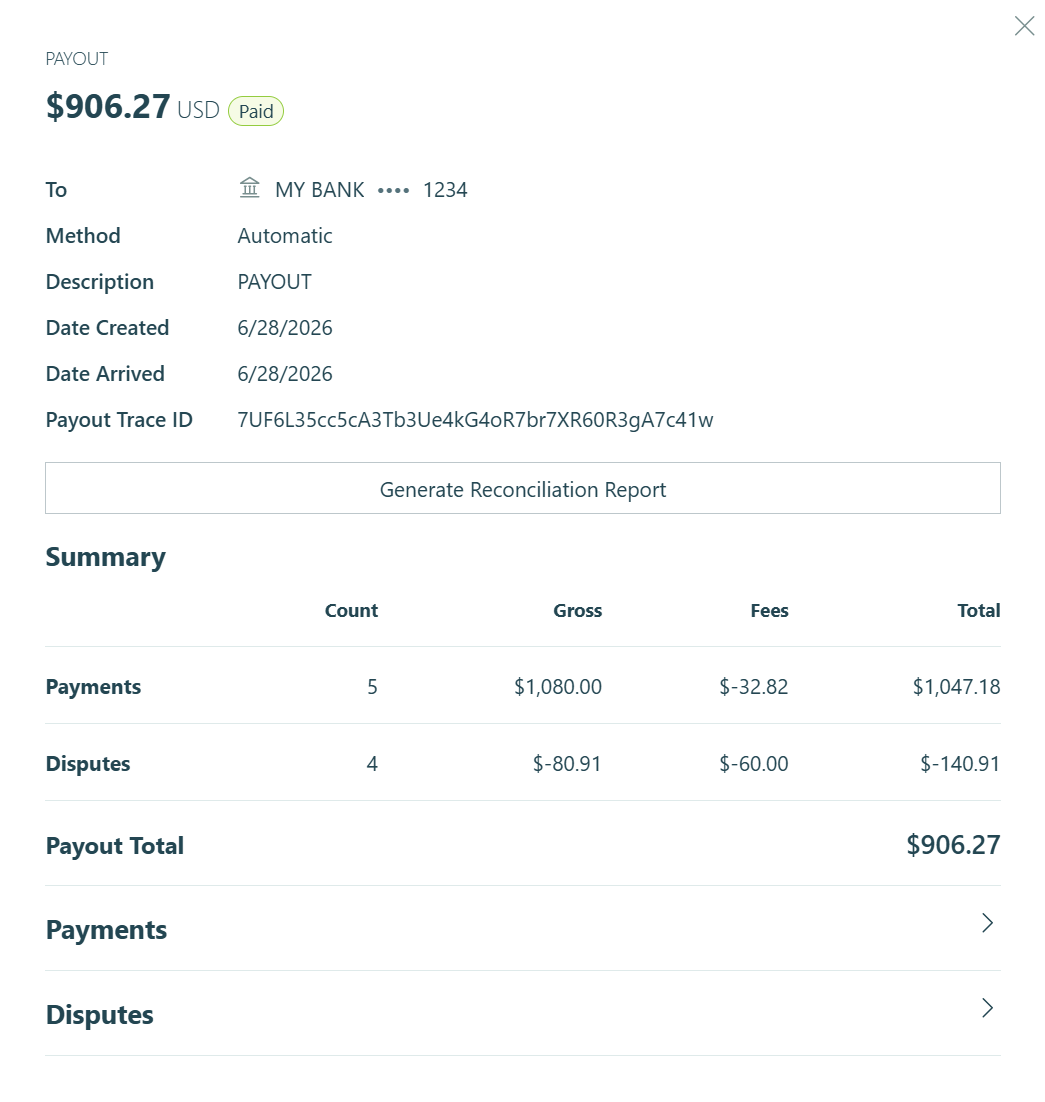
- Payments – Successful payment funds included in the payout.
- Refunds – Refund amounts deducted from the payout.
- Disputes – Dispute-related deductions or reversals.
- Payouts – Funds moved from your balance to your bank account.
- Adjustments – Balance adjustments not covered by another transaction type.
- Additional Fees – Standalone provider fee entries.
- Reserve Holds – Risk reserve amounts held by Cognito Pay.
- Reserve Releases – Risk reserve amounts released by Cognito Pay.
- Other – Transaction types not mapped to another category.
Each transaction type can be expanded to view the individual records that contributed to it. Clicking a payment row opens the payment details dialog. Each expanded transaction table can be exported to CSV and is available to organization owners and global admins only for payouts in Paid status.
You can also generate a payout reconciliation report for any automatic payout in Paid status.
Manual payouts
Manual payouts are initiated by you from the balances panel. Two types of manual payouts are available when enabled for your account:
- Standard manual payout – Funds arrive on a standard timeline, typically within 2 business days.
- Instant payout – Funds arrive within minutes. Instant payouts may incur an additional fee.
For manual payouts, the payout details dialog displays the payout statement descriptor. Transaction details are not available for manual payouts.
Balance and payout reconciliation reports
From the footer of the Payouts page, you can generate two types of reports for a specified date range and timezone.
Each report includes three sections, each downloadable separately as a PDF. When downloading a section, you can choose a Summary or Itemized report format, and select which columns to include – either the default set or a custom selection from the full list of available fields.
Daily data is available through the previous day. Data for the current day becomes available by 11:59 AM ET the next day.
Balance report
Lists all transactions and payouts that occurred within the selected period.
- Balance Summary – Starting balance, account activity and fees, net balance change, total payouts, and ending balance for the period.
- Balance Change From Activity – A breakdown of charges, refunds, and fees that contributed to the net balance change during the period.
- Payouts – The total number and amount of payouts sent during the period.
Payout reconciliation report
Lists transactions included in specific payouts that settled within the selected period. This report is only available to accounts on an Automatic payout schedule.
- Balance Summary – Starting balance, account activity and fees, net balance change, total payouts, and ending balance for the period.
- Payout Reconciliation – A breakdown of charges, refunds, disputes, and associated fees for payouts that settled in the period, plus the total paid out.
- Ending Balance Reconciliation – Charges and refunds not yet included in a settled payout, and the resulting ending balance.
Filters
- Date – Filter by a start and end date.
- Status – Select one payout status.
- Destination – Filter by a specific payout destination.
- Amount – Filter by equal to, greater than, less than, or between a specified value.
Export
The payouts table can be exported to CSV. Export includes only records matching your currently applied filters and is limited to the first 10,000 payouts. If your filters match more than 10,000 payouts, only the first 10,000 will be exported.
To export, click Export from the bottom of the Payouts page. When the export is ready, the CSV is downloaded directly in your browser and also sent to your email. Export download links are user-specific – only the user who generated the export can download it.
The export includes the following columns: Payout ID, Payout Creation Date, Payout Arrival Date, Status, Destination, Destination Last 4, Currency, Amount, Account, Method, Description, and Payout Trace ID.
Notifications
Cognito Pay sends email notifications to organization Owners and Adminstrators for the following payout events:
- Automatic payout succeeded – Sent when an automatic payout reaches Paid status.
- Automatic payout failed – Sent when an automatic payout fails.
- Manual payout succeeded – Sent when a manual payout reaches Paid status.
- Manual payout failed – Sent when a manual payout fails.
- Negative balance or reserve hold – Sent when your balance becomes negative, or funds are placed in reserve.