The Account page lets you view and manage the details for each connected Cognito Pay account. If your organization has multiple Cognito Pay accounts, use the account switcher to move between them.
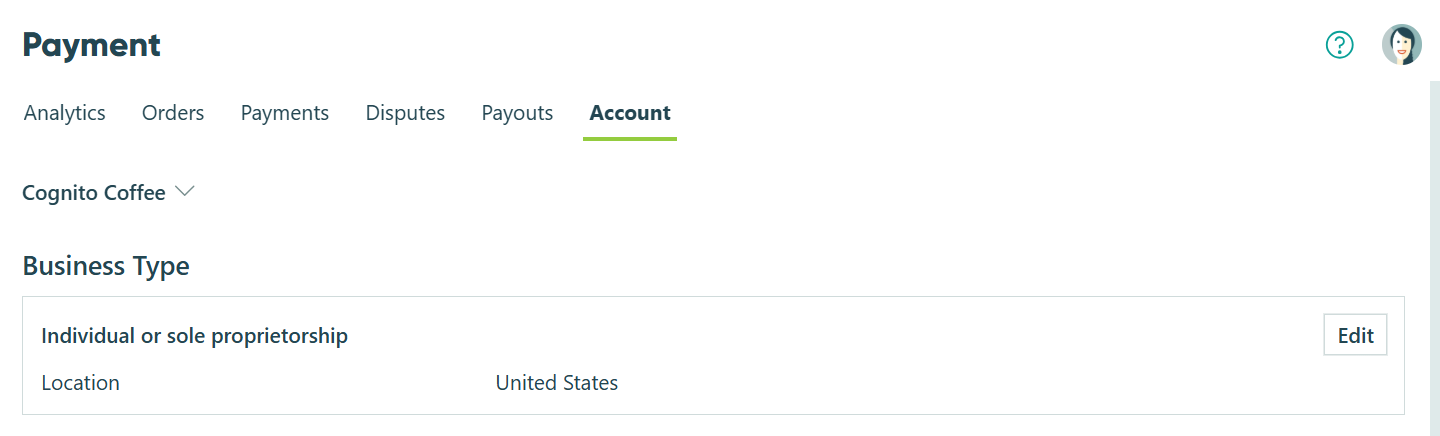
Account Details and Status
The Account page displays the current status of your Cognito Pay account, including whether payments, payouts, and dispute management are enabled. Account capabilities can be restricted when outstanding requirements remain unresolved.
Account Requirements
Stripe may require additional information to verify your account or maintain your account capabilities. When a requirement is due, Cognito Pay will notify you by email and display the requirement on the Account page.
Requirements can affect your ability to accept payments, receive payouts, or manage disputes. Resolving requirements promptly helps avoid interruptions to your payment operations. Common requirements include identity verification, business information, and document uploads.
Cognito Pay sends email notifications to Cognito Pay account owners for the following account events:
- Account requirement due – Sent when a requirement is upcoming, due, or past due.
- Account restricted or capability degraded – Sent when your account loses or risks losing a payment, payout, or dispute management capability.
Payout Schedule
Your payout schedule determines how frequently available funds are paid out to your connected bank account. You can view and edit your payout schedule from the Account page or the balances panel on the Payouts page.
Automatic payouts are sent to your bank account on the schedule you select. Changes to your payout schedule take effect for future payouts.
Connected Bank Accounts
Your connected bank account is the destination for all payouts from your Cognito Pay account. You can add, update, or remove bank accounts from the Account page.
When adding or updating a bank account, Stripe may require you to verify ownership of the account. Follow the prompts to complete verification. Removing a bank account that is set as your primary payout destination may pause automatic payouts until a new account is added.
Additional Payment Methods
Cognito Pay supports Apple Pay and Google Pay as additional payment methods. Use the toggles on the Account page to enable or disable each option for your connected Cognito Pay account.
Register Domains for Embedded Forms
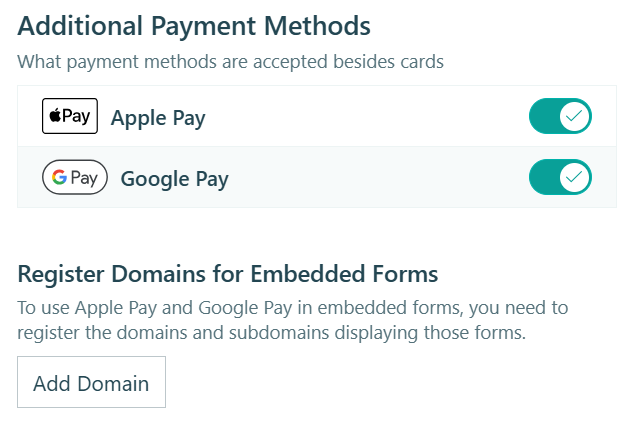
To use Apple Pay and Google Pay on embedded forms, you need to register the domains and subdomains where those forms are displayed.
To register a domain:
- Click Add Domain in the Register Domains for Embedded Forms section.
- Enter your domain without the protocol or www prefix (e.g.,
example.com). - Click Save.
Repeat this process for each domain or subdomain where your embedded forms appear.
Things to know:
- Google Pay will not display on Apple devices, Google devices without Google Pay enabled, or PCs without Google Pay enabled in Chrome. View the full list of countries and regions that support Google Pay.
- Apple Pay will only display in Safari. View the full list of countries and regions that support Apple Pay.
- If your form is embedded via the Iframe embed option, add the
allow="payment"attribute to your embed code. For example:<script src="https://www.cognitoforms.com/f/seamless.js" data-key="-LpDMqjoWgfZXMM8z9I4GA" data-form="13" allow="payment"></script>
Refund Email
Cognito Pay sends a refund email to customers when a refund is successfully processed. The refund email can be customized for each Cognito Pay account on the Account page.
Customizing the Refund Email
To edit the refund email, click the email card in the Refund Email section. This opens the refund email editor.
In the editor, you can customize the email subject and body. Neither the subject nor the body can be left empty. Click Save to apply your changes or Cancel to discard them.
The From and To fields are read-only. The From field displays your organization name and default reply-to email address. The To field displays {{ CustomerEmail }}, which resolves to the refund recipient when the email is sent.
Refund Email Recipients
Refund emails are sent to the customer contact email associated with the customer entry linked to the payment. If no customer contact email exists, the refund email is sent to the billing contact email captured on the payment. If neither email is available, the refund email is not sent.
Domain Verification
A domain verification badge appears next to the From field in the refund email editor.
- Verified – The domain used in your organization’s default reply-to address is verified. Emails will be sent from your domain.
- Unverified – The domain is not verified. Emails will be sent from cognitoforms.com, but replies will still go to your organization’s default reply-to address.
To send refund emails from your own domain, verify your domain.
Available Tokens
You can insert the following tokens into the refund email subject or body:
| Token | Description |
|---|---|
{{ OrganizationName }} |
Name of your organization |
{{ AccountName }} |
Display name of the Cognito Pay account |
{{ FormName }} |
Name of the form associated with the refunded payment |
{{ CustomerName }} |
Customer display name when available |
{{ OrganizationDefaultReplyToEmail }} |
Default reply-to email configured for your organization |
{{ RefundAmount }} |
Amount refunded |
{{ RefundReason }} |
Reason recorded for the refund |
{{ RefundNote }} |
Note recorded for the refund |
{{ OriginalPaymentAmount }} |
Original payment amount before the refund |
{{ OrderId }} |
Order ID associated with the refunded payment |
{{ OrderDate }} |
Date the order was created |
{{ OrderTotal }} |
Total value of the order |
Refund Email Configuration
The refund email configuration is stored per Cognito Pay account and per organization. If the same Cognito Pay account is linked to multiple organizations, each organization can configure a different refund email for that account.
Remove Account
Click Remove Account and then Remove to disconnect your Cognito Pay account from your organization. Once removed, forms in this organization can no longer collect payments with this account. Its payment history will remain available in the Cognito Pay dashboard, and you can link the account again later.