The Orders page gives you a complete view of all orders across every form in your organization. From here you can browse, filter, and export orders, open related entries, and take actions like refunding or collecting payment.
Orders table
The Orders table displays all orders across your organization. Each row shows the order date, status, customer, form name, account, total, and amount due. Clicking a row opens the related entry in a lightbox, defaulted to the Order tab.
The table is sorted by date descending by default, with the most recent orders first. Additional records load as you scroll.
A few things to note:
- Entry summary is shown beneath the form name. You can configure the entry summary in the form settings.
- Amount Due displays a dash for Quote orders and updates as payments and refunds are applied.
- Total and Amount Due are shown in the currency the customer was charged in.
- The Account column is shown only when multiple Cognito Pay accounts are linked to orders in your organization.
Customer details
When Track Submissions by Person is configured on your form, clicking a customer’s name in the Orders table opens their person form profile. From here you can view the customer’s details and full order and submission history across your forms.
Saved payment cards are listed under the Order tab of the customer profile. Learn more about card on file payments.
Order statuses
Every order has a status that reflects its current payment state. Statuses update automatically as payments, refunds, and disputes are applied to the order.
| Status | Group | Description |
|---|---|---|
| Paid | – | Net funds received cover the amount due. |
| Partially Paid | Partially Paid | Some funds received but less than the amount due. |
| Partially Refunded | Partially Paid | Some funds returned voluntarily. |
| Partially Reversed | Partially Paid | Some funds returned involuntarily via a lost dispute. |
| Quote | Open | Payment not required; no funds received. |
| Unpaid | Open | Payment required; no funds received and no in-flight attempt. |
| Pending | Open | A payment is in progress; outcome not yet known. |
| Declined | Unsuccessful | Only declined payments exist on the order. |
| Disputed | Unsuccessful | A payment on the order has an active dispute. |
| Refunded | Unsuccessful | All funds returned voluntarily. |
| Reversed | Unsuccessful | All funds returned involuntarily via a lost dispute. |
Filters
You can filter the orders table by any property shown in the table. Filters are applied manually when you click Apply.
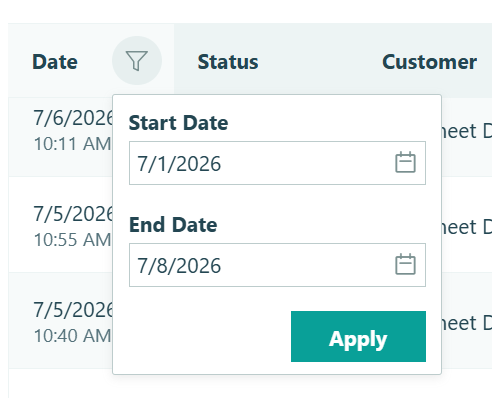
- Date – Filter by a start and end date.
- Status – Select a single status or an entire status group. Status groups are expanded by default and can be collapsed individually.
- Customer – Select a customer by name or email. Use No Customer to filter orders with no associated customer.
- Form – Select a single form or an entire folder. Archived and deleted forms are included under Archived Items and Deleted Items.
- Account – Shown only when multiple Cognito Pay accounts are linked to orders in your organization. Filter by a single account.
- Total / Amount Due – Filter by equal to, greater than, less than, or between a specified value.
Export
The Orders table can be exported to CSV. The export includes only records that match your currently applied filters and is limited to the first 10,000 orders. If your filters match more than 10,000 orders, only the first 10,000 will be exported.
To export, click Export from the bottom of the Orders page. When the export is ready, the CSV is downloaded directly in your browser and also sent to your email. Export download links are user-specific – only the user who generated the export can download it.
The export includes the following columns: Order ID, Date, Status, Customer Entry ID, Customer Name, Customer Email, Form ID, Form Name, Entry ID, Entry Summary, Account, Currency, Total, Amount Paid, Amount Refunded, Amount Reversed, and Amount Due.
Access and permissions
Access to orders is based on your access to the associated entry.
View an order
You can view an order when you have permission to view the associated entry. This includes organization members with entry management or review access, users assigned to a role with access to the relevant entry view, and limited-access users who have been shared access to the entry.
Refund an order
You can refund an order when you have permission to edit the associated entry and the order has already received at least one payment. Review-only access is not sufficient to issue a refund. The form must not be archived.
Pay an unpaid order
You can submit payment for an unpaid order when you have permission to edit the associated entry, you are not acting as a guest user, and the order is currently unpaid and in a payable state. The form must not be archived and the order must not already be paid, pending, or have a refundable payment applied.