You must be an Administrator in Stripe to connect your Stripe account to Cognito Forms.
As of July 20, 2026, direct Stripe connections have been replaced by Cognito Pay for organizations in the United States. Existing Stripe connections are not affected. For further assistance, get in touch with us.
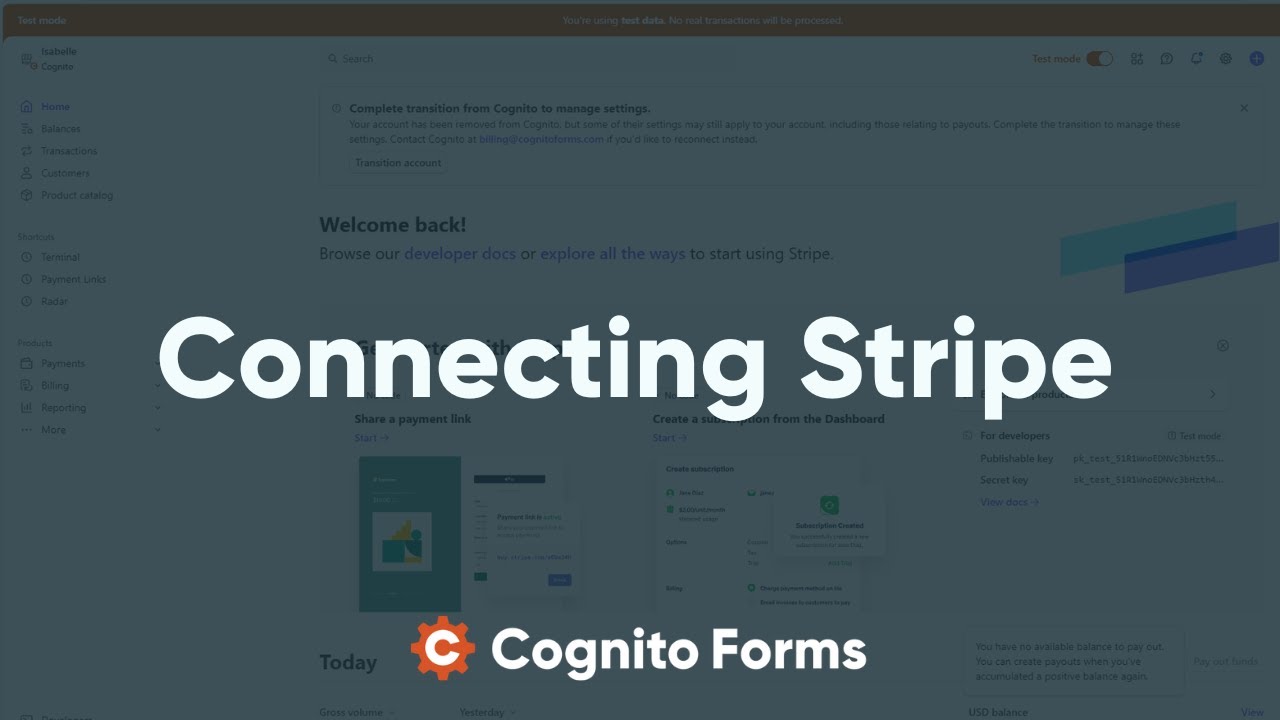
To connect your Stripe account to your form:
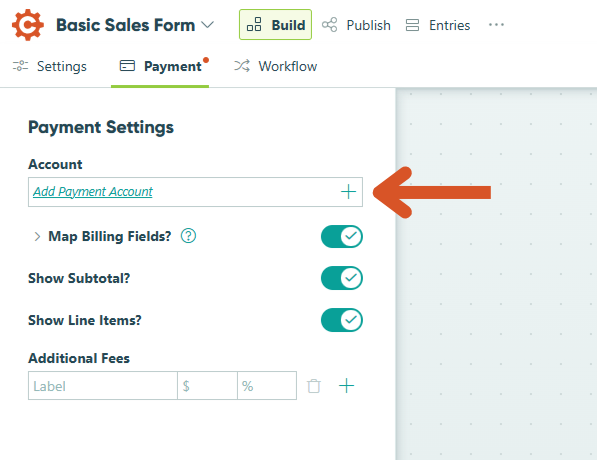
- Select the Payment option at the top of the Build page, and then select Add Payment Account from the Payment Settings menu.
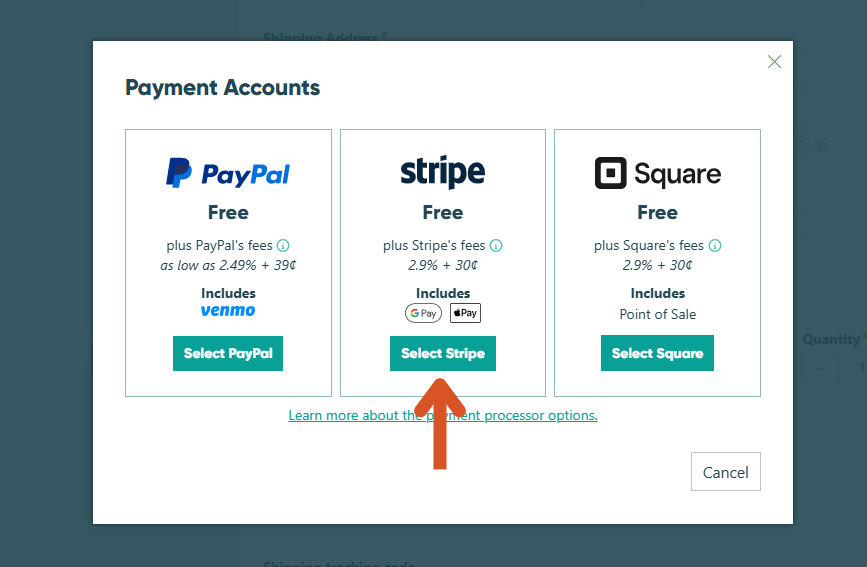
- Select Stripe from the list of payment accounts.
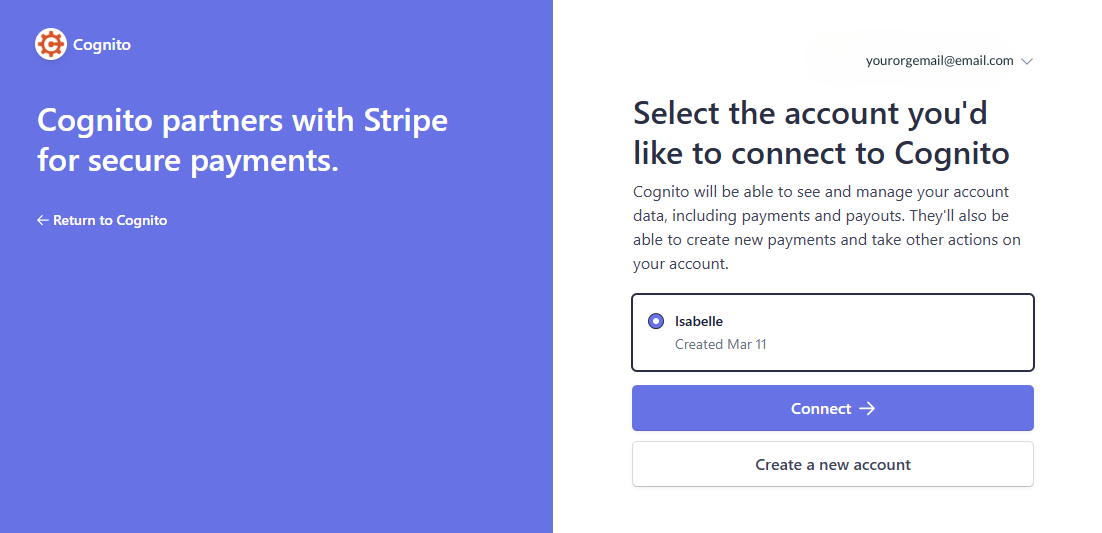
- You will be taken over to Stripe’s website. If you are signed in, select the account you’d like to connect. Then, click Connect. If you do not have a Stripe account, create a new account.
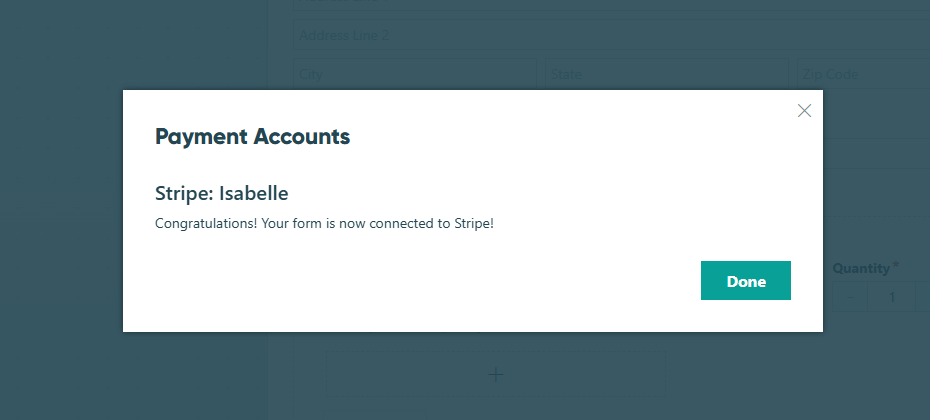
- You will be redirected back to Cognito Forms, where your Stripe account is connected.
Additional Payment Methods
Our integration with Stripe includes support for Google Pay and Apple Pay as additional payment methods. Both are enabled by default once your Stripe account is connected. You can turn them on or off from your Stripe dashboard.
Google Pay
To enable or disable Google Pay:
- Log in to your Stripe account and go to Settings.
- Under Product settings > Payments, select Payment methods.
- Under Select your platform, select Cognito.
- Under Wallets, locate Google Pay and turn it on or off.
Notes:
- Google Pay will not display on Apple devices, Google devices without Google Pay enabled, or PCs without Google Pay enabled in Chrome. View the full list of countries and regions that support Google Pay.
- If your form is embedded via the Iframe embed option, add the
allow="payment"attribute to your embed code. For example:<script src="https://www.cognitoforms.com/f/seamless.js" data-key="-LpDMqjoWgfZXMM8z9I4GA" data-form="13" allow="payment"></script>
Apple Pay
To enable or disable Apple Pay:
- Log in to your Stripe account and go to Settings.
- Under Product settings > Payments, select Payment methods.
- Under Select your platform, select Cognito.
- Under Wallets, locate Apple Pay and turn it on or off.
Notes:
- Apple Pay will only display in Safari. View the full list of countries and regions that support Apple Pay.
- If your form is embedded via the Seamless embed option, you need to register your website domain in Stripe. Follow steps 1–4 above, expand the Apple Pay section under Wallets, click Configure, and select Add new domain. Enter your domain and complete the file verification.
- If your form is embedded via the Iframe embed option, add the
allow="payment"attribute to your embed code. For example:<script src="https://www.cognitoforms.com/f/seamless.js" data-key="-LpDMqjoWgfZXMM8z9I4GA" data-form="13" allow="payment"></script>