The Disputes page provides a complete view of disputes across all forms in your organization. From here, you can browse, filter, and export disputes, inspect dispute details, and respond to active disputes directly from Cognito Forms.
Disputes table
The Disputes table displays all disputes across your organization. Each row shows the date the dispute was opened, the response deadline, status, reason, customer, form, and disputed amount. Clicking a row opens the payment details dialog for the payment associated with the dispute.
The table is sorted by date descending by default, with the most recent disputes first. Additional records load as you scroll.
A few things to note:
- The Respond By column is populated only when a response deadline exists.
- The Customer column is populated only when a customer is associated with the disputed payment.
- The Account column is shown only when multiple Cognito Pay accounts are linked to disputes in your organization.
- The payment details dialog opens only if you have permission to view the associated entry.
Dispute statuses
Cognito Pay uses a consistent set of dispute statuses regardless of which payment processor is involved.
| Status | Description |
|---|---|
| Needs Response | Action required for a chargeback. |
| Under Review | Chargeback evidence is being reviewed. |
| Inquiry Needs Response | Action required for an inquiry. |
| Inquiry Under Review | Inquiry evidence is being reviewed. |
| Inquiry Closed | Inquiry closed before becoming a chargeback. |
| Won | Chargeback resolved in your favor; funds returned. |
| Lost | Chargeback resolved in the customer’s favor; funds reversed. |
Statuses are sorted by precedence, with actionable statuses appearing first.
Dispute reasons
Cognito Pay uses a consistent set of dispute reasons regardless of which payment processor is involved. When the reason is Other, additional detail from the payment processor is shown in the payment details dialog.
| Reason | Description |
|---|---|
| Duplicate charge | Customer claims the charge is a duplicate. |
| Unauthorized | Customer claims the charge was not authorized. |
| Product not received | Customer claims they did not receive the product or service. |
| Not as described | Customer claims the product or service was not as described. |
| Credit not processed | Customer claims a refund or credit was not processed. |
| Canceled | Customer claims a subscription or recurring charge was canceled. |
| Other | Reason does not map to a standard category. |
Smart Disputes
Smart Disputes is a Stripe feature that automatically gathers evidence for a dispute and prepares a response on your behalf. It’s on by default for all accounts, and you can adjust or turn it off at any time.
Under Smart Disputes, two options are available:
- Automatically collect evidence – Cognito Pay gathers evidence for each dispute and prepares a response. You can choose whether to use this information when you respond.
- Automatically submit responses – Cognito Pay submits the prepared response before the deadline if you haven’t submitted your own evidence by then. This option is only available when Automatically collect evidence is turned on.
Smart Disputes settings are account specific, not organization specific. If a Cognito Pay account is connected to multiple organizations, changing a setting updates it everywhere that account is used.
Responding to a dispute
Every dispute carries a non-refundable $15 dispute fee, regardless of outcome or how you respond. See Stripe’s chargeback documentation for more on how these fees work.
If you counter a dispute, an additional fee applies depending on how you counter and whether you win or lose:
| Manual Counter | Smart Counter | |
|---|---|---|
| Won | $0 | 30% of disputed amount |
| Lost | $15 | $0 |
Smart Counter means the dispute was countered using Smart Disputes evidence, whether submitted automatically or by you.
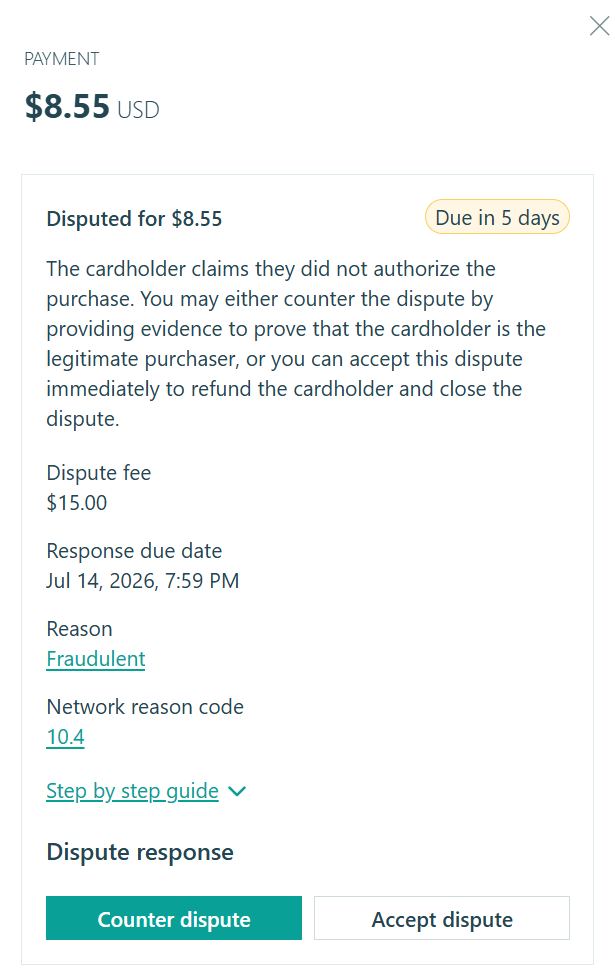
Disputes are managed through the payment details dialog. To open the dispute management panel, click any dispute in the Disputes table.
The embedded dispute management panel shows all disputes associated with the payment, including the dispute reason, status, amount, and creation date. When a payment has multiple disputes, each is shown separately.
Under Dispute response, you have two options:
- Counter dispute – Provide the most relevant evidence to counter the customer’s claim.
- Accept dispute – Acknowledge the dispute and accept the outcome without submitting evidence.
Available actions depend on the dispute status and what your payment provider permits for your connected account.
Filters
- Disputed On – Filter by a start and end date.
- Respond By – Filter by a start and end date.
- Status – Select one dispute status.
- Reason – Select one dispute reason.
- Customer – Select a customer by name or email. Use No Customer to filter disputes with no associated customer.
- Form – Select a single form or an entire folder. Archived and deleted forms are included under Archived Items and Deleted Items.
- Account – Shown only when multiple Cognito Pay accounts are linked to disputes in your organization. Filter by a single account.
- Disputed Amount – Filter by equal to, greater than, less than, or between a specified value.
Export
The disputes table can be exported to CSV. The export includes only records that match your currently applied filters and is limited to the first 10,000 disputes. If your filters match more than 10,000 disputes, only the first 10,000 will be exported.
To export, click Export from the bottom of the Disputes page. When the export is ready, the CSV is downloaded directly in your browser and also sent to your email. Export download links are user-specific – only the user who generated the export can download it.
The export includes the following columns: Dispute ID, Disputed On, Respond By, Responded On, Last Updated On, Status, Reason, Customer Entry ID, Customer Name, Customer Email, Form ID, Form Name, Entry ID, Order ID, Account, Currency, Disputed Amount, Payment ID, Evidence Submitted, and Requires Response.
Notifications
Cognito Pay sends email notifications for the following dispute events:
- New dispute – Sent when a dispute or inquiry is created.
- Dispute due soon – Sent when an open dispute has a response deadline approaching.
- Dispute updated – Sent when a dispute status changes after creation.
- Dispute won – Sent when a dispute closes in your favor.
- Dispute lost – Sent when a dispute closes in the customer’s favor.
The active dispute count is shown as a badge on the Disputes page and the Payments icon in the sidebar.
Access and permissions
You can view a dispute when you have permission to view the entry associated with the disputed payment. If you do not have permission to view the associated entry, the dispute is not shown in the table.