Connect Claude or ChatGPT to your Cognito Forms account to analyze submissions, automate reports, and act on your data — all in plain language, no technical setup required.
Build Time & Skill
10-15 min
Intermediate
What you'll learn
How to connect online forms to Claude or ChatGPT with the Cognito Forms MCP Connector. This guide covers seven practical ways you can use AI to analyze, report on, and automate your form submissions and workflows, with ready-to-use prompts for each.
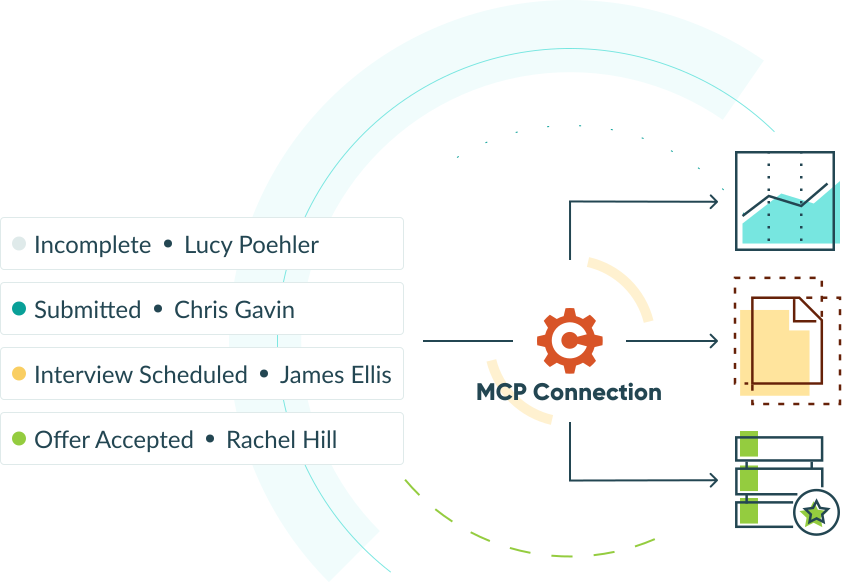
Your forms are already doing their job collecting the information you need. The harder part is everything that comes after the submissions come in, like reading through them, pulling numbers for a report, drafting a follow-up message, or routing a request to the right person. Those extra tasks add up fast, especially when your team is small and submissions keep coming in.
The Cognito Forms MCP Connector gives your AI tools direct access to your form data, so you can hand off that first-pass work with a single prompt. This guide covers how to connect it and seven ways to put it to use right away.
With the MCP Connector, you can:
- Get answers from your submission data without exporting to a spreadsheet or building a report.
- Replace repetitive reading, summarizing, and routing work with a prompt that takes seconds to write.
- Schedule recurring briefings so your data comes to you, not the other way around.
- Push form data into the other tools your team uses, without building a multi-step automation.
If you’re new to MCPs altogether, check out our “What is an MCP Server?” article for a plain-language explanation of how MCPs work.
What Is the Cognito Forms MCP Connector?
The Cognito Forms MCP Connector links your AI assistant (like Claude or ChatGPT) directly to your Cognito Forms account. Once connected, you can describe what you want in plain language and your AI handles it. This includes things like creating entries, updating submissions, pulling reports, analyzing trends, and more.
Your AI assistant only sees what you can see based on your account access, and existing form validation rules and user permissions apply.
Before you connect, confirm:
- Your organization is on a Pro, Team, or Enterprise plan.
- You have Admin access to the organization you want to connect.
- You have a paid account in Claude or ChatGPT (requirements vary by app).
Keep in mind: Actions performed through the connector use API requests, which count toward your organization’s usage. Downloading files or documents will use more API requests than standard queries. See Integration billing for details.
Connecting the MCP Connector
Setting up the connection is a simple, quick process. The steps vary slightly depending on whether you use Claude or ChatGPT. Use one of the set of instructions below to add our app/connector or create a custom MCP connection.
Once connected, your integration appears in the Integrations section of your Organization Settings. You can enable the connector directly in your conversation with your chosen AI tool.
Follow these steps to add the Cognito Forms app in ChatGPT:
- Click your account banner and open Settings.
- Click Apps and search for Cognito Forms.
- Select Cognito Forms and click Connect.
- Sign in to your Cognito Forms account if prompted.
- Select your organization and authorize the connection.
Follow these steps to add the Cognito Forms connector in Claude:
- Click the Customize icon (looks like a briefcase) and select Connectors.
- Click + Add Connector and search for Cognito Forms.
- Select Cognito Forms and click Connect.
- Choose your organization and click Authorize.
Follow these steps to set up a custom MCP connection:
- In your AI app, add a custom connector or MCP connection.
- Enter the Cognito Forms server URL:
https://mcp.cognitoforms.com/mcp - Set the OAuth Client ID:
366c9904-def2-451a-af2f-8e08d751088c - Log in to your Cognito Forms account when prompted.
- Select your organization and click Authorize Organization.

Visit our support page for more details on our MCP connector.
How to Prompt AI for the Best Results
The more context you give AI upfront, the better the output. A few habits make a consistent difference:
- Use your exact form name. “Show me entries on my New Client Intake form” gets better results than “show me my intake form.”
- Know which Entry View you want to search. If you have a certain Entry View you want AI to use for analysis, specify the name of the View. Otherwise, the results are scoped to the first View in your Entry View list that you have access to.
- Lead with context. Tell your AI assistant what you’re trying to accomplish, your role, and what you will do with the output before describing the task itself.
- Specify your output format. Ask for a table, a bulleted list, or a paste-ready summary. AI defaults to whatever it thinks fits, so giving it your preference will give you exactly what you want.
- State your constraints. Tell it anything you don’t want it to do or data you want to exclude. “Don’t include entries already marked complete” or “only show submissions where the budget field is filled in” increases your chances of getting exactly what you’re looking for.
- Walk through complex tasks yourself first. If you’re asking AI to take actions in multi-step processes, go through the process manually first. Note every step in detail so you can hand over step-by-step descriptive instructions, reducing your chances of the wrong interpretation or incorrect actions.
7 Ways to Automate Workflows and Analyze Form Submissions with AI
Once you have your Cognito Forms MCP Connector in place with your chosen AI tool, the ways it can use your submission data and automate your follow-up work are virtually limitless. Here are seven distinct ways AI can work with your Cognito Forms submissions, including when to use it and sample prompts you can try today.
1. Analyze and summarize your submissions
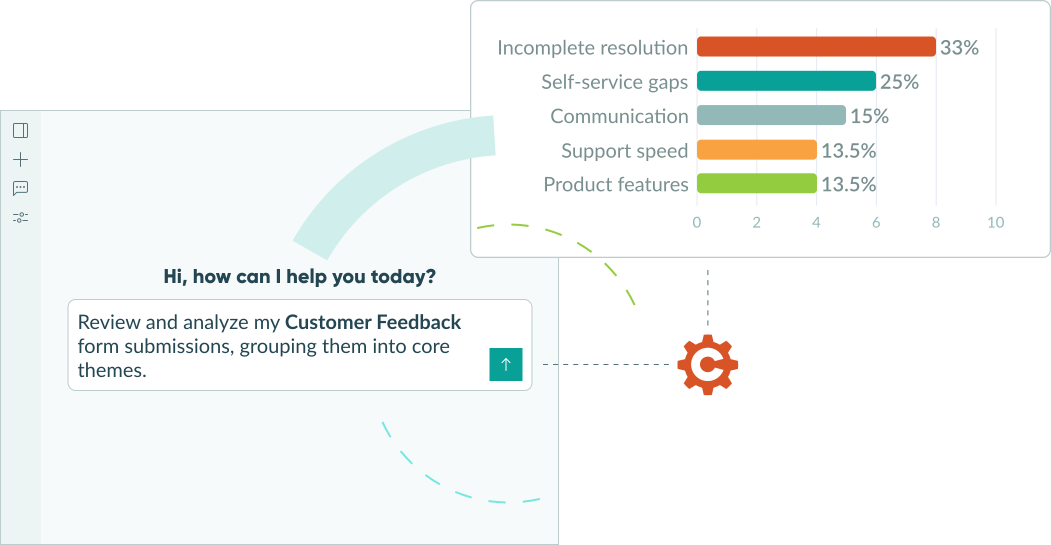
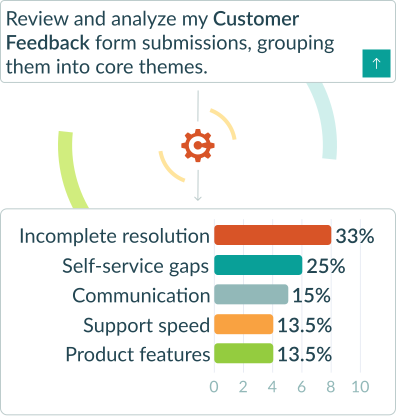
Ask AI questions about patterns, themes, and trends across all your submissions, not just individual records. This is especially useful when insights are buried across dozens of open-text responses that would take a long time to read manually.
When to use it:
- Reviewing a week’s worth of intake submissions before a team meeting
- Finding common themes across customer feedback or service requests
- Spotting which entries need attention before they fall through the cracks
Starter prompts to try:
If you have feedback forms or surveys with several open-ended text fields, these can take hours to read manually. Try asking the AI to analyze all responses across several submissions, so you can anchor your team review or planning sessions in customer feedback.
Try this prompt, customizing it with context on your business and your specific form’s name:
I manage customer service for a small business and want to understand what's frustrating our customers most. Review my Customer Feedback form submissions from the last 30 days. Group responses into core themes and rank them from most frequently mentioned to least frequently mentioned. To support you findings, give each theme a concise title, a 1 to 2 sentence description or summary of the issue, and include three relevant quotes taken verbatim from the submissions.
Start your day or week with an automated triage to surface what needs your attention or requires a human response before anything else. Adjust the prompt to match what matters most to you process (i.e. urgency language, missing fields, high-value indicators, or specific service types).
Try this prompt, changing the name of the form with your own:
Review the last two weeks of submissions on my Client Intake form. Flag any entries where the customer mentioned a tight deadline, expressed urgency, or left the budget field blank. List them by name, include their entry numbers, order them by urgency, and summarize what each one needs from us.
Before assigning work, sending proposals, or acting on a batch of new submissions, prompt the AI to catch gaps that can slow you projects down before they become a problem. You could use this prompt daily, weekly, or monthly depending on your submission volume and what cadence makes the most sense for you.
Try this prompt, customizing it with your desired time frame and the name of your form:
Review new submissions from this week on my Project Request form. Flag any entries that are missing a budget, have a deadline that's already passed, or describe a scope that seems inconsistent with the service type selected. List what's wrong with each one and what information I'd need to follow up. Include the entry number for each one.
Ask the AI to help you understand demand patterns, plan capacity, or identify process gaps. The more specific you are about what you’re looking for (i.e. time patterns, request types, geographic trends), the more actionable the output will be.
Try this prompt, customizing it with your role, what you’re analyzing, the form name, and time frame you want it to focus on:
I'm a service operations manager reviewing our intake trends. Look at the last 60 days of submissions on my Service Request form. Are there patterns in when requests arrive, like certain days of the week, times of month, or request types that spike? Summarize what you find and provide data to back up your findings.
2. Create reports and dashboards
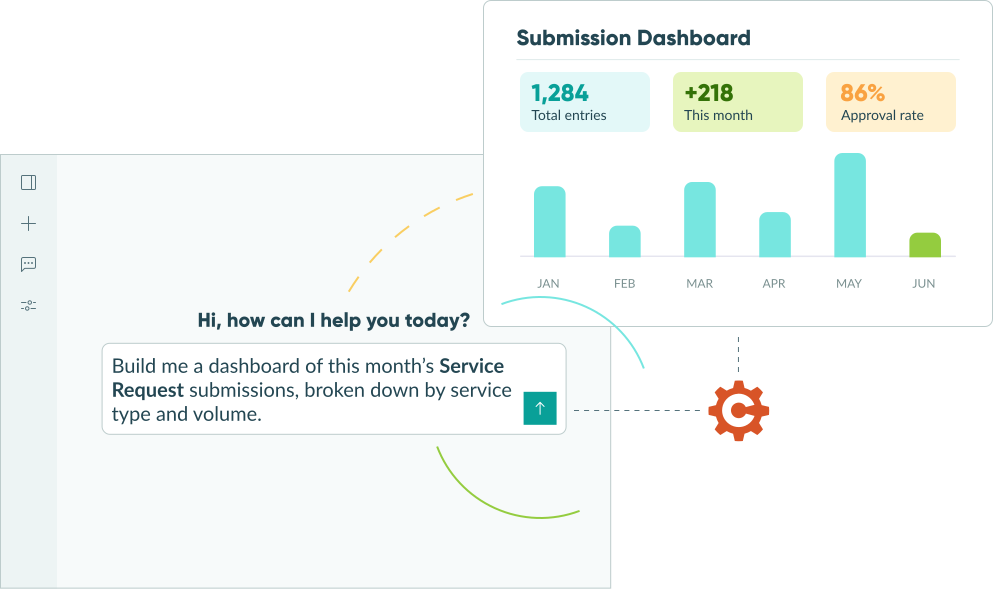
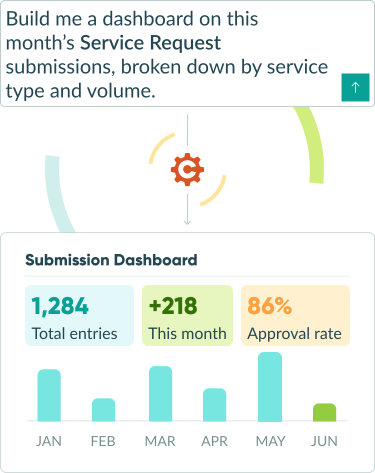
Turn your submission data into formatted summaries, volume breakdowns, and shareable dashboards, without exporting to a spreadsheet or manually analyzing your data.
When to use it:
- End-of-week or end-of-quarter reporting
- Preparing a data summary for leadership without building a report manually
- Comparing volume or outcomes across time periods, form types, or categories
Starter prompts to try:
Get a quick volume picture without exporting or counting entries yourself. Specify the output format upfront (such as a table, bullet list, bar chart, pie chart, etc.), so you get something ready to use rather than raw data you still have to reformat yourself.
Try this prompt, customizing it with the name of your forms and the output format you want:
Pull the last 30 days of submissions across my Sales Inquiry and Request for Quote forms. Show me how many came in each week, broken down by form. Format it as a bar chart showing the number of submissions for each form.
Use AI to help you better understand the distribution of your workload, like which service types are most common, which categories are growing, or where your team is spending most of their time. You could run this prompt quarterly for planning or monthly to catch shifts before they become resource problems.
Try this prompt, changing the name of the form, the time frame to surface, and your grouping criteria:
Show me a breakdown of all submissions on my Work Order form during Q1, grouped by service type. List each category, the total number of submissions, and what percentage of the total it represents. Format it as both a pie chart and a table.
Compare submission counts for different time periods to better understand the growth, seasonality, or impact of a process change of your online forms.
Try this prompt, customizing the form name, time frame, and output you want:
Compare submission volume on my Submit a Support Request form between April and May. Show me total submissions for each month and the week-over-week trend within each period. Format as a line chart and write a brief summary to go with it so I can share this in a team meeting.
For even deeper analysis, combine this prompt with the “Break submissions down by category or type” prompt to see changes over time within different categories.
Ask AI to combine a written summary with a few charts to help you present updates to your leadership or a client.
Try this prompt, customizing it with your form name, purpose, time frame, and criteria:
I'm preparing a brief update for my director on our company's reported incidents this quarter. Pull data from my Workplace Incident form for Q2. Summarize total submissions received, how many we received in each severity level, how many are resolved vs. still open, and any patterns worth flagging. Write it as a short one page document and include a bar chart for the quantitative values you found.
3. Track and manage your pipeline
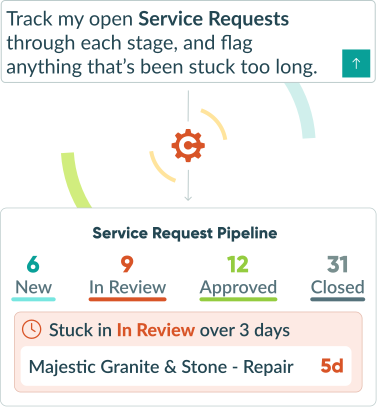
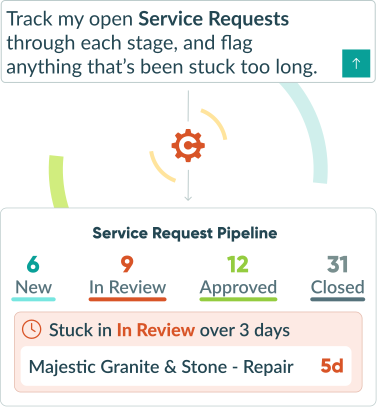
Use your AI assistant as a conversational interface to your pipeline. You can ask what’s open, what’s overdue, what needs attention, and who hasn’t been followed up with.
When to use it:
- Monday morning pipeline check before the team meeting
- Identifying stalled items before they become problems
- Checking the status of a specific account or client without logging in
Starter prompts to try:
Instead of manually scanning multiple forms’ Entry Views to figure out what’s new or what needs your attention, ask AI to put this together for you at the start of your work day. Adjust the aging threshold and date window to match your team’s normal response time. For example, three days might be too long for urgent workflows and too short for complex projects.
Try this prompt, customizing:
Give me a quick pipeline check on my Service Request form. List everything that's currently open, grouped by status. Include the entry number for each entry mentioned. Flag anything that's been in the same status for more than three days, and anything where the requested completion date is within the next five business days.
Catch items that have quietly stopped moving, like approvals that were missed, reviews that have stalled, or requests that got buried. Run this prompt once a week to prevent things from sitting without anyone noticing until a client follows up.
Try this prompt, changing the form name, status name, and other details:
Review my Project Request form and show me any entries that have been in Pending Approval status for more than one week. List the entry number, client name, request type, and how long each one has been waiting. Sort by oldest first.
If you need a brief workload snapshot, but don’t need a full-blown project management tool, AI can help you with capacity planning or checking current assignments before assigning new work. If your form uses a Person field or a dropdown for assignment, mention that field name in the prompt for a more accurate result.
Try this prompt, customizing the form name, field name, and any other criteria you have:
Show me all open entries on my Project Request form, grouped by the team member assigned in the 'Assigned Member.' For each person, list how many open items they have and flag anyone carrying more than five active requests.
4. Schedule automated briefings and recaps
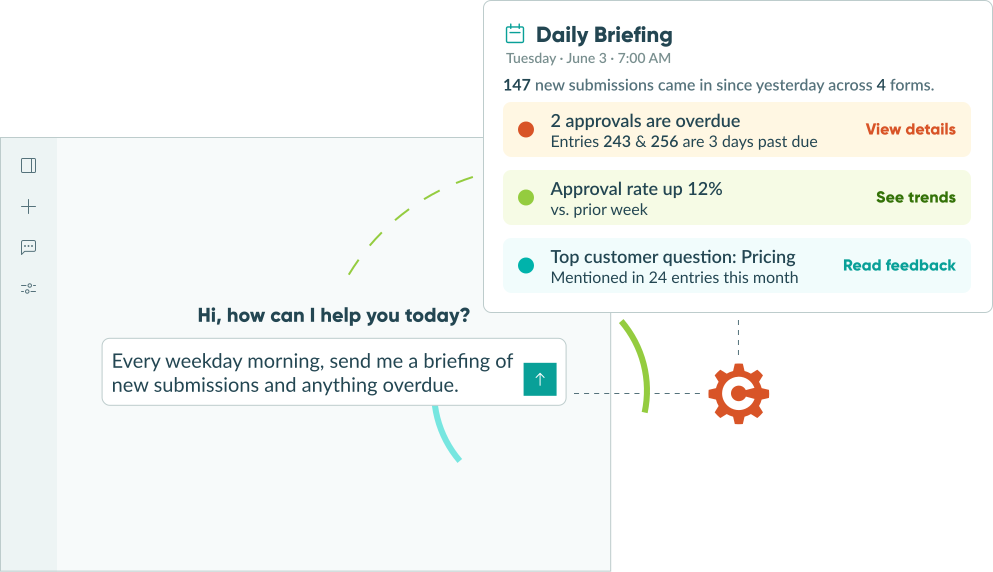
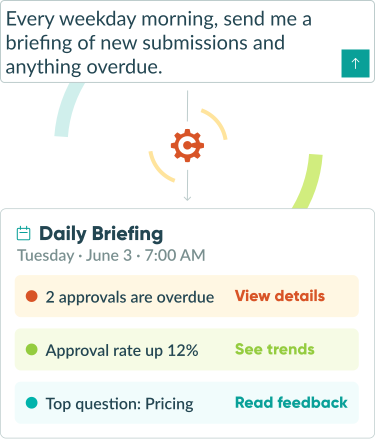
Set up recurring AI tasks that pull new entries and deliver a formatted briefing on a schedule, so your data comes to you instead of waiting for you to log in and check. Scheduled tasks are configured in your AI tool, not in Cognito Forms. The MCP Connector is what gives those tasks live access to your form data.
Each AI platform will have a different way of scheduling a task or automated prompts. Visit your preferred AI platform’s support content for more information on setting these up.
When to use it:
- Daily review of new leads, orders, or service requests
- Automated end-of-week summaries before your team meeting
- Monitoring overdue or open items on a schedule so nothing gets missed
Starter prompts to try:
Set up a scheduled task in Claude or ChatGPT to run automatically every morning. The MCP Connector will pull your live Cognito Forms data at the time the task runs, so the briefing it gives you will always reflect current entries.
Try this prompt, customizing:
Every weekday at 8:00 AM, pull all new submissions from the last 24 hours across my Custom Order Request form and my Wholesale Orders form. Group them by form type, flag anything where the customer mentioned urgency or a deadline, include the entry number, and format it as a short daily brief.
Let AI help you close out your day with a clear picture of where things stand. This is especially useful if you manage high-volume submissions where things move throughout the day frequently and you want a quick recap or wrap-up without manual tracking.
Try this prompt, customizing:
Every weekday at 5:30 PM, review my Service Request form and give me a short end-of-day summary: how many new submissions came in today, how many entries changed status, how many are still open with no activity, and anything I should prioritize first thing tomorrow with the entry number included.
If you find yourself pulling numbers manually across forms or for a high number of submissions, replace that habit with a weekly meeting preparation prompt. Schedule it for whatever cadence and whichever day of the week you need, so it’s ready for you to quickly review before your team meeting.
Try this prompt, customizing:
Every Friday at noon, pull this week's activity across my Volunteer Sign-Up form and Sponsorship Application form. Show me: total new submissions, total resolved, anything still open from last week, and any submissions that came in but haven't been touched yet. Format it as a brief I can share in our Monday team meeting.
Make sure no new submission falls through the cracks with a weekly check on who hasn’t been contacted. This is especially useful if follow-up depends on one or two people staying on top of it.
Try this prompt, customizing with your form name, status name, and any other details you want to include:
Every Monday morning, review my Demo Request form and show me any submissions from the past seven days where the status is still Submitted and no note or update has been added. List the submitter's name, the entry number, what they requested, and when they submitted. I want to catch anyone who hasn't heard from us yet.
5. Connect your form data to other tools
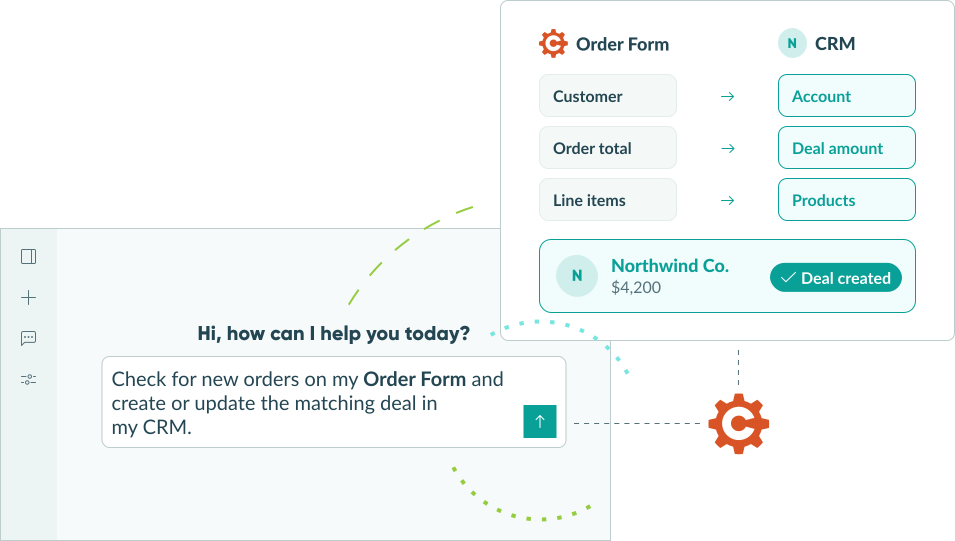
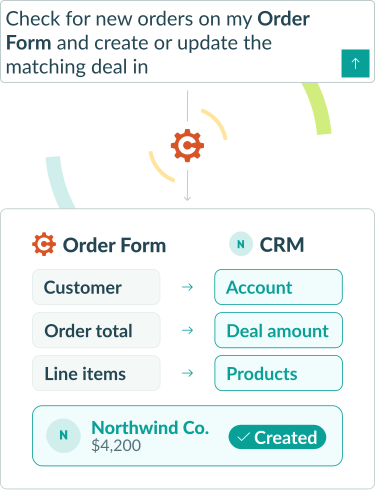
When you have set up your AI platform with MCP connections to multiple tools, you can bridge your Cognito Forms data directly into the other systems your team relies on (CRM, project tracking, invoicing, email platforms) by describing what you want to happen.
When to use it:
- A new client submits an intake form and you want their details added to your contact system
- A service request comes in and you need a task created for your team
- You want to see which leads filled out a form but haven’t made it into your pipeline yet
- You need a cross-tool view to make a capacity or resourcing decision
Starter prompts to try:
Let AI handle the manual task of transferring client information from a form submission into your CRM contacts. This prompt requires that you’re connected to your CRM’s MCP server. Be sure to mention specific field names on your form for the highest accuracy.
Try this prompt, customizing with your field names and specific details:
Pull the most recent submission from my New Client Intake form. Using the submitter's name, email, company, and service interest from the entry, create a new contact in [YOUR CRM TOOL]. Set the lead source to 'Intake Form' and assign it to the account manager listed in the entry.
Bridge your intake process with your team’s actual work with AI’s help. This prompt is especially useful if you receive a high volume of requests. Be sure to specify which ones to include by status, date, or service type so you’re not creating tasks for items already in progress.
Try this prompt, customizing with your unique criteria and details:
Pull all new submissions from this week on my Service Request form with a status of Submitted. For each one, create a task in [YOUR PROJECT OR TASK TOOL] with the client name as the task title, the request description in the task notes, and the requested completion date as the due date.
AI can help you catch leads who expressed interest but never made it into your follow-up process. Run this prompt weekly or after a marketing campaign. Both your Cognito Forms and CRM connections need to be active in your AI app at the same time for this to work.
Try this prompt, customizing with your CRM tool’s name and details to match your needs:
Pull all submissions from my Lead Inquiry form from the last 30 days. For each submitter, check [YOUR CRM TOOL] for a matching contact record using their email address. List anyone who filled out the form but doesn't have a contact record or open deal in the CRM yet.
Ask AI to pull information from both Cognito Forms and your project management or task tracking tool, so you can make decisions with data from both systems in one view.
Try this prompt, customizing the details to fit your tools, process, and needs:
I'm a service manager planning capacity for next month. Pull all open submissions on my Service Request form in Approved or Pending Assignment status. Then pull the current open task list from [YOUR PROJECT OR TASK TOOL] for my team. Based on what's already assigned, does my team have capacity to take on all pending service requests? Flag anyone who looks overloaded.
6. Use AI to build document templates
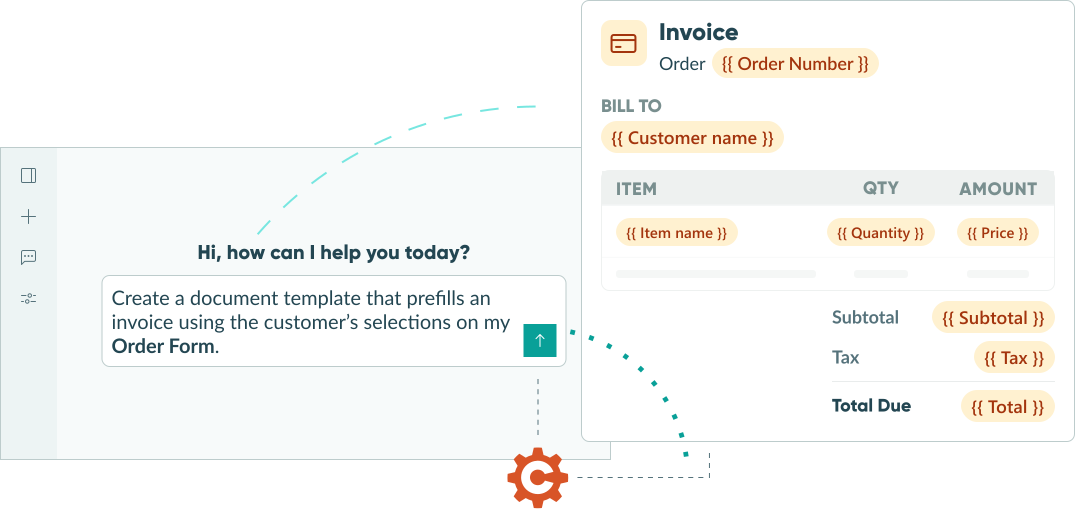
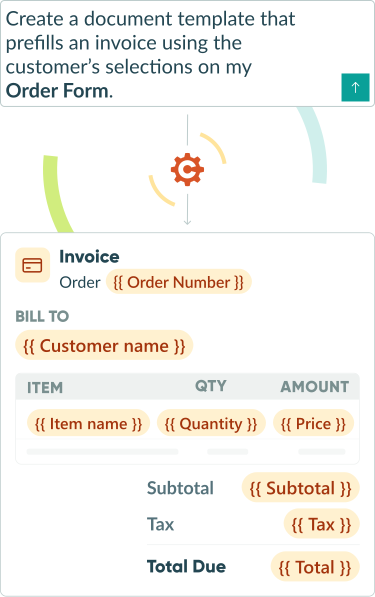
Ask AI to draft a Custom Document Template you can use with Cognito Forms’ Document Generation feature. The MCP Connector gives AI the ability to read your form fields and structure, so it has the context it needs to format our merge syntax properly. This context alongside publicly available Cognito Forms support documentation can help you build document templates in a fraction of the time it used to. We recommend also including information about what the document needs to do and what you’ll be using it for, so the AI understands the full scope of the document.
This is useful if you want:
- To auto-generate any type of document, but learning the merge syntax has become difficult.
- A starting point for your custom document template, but want to refine it in Word before uploading to Cognito Forms.
- To build document templates for complex form structures, include complex conditional logic, or incorporate calculations into the document’s content.
- To save time with field references already mapped into your template, rather than starting from a blank page.
What to include in your prompt:
- “Using publicly available Cognito Forms documentation on Custom Document Generation, draft…”
- What type of document do you want it to create? Be specific on what type of document you want and what it should include.
- Is there any specific type of information or formatting you want every document to include? Do you have any specific colors or branding the document should match?
- If you have a sample of what you want the document template to look like, attach it to you message with context on why you attached it. Alternatively, if you want your document template to match a current document format you’re using, include a sample document and tell the AI to match the formatting of the document.
Starter prompts to try:
Let AI generate a template with field references and structure you can refine in Word. Once you’re satisfied, upload it to Cognito Forms and connect it to your Workflow so proposals generate automatically when a new intake is submitted.
Try this prompt, customizing it with the name of your form and what you want to be included in your document:
Using publicly available Cognito Forms documentation on Custom Document Generation, help me draft a Word document template for client proposals. The template pulls from my Client Intake form and should auto-populate the client's name, company, project description, requested timeline, and budget range. Include an introduction section, scope of work, timeline, and a signature block. Keep the tone professional.
AI can help you come up with a template structure for service agreements or contracts that pulls from your form data. Once finalized, you can have it sent to your team to review and make edits in Word or connect it to your Workflow so clients receive a pre-filled agreement automatically after submitting their intake form.
Try this prompt, customizing:
Using publicly available Cognito Forms documentation on Custom Document Generation, draft a service agreement template for my Client Onboarding form. Auto-populate the client's name, company, service type, start date, and monthly rate. Include a scope of work section with a placeholder for custom terms, a payment terms section based on the billing frequency selected, and a signature block for both parties.
If you want your form to generate invoices automatically, you can use AI to help you come up with the template that you’ll use with Cognito Forms’ Document Generation feature. Be specific about which fields map to which parts of the document — the more detail you give, the less cleanup you’ll need to do in Word before uploading it to Cognito Forms.
Try this prompt, customizing:
"Using publicly available Cognito Forms documentation on Custom Document Generation, draft an invoice template for my Order Request form. Include an itemized table that pulls product name, quantity, and unit price from a repeating section. Add a subtotal, a tax line at 8%, and a total. Set the due date to 30 days from submission. Include a header with a company name and logo placeholder. Be sure the colors and format look professional and match my brand.
The more context you give, the more accurate the field references will be. Tell your AI assistant what the document is for, who receives it, when it appears in your process, and which fields should be pulled in. Name fields exactly as they appear in your form.
7. Let AI create and update entries automatically
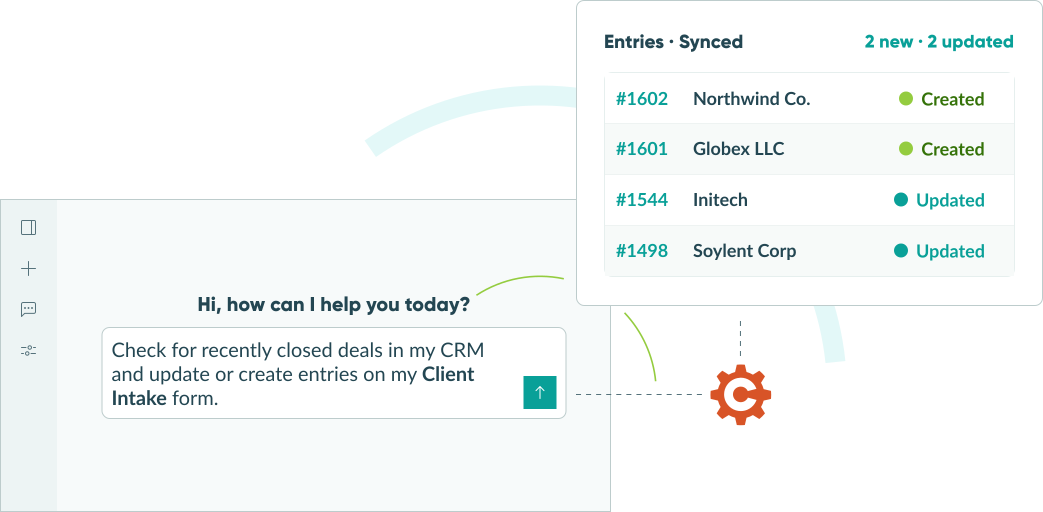
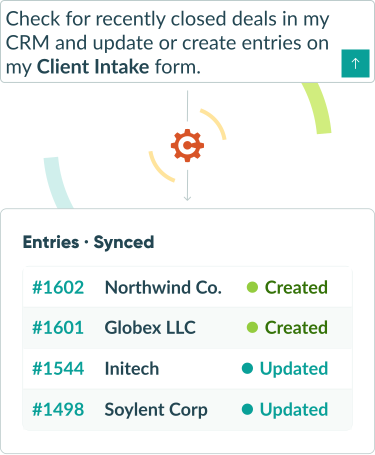
Creating or updating a single entry manually in Cognito Forms is easy to do. Where AI becomes genuinely powerful is when it’s already connected to your other tools and can write back into your forms as part of a scheduled prompt.
When your AI assistant has MCP access to Cognito Forms alongside your email, CRM, project tools, or scheduled briefings, it can create and update entries automatically based on what it finds across those sources. This is the most advanced use of the connector, and it builds directly on everything else in this guide.
Guardrail tip:
By default, most AI apps ask for confirmation before making any changes to your forms or entries. We recommend that you leave this on until you’re comfortable with how it handles your specific forms. For status changes that trigger automated emails, task assignments, or Workflow Actions in Cognito Forms, the connector respects your Workflow rules. Updating a status may trigger additional automations you’ve already configured.
When to use it:
- An email comes in with new client details. You ask AI to create an intake entry for the client, while you work on more valuable work.
- A deal is closed in your CRM and AI generates the corresponding entry for your Client List form in Cognito Forms, which feeds directly into your onboarding portal.
- A weekly report flags overdue items, cross-checks updates in your email and CRM, and adds follow-up notes to the overdue entries that have updates.
Starter prompts to try:
Once the email and Cognito Forms MCP connections are both active, AI will check for matching emails (on whatever scheduled cadence you set up) and create the inquiry entries automatically. New leads hit your form pipeline without you manually transferring over each one.
Try this prompt, customizing it with:
I want to set up an ongoing task: whenever I receive an email in [your email tool] that looks like a new client inquiry (someone asking about services, pricing, or availability), pull the sender's name, email, and what they're asking about, and create a new entry in my Client Inquiry form. Flag the entry as 'Email Source' in the notes field.
Schedule an automated task to kick off your onboarding process for sales that closed within the last 24 hours, without anyone having to remember to create the entry. Pair it with Cognito Forms’ workflow automation to trigger the next steps (task assignments, client emails, document generation, etc.) the moment the entry appears.
Try this prompt, customizing:
Every morning, identify deals marked 'Closed Won' within the last 24 hours. Pull the client's name, company, email, service type, and contract start date from the deal record and create a new entry in my Client Onboarding form in Cognito Forms. Set the entry's status to 'Onboarding Initiated' and add a note with the deal ID for reference.
Run this at the end of your weekly report (Method 2) or as part of a scheduled task (Method 4). Instead of manually opening each overdue entry and adding a note, AI can handle the annotation across all of them at once, and give you a list so nothing falls through.
Try this prompt, customizing:
Pull all entries on my Project Request form that have been in 'Pending Approval' status for more than seven days. For each one, add an internal note: 'Follow-up required: flagged by weekly overdue report on [today's date]. Assigned reviewer has not responded.' Then give me a list of the entries you updated with entry numbers so I can follow up directly.
More Ways to Extend Your AI Workflows
Once you’re comfortable using AI with your form data via the Cognito Forms MCP, take your workflows further by trying these ideas:
- Combine the MCP Connector with Cognito Forms Workflow. Let AI handle reading, summarizing, creating, and updating while Workflow manages automated status changes, email notifications, and routing inside Cognito Forms.
- Set up intentional Entry Views. Your AI assistant’s analysis and pipeline queries are scoped to your currently configured Entry Views. Well-configured views become the lens through which AI reads your data. Set them up intentionally before running analysis, reporting, or pipeline prompts.
Start Putting Your Form Data to Work
Your forms have been collecting the information this whole time. The MCP Connector just lets your AI read it, make sense of it, and act on it — so it stops sitting there and starts working for you. Connect the MCP Connector and see what it can do for you.
Connect Cognito Forms to your Claude or ChatGPT account today.
Connect Cognito Forms to your Claude or ChatGPT account today.
FAQ
The MCP Connector is available on select paid plans. Compare plans to see what’s included.
Actions performed through the connector use API requests, which count toward your organization’s usage. See Integration billing for details.
You also need Admin access to the Cognito Forms organization you want to connect.
Your AI assistant only has access to data you specifically request during a conversation. Your existing Cognito Forms user permissions apply and the connector respects the same access controls you’d have when logged in manually. Results from analysis prompts are also scoped to the default Entry View (the first View listed for the form), unless a different Entry View is specified in your prompt.
Any change made through the connector (such as updating an entry or changing form availability) is recorded in the Audit Log. Entry-level changes appear in that entry’s Audit Log and include the user who triggered the action and the service used. Read-only queries, like viewing or analyzing entries, are not logged. You can access the Audit Log from your entry or from Organization Settings.