An Address field is used to collect valid address information (street, city, state, zip) in a single field.
Label
The label will display as the title of the field or the question that is being asked on the form. You can select the icon on the right to hide the label on the form. You also can use the pop-up formatting toolbar to insert values from other fields on the form.
Values from protected fields cannot be inserted into the field label.
Type
The Address field can be set to one of two types:
US Address
US Addresses include two address lines, City, State, and Zip Code.
International Address
International Addresses include two address lines, City, State/Province/Region, Postal/Zip Code, and Country.
Once an international address type is selected, you can set the default country for the Country drop down if you know a lot of your users will have an address in a particular country.
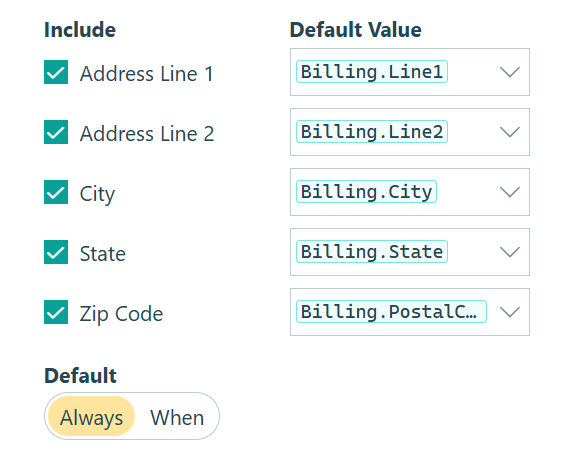
Include
Check each box to include or exclude specific subfields (Address Line 1, Address Line 2, City, etc.) from your Address field.
Default Value
Default values can be used to automatically populate the field’s value for the user, who can then change it before submitting the form.
You can set a static default value for each subfield (Address Line 1, Address Line 2, City, etc.), or use the dropdown next to each subfield to reference another field on the form. Supported field types include:
- Address field
- Textbox field
- Choice field
- Calculation field (Text type)
- Fields referenced through a Lookup or Person field (limited to the above field types)
A common use case is prefilling one address field based on another – for example, setting a billing address to default to the same values as a shipping address. If all subfield defaults are currently empty, selecting a subfield reference from another Address field will automatically populate the corresponding defaults for all other subfields at once.
Default
Once a default value is set for any subfield, the Default option will appear. This controls when the default values are applied:
- Always – The form always populates the default values. This is the default behavior.
- When – Set a condition using the condition logic builder. When the condition is true, the default values are populated; when false, they are not.
Address Autocomplete
Powered by Google Maps, Address Autocomplete will automatically suggest addresses as users start typing. You must provide your own Google Maps API key to use this feature – refer to our Address Autocomplete help guide to get started.
Help Text
Help text can be used to assist the user by providing additional instructions. Help text will display directly under the field. Use the formatting toolbar to format text, insert hyperlinks and images, and populate values from other fields on the form.
Values from protected fields cannot be inserted into the help text.
Show This Field
By default, fields will always display on the form. However, you may want to hide specific fields or sections based on certain conditions, such as a selected value of another field on the form.
- Always – Field is always shown.
- When – Field will only display when specific conditions are met. After selecting this option, the Conditional Logic Builder dialog will display allowing you to select when the field or section should be displayed.
- For Roles – Field will display only when accessed via a role-based workflow link specific to the role(s) selected.
- Never – Field will never display.
Require This Field
Requiring a field will make sure the user provides a response. When a field is required, an error message will display, and the form cannot be submitted until a value has been added to the field. Required fields are indicated by a red asterisk next to the label. By default, fields are never required.
- Always – Field is always required. User must provide a response in order to submit the form.
- When – Field is required only when specific conditions are met. After selecting this option, the Conditional Logic Builder dialog will display allowing you to select when the field is required.
- For Roles - Field is required only when accessed via a role-based workflow link specific to the role(s) selected.
- Never – Field is not required. This is the default behavior.
Read-Only
Set fields and sections as read-only to create simple workflows with your forms. All fields can be made read-only, with the exception of fields that are already read-only by default (Calculation, Price, Content, Page break, etc.).
- Always – Field is always read-only.
- When – Field is read-only when specific conditions are met. After selecting this option, the Conditional Logic Builder dialog will display allowing you to select when the field is read-only.
- For Roles – Field will be read-only when accessed via a role-based workflow link specific to the role(s) selected.
- Never – Field allows user input. This is the default behavior."
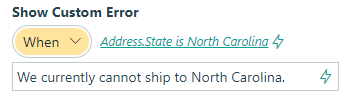
Custom Error
You can set a custom error message that will display under your field when specified conditions become true. The conditional logic builder will allow you to add any number of rules for validating your field. Learn more about the custom error option.