Linked Lookups keep related entries in sync across two forms. Instead of data flowing in just one direction (like a regular Lookup field or Person field), both forms stay synchronized. When you make changes on either side of the connection, the linked field on the related entry updates automatically – no need to manually update data in multiple places.
This is perfect for workflows where you need to maintain relationships between entries, like connecting applications to their reviews, employees to their onboarding tasks, or events to attendee registrations.
How to Set Up Linked Lookups
Before you can create a Linked Lookup, both forms must have Lookup or Person fields that reference each other. These can be any combination – two Lookup fields, two Person fields, or one of each. Both fields must be outside of Repeating Sections or Tables.
For example, if you have a “Work Order” form and a “Technicians” form:
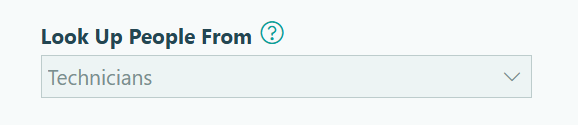
- The Work Order form needs a Person field pointing to Technicians
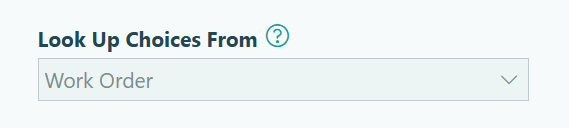
- The Technicians form needs a Lookup field pointing to Work Order
| Work Order → Technicians (Person field) | Technicians → Work Order (Lookup field) |
|---|---|
 |
 |
Creating a new connection
Once both forms have Lookup fields or Person fields pointing to each other:
-
Open the Build page for one of your forms
-
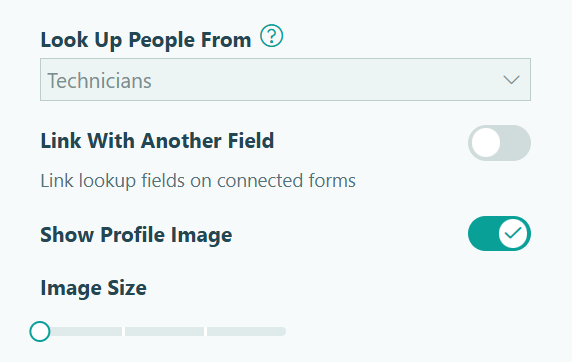
In the Lookup field or Person field settings, enable Link With Another Field
-
In the dialog, select the Lookup field or Person field on the second form to sync with the current field, then click Save
-
Finally, save the changes to your form on the Build page to create the Linked Lookup
Once linked, your forms stay in sync automatically – whenever you make changes to either form, the connected entries update on the other form.
If you’re linking an existing Lookup or Person field that already has data, you’ll see a warning that linking will override the existing data. The field will be updated to match the values from the linked form to get everything in sync.
Managing connections
Once you’ve created a Linked Lookup:
-
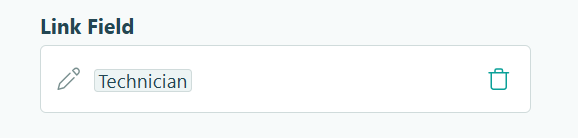
Hover over the linked field connection to see options. Click the pencil icon to view connection details or the trash can icon to remove the connection.
- When you remove a connection, the link is also removed from the field it was connected to. Any existing data in both fields remains, but they will no longer update automatically.
- When you remove a connection, the link is also removed from the field it was connected to. Any existing data in both fields remains, but they will no longer update automatically.
-
Each Lookup or Person field can only be linked to one other field, though you can have multiple Linked Lookups on the same form.
-
After saving a Linked Lookup, you cannot change which fields are linked to each other. To connect different fields, remove the existing link and create a new one.
-
If you delete a linked field or move it into or out of a section, the connection is removed. If you delete an entire form, any fields linked to that form will no longer be linked.
How Linked Lookups Work
When you update a linked Lookup or Person field, the connected field on the other form updates automatically. Any default values in Calculation fields that reference the linked field (ex:=PersonField.FirstName) will update as well. This happens instantly and creates an audit record so you can track the change.
Connection Types
The way Linked Lookups update depends on whether your Lookup or Person fields allow Single or Multiple selections.
- Single selection fields use dropdowns, radio buttons, or cards (allowing only one choice)
- Multiple selection fields use checkboxes or cards (allowing several choices)

Here’s how different connections work:
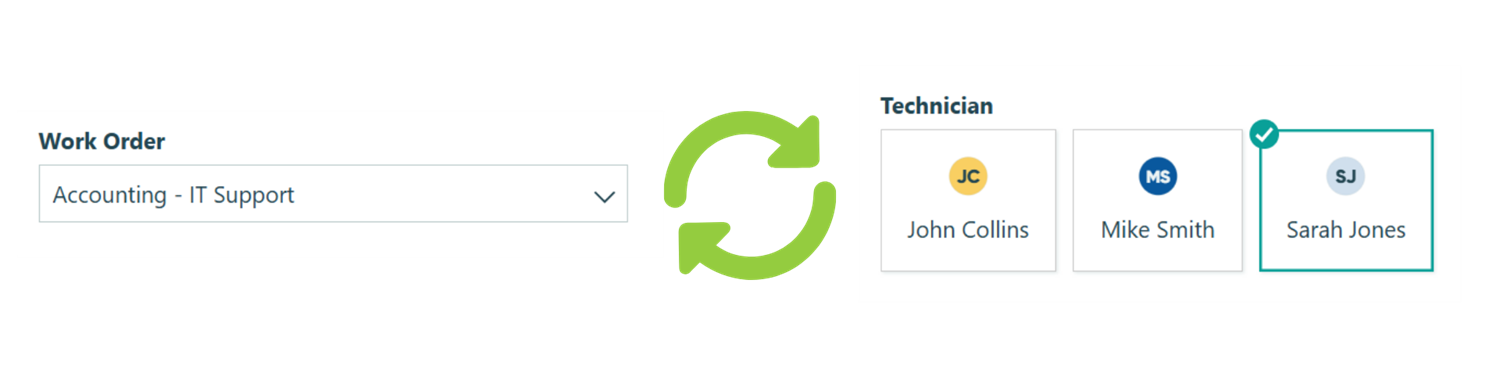
Both Lookup fields are set to Single selection, so each entry can only connect to one other entry at a time.
| Lookup A | Lookup B | Action | Result |
|---|---|---|---|
| No selection | No selection | Set Entry A to Entry B | Entry B is set to Entry A |
| Set to Entry B | Set to Entry A | Clear Entry A | Entry B is cleared |
| Set to Entry B | Set to Entry A | Set Entry A to Entry C (which is currently set to Entry D) | Entry B is cleared, Entry C is set to Entry A, Entry D is cleared |
See it in action
This example links a Work Order to an Assigned Technician, where each work order has one technician and each technician is assigned to one work order at a time.
| Work Order Lookup | Technician Lookup | Action | Result |
|---|---|---|---|
| Unassigned | Unassigned | Assign Work Order to Sarah | Sarah is assigned to Work Order |
| Assigned to Sarah | Assigned to Work Order | Unassign Work Order | Sarah is unassigned |
| Assigned to Sarah | Sarah assigned to Work Order | Reassign Work Order to Mike (who is currently assigned to a different work order) | Sarah is unassigned, Mike is assigned to Work Order, Mike’s previous work order is unassigned |
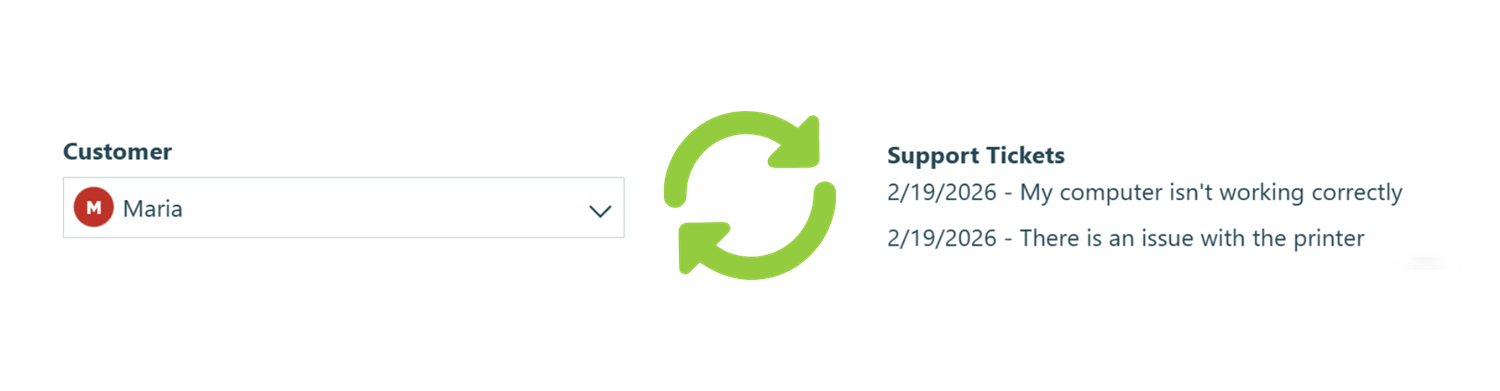
Lookup A is set to Single selection and Lookup B allows Multiple selections, so one entry can connect to many, but each of the many only connects back to one.
| Form A Lookup (Single) | Form B Lookup (Multiple) | Action | Result |
|---|---|---|---|
| No selection | No selection | Set Entry A to Entry B | Add Entry A to Entry B’s list |
| Set to Entry B | Entry A in list | Clear Entry A | Entry A is removed from Entry B’s list |
| Set to Entry B | Entry A in list | Set Entry A to link to Entry C | Entry A is removed from Entry B’s list and added to Entry C’s list |
See it in action
This example links Customers to Support Tickets, where each support ticket is assigned to one customer, but each customer can have multiple support tickets.
| Support Ticket Lookup | Customer Lookup | Action | Result |
|---|---|---|---|
| No customer selected | No tickets | Assign ticket to Maria | Ticket is added to Maria’s list |
| Assigned to Maria | Ticket in Maria’s list | Unassign ticket from Maria | Ticket is removed from Maria’s list |
| Assigned to Maria | Ticket in Maria’s list | Reassign ticket to James | Ticket is removed from Maria’s list and added to James’s list |
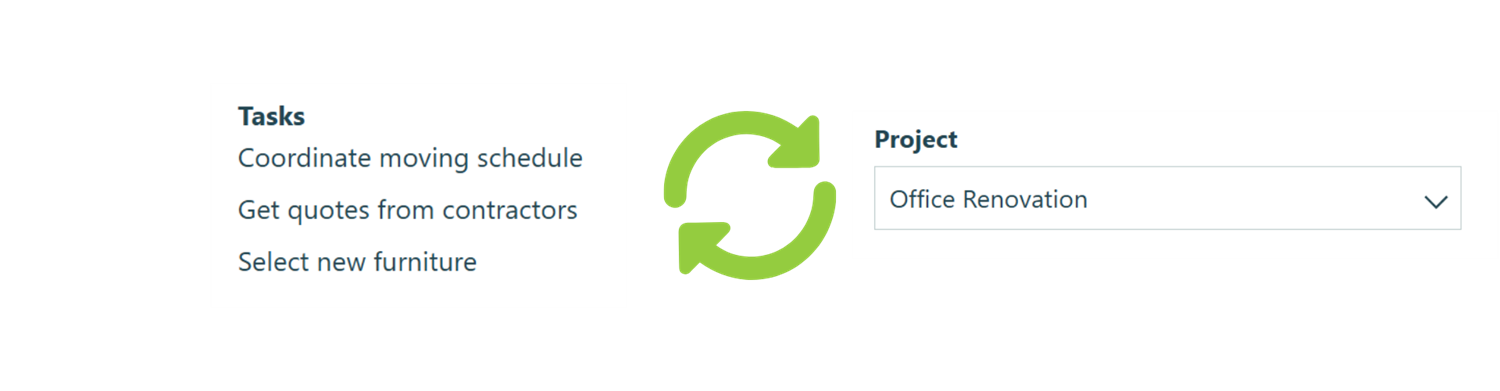
Lookup A allows Multiple selections and Lookup B is set to Single selection, so many entries can connect to one, but that one only connects back to a single entry at a time.
| Form A Lookup (Multiple) | Form B Lookup (Single) | Action | Result |
|---|---|---|---|
| No selection | No selection | Add Entry B to Entry A’s list | Entry B is set to Entry A |
| Entry B in list | Set to Entry A | Remove Entry B from Entry A’s list | Entry B is cleared |
| Entry B in list | Set to Entry A | Add Entry C to Entry A’s list (Entry C is currently linked to Entry D) | Entry C is set to Entry A and is removed from Entry D’s list |
See it in action
This example links Projects to Tasks, where multiple tasks can belong to one project.
| Project Lookup | Task Lookup | Action | Result |
|---|---|---|---|
| No tasks | Unassigned | Add Task 1 to Project X | Task 1 is assigned to Project X |
| Task 1 in list | Assigned to Project X | Remove Task 1 from Project X | Task 1 is unassigned |
| Task 1 in list | Assigned to Project X | Add Task 2 to Project X (Task 2 is currently assigned to Project Y) | Task 2 is assigned to Project X, Task 2 is removed from Project Y’s list |
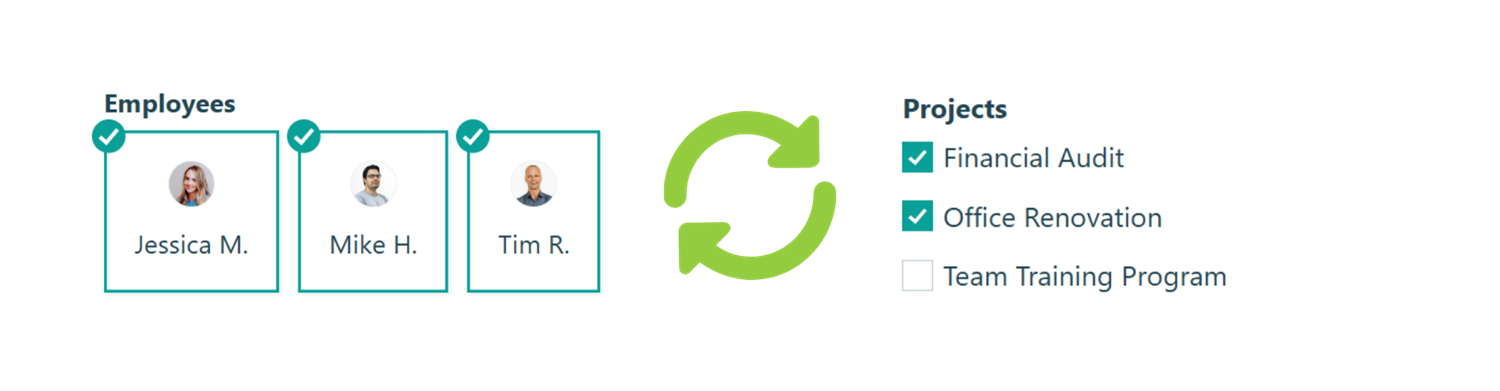
Both Lookup fields allow Multiple selections, so entries on both sides can connect to multiple entries.
| Form A Lookup (Multiple) | Form B Lookup (Multiple) | Action | Result |
|---|---|---|---|
| No selection | No selection | Add Entry B to Entry A’s list | Entry A is added to Entry B’s list |
| Entry B in list | Entry A in list | Remove Entry B from Entry A’s list | Entry A is removed from Entry B’s list |
See it in action
This example links Employees to Projects, where employees can work on multiple projects and projects can have multiple employees.
| Employee Lookup | Project Lookup | Action | Result |
|---|---|---|---|
| No projects | No employees | Add Project X to Mike | Mike is added to Project X |
| Project X in list | Mike in list | Remove Project X from Mike | Mike is removed from Project X |
Update Limits
To keep your forms running smoothly, there are limits on Linked Lookups:
- Entry limits: Each Linked Lookup can connect to a maximum of 100 selected entries. If an automatic update would exceed this limit, only the 100 most recent entries will be linked (older entries are unselected first). You can still manually select more than 100 values if needed.
- Action limits: A single change can trigger up to 1,000 Linked Lookup updates. When combined with Auto-Create Entries, the total limit is 10,000 updates.
- Importing entries: Linked Lookups don’t automatically sync during data imports. If you import entries with lookup values, you’ll need to manually update the connections or use workflows to establish the links after import.