Control exactly when your form accepts submissions – limiting access to business hours, specific date ranges, or excluding holidays to match your organization’s schedule.
Build Time & Skill
5-10 min
Beginner to Intermediate
What you'll learn
How to configure your form's availability settings to accept submissions only during your business hours, exclude weekends and holidays, and set custom time windows
When customers submit forms at 2 AM or on holidays, they often expect immediate responses. If your team isn’t available to address those requests promptly, it creates frustration and sets unrealistic expectations. Managing form availability manually wastes time and increases the risk of missing submissions during business hours.
With Cognito Forms, you can automate when your forms accept submissions. Set your schedule once, and the system handles everything else – preventing after-hours submissions, displaying clear availability messages, and automatically reopening forms when you’re ready to respond.
This automated approach helps you:
- Align submissions with staff availability. Requests come in only when your team can respond, preventing the buildup of overnight or weekend submissions.
- Set clear expectations upfront. Visitors see when you’re available before attempting to submit, reducing frustration from delayed responses.
- Eliminate manual form management. No more remembering to disable forms at closing time or enable them each morning—the system runs on autopilot.
- Maintain professional boundaries. Protect your team’s off-hours while ensuring customers know exactly when to reach you.
Three Ways to Control When Forms Accept Submissions
Cognito Forms offers flexible options to fit your organization’s unique schedule. Choose the method that fits your needs, or combine multiple approaches for complete control.
| If you’re trying to… | Use this method: |
|---|---|
| Accept submissions only during specific dates (like enrollment periods or event registration) | Method 1: Set a Basic Date Range → |
| Limit submissions to standard business hours on weekdays | Method 2: Restrict to Business Hours → |
| Account for holidays, seasonal schedules, or complex availability rules | Method 3: Exclude Holidays and Custom Schedules → |
Method 1: Set a Basic Date Range
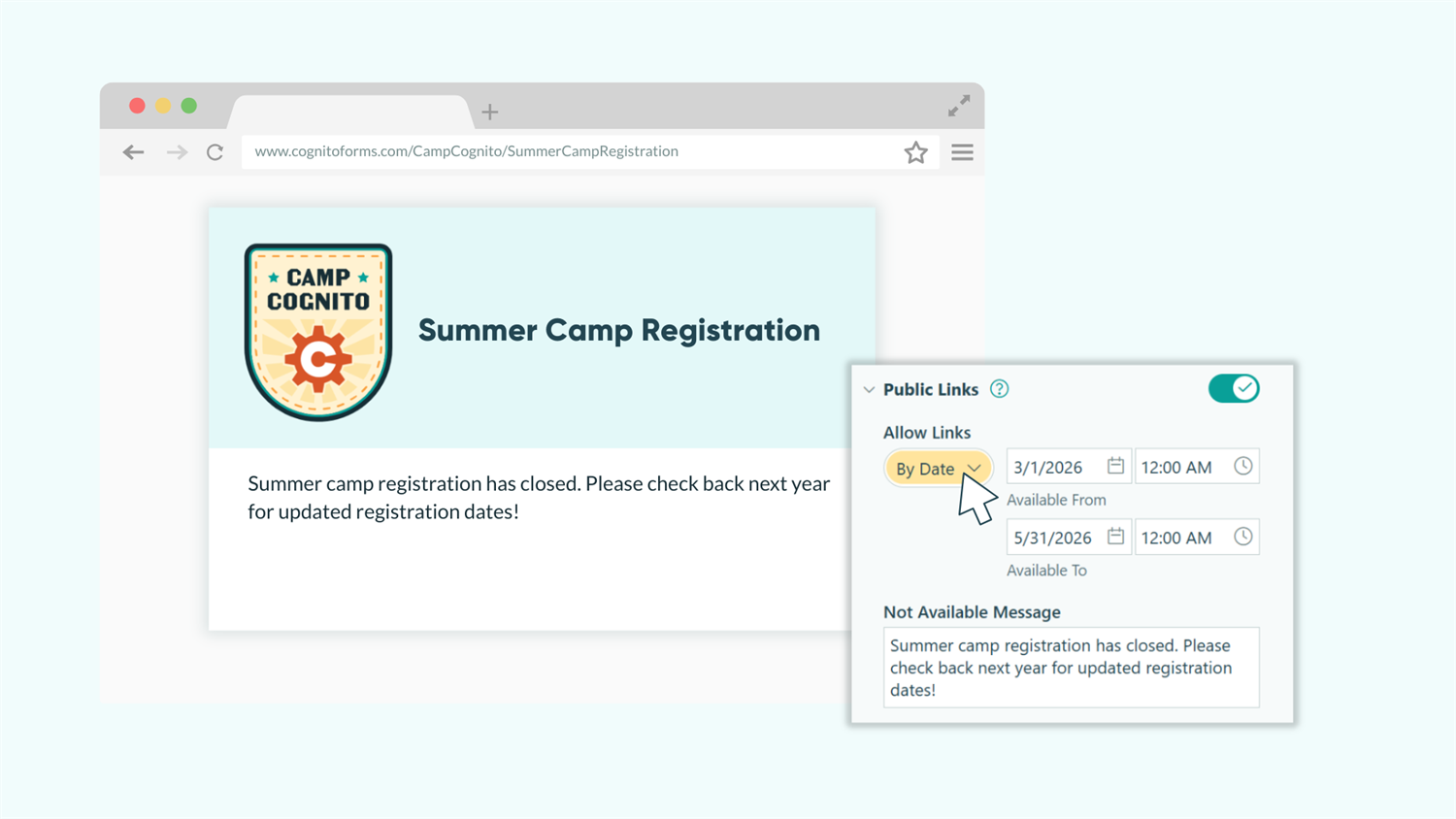
Use the Allow Links setting to make your form available only during specific dates, perfect for enrollment periods, event registration windows, or seasonal services.
Where to configure: Workflow > Public Links > Allow Links > By Date

How to set up a date range
- Navigate to Workflow at the top of the form builder.
- Select Public Links from the Workflow menu.
- Under Allow Links, select By Date to set a start and/or end date:
- Available From: When the form should begin accepting submissions
- Available To: When the form should stop accepting submissions
- Customize the Not Available Message to explain when the form will be available (e.g., “Registration opens on March 1st” or “This form is no longer accepting submissions”).
When to use basic date ranges
- Time-limited registration or enrollment periods. Open course registration for two weeks, then automatically close without manual intervention.
- Seasonal service offerings. Accept summer camp registrations from January through April, then disable the form until next year.
- Event-based submissions with clear start/end dates. Conference registration opens three months before the event and closes one week prior.
- Campaign-specific forms with defined windows. Special promotions or limited-time offers with firm deadlines.
Method 2: Restrict to Business Hours (Weekdays Only)
Limit form submissions to your standard business hours on weekdays, ensuring requests come in only when your team is available to respond.
Where to configure: Workflow > Public Links > Allow Links > When

Building the business hours calculation
Rather than using simple date ranges, you’ll create a conditional expression that checks both the day of week and current time. This calculation runs automatically whenever someone tries to access your form, allowing or blocking access based on your schedule.
Step-by-step setup:
- Navigate to Workflow at the top of the form builder.
- Select Public Links from the Workflow menu.
- Set Allow Links to When.
- Click into the calculation field and build your expression.
=(DateTime.Today.DayOfWeek = "Monday") and (DateTime.Now < DateTime.Today.AddHours(17).AddMinutes(0)) and (DateTime.Now > DateTime.Today.AddHours(8).AddMinutes(0)) or (DateTime.Today.DayOfWeek = "Tuesday") and (DateTime.Now < DateTime.Today.AddHours(17).AddMinutes(0)) and (DateTime.Now > DateTime.Today.AddHours(8).AddMinutes(0)) or (DateTime.Today.DayOfWeek = "Wednesday") and (DateTime.Now < DateTime.Today.AddHours(17).AddMinutes(0)) and (DateTime.Now > DateTime.Today.AddHours(8).AddMinutes(0)) or (DateTime.Today.DayOfWeek = "Thursday") and (DateTime.Now < DateTime.Today.AddHours(17).AddMinutes(0)) and (DateTime.Now > DateTime.Today.AddHours(8).AddMinutes(0)) or (DateTime.Today.DayOfWeek = "Friday") and (DateTime.Now < DateTime.Today.AddHours(17).AddMinutes(0)) and (DateTime.Now > DateTime.Today.AddHours(8).AddMinutes(0)) - Update the Not Available Message with helpful context (e.g., “Please submit requests during our business hours: Monday-Friday, 8 AM-5 PM EST”).
Understanding the calculation
The formula has three building blocks that work together:
| Component | What it checks | Formula |
|---|---|---|
| Day | Is today a weekday? | DateTime.Today.DayOfWeek = "Monday" |
| After opening | Is it past 8 AM? | DateTime.Now > DateTime.Today.AddHours(8).AddMinutes(0) |
| Before closing | Is it before 5 PM? | DateTime.Now < DateTime.Today.AddHours(17).AddMinutes(0) |
These pieces combine to look like this:
(DateTime.Today.DayOfWeek = "Monday") and (DateTime.Now > DateTime.Today.AddHours(8).AddMinutes(0)) and (DateTime.Now < DateTime.Today.AddHours(17).AddMinutes(0))
Finally, we repeat the formula above for each weekday, separating each day with “or”:
=(DateTime.Today.DayOfWeek = "Monday") and (DateTime.Now < DateTime.Today.AddHours(17).AddMinutes(0)) and (DateTime.Now > DateTime.Today.AddHours(8).AddMinutes(0)) or (DateTime.Today.DayOfWeek = "Tuesday") and (DateTime.Now < DateTime.Today.AddHours(17).AddMinutes(0)) and (DateTime.Now > DateTime.Today.AddHours(8).AddMinutes(0)) or (DateTime.Today.DayOfWeek = "Wednesday") and (DateTime.Now < DateTime.Today.AddHours(17).AddMinutes(0)) and (DateTime.Now > DateTime.Today.AddHours(8).AddMinutes(0)) or (DateTime.Today.DayOfWeek = "Thursday") and (DateTime.Now < DateTime.Today.AddHours(17).AddMinutes(0)) and (DateTime.Now > DateTime.Today.AddHours(8).AddMinutes(0)) or (DateTime.Today.DayOfWeek = "Friday") and (DateTime.Now < DateTime.Today.AddHours(17).AddMinutes(0)) and (DateTime.Now > DateTime.Today.AddHours(8).AddMinutes(0))
When to use business hours restrictions
- Service request forms that require immediate staff attention. Ensure support tickets arrive only when your team can provide same-day responses.
- Appointment booking during operational hours. Prevent scheduling conflicts by accepting bookings only when staff can confirm availability.
- Support tickets that need same-day response. Align submission timing with your service level agreements.
- Consultation requests during office hours. Professional services where immediate follow-up demonstrates responsiveness.
Be specific in your Not Available Message. Include your time zone and reopening time: “Our office is currently closed. Form submissions are accepted Monday-Friday, 8 AM-5 PM EST. We’ll reopen tomorrow at 8 AM.” This manages expectations and reduces confusion.
Method 3: Exclude Holidays and Custom Schedules
Create more sophisticated availability rules that account for holidays, extended hours, or complex scheduling needs using custom calculations.
Where to configure: Workflow > Public Links > Allow Links > When
Building on Method 2’s business hours calculation, you can add conditions that exclude specific dates or create exceptions for special circumstances. This gives you complete control over your form’s availability.

Excluding specific holidays
To block form access on certain holidays or company closures, add date exclusions to your calculation. Here’s how to exclude Thanksgiving (November 27, 2026) and Christmas (December 25, 2026):
=(DateTime.Today.DayOfWeek = "Monday") and (DateTime.Now < DateTime.Today.AddHours(17).AddMinutes(0)) and (DateTime.Now > DateTime.Today.AddHours(8).AddMinutes(0)) or (DateTime.Today.DayOfWeek = "Tuesday") and (DateTime.Now < DateTime.Today.AddHours(17).AddMinutes(0)) and (DateTime.Now > DateTime.Today.AddHours(8).AddMinutes(0)) or (DateTime.Today.DayOfWeek = "Wednesday") and (DateTime.Now < DateTime.Today.AddHours(17).AddMinutes(0)) and (DateTime.Now > DateTime.Today.AddHours(8).AddMinutes(0)) or (DateTime.Today.DayOfWeek = "Thursday") and (DateTime.Now < DateTime.Today.AddHours(17).AddMinutes(0)) and (DateTime.Now > DateTime.Today.AddHours(8).AddMinutes(0)) or (DateTime.Today.DayOfWeek = "Friday") and (DateTime.Now < DateTime.Today.AddHours(17).AddMinutes(0)) and (DateTime.Now > DateTime.Today.AddHours(8).AddMinutes(0)) and DateTime.Today != "11/27/2026" and DateTime.Today != "12/25/2026"
| What changed | What it checks | How to customize it |
|---|---|---|
DateTime.Today != "11/27/2026" and DateTime.Today != "12/25/2026" |
“Today is not November 27, 2026” and “Today is not December 25, 2026” | Simply add and DateTime.Today != "date" for each holiday you want to exclude at the end of your calculation. |
Creating extended hours on specific days
Some organizations need different hours on different days. Here’s a calculation for Monday-Thursday 8 AM-5 PM, with Friday extended to 6 PM:
=(DateTime.Today.DayOfWeek = "Monday") and (DateTime.Now < DateTime.Today.AddHours(17).AddMinutes(0)) and (DateTime.Now > DateTime.Today.AddHours(8).AddMinutes(0)) or (DateTime.Today.DayOfWeek = "Tuesday") and (DateTime.Now < DateTime.Today.AddHours(17).AddMinutes(0)) and (DateTime.Now > DateTime.Today.AddHours(8).AddMinutes(0)) or (DateTime.Today.DayOfWeek = "Wednesday") and (DateTime.Now < DateTime.Today.AddHours(17).AddMinutes(0)) and (DateTime.Now > DateTime.Today.AddHours(8).AddMinutes(0)) or (DateTime.Today.DayOfWeek = "Thursday") and (DateTime.Now < DateTime.Today.AddHours(17).AddMinutes(0)) and (DateTime.Now > DateTime.Today.AddHours(8).AddMinutes(0)) or (DateTime.Today.DayOfWeek = "Friday") and (DateTime.Now < DateTime.Today.AddHours(18).AddMinutes(0)) and (DateTime.Now > DateTime.Today.AddHours(8).AddMinutes(0))
| What changed | How to customize it |
|---|---|
Friday uses AddHours(18) (6 PM) instead of AddHours(17) (5 PM) |
Simply change the number inside AddHours(#) to reflect the schedule you want it to follow. Update your Not Available Message to reflect the different schedule as well: “Service requests are accepted Monday-Thursday from 8 AM-5 PM EST and Friday from 8 AM-6 PM EST.” |
When to use holiday and custom schedule controls
- Healthcare practices with holiday closures. Patient intake forms respect office closures for federal holidays and staff training days.
- Educational institutions with academic calendars. Enrollment forms follow semester schedules, excluding spring break, winter break, and summer closure.
- Service businesses with seasonal hour changes. Adjust summer hours without rebuilding your entire calculation—just modify the time values.
- Organizations with company-specific holiday schedules. Honor your unique closure dates like annual retreats, founder’s day, or regional holidays.
Real-World Examples: Form Availability in Action
These scenarios show how different organizations use form availability controls to match their operational needs:
Medical Practice: Patient Intake Forms
A family medicine practice uses Method 3 to accept patient intake forms Monday-Friday, 8 AM-4 PM, with exclusions for federal holidays. Their calculation blocks submissions on Thanksgiving, Christmas, New Year’s Day, Memorial Day, Independence Day, and Labor Day. When patients try to access the form outside these hours, they see: “Our office is currently closed. Please submit your intake form Monday-Friday between 8 AM-4 PM EST. We’ll respond within one business day.”
This prevents the buildup of patient submissions over weekends and holidays that can’t be processed until the office reopens, while clearly communicating when patients can expect responses.
Consulting Firm: Service Request Forms
A consulting firm uses Method 2 combined with specific date exclusions for their annual company retreat week. Their service request form accepts submissions Monday-Friday, 9 AM-6 PM, except during the first week of August when all staff attend the company retreat. The Not Available Message explains: “We’re currently at our annual retreat developing new services for you. Service requests will reopen on August 8th. For urgent matters, please email support@example.com.”
This protects team focus time while providing an alternative contact method for genuine emergencies.
Educational Institution: Course Enrollment
A continuing education program uses Method 1 to open course enrollment for specific registration windows. Spring semester registration runs from November 1-30, summer enrollment opens April 1-30, and fall registration runs July 1-31. Between these windows, the form displays upcoming enrollment dates and allows visitors to sign up for email reminders when registration opens.
This creates urgency during enrollment periods while keeping the form accessible year-round for information purposes, capturing interested leads even when enrollment is closed.
Start Controlling Your Form Availability Today
Manual form management creates unnecessary work and sets you up for missed submissions or overwhelming after-hours requests. Automated availability controls handle the timing for you, ensuring submissions arrive only when your team can respond effectively.
Whether you need simple date ranges for event registration, standard business hours for service requests, or complex schedules that account for holidays and seasonal changes, Cognito Forms gives you the flexibility to match your organization’s unique needs. Set your schedule once, and focus on serving customers instead of managing form access.
FAQ
Cognito Forms uses your form’s time zone setting for all date and time calculations. To configure this, go to your form settings and verify your time zone is correct. All DateTime calculations will then automatically use that zone. If you serve customers across multiple time zones, consider using UTC time in your calculations and clearly stating “all times in UTC” in your Not Available Message to avoid confusion.
Yes, adjust the AddHours() value for specific days in your calculation. For example, if you want extended hours on Tuesdays and Thursdays until 7 PM (19:00), use AddHours(19) for those days while keeping other weekdays at AddHours(17) for 5 PM. Each day’s conditions operate independently, giving you complete flexibility over your weekly schedule.
No, availability controls only determine when new submissions can be made. Existing entries remain accessible to users with appropriate permissions regardless of the form’s availability status. If you’ve shared Workflow Links with clients or team members, they can still view and edit their entries even when the public form is closed.