Stop duplicate submissions by limiting responses to one per person. Ensure each person submits your form only once, keeping data accurate and processes fair.
Build Time & Skill
5-10 min
Beginner
What you'll learn
How to set up your form to accept only one submission per person using the email address entered in an Email field or IP address tracking
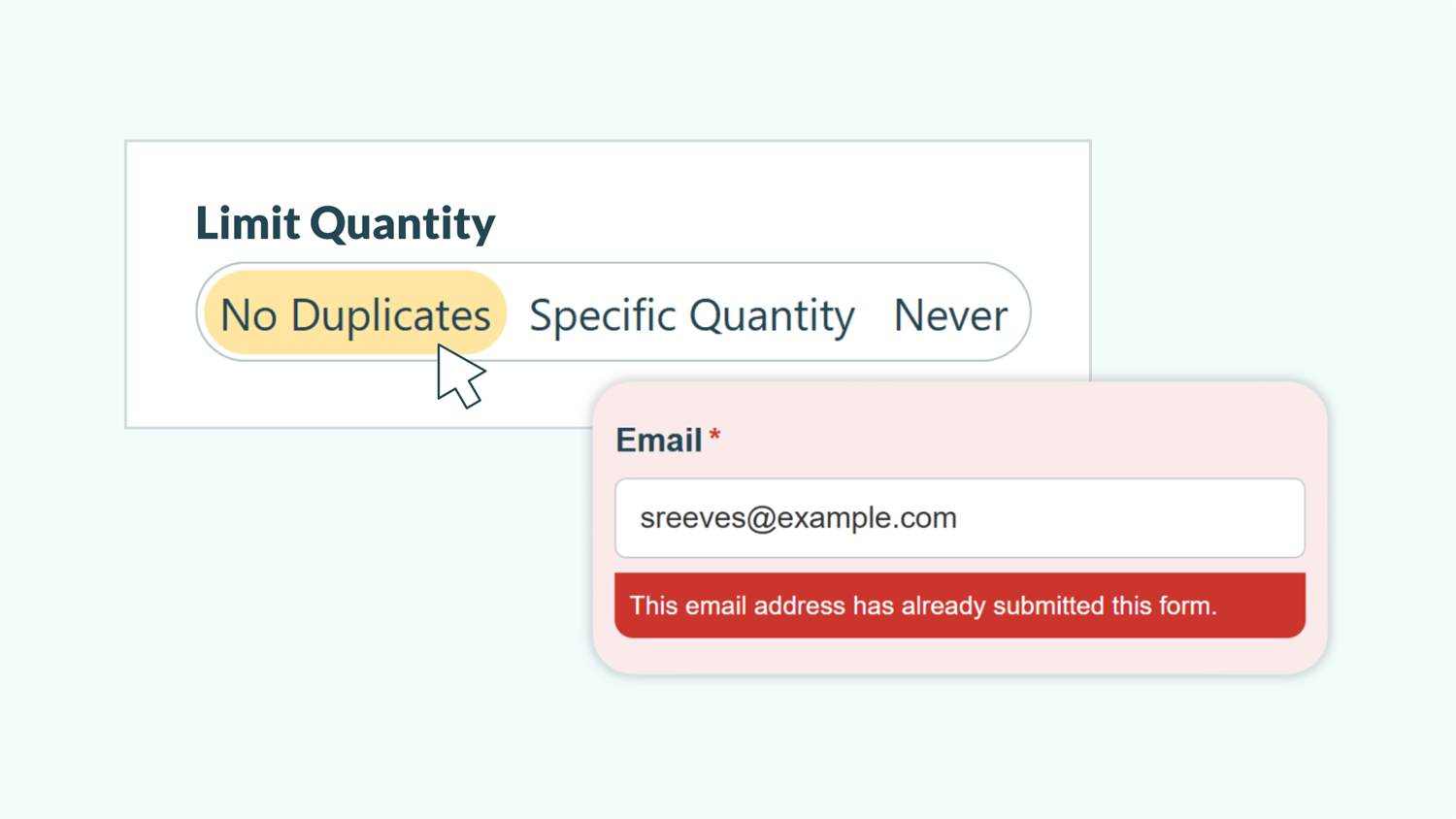
Duplicate form submissions create messy data, skew survey results, and undermine the integrity of contests or voting. Without proper controls, the same person can submit your form repeatedly, throwing off your numbers and wasting your time sorting through redundant entries.
Cognito Forms prevents this with Quantity Limits, a built-in feature that tracks submissions and blocks duplicates before they happen. Whether you’re running a poll, managing event registrations, or collecting customer feedback, you can ensure each person responds only once. This approach helps you:
- Maintain accurate data. Get reliable results from surveys, polls, and feedback forms without worrying about inflated numbers from repeat submissions.
- Run fair contests and giveaways. Prevent people from submitting multiple entries with different information that impact the integrity of your offer.
- Manage limited resources effectively. Control event capacity, appointment slots, or inventory availability by ensuring one submission per person.
Understanding Quantity Limits
Quantity Limits help control how many times a specific value can be selected or entered into a specific field across all of the form’s entries. When you set a limit, Cognito Forms tracks each unique value (like each email address or IP address) and counts how many times it appears in submitted entries.
The limit you set is enforced in real-time as people fill out your form. An error message immediately appears and prevents submission if the value entered would exceed the limit. Quantity Limits work with several field types, letting you prevent duplicates based on whatever makes sense for your form.
Method 1: Limit Submissions by Email Address
The first way you can limit submissions to your form is by tracking unique email addresses. With this setup, each email address can submit your form only once. This is the most common and straightforward way to prevent duplicates while collecting contact information.

This method works by limiting the quantity of an Email field. When someone enters an email address that’s already been submitted, they will see an error message and will not be able to proceed. The system checks this in real-time, so people know immediately if they’ve already submitted, rather than filling out your entire form only to be blocked at the end.
When to limit submissions using email addresses
- Surveys and feedback forms. Ensure each respondent provides input only once while giving you a way to follow up if needed.
- Contest and giveaway entries. Maintain fairness by limiting participants to one entry per valid email address.
- Event registrations with confirmations. Prevent duplicate registrations while collecting the email addresses you need to send tickets and updates.
- Customer satisfaction surveys. Track one response per customer while maintaining the ability to connect feedback to specific accounts.

How to set it up
- Add an Email field to your form or locate your existing Email field.
- Find Limit Quantity and select No Duplicates.
- In the Quantity Exceeded Error Message box that appears, write a clear message like, “This email address has already submitted this form.”
Your form now prevents anyone from submitting twice using the same email address. When someone tries to reuse an email that’s already been entered on another entry, they’ll see your custom error message under the Email field, explaining why they can’t submit.
Method 2: Limit Submissions by IP Address
Another way to limit submissions is by tracking unique IP addresses of the people submitting your form. This method prevents duplicate submissions without requiring people to provide their email address, making it ideal for anonymous polls, voting, and feedback collection.

IP addresses identify the internet connection someone uses to access your form. By tracking these addresses, you can prevent the same person from submitting multiple times while maintaining their anonymity. This approach uses a Calculation field that automatically captures each person’s IP address when they submit, then enforces a Quantity Limit on that value.
Unlike email-based limiting, IP address limiting doesn’t require users to identify themselves. They simply fill out your form, and the system quietly tracks their IP address in the background. This makes the experience seamless for anonymous submissions while still preventing duplicates.
When to limit submissions using IP addresses
- Anonymous polls and voting. Collect honest feedback without requiring people to identify themselves.
- Employee feedback forms. Allow team members to submit candid responses without tracking individual identities, but still prevent multiple submissions.
- Public surveys on sensitive topics. Get accurate data on topics where anonymity encourages honest responses.
- Quick feedback forms. Gather input without the friction of collecting contact information, while maintaining one response per person.

How to set it up
- Add a Calculation field to your form. Name it something like “IP Address” or “Unique Identifier.”
- Set the Calculation to
=Entry.Origin.IpAddress - Under Show This Field, select For Roles and check only Internal. This hides the IP address from people submitting the form while letting you see it in your entries.
- Under Limit Quantity, select No Duplicates.
- Write a Quantity Exceeded Error Message like, “Only one submission is allowed per person.”
Your form now prevents duplicate submissions based on the person’s IP address. People can submit anonymously, but they can’t submit more than once from the same location.
IP address limitations to consider: IP-based limiting works well for many scenarios, but it does have some limitations that are important to keep in mind.
- People on shared networks (offices, coffee shops, universities) share the same IP address, so one person’s submission could block others on the same network.
- VPN users and people with dynamic IP addresses might also be able to submit multiple times.
Additional Features for Smarter Online Forms
Layer additional features with Quantity Limits to create even more control over your form submissions:

- Add email validation for stricter controls. Use the Email field’s Show Custom Error setting to limit submissions to specific domains (like requiring company email addresses ending in @yourcompany.com) or filter out generic email providers (like @gmail.com).
- Combine with authentication for maximum security. Add a Person field to your form, set it to default to the current user, and enable Authentication for the form’s Public Link. This layers identity verification on top of email-based limiting, ensuring the person submitting actually controls the email address they’re using.
- Track quantity changes in audit logs. Review the Entry Audit Log to see the new quantity and when it changed each time someone submits. This helps you monitor submissions, identify when limits are reached, and verify that your Quantity Limit is working correctly.
Start Preventing Duplicate Submissions Today
Quantity Limits give you simple, powerful control over who can submit your forms and how often. Whether you need to maintain the integrity of a poll, manage limited event capacity, or simply keep your data clean, preventing duplicate submissions takes just a few minutes to set up and runs automatically from there. Your forms stay accurate, your processes stay fair, and you spend less time cleaning up duplicate entries.
FAQ
While Cognito Forms does not currently offer the ability to automatically adjust or reset Quantity Limits, you can manually reset a Quantity Limit using one of the following options:
- Update the existing Quantity Limit to account for previous entries. For example, if your field has a Quantity Limit of 10 and 2 entries have been submitted, you must update the limit to 12 (not 10) to take the previous entries into account. You can use an expression such as
=FieldName_QuantityUsedin a calculation on your form to see the number of quantities used on a specific field. - Create a new field to reset the Quantity Limits. You can simply copy the existing field to create a new field with new Quantity Limits. Please note that if you delete the old field, the associated entry data will be deleted as well. To maintain the existing data, you can set the Show This Field option in the field settings to Never. Learn more about quantity limits.
Yes, if you set up your form and Workflow to allow them to edit their submission. Send them an automated email notification with a Workflow Link to their entry, and they can update their answers without triggering duplicate detection. This is useful when people need to correct errors or provide updated information without submitting an entirely new entry.
Yes, immediately. Quantity Limits only count submitted entries, not incomplete or deleted ones. If you delete an entry from your form, that email address or IP address can submit again right away. This is helpful when you need to remove test submissions or clear out specific entries so someone can submit something different.