Role-based workflows let you build one form where each person sees only relevant fields—reducing overload and protecting sensitive data.
Build Time & Skill
20-30 min
Intermediate
What you'll learn
How to deliver different form experiences to each person based on their role, showing only the information relevant to them
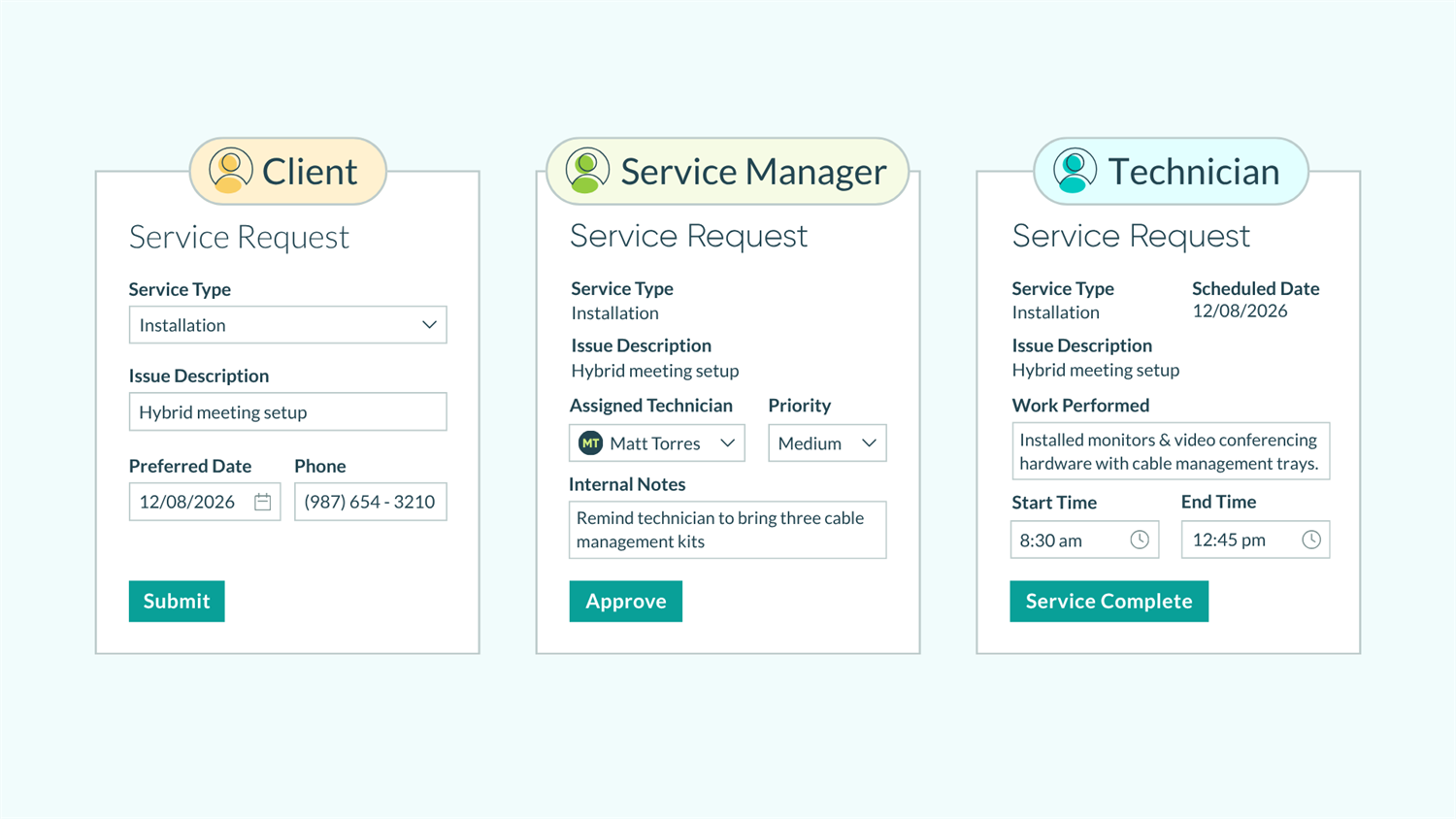
Traditional forms force everyone to see the same information, even if it isn’t relevant to them. With Cognito Forms, you can create role-based workflows that:
- Protect sensitive information. Show sensitive fields only to authorized roles, ensuring external users never know they exist.
- Speed up processes. Display only actionable fields to decision-makers with clear “Approve” or “Reject” options.
- Reduce confusion. Each person is clear about what they need to do, seeing only fields relevant to their responsibilities.
Understanding Roles & Role-Based Workflows
Role-based workflows show each person only the fields and actions relevant to their responsibilities in a single form. Your client sees clean intake questions, your manager sees approval fields and internal notes, and your finance team sees only payment processing.
Roles in Cognito Forms define who participates in your workflow and control what they can see, edit, or approve:
- Public Role: External participants, like clients, customers, applicants. (Maximum of one Public Role per form)
- Internal Role: Your team members who manage entries. (Maximum of one Internal Role per form)
- Other Role: Additional participants (approvers, reviewers, finance, etc.) involved in the workflow
Role-based Workflows are ideal for processes with multiple stakeholders, sensitive information, sequential approvals, or external collaboration.
Customizing Forms by Role: 5 Key Methods
With Cognito Forms’ robust, easy-to-use conditional logic, you can customize experiences for each person in your Workflow using one or more of the five approaches outlined in this guide.
Method 1: Show different fields to different people
Hide sensitive information and irrelevant fields based on each person’s role. In Cognito Forms, you can control which fields, sections, or pages each person sees. Clients can view only customer-facing questions while your team accesses a read-only version of the client’s response as well as internal tracking fields, calculations, and team notes, all from a single form.

Setup steps
- Select the field, section, or page break you want to control.
- Find the visibility settings based on what you’re controlling:
- Fields: Field Settings > Show This Field
- Sections: Section Settings > Show This Section
- Pages: Page Break Settings > Show Next Page
- Select For Roles to enable role-based visibility.
- Choose which role(s) should see this field or section. You can also select multiple roles, if needed.
Common uses
- Hide compensation details from candidates. Show salary ranges only to HR and hiring managers. Candidates and interviewers wouldn’t see this confidential information that could bias negotiations or create internal equity issues.
- Keep internal notes private. Display priority scores, profit margin calculations, and team notes only to Internal roles. Clients see a clean, professional form without any behind-the-scene business operations fields visible.
- Display approval fields only to decision-makers. Show an “Approval Decision” field only to the Manager role when the entry is in “Pending Approval” status. Hide this field entirely from the requestor to maintain clear process boundaries.
- Create conditional workflow branches based on complexity. Show a “Budget Approval” page only to Finance team members when the request amount exceeds $5,000, automatically skipping this step for smaller requests.
Method 2: Prevent editing after submission
Lock submitted data so no one can change answers after forms are completed. In Cognito Forms, you can use Read-Only logic to ensure no one (not even administrators) can alter information after a form is completed. When a field or section is Read-Only for a user, they can see the field data but are prevented from making changes.

Setup steps
- Select the field you want to make read-only.
- Under Field Settings, find the Read-Only setting.
- Select For Roles.
- Choose which Role(s) should see this field as read-only.
Common uses
- Prevent edits to submitted data. Allow customers to fill out order details when first submitting the form, but make those fields Read-Only for all roles after they submit it. Only new fields like “Internal Processing Notes” can be edited by your team.
- Protect signatures. Make Signature fields Read-Only for all Roles immediately after a form is submitted. This ensures nobody (not even admins) can alter signed legal documents.
- Lock client details for certain roles. Make an entire “Client Details” section always Read-Only for “Account Manager” Roles. They can view client information but can’t edit it. Only the “Internal” Role has full editing access for legitimate updates.
- Preserve original requests during review. Make all requestor fields Read-Only when the Workflow Status changes to “Under Review.” Approvers can see everything but can only add notes in separate approval fields.
Method 3: Control who can approve and take action
Limit who is able to approve, reject, or move workflows forward. In Cognito Forms, use Allow Action logic to make Workflow Actions available only to specific Roles. This enforces clear boundaries on what Actions each Role can take on the form and prevents unwanted workflow progress.

Setup steps
- Navigate to Workflow > Actions.
- Select the Action you want to control (or create a new Action).
- Under Allow Action, choose For Roles.
- Select which role(s) can perform this action.
- Optionally, add When conditions to combine Role restrictions with status requirements or field values.
Layer conditional logic with status conditions. Don’t just hide fields by role. Also control visibility based on Workflow Status. For example, show approval fields only to managers AND only when the entry is in “Pending Approval” status. This prevents fields from appearing at the wrong time even to authorized roles.
Common uses
- Limit payment processing to finance. Make “Process Payment” and “Issue Refund” actions available only to the Finance role. Managers can approve requests, but only finance can handle money.
- Restrict approval authority. Allow only Manager and Director roles to approve or deny requests, ensuring requestors and other staff can only submit or update.
- Control update permissions. Let only the original requestor update their submission, preventing other roles from making changes that could cause errors.
- Stage-specific actions. Make “Send to Accounting” available to managers only when the entry is in “Approved” status, not before.
Once you’ve mastered field-level customization, you can take role-based workflows even further by tailoring how you share entries with participants.
Method 4: Route forms to the right person automatically
Send each person a link to the form with exactly the permissions they need. In Cognito Forms, you can route entries to the right people by sending automated emails with workflow links. These links are unique to the Role it is intended for. At each step in the Workflow, each person only sees what’s relevant to them and the tasks they are responsible for.

Setup steps
- Navigate to Workflow > Actions and select the Action that triggers the email (like “Submit”).
- Under Send Emails, create a new email or edit an existing one.
- In the To field, select the recipient (can be an Email field, Person field, or organization member).
- Click Share Workflow Link, to the right of the To field.
- Choose the appropriate Role for who is being notified.
For an added layer of security, verify recipients’ identities before they access entries. To do this, enable authentication under Workflow > Workflow Link Sharing > Require Authentication.
Common uses
Role-based Workflow Links excel in these scenarios:
- Approval routing: Automatically send managers a Workflow Link with Manager permissions when employees submit requests. Managers see approval fields that employees didn’t have access to see.
- Sequential reviews: After first-level approval, email the next reviewer a link showing only their review fields. Previous decision history appears as read-only fields.
- External collaboration: Send clients or vendors email links to update their portion of contracts or proposals. They see only their fields, never your internal notes.
- Timely information collection: Email customers links to add shipping details only after the payment is processed. They see clean forms with just relevant fields for that stage of the workflow.
Method 5: Give each person their own view of entries
Traditional form tools require everyone to work through email links and scattered notifications. With Cognito Forms, you can set up filtered Entry Views that show users (or guests) only the entries and tasks relevant to their responsibilities. This ensures everyone works from one central space without digging through emails or seeing information irrelevant to them.

Setup steps
- Go to the Entries page.
- Click + Create New View and give it a name.
- In View Settings, click Set Role to define which Role sees this view.
- Add filters to show only relevant entries:
- Status-based filters (e.g., Status = Pending Approval).
- Shared With Current User filter dynamically filters based on who’s logged in. This will show the viewer only the entries they have access to.
- Hide columns containing sensitive information that this role shouldn’t see.
Create multiple views for the same Role. Give managers both a Task View for entries needing action and a Grid View for tracking everything their team has submitted.
Common uses
Traditional form tools require everyone to work through email links and scattered notifications. With Cognito Forms, you can extend role-based workflows into the app itself:
- Let managers see all pending approvals waiting for their decision. Set a Task View to the “Manager” Role. Filter by
Status is Pending Approvaland turn on Shared With Current User. - Give clients a view of only their submitted requests with a Grid View set to the “Public” Role. Filter by Shared With Current User and hide any columns the client should not see.
- Make sure your Finance team only sees entries requiring processing. Create a Task View for the “Finance” Role and filter entries by
Status is Pending Payment.
Real-World Examples: Role-Based Workflows in Action
The techniques above might seem abstract until you see them solving actual business problems. Here are three scenarios where role-based experiences transform cluttered processes into streamlined workflows:
Client onboarding
A marketing agency uses role-based experiences to streamline client onboarding. Everyone involved sees something different on the Client Intake Form:
- Client: Only sees questions about their brand, goals, and preferences. Cannot see any internal fields.
- Account Manager: Read-Only view of client information, plus editable fields for profit margins and assigned team members.
- Creative Director: Read-Only view of specific fields necessary to understand the client’s project scope and creative requirements. Everything else is hidden.
Service request with payment
A facilities management company built a service request workflow where people request their repair needs. Everyone sees something different on the Service Request Form:
- Requestor: Can edit request fields during initial submission, but these become Read-Only after the request has been approved. Other internal fields are hidden completely.
- Managers: Read-Only view of the request, plus editable fields to add internal notes. They have access to “Approve” and “Deny” Actions the requestor never saw.
- Finance: After Approval, Manager notes are shown Read-Only and only financial fields are editable. A “Payment Processing” Action is available to complete the workflow.
Multi-department approval
A university grant application workflow routes proposals through different departments.
- The applicant submits the Grant Application, only seeing and filling out their fields.
- The workflow moves through the Department Head, Research Compliance Office, and Finance Department.
- Each reviewer completes their section, then the entry automatically moves to the next stage without anyone seeing irrelevant or sensitive information.
Advanced Techniques: Combining Role-Based Features
Build even more sophisticated workflows by combining these approaches:
- Use Person Fields for personalized experiences that automatically pre-fill the logged-in user’s information.
- Set up automated email reminders for task assignments that keep everyone on track throughout the process.
- Create conditional email routing that sends notifications to different roles based on form responses or approval decisions, ensuring the right person is always informed.
- Give external participants a portal to check project status, complete tasks, and submit updates, all from a central place without digging through emails.
Start Building Role-Based Workflows Today
Most form builders make you choose between simple forms that can’t handle complexity or expensive custom development. Cognito Forms gives you both—the ease of building forms combined with the power to create complete workflows where multiple stakeholders collaborate seamlessly.
By tailoring what each person can see and do, you create cleaner workflows, protect sensitive information, and help everyone complete their responsibilities efficiently. This isn’t just about showing or hiding fields. It’s about building professional processes tailored to your business and eliminating manual workload, all without writing a single line of code.
FAQ
Yes, you can give anyone access to an entry by sending them a Workflow Link for their assigned Role. For more secure role-based Workflows with external users, we recommend turning on Workflow Link authentication. This will require guests to verify their email address prior to accessing a shared entry or Entry Views in a guest portal.
Each form supports up to 20 Roles total: 1 Public Role (for external participants like customers or applicants), 1 Internal Role (for your team members who manage entries), and up to 18 Other Roles for specific functions like Approver, Finance, Department Head, Reviewer, or any other specialized participants in your workflow.
No, not if you set it up correctly. When you hide fields by Role, those fields don’t show up on the entry for that Role. They’re completely hidden and inaccessible. External clients will never know internal notes, profit margins, priority scores, or team coordination fields even exist in the form. This allows you to deliver a completely different view to each Role while working from a single unified entry.
Use the Preview feature and switch between roles. Click Preview in the form builder, then toggle between roles to see the form as different roles would experience it. Alternatively, use the “View as User” option to see exactly what each role sees when they log in.