Give clients real-time visibility into project progress with a secure portal where they can check status updates anytime, eliminating endless “what’s the status?” emails while you stay in control.
Build Time & Skill
30-45 min
Intermediate
What you'll learn
How to create a client-facing project tracker that shows real-time status updates, to reduce status update emails and maintain professional transparency
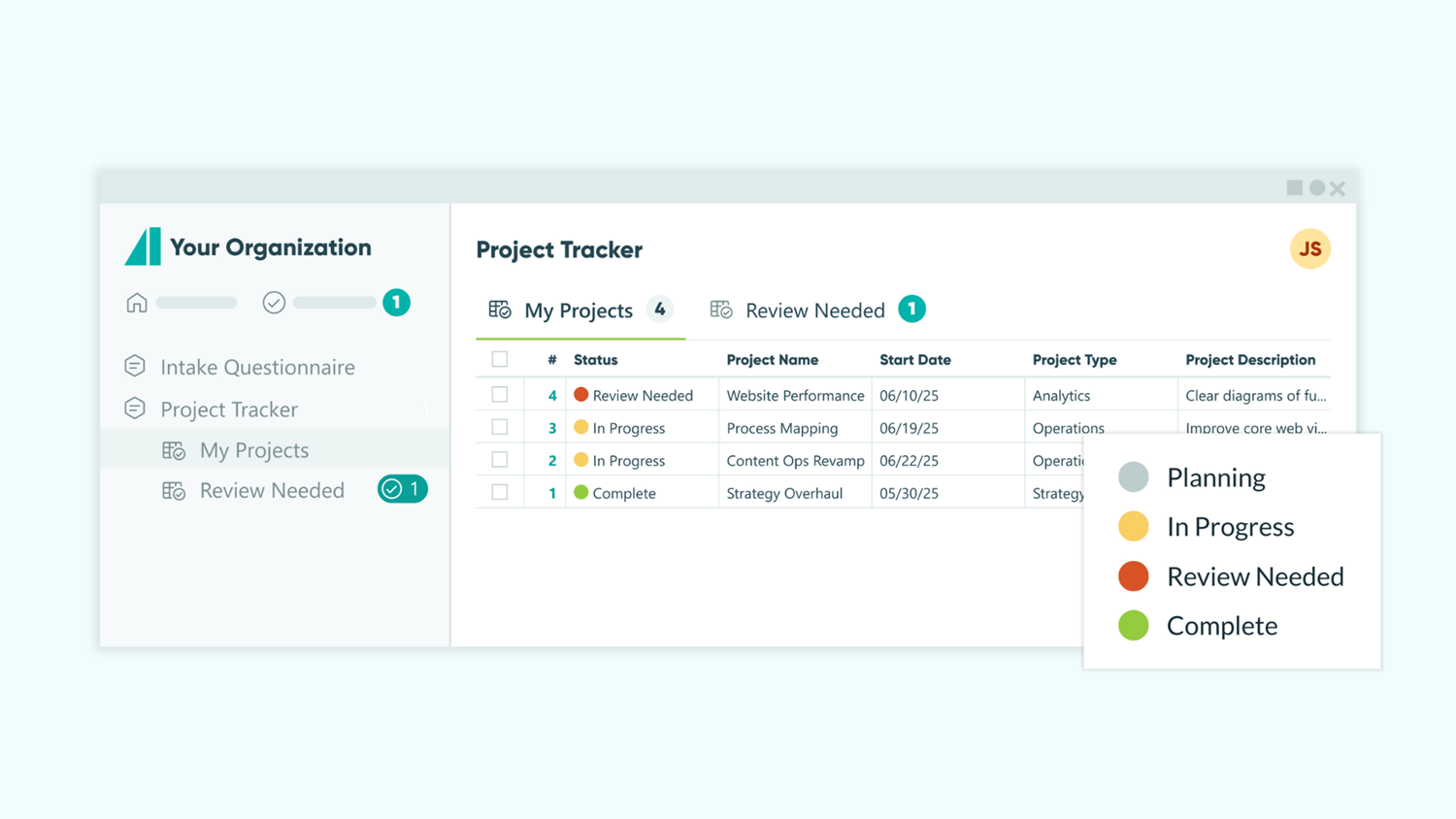
When clients can’t see project progress, they tend to send lots of emails. You might spend hours each week writing the same updates over and over, and yet clients still feel left in the dark. With Cognito Forms, you can give clients a window into their projects without giving them full access to your documentation, notes, etc. This approach helps you:
- Eliminate status update emails. Clients can log in to see exactly where their work stands instead of waiting for your reply, freeing you from repetitive update requests.
- Build trust through transparency. Real-time visibility shows clients you’re actively working, even when you’re not sending updates, strengthening the client relationship.
- Keep everyone aligned. Clients, project managers, and team members all see the same current status, preventing miscommunication about where work stands.
Understanding How Client Status Tracking Works
Client status tracking combines Guest Access (secure client login), Workflow Statuses (project phase labels), and Entry Views (filtered displays) to give clients real-time project visibility. You update the Status once, and clients see current progress when they log into their portal. No manual updates needed.
Before building your tracker, understand how these three Cognito Forms features work together. Each plays a specific role in giving clients visibility while keeping you in control of what they see and when they see it.
| Feature | What It Does | Role in Status Tracking |
|---|---|---|
| Guest Access | Gives external users (clients) secure access to specific entries you share with them | Guest Access allows clients to log in and view their projects without needing a full user account or seeing other clients’ work. |
| Workflow Statuses | Labels that categorize where an entry is in your process (like “In Progress,” “In Review,” or “Complete”) | Statuses show clients exactly what phase their project is in and what comes next, answering “where are we?” at a glance. |
| Entry Views | Filtered, customized displays of your project entries that different roles see differently | Entry Views control what clients see when they log in (only their projects, only relevant columns, and organized the way they need it). |
When these three features work together, clients get a personalized dashboard showing only their projects with the current Status visible, while your team maintains full control over project information and internal details.
Step-by-Step: Building Your Client Status Tracker
With this project tracker, frequent status updates become a self-service tool that saves your team time and improves the client experience. Follow these steps to create your own organized, self-service project tracking dashboard for clients:
Step 1: Create your client guest list
First, set up the list of clients who can log in to check their project status. This guest list acts as your central client database and determines who will have portal access. You’ll set up the project tracking form after this step.

- Go to your organization’s Settings and find Guest Access in the left menu.
- Turn on the Guest Access toggle.
- Next to Allowed Guest Types, click + New Person Form.
- In the dropdown, find “Clients” and then click Create.

Configure your client list form
- Your new client list form should include Name, Email, and Yes/No fields by default.
- Add any additional client information you want to track, such as:
- Company Name (Textbox field)
- Phone (Phone field)
- Industry (Choice field)
- When you have the fields you want, go to your Form Settings and expand the Use with Person Field? setting to view the options.
- Because you created the form from the Guest Access settings page, all necessary settings will be enabled automatically. However, this is where you can adjust settings if needed.
An optional setting you can enable is the Allow guests to edit their profile? setting. This will allow your clients to update their own contact information/profile in the portal.

Add your clients
- Go to the form’s Entries page.
- Click + New and fill in all the fields to add each client.
- The IsActive field already on the form will default to “true” when you submit the entry.
- Click Create to submit the entry, and repeat for each client you want to add.
Your client list is now ready to connect to your project tracker!
Step 2: Create your project tracker and connect it to clients
Build the form where you’ll track all client projects and use a Person field to link each project to a specific client. The Person field is what enables automatic sharing and personalized views for each client.

Create the form and configure the Person field
- Create a New Form and give it a name (something like “Project Tracker”).
- Add a Person field and label it “Client.” This field links each project entry to the specific client selected in this field.
- In the Person field settings:
- Under Look Up People From, select your “Clients” form.
- Change Default To to None, since your team will manually select the client they’re creating the project for.
Connect the Public Role to each client
This critical step ensures each project entry automatically shares with the client selected in the Person field.
- In this Project Tracker form, go to the Workflow settings and open Roles.
- You’ll see the Public Role already has “Client” listed under it.
- Because we had Guest Access enabled on our “Clients” form when creating this “Project Tracker” form, the Public Role was already connected to our Person field.
- If for any reason you do not see the “Client” field listed here, click on the Public Role and under Share With, select your “Client” Person field from the dropdown.
The Person field now acts as the bridge between your project tracker and your client list. When you create a project and assign it to “ABC Company,” only ABC Company can see that project in their portal.
Step 3: Set up Workflow Statuses
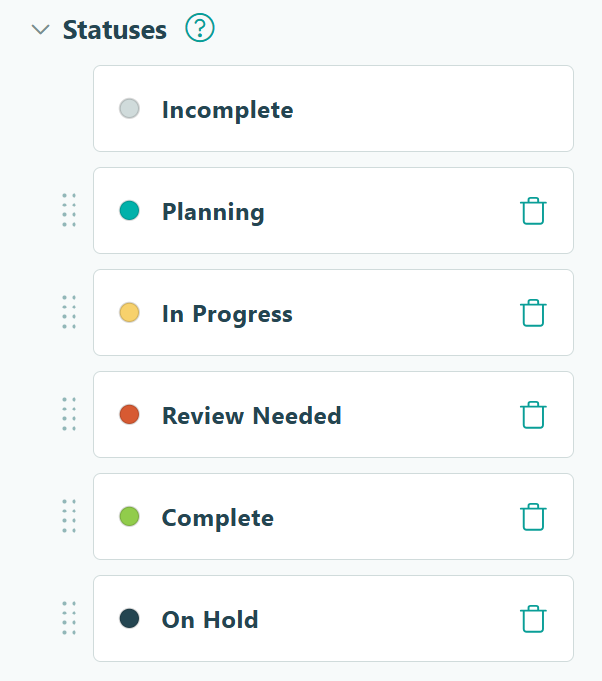
Configure the stages your projects move through, giving clients clear visibility into progress. Statuses answer the question every client asks: “Where does my project stand right now?”
- In your Project Tracker form, click Workflow in the left menu, and open Statuses.
- You’ll see two default Statuses: Incomplete and Submitted. You can rename “Submitted” or add new Statuses that match your Workflow.
- Click + Add Status to create each stage of your process.
- Configure each Status with a Name that’s clear to clients and a Color to help visually distinguish statuses at a glance.
Common project statuses to consider:
- Discovery or Planning
- In Progress
- Review Needed
- Complete
- On Hold
We like to assign Status colors strategically. For example, use green for “Complete,” yellow or orange for “Client Review” (action needed), and blue for “In Progress” (active work). Visual cues help clients understand their project’s status instantly without reading every word.
Step 4: Add project fields and configure visibility settings
Add all the fields you need to track projects, then use conditional logic to configure which fields clients can see and whether they can edit them. This step separates what clients view from what your team manages internally.

Add fields for essential project information
- Add a Section and name it “Core Project Details” or something similar.
- Make the entire “Core Project Details” Section Read Only > For Roles > Public. This will ensure clients can see these fields, but cannot change or edit any data in the fields.
- Inside the Section, add these fields for essential project information:
- Project Name (Textbox field; Single line)
- Project Description (Textbox field; Multiple lines)
- Start Date (Date field)
- Due Date (Date field)
Add any additional fields your team needs
- Include any additional tracking fields for your internal team’s use, such as:
- Project Type (Choice field with options for your business’s needs)
- Assigned To (Person field listing your team members from a separate Person Form)
- Client Facing Notes for updates clients should see (Textbox field; Multiple lines)
- Internal Notes for team-only information (Textbox field; Multiple lines)
Customize the conditional logic for any field
Use these guidelines to adjust which fields clients can see and/or edit on the form:
| Scenario | Show This Field setting | Read-Only setting |
|---|---|---|
| Clients should see, but not be able to edit the field’s data | Always | For Roles > Public |
| Clients should see and edit the field, but not your team | Always | For Roles > Internal |
| Clients should not see the field at all | For Roles > Internal | Never |
Step 5: Set up the client-facing Entry View
Create the customized view clients see when they log in to check their projects. This view determines not just what data appears, but how it’s organized and presented.

- Go to your Project Tracker form’s Entries page.
- Click the plus sign (+) at the top of the page.
- Select New Grid View.
- Name it “My Projects” (or “Project Status Dashboard”).
- Set the Role to Public, since we want clients to be able to access this.
Anyone in the “Public” Role who has at least one entry shared with them will be able to access the View. Since we’re sharing the “Public” Role with clients via the Person field, only clients on that Person field will have access to this View.
Customize which columns appear
Even though you added Show This Field logic to fields on the form, you also need to hide the columns for these fields from clients.
- Click Columns in the top right of the Entries page.
- Uncheck any internal fields that clients should not be able to see.
- Optional: Reorder columns by clicking and dragging a column header where you want it.
Filter and sort the view
These settings are both optional, but contribute to a more personalized, professional experience in certain scenarios:
- Add filters to your View using the Entry Status option, or create your own Advanced Filter with our conditional logic builder.
- Use the Sort option to order projects by the date in the “Due Date” field, the project’s Status, or any other grouping you’d like.
Please Note: Views automatically filter which entries are shown for guest users. Guests will only see the entries shared specifically with them (even without the Shared With Current User Filter enabled).
Save your settings
Always save your final View settings using the Save button in the top right-hand corner of the Entries page. This will preserve all your Filter, Sort, and Column settings for clients.
Your clients now have a clean, focused view showing only their projects with the most important information front and center.
You could also create multiple Views for clients, if helpful. Set up one View called “Active Projects” filtered to exclude completed work. Create a separate View called “Project History” that shows everything, including completed projects. Clients can easily switch between Views to check on whatever information they need.
Step 6: Test your forms and portal
Testing your portal from your client’s perspective catches issues before they impact real users. You’ll verify that everything looks professional, works as expected, and provides a seamless experience once clients log in. Thorough testing prevents confusion and support requests later.
- Test each form and the visibility of each field in Preview mode for each Role type and Status.
- Submit a test entry using a test email address. Then, check what the entry view looks like and make sure email notifications go out as expected.
- After adding Clients to their projects and before sending them to it, use View As Guest and preview the portal exactly as your client will see it. (Changes made in View As Guest mode aren’t saved, perfect for testing without affecting real data.)
- Make sure the expected projects and columns are shown and that your Filter and Sort settings are correct.
- Open individual project entries to ensure fields are shown or hidden as you expect.
If anything doesn’t look right, go back to the relevant step and adjust your settings.

Refer to our Workflow Pre-Launch Checklist as you test each step to ensure you don't miss critical configuration items.
Step 7: Send clients their portal access
Once your project status portal is tested and ready, give clients the login link so they can check project status on their own. This final step delivers the self-service experience that eliminates status update emails.

Here’s how to do this:
- Go to your “Clients” form’s Workflow settings.
- Under Actions, click Add Action, and title it “Send portal access” (or something similar).
- Under Send Emails, select Add Email, and configure the email to send to your client and give them the information they need:
- To: Click in the field and select your “Client” Person field from the Insert Field dropdown.
- Subject: “Your Project Status Portal Access”
- Message: Write a brief, welcoming message that provides login instructions and a quick overview of what they can expect to see and do in the portal. Include your portal link in the email message:
https://www.cognitoforms.com/yourorganizationname- (Replace “yourorganizationname” with your Cognito Forms organization name, which is visible in your browser’s address bar when logged in.)
Don’t use the Share Workflow Link button for this email. That would link clients to their specific Client List entry, not the full portal experience. You want them to access the organization portal URL directly so they see their “My Projects” View with all their projects visible.
What the Full Experience Looks Like
Now, you manage projects from your internal view while clients check status independently through their personalized portal.

Your admin experience
You create project entries, select the client from the Person field dropdown, update status as work progresses, and add client-facing notes when needed. Each status change appears instantly in the client’s view. No emails to write and no updates to copy-paste. Your internal fields remain completely hidden from clients throughout the process.
The client’s experience
Clients receive the welcome email with their portal link. They log in and instantly see a clean dashboard showing only their projects, check current status at a glance, and view due dates and updated notes. When you update a project from “In Progress” to “Review Needed,” they see the change immediately. They can return anytime to check the status without waiting for you to send an update.
Advanced Setup: Task-Level Tracking
For more granular visibility, add a task tracker that connects to your project tracker. This optional enhancement answers the follow-up question clients ask after seeing that a project is in progress, such as, “Okay, but what specifically are you working on?”
Task-level tracking is useful because:
- Clients don’t see just “In Progress,” but specifically what deliverables are being worked on.
- It creates better transparency for complex projects with multiple phases or components.
- Potential follow-up questions (like “what exactly are you working on?”) can be reduced.
How to set up task-level tracking
Create a second form for tasks, connect it to your project tracker using a Lookup field, configure visibility for the Public role, and set up a filtered task view.
Create the task tracker form
- Create a new form called “Task Tracker” (or “Project Tasks”).
- Add a Lookup field named “Related Project.” This field connects tasks to their associated projects. Be sure to configure these settings as well:
- Set Lookup Choices From to your “Project Tracker” form you’ve already created.
- Set Choice Label to display the “Project Name” field.
- Add additional fields for the individual tasks, such as:
- Task Name (Textbox field - Single line type)
- Task Description (Text field - Multiple line type)
- Due Date (Date field)
- Client (Person field connected to your Client List)
- Configure the Show This Field setting to:
- For Roles > Internal for fields/sections you do not want clients to see.
- Always for fields/sections you want them to see.
- Set the Read-Only setting to For Roles > Public for any field or section you do not want clients to be able to edit.
Share entries with clients
- Open the Public Role settings under Workflow.
- Select the “Client” Person field under Share With. This automatically shares each task with the client it’s assigned to.
Create an Entry View for tasks
- On the Entries page, create a New Grid View named “Project Tasks.”
- Be sure the Role is set to Public.
- Adjust Filter, Sort, and Column settings as desired.
Clients now see both high-level project status in your Project Tracker view and granular task details in your Task Tracker view, giving them complete visibility into progress.
Additional Features to Enhance Your Status Tracker
Once your basic status tracker is running smoothly, layer on these capabilities to create an even more powerful client experience:
- Add custom branding to your guest portal. Add your company logo and brand colors to the guest portal through your organization’s Appearance settings. This creates a seamless, professional experience that feels like a natural extension of your business.
- Build full approval workflows right into your form. If clients or stakeholders need to provide feedback or approve/deny deliverables, use Workflow Actions to create approval Workflows throughout your process. Learn more in our guide: How to Create Role-Based Form Workflows.
- Add file attachments to projects. Include a File Upload field on your Project Tracker form where you can attach deliverables, mockups, or reports directly to each project. Set the field to Read-Only > For Roles > Public, so clients can download files but not upload or delete them. This creates a single source for both Status and deliverables; clients don’t need to dig through email to find that logo you sent last week.
- Connect data to your CRM or other existing tools with one of our Integrations. Automatically send client data from your CRM to your Client List form, uploaded files to your preferred cloud storage tool, or form data to your favorite reporting & analytics software.
Start Giving Clients Status Visibility Today
With a client-accessible project tracker, clients can check progress on their own schedule, building trust through transparency while reclaiming time for actual work that moves projects forward. Clients feel informed and confident, your team avoids repetitive communication, and everyone works from the same accurate, up-to-date information. Most importantly, you’ll deliver a professional client experience that sets you apart and scales with your business.
FAQ
No. You only need to create one entry view for the Public role. This single view automatically personalizes for each client based on which projects have been shared with them. When Client A logs in, they see only their projects. When Client B logs in using the same view, they see only their projects. The system handles the filtering dynamically, so you maintain just one client-facing view regardless of how many clients you have.
Add a File Upload field to your Project Tracker form and make it editable for the Public role (set Read-Only: Never). Clients can then upload files directly to their project entries when they log into the portal. For detailed instructions on secure file collection, including upload limits and file type restrictions, see our guide on how to securely collect files from customers.
You can create Task Views to assign specific project entries as actionable tasks that appear in clients’ portals. You can also set up automated email notifications through Workflow Actions that alert clients when a project’s status changes or when you need their input. Learn more about assigning workflow tasks and creating custom email notifications.