Protect customer data and stop sending sensitive documents through email. Use Cognito Forms to let customers send you files through a secure online form with file upload field.
Build Time & Skill
10-15 min
Beginner
What you'll learn
How to set up secure file collection that protects customer documents without email attachments
Email attachments that include personal information create security vulnerabilities that put your business and customers at risk. When sensitive documents travel through email, they pass through multiple servers without your control, exposing confidential information to potential breaches. Cognito Forms provides a secure alternative where customers upload files directly to an encrypted platform protected by enterprise-grade security.
Every piece of data in Cognito Forms (including all uploaded files) is protected with encryption at rest and accessed exclusively over HTTPS. This baseline security protects your information automatically without any setup required. When you need an additional layer of protection for particularly sensitive files, you can enable data encryption, which adds organization-specific encryption keys and prevents files from being transmitted outside your secure account.
With secure file collection in Cognito Forms, you:
- Eliminate email security risks. Files are uploaded directly to an encrypted platform instead of traveling through unsecured email servers, protecting sensitive customer information from unauthorized access.
- Meet compliance requirements effortlessly. Built-in HIPAA, PCI DSS Level 1, and SOC 2 compliance means you can collect confidential documents without worrying about regulatory violations.
- Deliver professional customer experiences. Customers upload files through a clean, intuitive interface that builds trust and shows you take their privacy seriously.
- Securely store files. All uploaded documents are stored securely in one central location with easy access for your team and optional integration with cloud storage services.
Setting Up Secure File Collection: Step-by-Step
Transform how you collect customer files by following these four straightforward steps. This setup takes minutes, but protects your business and customers for years to come.
Step 1: Add a File Upload Field
The File Upload field is your foundation for secure file collection. This field lets customers attach documents, images, and other files directly to their form submissions.

- Create a new form (or use one you already created)
- Add a File Upload field
- Label the field clearly so customers know exactly what to upload. Examples:
- “Upload Supporting Documents”
- “Attach Medical Records”
- “Upload Signed Contract”
Add Help Text to make instructions crystal clear. Customers hesitate when they’re unsure what to upload. Specify exact file types you need, any naming conventions to follow, and what happens after they upload. Clear expectations reduce support requests and ensure you get the right documents the first time.
Step 2: Configure File Restrictions
File restrictions help you maintain organization and security by controlling exactly what customers can upload. Setting clear boundaries prevents unwanted file types, oversized uploads, and disorganized submissions.

- Click on your File Upload field to open its settings.
- Under Allowed File Types, type in which formats customers can upload.
For example, if you need:- Flexibility: Leave the field blank to allow all file types (excluding the default restricted file types).
- Only images: You might add this:
JPG, JPEG, PNG, SVG - Only documents: You might add this:
PDF, DOCX - Only PDFs: Simply type in
PDF
- Set Maximum File Size to control the size of individual uploaded files.
- Leave this setting blank if you are okay with the default maximum file size of 100MB for Individual plan levels or 250MB on all other plan levels.
- Customize this setting to further restrict the size of uploaded files.
- Configure Maximum Number of Files to limit how many documents customers can attach.
- Leave this setting blank if you are okay with the default limit of 20 files uploaded in a single File Upload field.
- Customize this setting to further restrict the number of files uploaded.
Step 3: Add Extra Security When Needed
While all files in Cognito Forms are automatically encrypted at rest, you can enable additional security features for highly sensitive documents. Choose the option that matches your security requirements, or use both together for maximum protection.
Enable data encryption for an extra layer of protection

While not necessary, if you are collecting highly sensitive documents like social security numbers, medical records, financial statements, or legal contracts, you may want to enable Data Encryption. This adds a second layer of security beyond the baseline security Cognito Forms already provides. Once enabled, every file uploaded to this form receives an extra layer of encryption using organization-specific encryption keys.
How to enable:
- Go to your form’s Settings in the left sidebar
- Find Encrypt Entry Data? and toggle it to On.
- Click Save to apply encryption to all future submissions.
Please Note: Encryption only applies to new submissions after you enable it. Existing entries remain at the baseline security level. If you need to re-collect encrypted files from previous submissions, you’ll need to ask customers to resubmit through the updated form.
Protect fields to prevent email transmission
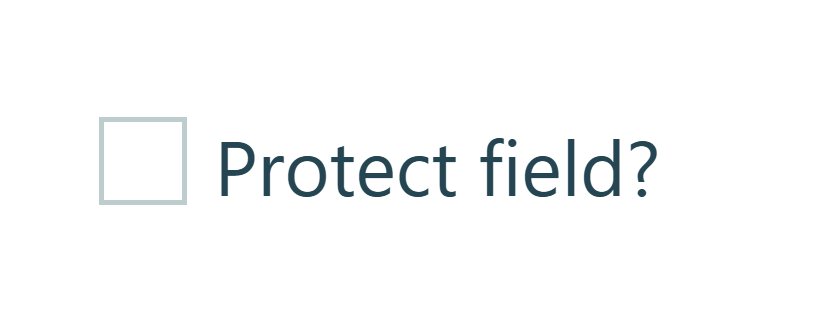
After enabling data encryption, you also have the option to protect your fields. Protecting a field prevents uploaded files from being accidentally transmitted through unsecured channels like email notifications. Even if someone on your team creates an email notification with file attachments, protected files won’t be sent. They’ll stay securely within your account.
How to enable:
- Click on your File Upload field to open its settings.
- Scroll to the bottom and find Protect Field?
- Toggle it to On.
- The field will display a lock icon, indicating it’s protected.
Now, uploaded files remain exclusively in your Cognito Forms account. Team members can view and download files from the Entries page after logging in, but files never leave through email or other insecure transmission methods. This protection is particularly important for regulated industries where compliance requires strict control over how sensitive documents are shared.
Verify User Identity with a Secure Client Portal
With Cognito Forms, you can transform your forms into a secure client portal. This portal approach delivers professional, secure experiences that build customer confidence while dramatically reducing your team’s administrative burden. Files never touch email, customers manage their own uploads on their schedule, and you get real-time visibility into who’s submitted what.
A client portal is a secure online space where customers can log in to share information, complete tasks, and upload files. Client portals increase security by verifying the identity of the person submitting files, ensuring that every upload comes from a known and trusted guest user. By requiring people to log in before accessing their workspace, portals prevent anonymous or fraudulent submissions and create a clear record of who uploaded what and when. This makes the file-sharing process safer, more reliable, and easier to manage.
Real-World Examples: Secure File Collection Across Industries
Regardless of your industry, it’s necessary to have a secure process to collect sensitive files. These examples show how different organizations use Cognito Forms to meet their needs:
- Legal firms collecting case documents: Law firms use encrypted File Upload fields to securely collect signed contracts, evidence files, and case documentation. This safeguards attorney-client privilege and eliminates the risks associated with faxing or emailing sensitive documents.
- Healthcare practices collecting patient records: Medical practices use encrypted File Upload fields to gather medical records, insurance cards, and consent forms while maintaining HIPAA compliance. Field protection ensures Protected Health Information (PHI) isn’t transmitted through email, giving patients a safe alternative to unsecured messaging.
- Consulting agencies collecting project files: Consulting agencies use File Upload fields and Guest Access portals to gather proposals, project files, and brand assets from clients. This keeps everything in one place and eliminates long email chains where large attachments pile up and important messages get overlooked.
Additional Features to Enhance File Collection
Once you’ve established secure file collection, these features extend your capabilities and improve how you manage uploaded documents:
- Send automatic confirmation emails. Set up email notifications that confirm successful file uploads without attaching the actual files, keeping sensitive documents secure while giving customers peace of mind.
- Download files in bulk. Select multiple entries and download all uploaded files at once, automatically organized into a zipped folder for easy management.
- Integrate with cloud storage. Connect your forms to Google Drive, Dropbox, or other cloud services to automatically transfer uploaded files upon submission, creating seamless workflows and backups.
Start Collecting Files Securely Today
Email attachments expose your business and customers to unnecessary security risks. With Cognito Forms, you can set up secure file collection in minutes, giving customers a professional upload experience while protecting sensitive information with enterprise-grade encryption and compliance.
Whether you’re collecting contracts, medical records, project deliverables, or any other confidential documents, the File Upload field with data encryption provides the security your business requires and the ease-of-use your customers deserve. Stop compromising between security and convenience, and start collecting files the right way today.
FAQ
Customers can upload virtually any file type including PDFs, Word documents, Excel spreadsheets, images (JPG, PNG, GIF), videos, and more. However, executable files are always restricted by default. You can also set custom restrictions to specific file types that match your needs (like only JPG and PNG or only PDF).
Yes, you can use Zapier, Make, Power Automate, or the Cognito Forms API integrate Cognito Forms with Google Drive, Dropbox, and other file storage services. Automatically transferring uploaded files when forms are submitted creates a seamless workflow without manual downloading and re-uploading files between tools.
Yes! Organizations on the Pro, Team, and Enterprise plans can take advantage of the ability to download uploaded files in bulk from the Entries page.
Simply select the entry or entries containing the files you want, then go to Actions > Download > Uploaded Files. When your download is complete, you will receive an email notification containing a zipped folder with your files. Learn more about downloading files in bulk.