Bring customers back to finish forms they started but never submitted. Automated reminders nudge them at the right intervals, improving completion rates without manual follow-up.
Build Time & Skill
15-20 min
Beginner
What you'll learn
How to automatically send reminder emails to people who save their progress on a form but don't come back to complete it
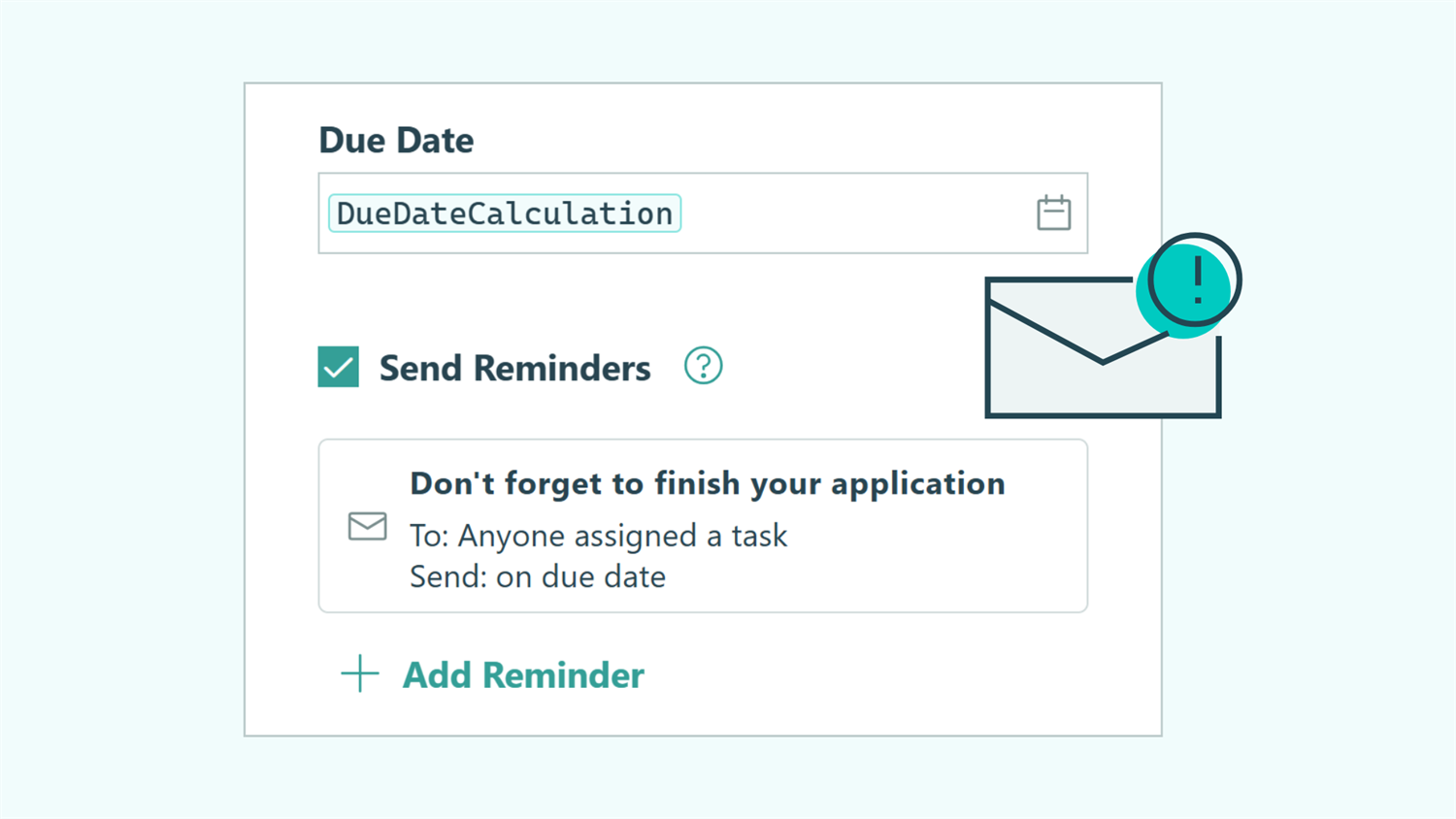
With Cognito Forms’ Save & Resume feature, customers are able to start filling out forms, save their current progress, and come back later to finish the rest of it. However, days can pass where that partially completed application sits forgotten. To address this issue, you can set up automated reminder emails that bring people back to finish what they started.
Reminder emails help you:
- Eliminate manual follow-up work. No more sending individual reminder emails. The system sends them automatically based on your schedule.
- Improve completion rates. Timely reminders bring people back before they forget or lose interest, turning partial submissions into completed entries.
- Keep the process professional. Automated reminders keep prospects engaged without feeling pushy when following up on incomplete work.
Understanding How Reminder Emails Work in Cognito Forms
Three features work together to create this automated reminder system. Understanding how they connect helps you configure the workflow correctly.
| Feature | What it does |
|---|---|
| Save & Resume | Save & Resume lets people save partially completed forms and return later to finish. When someone clicks “Save & Resume Later,” the entry goes into “Incomplete” status and stays there until they come back and submit. |
| Task Views | Task Views are filtered entry views that display incomplete entries as tasks with due dates. These tasks feed into each person’s Task Dashboard, creating a centralized to-do list. |
| Task Reminder Emails | Task Reminder Emails automatically send up to three scheduled notifications based on the due dates you set in your Task View. Each reminder includes an authenticated link directly to the customer’s saved entry. |
Step-by-Step: Setting Up Reminders for Incomplete Submissions
Follow these five steps to configure automated reminders for people who save forms but don’t submit them. The entire setup takes about 15-20 minutes and works for any form that is important for your customers to complete.
Step 1: Enable Save & Resume on your form
Allow people to save partial progress and return later to finish. When filling out your form, they will see a “Save” button at the bottom of the form. Clicking it saves their current progress and creates an entry in the “Incomplete” Status.

- Open your form and navigate to Workflow settings.
- Enable Save & Resume.
- Set Require Authentication to Always.
- Customize the email notification that sends the customer their Save & Resume link to return to the entry.
- Use the Insert Field option to prefill the customer’s email address from an Email field already on your form. This removes an extra step for the customer if they choose to send the link to themselves.
Please Note: When you require authentication on Save & Resume links, you will be turning on Guest Access. This is the feature that allows external “guest” users to authenticate and access only their submissions. Team and Enterprise plans include a limited number of guests. Additional guests start at $25 a month. See pricing details.
Step 2: Add a due date calculation
Create a field that automatically calculates when reminders should trigger. This “due date” isn’t a strict deadline for the respondent. This is the timing mechanism that controls when your reminder emails send.

- Add a Calculation field of the Date type.
- Enter a formula that calculates when you want the first reminder to be sent, based on your form’s complexity and urgency. For example,
=Entry.DateCreated.AddDays(3)will calculate 3 days after today’s date, while=Entry.DateCreated.AddDays(14)calculates 14 days after today’s date.DateCreatedrepresents when the person first started the form. If someone begins a form on Monday, a 7-day calculation means the “due date” is the following Monday.
- Optional: Hide the field by setting Show This Field to Never. The calculation will still work behind the scenes, this just helps keep the form clean.
Step 3: Create the Task View and configure reminders
Set up a view that displays only incomplete submissions as tasks. This view determines who receives reminders and which entries trigger them.
Create the Task View

Set up a view that displays only incomplete submissions as tasks. To do this:
- Navigate to the Entries page.
- Click + Create New View and select Task View.
- Name your view something descriptive like “Incomplete Applications” or “Unfinished Submissions.”
- Set Role to Public (the people filling out your form).
- Set a Priority Level, if desired.
- In the Due Date setting, select the “Due Date” Calculation field you created in Step 2.
Configure reminder emails

Set up the actual reminder emails that will send automatically based on your due date calculation. To do this:
- Check the Send Reminders option, and click the + Add Reminder button to configure the email:
- In the To field, select the Email field on the form that the customer adds their email address.
- Customize the Subject and Message to your liking, explaining what they need to do and why. Use the Insert Field option to prefill their due date in the message.
- Choose when the reminder sends: a certain number of days, weeks, or months before the due date, after the due date, or exactly on the due date.
- You can configure up to three reminders with different timing and messages. Repeat Step 3 for the second and third reminders with different timing.
- Save all changes before exiting the Task View settings.
Each reminder automatically includes a secure link to the saved entry. When someone clicks the link, they’re asked to verify their email address, then they’re taken directly to their form with all previous answers still filled in.
Step 4: Filter the view
The View’s filters will control which entries are considered tasks, and thus, which entries receive reminders (and who receives them).

- Add an Entry Status filter and make sure only the Incomplete Status is selected.
- This ensures reminders are only sent when the entry is still incomplete. When the entry moves on to “Submitted” or any other Status, it will no longer trigger reminder emails or be listed in this Task View.
- Check the Shared with Current User box.
- This setting ensures that only the person who was sent the link will receive reminders for the entries with their email address.
- Click Apply to apply the filters.
- Then click Save, so the filters stay applied to this view at all times.
Now, only “Incomplete” entries appear in this Task View, and each person sees only their own incomplete submission(s) when they log into their Task Dashboard.
Step 5: Track reminder emails in the audit log
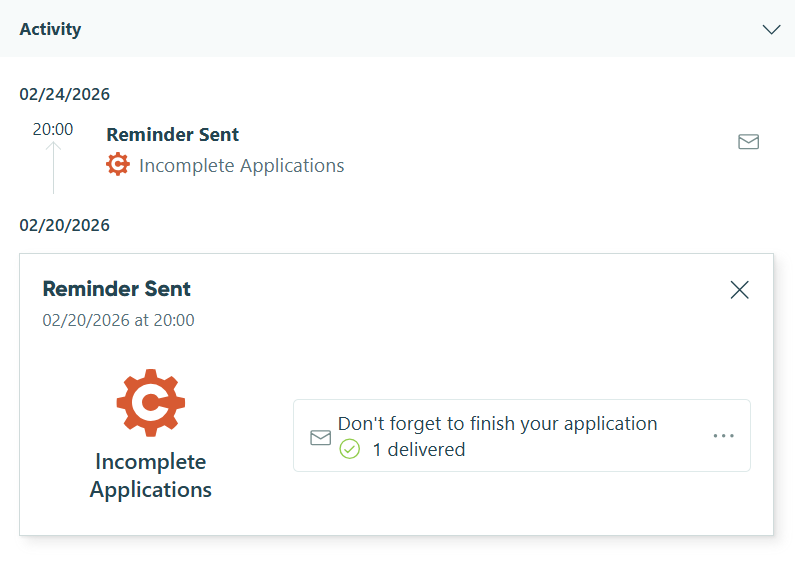
Monitor which reminders have been sent and when they were delivered with the entry’s Audit Log. This gives you a complete history of all reminder emails for each entry.
- From the Entries page, open the entry you want to check.
- Find the Activity section and expand any emails for more details.
- Look for items labeled “Reminder Sent” with timestamps. These will show the exact date and time the reminder was sent, which email address received the reminder, and the email’s delivery status.
If you don’t see any reminder emails in the Audit Log, verify that your Task View’s due date has passed. Reminders only send when the scheduled timing arrives. Future reminders won’t show in the log until they’ve actually been sent.
When to Automate Reminders for Incomplete Submissions
Sending reminder emails for unfinished submissions works best for:
- Lengthy applications: Long forms with multiple sections often get saved halfway through and then forgotten about (like job, grant, or scholarship applications). Reminders help applicants complete all required questions before the deadline.
- Detailed questionnaires: Detailed forms with lots of in-depth questions often require customers’ time to gather all of the necessary information (like client intake or legal case questionnaires). Reminders nudge them along without pressure.
Additional Features to Enhance Your Workflow
Once you have reminder emails working smoothly, these features transform simple forms into productivity tools:
- Build a full approval workflow right into the form. Add internal review stages after someone submits a completed form. Incomplete submission reminders remind them to finish, then Workflow automatically routes entries through your team for approval, revision requests, or final processing, all within the same form.
- Create multiple reminder tracks for different stages of your Workflow. Set up separate Task Views for different statuses beyond just “Incomplete.” Send reminders to reviewers for pending approvals, to applicants for missing documents, or to clients for final sign-off, each with their own due dates and sending schedules.
- Set up a self-service client portal. If external users are frequently filling out your forms, enable Guest Access so they can access everything in one place. Instead of digging through emails for Workflow Links, they log in once and see all their incomplete submissions, pending tasks, and completed forms.
Start Reducing Incomplete Submissions Today
Every incomplete application, registration, or questionnaire represents a prospect who showed interest but didn’t follow through. Automated reminders bring them back to finish what they started, without requiring manual follow-up or outreach. Setup takes less than 20 minutes, and once configured, the system runs itself. People appreciate the gentle nudge, and you achieve higher completion rates with less effort.
FAQ
Reminders automatically stop when the form is complete. When someone submits the form, the entry changes from “Incomplete” to “Submitted” status. Since your Task View filters for “Incomplete” entries only, the completed entry no longer appears in the view and won’t trigger any additional reminders. The system handles this automatically; you don’t need to cancel reminders manually.
Yes, by creating multiple Task Views. For example, if your form has a field for “Application Type” with options like “Scholarship” and “Internship,” create two Task Views. Filter one View for Scholarship applications and one for Internship applications. Each view can have its own reminder schedule and messaging tailored to that application type.
If they lose their Save & Resume link, you can always manually send it to them from the Entries page. Simply open the entry you’d like to share, click Share at the top of the entry, and select the Save & Resume under Link Type. For more detailed instructions, visit our Save & Resume support article.