Create dynamic quote calculators that automatically calculate prices based on customer selections, with no spreadsheets, manual math, or coding required.
Build Time & Skill
30-40 min
Intermediate
What you'll learn
How to build a quote calculator that automatically calculates prices based on customer choices, applies conditional pricing logic, and generates professional quote PDFs
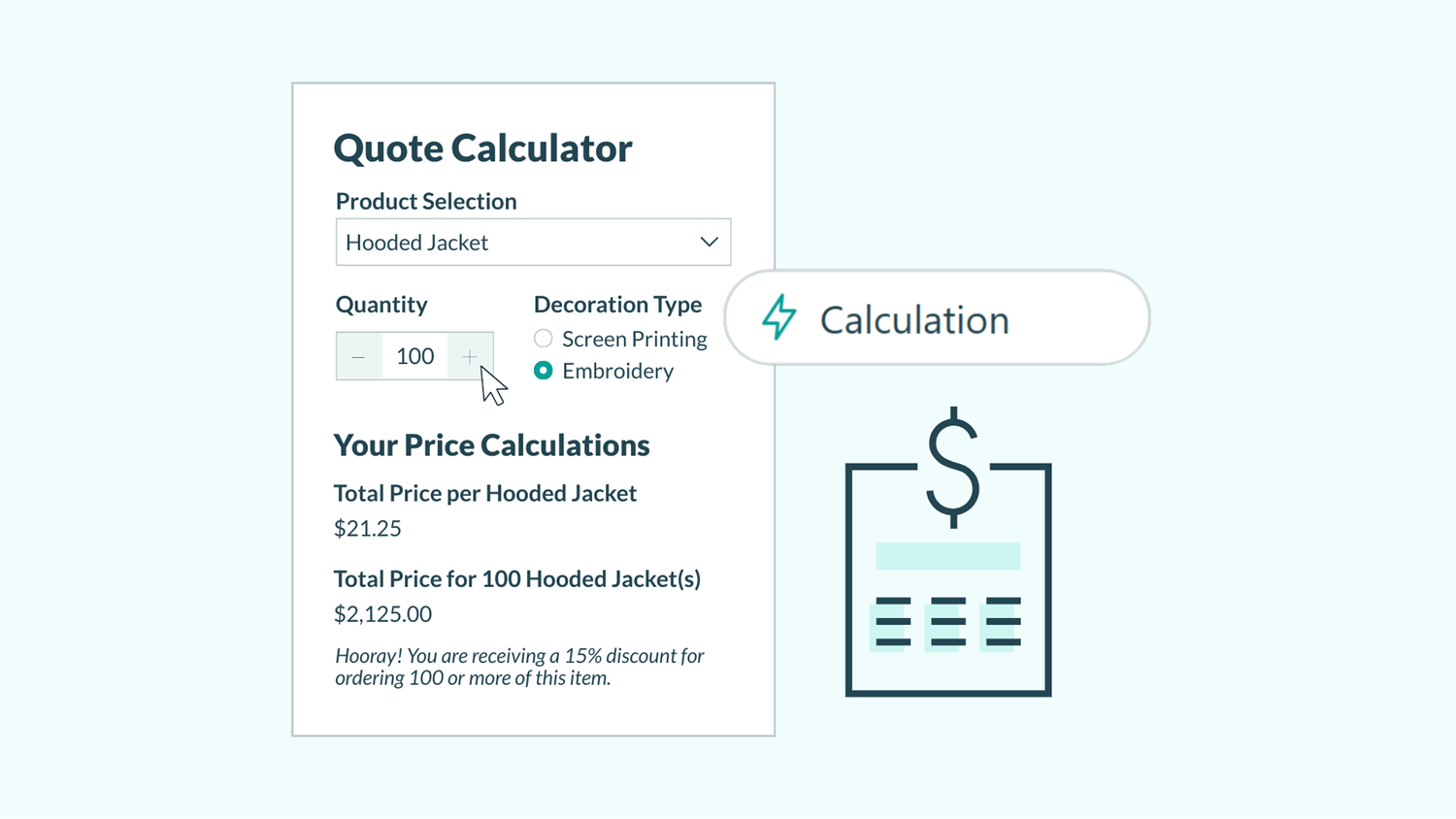
Manual quote calculations take up valuable time and increases the risk of calculation errors. With Cognito Forms, you can build intelligent quote calculators that do the math automatically. Customers select what they want, quantities adjust and discounts apply in real-time, with the final price appearing instantly and accurate every time.
Using a custom quote calculator can help you:
- Eliminate calculation errors. Cognito Forms does all the math automatically based on the rules you create, ensuring every quote is accurate without manual calculations.
- Speed up your quote process. Customers can receive instant pricing without waiting for you to crunch numbers, and you spend less time creating quotes manually.
- Apply consistent pricing rules. Volume discounts, tiered pricing, and conditional fees apply automatically based on what customers select. No more inconsistent quotes.
- Present professional quotes. Generate polished, branded quote PDFs with all selections and pricing clearly displayed for customer review.
Understanding Calculation Fields
Calculation fields in Cognito Forms can be used to compute values automatically. When someone selects a service or changes a quantity, any calculations referencing those fields update instantly, in real-time.
What Calculation fields do
A Calculation field is a read-only field that performs operations using values you specify in the equation. You set the formula once, and the field automatically computes the result based on current form data. Unlike regular Number fields with values typed into the field, Calculation fields show computed results that cannot be edited.
How Calculations update automatically
As customers fill out your form, Calculation fields constantly monitor the fields they reference. Change a quantity from 5 to 10, and any calculations using that quantity immediately recalculate and display the new result. This real-time updating creates a dynamic experience where customers see pricing adjustments as they make selections.
Step-by-Step: Building Your Quote Calculator
Build a complete quote calculator by planning your pricing structure, creating form fields for customer selections, and adding calculation logic that automatically computes costs. Follow these seven steps to transform manual quote calculations into an automated system that works for you.
Step 1: Plan your pricing structure
Before building anything, map out exactly what you want customers to select and how you want your pricing to work. This planning prevents confusion later and ensures your calculator handles any type of scenario.
Identify what customers select
List every service, product, option, or add-on that customers can choose. For each item, note:
- The base price
- Whether quantity matters
- Any conditions that change the price (volume, package deals, time-based pricing)
Determine your pricing variables
Identify factors that affect the final price:
- Fixed prices: Standard rates that never change
- Quantities: Items that customers can purchase multiples of (products, hours, units)
- Add-ons: Optional extras that increase the total
- Discounts: Conditions that reduce pricing (bulk orders, promotions, packages)
Map conditional pricing rules
Document any “if this, then that” pricing logic you’ll want. For example:
- “If they order 10+ items, apply 15% discount.”
- “If they select expedited service, add $50 fee.”
- “If project scope is large, use tier 2 hourly rate.”
Having this documented makes the next steps more straightforward, because now you just need to translate these pricing rules into form logic.
Start simple, then add complexity. Build a basic calculator with straightforward pricing first. Once that works how you expect it to, layer on conditional logic for discounts and special pricing. This approach can prevent frustration from trying to troubleshoot complex calculations from the beginning.
Step 2: Build your form with selection fields
Create the fields customers will use to build their quote. These selection fields will provide the values needed in your calculations.

Add Choice fields for services or products
- Add a Choice field and label it clearly (like “Service Type” or “Product Selection”).
- List each option customers can choose.
- Check the Assign Prices option under Choice Options.
- Type in a price for each choice in the Price column that appears.
Add Number fields for quantities
When customers can order multiple quantities of items, add Number fields:
- Add a Number field and label it “Quantity” or “Number of Items.”
- In field settings, set Minimum Value to 1 to prevent zero or negative quantities.
- Optionally set Maximum Value if you want to set an upper limit.
Add Yes/No fields for add-ons
For optional extras, use Yes/No fields:
- Add a Yes/No field for each optional service or add-on.
- Label it clearly (“Include Rush Delivery?” or “Add Premium Support?”).
Yes/No fields are easy to use with conditional logic. It’s simply: “Yes” equals true and “No” equals false.
Add any additional fields for selections
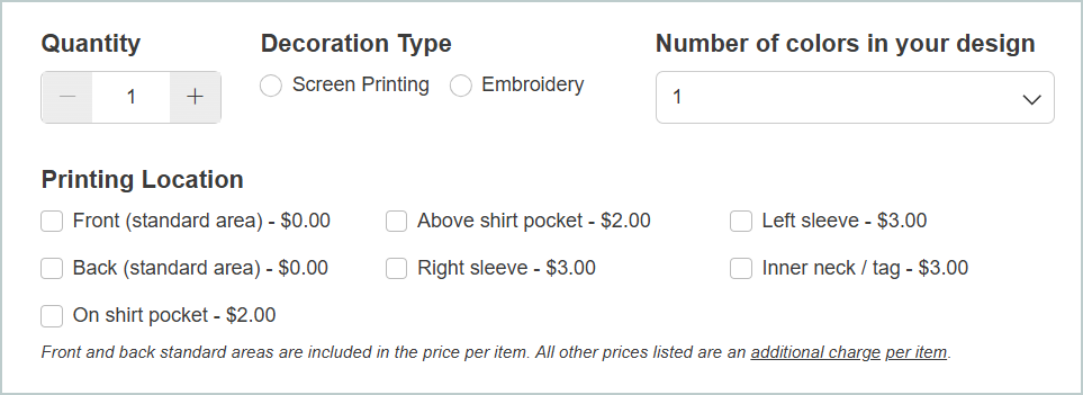
Use single item Choice fields, multi-selection checkbox fields, or any other field types for additional selections you need to include in your quote. With Cognito Forms, you have the flexibility to customize the form and the fields added to fit your unique needs.
Use descriptive field labels. Clear labels like “Standard Consulting ($150/hour)” or “Premium Support ($50/month)” help customers understand exactly what they’re selecting without needing to reference separate pricing sheets.
Step 3: Add Calculation fields for line items
Create Calculation fields that compute the cost for each line item based on customer selections. These fields make your pricing transparent by showing individual costs before the final total.

Create your first Calculation field
- Add a Calculation field to your form.
- Label it descriptively (like “Service Cost” or “Product Total”).
- In field settings, set Type to Currency.
- The Currency type formats the result as money with a dollar sign and two decimal places (like $150.00).
Add Calculation fields for each pricing component
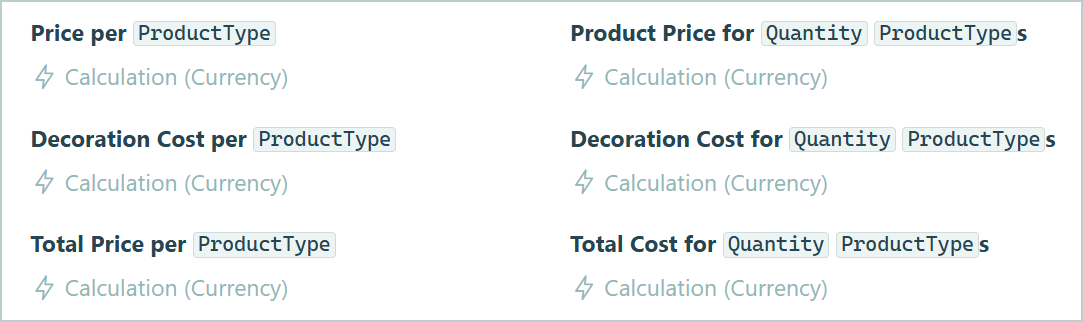
Repeat the steps above and create a separate Calculation field for every line item you want to display:
- Service cost calculation
- Product cost calculation
- Add-on cost calculation
- Shipping or delivery fee calculation
Breaking costs into separate Calculation fields will make quotes transparent and easier for customers to understand.
Step 4: Set up basic price calculation formulas
Now that your Calculation fields exist, add the formulas that compute costs based on customer selections. This is where you define exactly how prices are calculated.

Adding formulas to your Calculation fields
For each Calculation field you created:
- Click the field to select it.
- Find the Calculation setting in the field settings panel.
- Click the lightning bolt icon to open the Advanced Editor.
The editor is where you write your formula. All calculations must start with an equal sign (=).
To reference the prices you assigned to choice options in Step 2, add _Price after the Choice field’s name. For example, ServiceType_Price would target the assigned price of a Choice field named “Service Type.”
Multiplication calculations
The most common quote calculation multiplies a price by a quantity: =BasePrice * Quantity
Example scenarios
=ServicePrice * NumberOfHoursuses the value assigned to the selected service type and multiplies it by the number of hours entered.=Product * Quantitymultiplies the value of the selected product by the quantity entered.
Simple addition calculations
Quote calculations often use simple addition when combining multiple fixed fees or costs: =ServiceFee + DeliveryFee + ProcessingFee
Example
=ConsultationFee + TravelFeesimply adds these fixed fees together.
Calculate costs for optional add-ons
For add-ons using Yes/No fields, add a fee only if the field is Yes. For example, if I wanted to charge a $75 fee only when rush delivery is selected, my calculation would look like this: = if RushDelivery = "Yes" then 75 else 0
Referencing fields in your formulas
As you start to type a field name to reference in calculations, the Advanced Editor will automatically begin to auto-suggest fields. We recommend selecting from these options in the dropdown rather than typing manually, whenever possible. These options exactly match the names of your form’s fields, helping you prevent typos that can impact Calculations.
Step 5: Add conditional pricing logic
Conditional logic can apply different pricing based on what customers select or enter. This handles volume discounts, tiered pricing, package deals, and any “if this, then that” pricing rules.
You can apply discounts when customers order larger quantities using an if/then calculation:
| Example Scenario | Calculation | What It Does |
|---|---|---|
| You want customers to receive a 10 percent discount on their order if they order a quantity of 20 or more of a particular product. |
= if Quantity >= 20 then (Product * Quantity) * 0.90 else Product * Quantity
|
|
| Example Scenario | Calculation | What It Does |
|---|---|---|
| You want customers to receive a 10 percent discount on their order if they order a quantity of 20 or more of a particular product. |
= if Quantity >= 20 then (Product * Quantity) * 0.90 else Product * Quantity
|
|
Set different price points based on selections, quantities, or hour ranges:
| Example Scenario | Calculation | What It Does |
|---|---|---|
| Selection-based tiers : You want customers to receive a 10 percent discount on their order if they order a quantity of 20 or more of a particular product. | = if ServiceLevel = "Basic" then 50 else if ServiceLevel = "Professional" then 100 else if ServiceLevel = "Enterprise" then 200 else null
|
This assigns:
|
| Hourly-based tiers : You want to charge my standard hourly rate for smaller projects, a slightly discounted hourly rate for slightly larger projects, and a discounted hourly rate for substantial projects. | = if HoursNeeded <= 5 then (HourlyRate * HoursNeeded) else if HoursNeeded <= 20 and HoursNeeded > 5) then (45 * HoursNeeded) else 40 * HoursNeeded
|
This creates pricing tiers based on hour ranges:
|
| Quantity-based tiers : You want to charge the standard price per unit until units reach 50. At 50 units charge a slightly lower price per unit, and reduce the price per unit again if 100 units are reached. | = if Quantity >= 100 then (Quantity * 5.75) else if (Quantity >= 50 and Quantity < 100) then (Quantity * 6.25) else Quantity * 6.50
|
This creates a tiered price per unit based on the number of units in an order:
|
| Example Scenario | Calculation | What It Does |
|---|---|---|
| Selection-based tiers : You want customers to receive a 10 percent discount on their order if they order a quantity of 20 or more of a particular product. | = if ServiceLevel = "Basic" then 50 else if ServiceLevel = "Professional" then 100 else if ServiceLevel = "Enterprise" then 200 else null
|
This assigns:
|
| Hourly-based tiers : You want to charge my standard hourly rate for smaller projects, a slightly discounted hourly rate for slightly larger projects, and a discounted hourly rate for substantial projects. | = if HoursNeeded <= 5 then (HourlyRate * HoursNeeded) else if HoursNeeded <= 20 and HoursNeeded > 5) then (45 * HoursNeeded) else 40 * HoursNeeded
|
This creates pricing tiers based on hour ranges:
|
| Quantity-based tiers : You want to charge the standard price per unit until units reach 50. At 50 units charge a slightly lower price per unit, and reduce the price per unit again if 100 units are reached. | = if Quantity >= 100 then (Quantity * 5.75) else if (Quantity >= 50 and Quantity < 100) then (Quantity * 6.25) else Quantity * 6.50
|
This creates a tiered price per unit based on the number of units in an order:
|
When creating tiered pricing based on quantities, specify both the minimum and maximum for each tier (like Quantity >= 50 and Quantity < 100). Without an upper limit, overlapping conditions can cause miscalculations, especially as you add more pricing tiers. Explicitly defining where each tier starts and ends ensures the correct price applies every time.
Add fees as a percentage of another value:
| Example Scenario | Calculation | What It Does |
|---|---|---|
| You want to charge a 25% rush fee on the total order if customers choose the “Rush Service” option. |
=if RushService = "Yes" then Subtotal * 0.25 else 0
|
This adds a 25% rush fee only when Rush Service is selected. |
| Example Scenario | Calculation | What It Does |
|---|---|---|
| You want to charge a 25% rush fee on the total order if customers choose the “Rush Service” option. |
=if RushService = "Yes" then Subtotal * 0.25 else 0
|
This adds a 25% rush fee only when Rush Service is selected. |
Handle complex pricing with multiple conditions:
| Example Scenario | Calculation | What It Does |
|---|---|---|
| You want to give customers a discount for ordering 5 or more items, but only if they selected the premium package. |
= if Package = "Premium" and Quantity >= 5 then (BasePrice * 0.70) else BasePrice
|
This gives a 30% discount only when both conditions are true: Premium package is selected AND quantity is 5 or more. |
| Example Scenario | Calculation | What It Does |
|---|---|---|
| You want to give customers a discount for ordering 5 or more items, but only if they selected the premium package. |
= if Package = "Premium" and Quantity >= 5 then (BasePrice * 0.70) else BasePrice
|
This gives a 30% discount only when both conditions are true: Premium package is selected AND quantity is 5 or more. |
Use parentheses for complex logic. When combining conditions with “and” or “or,” wrap them in parentheses to ensure the calculation processes in the correct order: =if (Condition1 = "Yes" and Condition2 = "Yes") then Value1 else Value2
Step 6: Calculate and display the total quoted amount
Sum all line items into a final total that customers see as their complete quote amount.
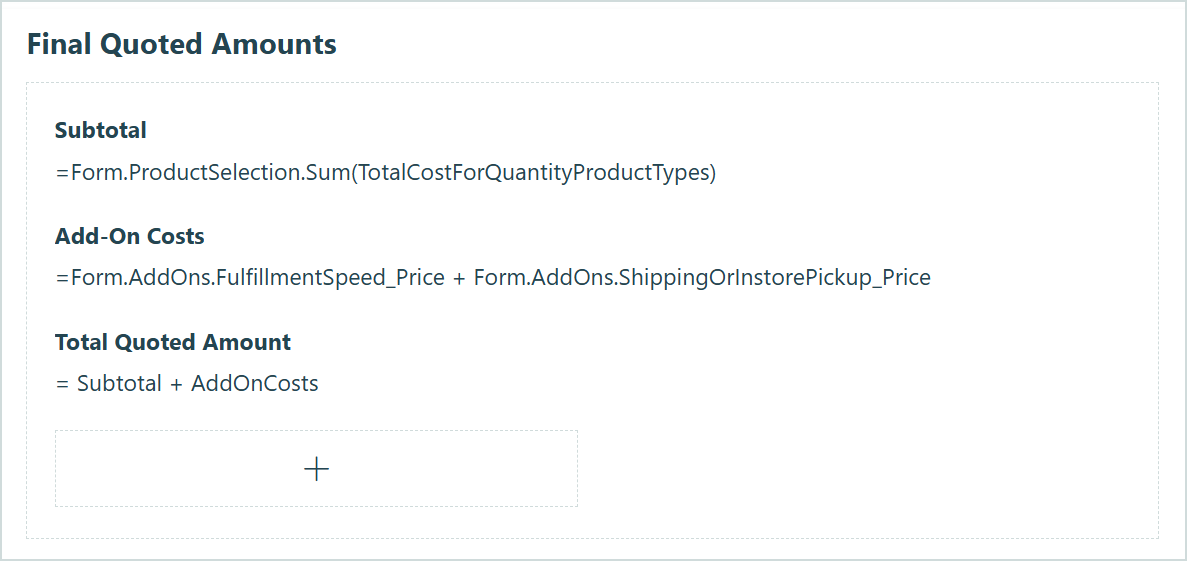
Create the total Calculation field
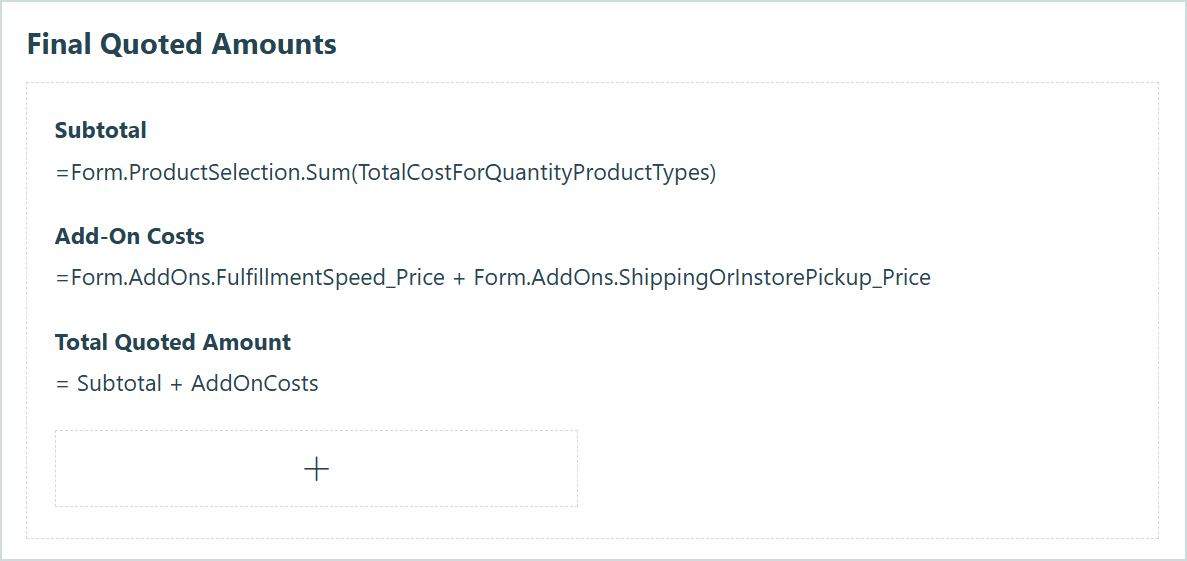
- Add a Calculation field at the bottom of your pricing section.
- Label it “Total Quote” or “Total Price.”
- Set Type to Currency.
- Add together all line item calculations by referencing each line item in a separate Calculation field:
=ServiceCost + ProductCost + AddOns + ShippingFee
For quotes with taxes or final fees calculated as percentages, create a Subtotal calculation first, and then a separate total calculation:
| Calculation purpose | Setup steps | Example calculation |
|---|---|---|
| Subtotal (no fees or tax) |
|
=ServiceCost + MaterialCost + AddOns
|
| Order Total (Fees and taxes added to Subtotal) |
|
= Subtotal + Fees + (Subtotal * TaxRate)
|
| Calculation purpose | Setup steps | Example calculation |
|---|---|---|
| Subtotal (no fees or tax) |
|
=ServiceCost + MaterialCost + AddOns
|
| Order Total (Fees and taxes added to Subtotal) |
|
= Subtotal + Fees + (Subtotal * TaxRate)
|
Optional add-on: Automatically generate quote PDFs
Cognito Forms can automatically generate PDF documents from your form data using Custom Document Templates. These templates let you design exactly how quote information appears in the final document, including your branding, selected items, pricing details, and terms. Allow your customers to download this PDF immediately after submission, or use the quote calculator internally to make quotes easier, faster, and more consistent for internal teams.
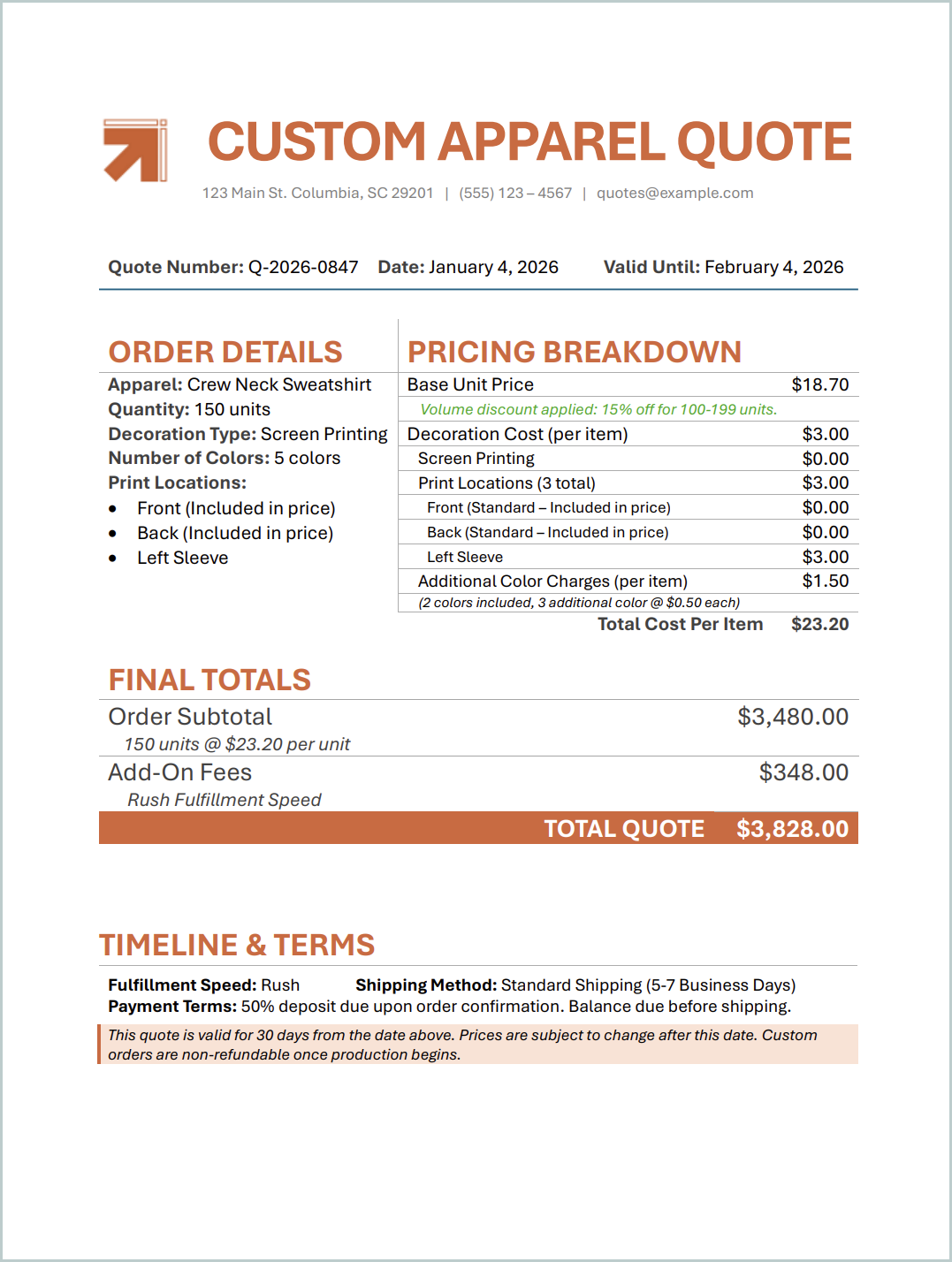
How quote data flows into PDFs
When someone submits your quote calculator:
- Form data (like selections, quantities, and calculations) saves as an entry.
- The Custom Document Template pulls this data into predefined sections.
- A polished PDF is generated automatically with all information formatted professionally.
- You can email the PDF automatically or access it from the entry.
Quick setup overview
- Navigate to the Manage Document Templates from a confirmation message, email notification, or the Entries Page.
- Create a + New Template and change the Template Type to Custom.
- Design your quote template with your branding and formatting, using Microsoft Word or another word processor.
- Insert field values into your template using our merge syntax.
The PDF updates automatically based on what is selected on the form (no manual editing needed).
What The Customer Experiences
Your quote calculator delivers a seamless experience for customers.
Prices adjust immediately when a different service tier is selected. Savings apply automatically when quantities increase past your discount threshold. Customers see exactly what they’re paying for with each line item displayed before the final total, building trust and reducing pricing questions.

Real-World Examples of Quote Calculators
These three scenarios show how businesses across different industries use quote calculators to streamline pricing and improve customer experience.
Service-based businesses
Quotes for service packages can be made where clients select services, choose a commitment level, and specify add-ons. The calculator applies a 10% discount for annual commitments and the final quote includes a breakdown of each service with the total investment clearly displayed.
Product-based businesses
Create custom or personalized order calculators for customers to select product type(s), choose quantity, select colors, fonts, or styles, and indicate if they need rush delivery. Your calculator could use tiered pricing, with larger quantities receiving better per-unit rates automatically.
Project-based businesses
Build a quote calculator for any type of project. Clients can specify project scope and other vital details, computing costs based on labor, materials needed, and any other add-on fees.
Additional Features to Enhance Your Quote Calculator
Once you’re successful automating client quotes, these features create even more powerful, automated quoting workflows:
- Integrate payment processing. Connect your calculator directly to Cognito Pay (powered by Stripe), PayPal, or Square so customers can pay deposits or full amounts immediately after seeing their quote, turning quotes into revenue faster.
- Send quotes via email automatically. Configure email notifications that send quote details to customers and your team when forms are submitted, ensuring immediate follow-up without manual work.
- Use Workflow automation. Set up approval workflows where high-value quotes route to managers for review before sending to customers, or trigger different actions based on quote amounts.
Start Building Your Quote Calculator Today
Manual quote calculations create frustration, errors, and delays. With Cognito Forms, you can transform scattered spreadsheets into intelligent quote calculators that do the work for you.
Whether you’re pricing services, products, or complex projects, automated calculators ensure accuracy while giving customers instant pricing. Build your calculator once with the right logic, and every quote that follows is consistent, professional, and error-free.
FAQ
Yes, you can hide individual line item calculations from customer view while still using them to compute the total. Use the Show This Field setting on each line item Calculation field and select Never to always hide the field. Customers see only the final total, while your backend still uses all the hidden calculations to arrive at the correct price.
If you want to hide the line item calculation from your customer but allow your internal team to see it, set the Calculation field’s Show This Field logic to For Roles → Internal.
Yes. Customers can return to a saved quote later if you enable the Save & Resume feature in your form settings. This gives customers a unique link to return to their partially completed quote and finish it later. Their selections and calculated prices remain exactly as they left them, which is especially useful for complex quotes that require time to review or approval from others before finalizing.
Yes, add a Price field to collect deposits or full payment after customers see their quote. The Price field can reference your Total calculation, charging the exact quoted amount. You can also make payment optional by using conditional logic, letting customers choose to pay now or request a formal invoice for later payment. Learn more about creating secure payment forms or read our guide on How to Build an Online Order Form that Automatically Calculates Totals and Accepts Payments.