Easily set up a fully anonymous survey, with no names, email addresses, or identifying details in your responses. More people will feel safe being honest, improving the data you collect.
Build Time & Skill
10-15 min
Beginner
What you'll learn
How to configure an anonymous survey in Cognito Forms to collect fully anonymous responses, and how to analyze results without compromising respondent identity
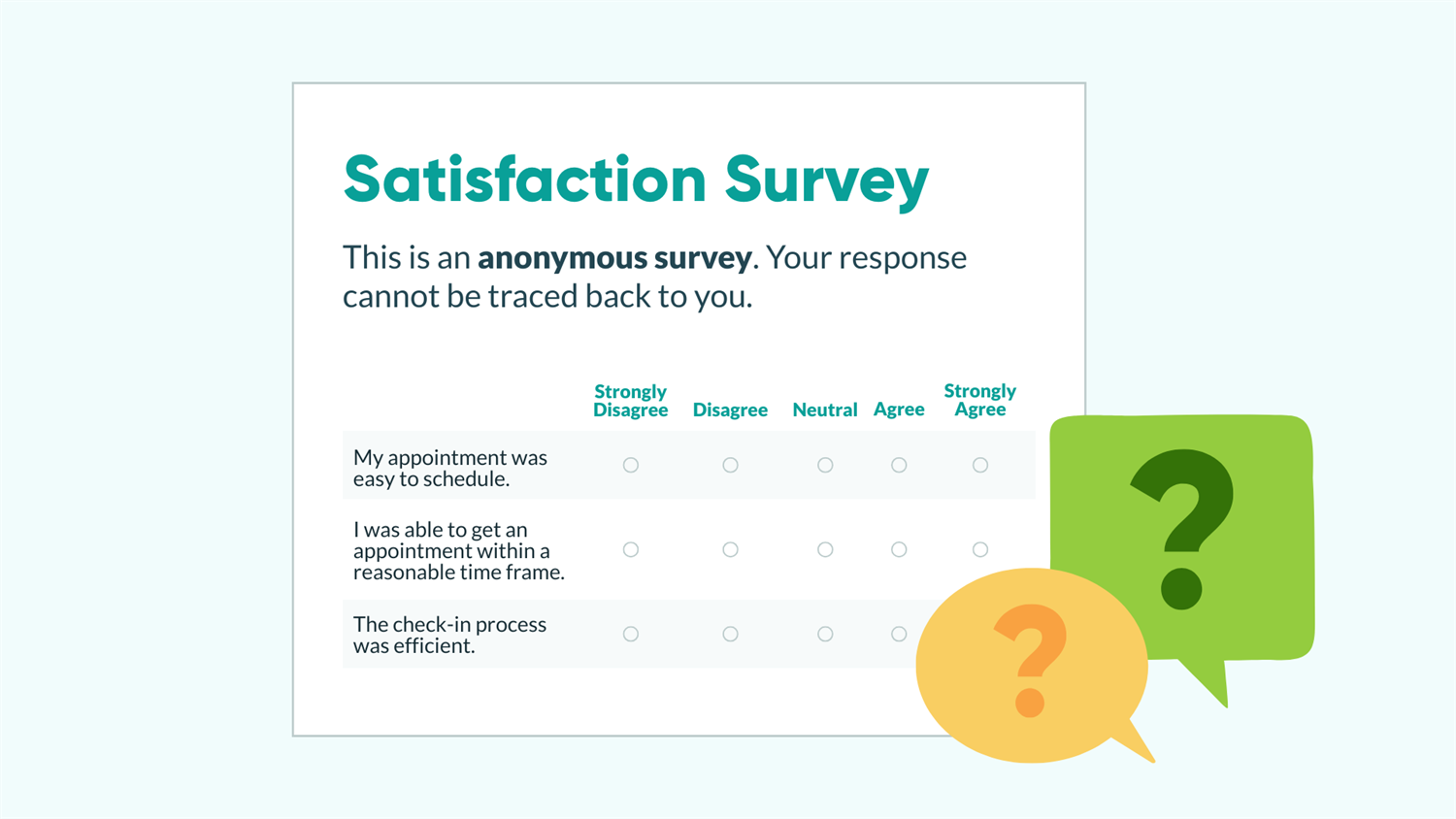
Anonymous surveys give people the confidence to share honest feedback. When respondents know their identity is protected, they’re far more likely to participate, and far more likely to tell you what they actually think. That’s the data that enables actionable insights.
In Cognito Forms, you don’t need any special “anonymous mode.” You just need to be intentional about what information your form collects and how it’s accessed. This guide walks you through exactly how to ensure your survey is fully anonymous from the moment someone opens it. Anonymous surveys work great for:
- Sensitive workplace feedback, where employees need assurance there won’t be repercussions for honest answers.
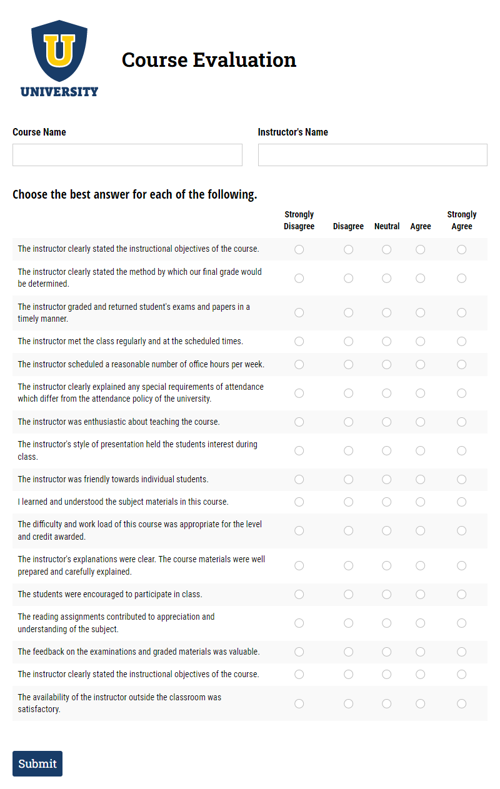
- Student course evaluations, where candid ratings of instructors require identity protection.
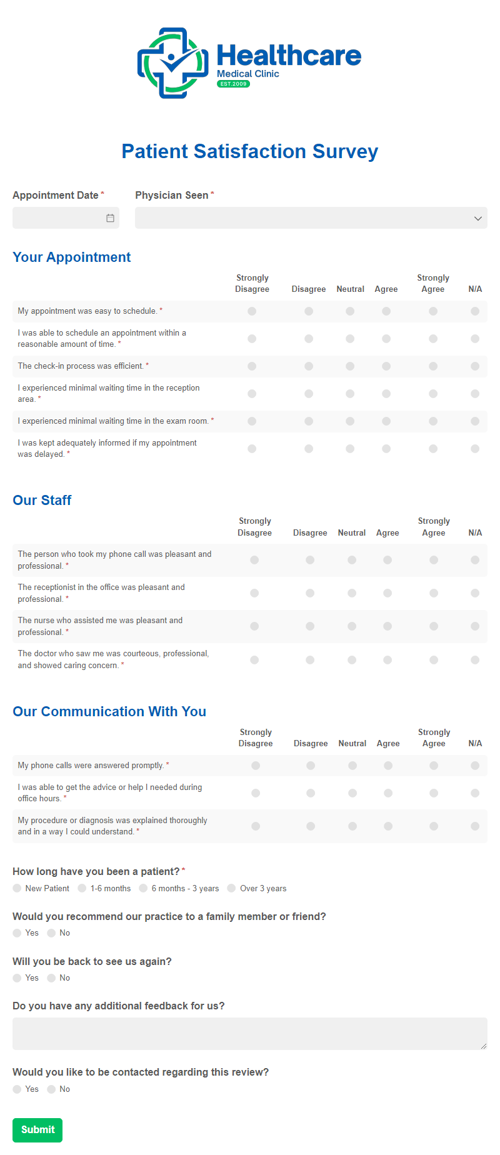
- Healthcare and research data collection, where privacy is essential to participation.
- Customer experience feedback, where you want unfiltered opinions without linking responses to individual records.
Setting Up an Anonymous Survey
To create a fully anonymous survey in Cognito Forms, avoid collecting identifying information, make sure respondents know the survey is anonymous, keep the form publicly accessible without requiring login, and verify no identifying data appears in your entries. These four steps cover everything you need.
Step 1: Build your form without identifying fields
The most direct way to protect respondent identity is to simply not ask for it. If a field isn’t on the form, that data can’t be submitted or appear in your entries.
Make sure your form does not include:
- Name, Email, or Phone Number fields
- Person fields that default to the current user
- Any field with a calculation or advanced logic referencing the entry’s IP address
- Note: Even if you don’t display the IP address to the respondent, it would appear in your entry data and could be used to trace the submission back to someone.
Step 2: Tell respondents their answers are anonymous
People are more likely to participate (and be candid) when you communicate privacy upfront. Add a Content field to the top of your form to let respondents know their answers are anonymous before they start filling it out.

To add a Content field:
- Open the Build page and click Add Field.
- Select Content from the field type list.
- Place it at the top of the form, above your first question.
- Write a brief, clear statement. Something like: “This survey is completely anonymous, and your responses cannot be traced back to you.”
A short, plain-language statement at the top sets the right tone and removes any hesitation before respondents even reach the first question.
You can still segment non-identifying data. Add non-identifying Choice fields like Department, Role, Age Range, or Product Used to give your results context. Segmenting by “Marketing vs. Operations” or “Years with Company” gives you meaningful analysis without ever knowing who answered what.
Step 3: Keep the form public (no authentication)
Requiring respondents to log into a Cognito Forms account before submitting a survey will record their identity in the entry’s Audit Log, even if you didn’t ask for that information on the form. To keep responses anonymous, leave authentication off on the form’s public link.

To check your Authentication settings:
- Go to Workflow settings on the form’s Build page.
- Under Public Links, confirm that Require Authentication is set to Never.
- Share the public link directly with respondents via email, Slack, your website, or any other channel.
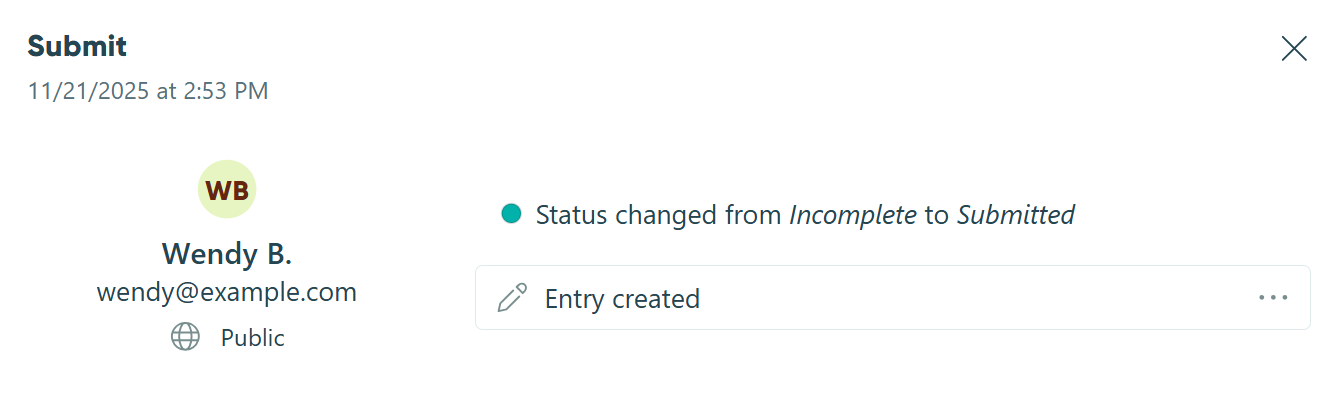
Important: If a respondent has a Cognito Forms account and is logged in when they submit your form, their name, email address, and Workflow Role will automatically be recorded in the entry’s activity log (regardless of what fields are on your form). Before sending your survey, ask respondents to log out of Cognito Forms if they have an account. Most survey respondents won’t have one, but it’s worth noting for internal surveys sent to your own team.
Step 4: Test before you send
Before sharing your survey, submit a test response and check the entry to confirm your de-identification works properly.

To test your survey:
- Open your form’s Public Link.
- Fill out and submit a test response.
- Go to the Entries page and open the test entry.
- Expand the Activity section and review the entry’s audit log.
The entry’s Audit Log should show the submission as an anonymous user with only their Workflow Role “Public” recorded (no name, email address, or IP address). If anything identifying appears, revisit Steps 1 and 3.
Delete your test entry before sending the survey to anyone, so it doesn’t skew your results.
Anonymous Survey Examples
Anonymous surveys are useful across a wide range of industries and use cases. Here are three common scenarios where this setup delivers the most value.
- Employee satisfaction surveys: HR teams and managers use non-attributable employee surveys to gather candid feedback on culture, management effectiveness, and team engagement. When employees know responses can’t be traced back to them, participation rates go up and answers become far more honest. The result is data you can actually act on.
- End-of-semester course evaluations: Schools and universities use non-identifiable feedback forms to let students rate instructors and courses without fear of affecting their grade or relationship with the professor. Adding a non-identifying field like “Year in Program” or “Course Level” lets administrators spot patterns while keeping individual students fully protected.
- Customer experience feedback: Service businesses and agencies use post-engagement surveys to understand client satisfaction without tying responses to a customer record. This is especially valuable when collecting feedback on sensitive topics like pricing, communication, or unresolved issues (the kind of feedback customers hesitate to share when they know they’ll be identified).
- Post-event feedback: Nonprofits, organizations, and businesses hosting events use post-event feedback surveys to gather information on attendees’ experiences. Responses help gauge what attendees enjoyed the most and what they can improve before hosting their next event.
Additional Features to Get Value from Your Survey Data
Once your anonymous survey is collecting responses, these Cognito Forms features help you analyze results and act on them faster.
Features to analyze results
- Automatically score responses, with no manual math required. Using Calculation fields to average Likert scale ratings, tally Net Promoter Scores, or weight specific answers, producing a composite satisfaction score.
- Segment responses in a way that works for you (by department, product, satisfaction level, or any other non-identifying field you collected). Create saved, filtered Entry Views of your survey results that can be shared with the right stakeholder, without giving them access to raw, unfiltered data.
Features to improve your workflow
- Analyze survey results without any manual exporting. Use Cognito Forms’ built-in integrations with Zapier, Make, or Microsoft Power Automate to send your survey data directly to Power BI, Google Sheets, or your CRM.
- Keep your team informed without adding manual steps. Automatically notify your team when responses come in, or trigger internal alerts when a response signals a problem, like a low satisfaction score or a specific answer that flags follow-up.
Start Collecting Honest Feedback Today
Anonymous surveys don’t require complicated setup, just intentional configuration. With a few simple choices in Cognito Forms, you can create a survey that protects respondent identity and consistently produces the candid, high-quality feedback you need to make better decisions. Build your first anonymous survey in Cognito Forms today and see what people tell you when they know it’s safe to be honest.
Not sure where to start?
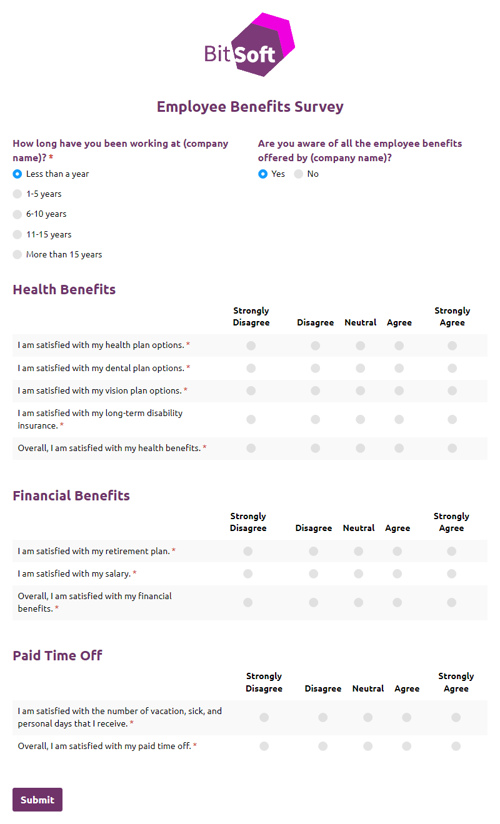
Browse Cognito Forms' survey templates for ready-made forms with rating scales, multiple choice questions, and other common survey fields built in. Templates aren't configured for anonymity out of the box, but every field is fully customizable to meet survey design best practices . Just apply the steps in this guide once you've found a layout you like.
FAQ
An anonymous survey means no one (including you) can identify who submitted a response. A confidential survey means you know who responded, but you’ve committed to keeping that information private. This guide covers fully anonymous surveys, where identity is never collected in the first place.
Yes. Add non-identifying Choice fields (like Department, Role, Age Range, or Product Used) to your survey. These let you segment and filter results by meaningful categories without linking any response to a specific person. Entry Views make it easy to slice the data by these fields.
Yes. Cognito Forms offers HIPAA-compliant forms on Enterprise plans, making it a strong choice for collecting sensitive health and research data. Pairing HIPAA compliance with anonymous configuration gives you both legal protection and respondent trust, two factors that significantly improve participation in sensitive data collection.