Automatically route tasks from one person to the next. No follow-up emails, dropped handoffs, or wondering where a request stands.
Build Time & Skill
25-35 min
Intermediate
What you'll learn
How to build a sequential, multi-person workflow where each role completes their task before the next one begins.
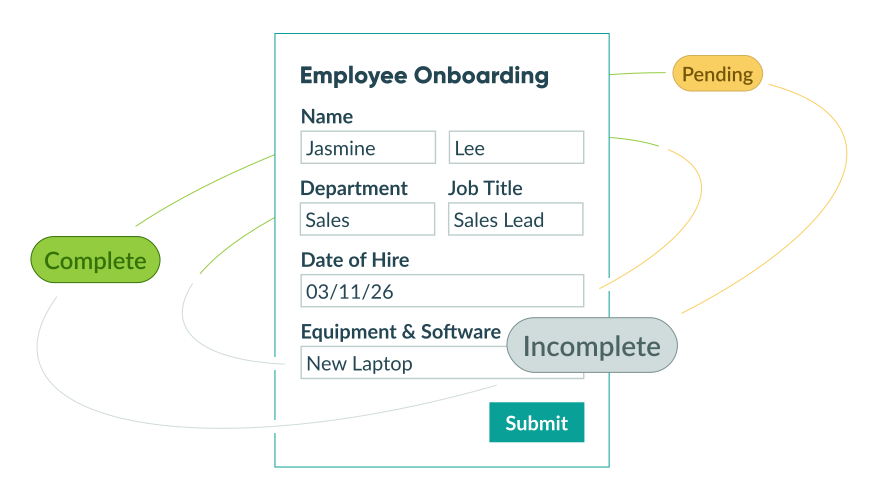
When a process depends on multiple people completing tasks in a specific order, things fall apart fast without a system. Someone forgets to follow up. A request sits in an inbox. Nobody knows if the last step is done.
A serial task workflow solves this by moving work forward automatically. Each person gets notified when it’s their turn, completes their task, and passes it to the next person. No manual coordination required.
This setup is a strong fit for your team if you need to:
- Keep tasks moving without manual follow-up. Automatic email notifications with direct entry links mean each person knows exactly when and where to act.
- Control what each person can see and edit. With the ability to show or hide fields based on someone’s role, you can ensure each person only sees what’s relevant to their task.
- Track every request in real time. Statuses give you an instant view of where any request stands, from submission to completion.
- Build it without writing a single line of code. The entire workflow is configured through Cognito Forms’ visual builder.
Step-by-Step Setup: New Employee IT Onboarding Workflow
In this example, HR submits an equipment setup request for a new employee. IT receives the request, saves progress as they work through the setup checklist, and notifies HR when everything is complete.
Step 1: Set up your roles
Your Roles define who participates and what they can access.
- Open your form and navigate to Workflow on the Build page.
- Click Roles.
- Add or rename Roles to match the following:
| Role | Type | Responsibility |
|---|---|---|
| HR | Public | Submits new employee equipment requests |
| IT | Internal | Fulfills setup requests and notifies HR when complete |

Step 2: Configure your statuses
Statuses let both HR and IT track the state of any request at a glance.
- In Workflow, click Statuses.
- Add or rename Statuses to match the following:
| Status | What It Means |
|---|---|
| Incomplete | Default status – the request has not been submitted yet. |
| Pending | HR has submitted the request; IT is working on it. |
| Complete | IT has finished the setup and notified HR. |

Step 3: Build your form sections
The form contains three sections: one for HR to initiate the request, one for IT to complete their setup tasks, and a shared section for general employee information. HR can see all three sections. IT sees only the sections relevant to their work.
HR Requestor
Where HR enters their contact information and submits the request.
- Set Show This Field to For Roles > HR + IT
- Set Read-Only to For Roles > IT
Both Roles can see this section, but only HR can edit it. IT will see a read-only version.
New Employee
Where HR enters the new hire’s details, including name, start date, and department.
- Set Show This Field to For Roles > HR + IT
- Set Read-Only to For Roles > IT
Both Roles can see this section, but only HR can edit it. IT will see a read-only version.
IT Equipment Setup
Where IT works through their setup checklist.
- Set Show This Field to When
=(Entry.Status != "Incomplete") - Set Read-Only to For Roles > HR
This section stays hidden until HR submits the request. Once visible, only IT can edit it while HR will see a read-only version.

Step 4: Configure your actions
Actions are the buttons that move the workflow forward. This workflow uses three: one for HR to submit the request, one for IT to save progress, and one for IT to close the request when setup is complete.
Submit to IT
This is the Action HR uses to send a completed equipment request to IT.
-
Go to Workflow > Actions and create a new Action. Name it Submit to IT.
-
Under Allow Action, select When and set the condition to:
=(Entry.Status = "Incomplete")

-
Under Change Status To, select Pending.
-
Under Send Emails, add an email notification for IT:
- Set the To field to IT’s email address or a Person field referencing IT.
- Click Share Workflow Link and select the IT Role. This gives IT role-scoped access to the entry.
- Use Insert Field to include the new employee’s name, hire date, and start date in the email body so IT has the context they need without opening the entry first.
Use the Insert Field option to pull entry data directly into the email subject line – for example, “New Setup Request: [Employee Name].” This helps IT prioritize requests when multiple come in at once.
Update
IT may need to save their progress partway through a setup checklist without marking the entire request complete. The Update Action handles this.
- Create a new Action and name it Update (or rename the button label to Save Progress for clarity).
- Under Allow Action, select When and set the condition to:
=(Entry.Status != "Incomplete") - Leave Change Status To blank. This Action saves progress without advancing the workflow.
Submit to HR
Once IT completes the equipment setup, this Action closes the request and notifies HR.
-
Create a new Action and name it Submit to HR.
-
Under Allow Action, select When and set the condition to:
=(Entry.Status = "Pending") -
Under Change Status To, select Complete.
-
For fields in the IT Equipment Setup section, set Require This Field - When to
=(Form.Entry.Action = "Submit to HR"). This ensures that IT completes the entire checklist before the request can be closed, not just part of it.

-
Under Send Emails, add an email notification for HR:
- Set the To field to HR’s email address or Person field.
- Click Share Workflow Link and select the HR Role. This gives HR read-only access to view the completed entry.
- Include the employee’s name and any relevant setup details in the email body using Insert Field
Real-World Applications of Serial Task Workflows
A serial task workflow fits any process where one person’s work depends on another person finishing first. Here are a few common scenarios where this pattern works well:
- Facilities Maintenance Requests – A property manager submits a repair request, triggering a notification to the maintenance technician. The technician documents their work and marks the job complete. The property manager receives a link to review the finished entry – no back-and-forth emails required.
- Client Deliverable Reviews – An account manager submits a completed deliverable for internal review. The reviewer opens their role-scoped link, leaves structured feedback, and submits back. The account manager sees the feedback immediately and knows exactly what to revise.
- Vendor Onboarding – An operations team member submits a new vendor request. It routes to finance, who verifies payment details and approves the vendor in their section before marking the request complete.
Ways to Extend Your IT Onboarding Workflow
Once your serial task workflow is running, these features can take it further:
- Add Task Views so IT sees all pending setup requests in one organized dashboard – no digging through email notifications to find active entries.
- Set up Task Reminders to automatically follow up with IT if a request sits in Pending status past a set deadline. This keeps onboarding timelines on track without manual nudges.
- Use the Audit Log to track every change made to an entry – who updated which fields and when. Useful for compliance, accountability, or resolving disputes about what was completed.
- Expand to more roles by chaining additional Actions and Statuses. Add an IT Manager approval step before the request reaches the technician, or a final HR sign-off after IT completes setup.
Start Building Your Serial Task Workflow
Most teams manage sequential processes through email threads, shared spreadsheets, or project management tools that weren’t built for this. With Cognito Forms, you can build the entire workflow in one place – automated handoffs, role-based visibility, and real-time status tracking included.
Set up your roles, statuses, and actions once. After that, the workflow runs itself.
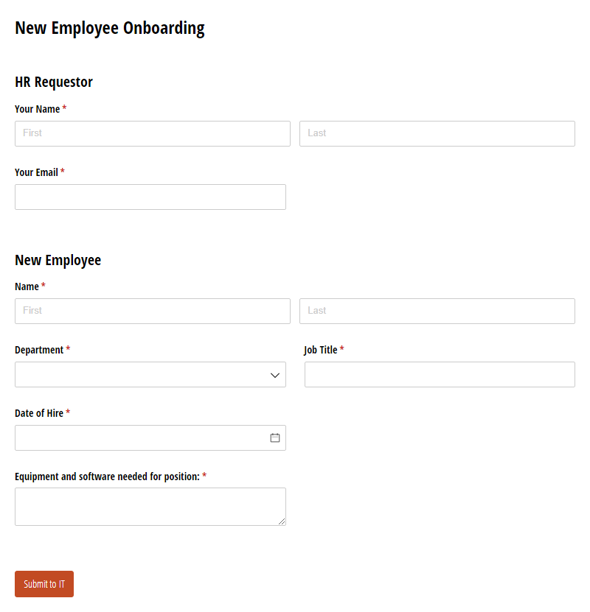
New Employee IT Onboarding Form
- Simplify IT setup requests from HR to IT in one structured workflow
- Automatic email notifications keep HR in the loop when setup is complete
- Fully customizable to fit your existing workflow
FAQ
In a serial task workflow, tasks happen one at a time in a set sequence – one person completes their step before the next person begins. In a parallel task workflow, two or more people complete independent tasks at the same time. Use serial when the order matters; use parallel when tasks can happen simultaneously.
Learn more about setting up a Parallel Task Workflow.